 Botmonster Tech
Is systemd-nspawn a better alternative to Docker for Linux containers?

Yes. For many workloads, systemd-nspawn beats Docker on leanness, simplicity, and host integration. It shines on servers and homelabs where you want isolated environments without daemon overhead. You launch a container with one command, manage it with machinectl, and run it as a systemd service. All the tools already ship with every modern Linux system.
That said, Docker and nspawn solve slightly different problems. Knowing where each one wins makes the choice easy.
What Systemd-Nspawn Is and When to Use It Instead of Docker
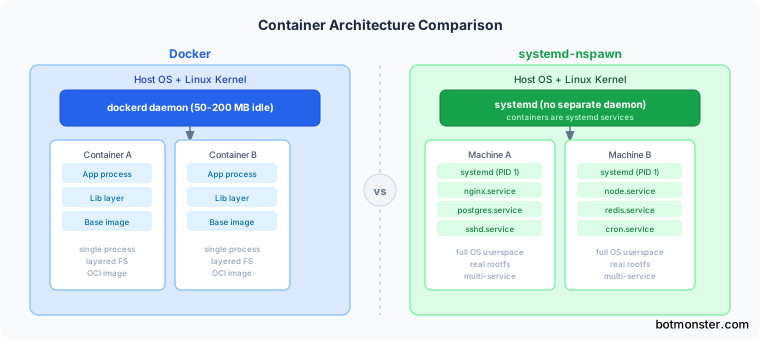
Systemd-nspawn is a namespace container tool. It boots a full Linux userspace inside an isolated environment that shares the host kernel. That means init, services, everything. It sits closer to LXC or a light VM than to Docker. A Docker container usually runs one process on a layered filesystem. An nspawn container boots a whole OS with systemd as PID 1, runs many services, and acts like a real machine. You can SSH in, run apt, manage services with systemctl, and treat it as a stand-alone host.
Pick nspawn when you want isolated dev environments per project. It also fits when you want to test services on Debian, Fedora, or Arch without spinning up VMs. It works well to sandbox daemons with cgroups limits. It gives you clean CI build environments that reset after every run. Or you just want zero daemon overhead.
Stick with Docker when you need OCI images from Docker Hub or a private registry. Same goes if you ship to Kubernetes, rely on Dockerfile build caches, or need orchestration across many hosts.
The big win for nspawn over Docker is simpler design. Docker runs a persistent dockerd daemon that eats roughly 50-200MB of RAM at idle. Nspawn has no daemon at all. Containers show up as ordinary units managed by systemd. You manage them with the same tools you already use for the rest of the host.
Here is how the main container tools stack up on resource overhead:
| Tool | Idle daemon RAM | Per-container overhead | OCI images | Full OS containers | Rootless by default |
|---|---|---|---|---|---|
| Docker | 50-200 MB | 5-10 MB | Yes | No | No |
| Podman | 0 MB | 3-8 MB | Yes | No | Yes |
| LXC/LXD | ~5 MB (LXD) | 1-3 MB | No | Yes | Partial |
| systemd-nspawn | 0 MB | 1-2 MB | No | Yes | No |
Nspawn ships in the systemd-container package on Debian and Ubuntu (apt install systemd-container). On Fedora and Arch it lives in the base systemd package. On most distros, no extra install is needed beyond that one package.
Creating Your First Nspawn Container
You need one package install and one or two commands to get a container running. The /var/lib/machines/ path is nspawn’s default storage spot. Drop rootfs directories there, and every machinectl command works on them right away.
Debian/Ubuntu Container
sudo apt install systemd-container debootstrap
sudo debootstrap --include=systemd,dbus trixie /var/lib/machines/debian-dev \
    http://deb.debian.org/debian
This builds a minimal Debian 13 rootfs in /var/lib/machines/debian-dev in about two minutes. Set the root password from the host before you boot it:
sudo systemd-nspawn -D /var/lib/machines/debian-dev passwd rootThen boot it with systemd as PID 1:
sudo systemd-nspawn -b -D /var/lib/machines/debian-devYou get a login prompt exactly like a physical machine.
Arch Linux Container
sudo apt install arch-install-scripts   # on Debian/Ubuntu hosts
sudo pacstrap -c /var/lib/machines/arch-dev base
On Arch hosts, pacstrap is already there. The arch-install-scripts package also lives in the Debian and Ubuntu repos. So you can build Arch containers from any distro.
Fedora Container
sudo dnf --releasever=41 \
    --installroot=/var/lib/machines/fedora-dev \
    --repo=fedora --repo=updates \
    install systemd passwd dnf fedora-release
This builds a Fedora 41 rootfs straight from dnf. You don’t need to be on a Fedora host.
Interactive Shell vs. Full Boot
You have two modes:
sudo systemd-nspawn -b -D /path/to/rootfsboots the full init system (systemd as PID 1). You get a real machine with services running.sudo systemd-nspawn -D /path/to/rootfsdrops you straight into a root shell without booting init. Handy for a quick package install or a one-off config tweak.
The -b flag is the line between “run a command inside a rootfs” and “boot an OS container.”
Managing Containers with Machinectl and Systemd Units
Machinectl is the systemctl of containers and VMs. Once your rootfs sits in /var/lib/machines/, every lifecycle action goes through it:
machinectl list                    # show all running containers
machinectl status debian-dev       # detailed info: IP, PID tree, OS, resource usage
machinectl start debian-dev        # boot container as background systemd service
machinectl stop debian-dev         # graceful shutdown
machinectl poweroff debian-dev     # send SIGRTMIN+4 (equivalent to power button)
To start a container on host boot, run sudo machinectl enable debian-dev. That creates a systemd-nspawn@debian-dev.service unit. You can inspect it with systemctl status systemd-nspawn@debian-dev.
For an interactive shell inside a running container:
machinectl shell debian-dev                 # interactive shell
machinectl login debian-dev                 # TTY login prompt with PAM
machinectl shell debian-dev /bin/bash -c "systemctl status nginx"  # one-off command
These act like docker exec -it, but with real PAM and session handling. File transfers between host and container use copy-to and copy-from:
machinectl copy-to debian-dev /local/file /container/path
machinectl copy-from debian-dev /container/path /local/dest
Persistent config lives in /etc/systemd/nspawn/<container-name>.nspawn. Here is a full, annotated example:
[Exec]
# Boot the container with systemd as PID 1
Boot=yes
# Limit CPU to 2 cores (200%)
CPUQuota=200%
# Relative CPU weight vs other containers (default 100)
CPUWeight=50
# Hard memory limit - triggers OOM kill
MemoryMax=4G
# Soft limit - triggers reclaim pressure before OOM
MemoryHigh=3G
# Map container root to unprivileged host user
PrivateUsers=yes

[Files]
# Bind-mount project directory read-write
Bind=/home/user/projects:/projects
# Bind-mount reference data read-only
BindReadOnly=/usr/share/doc:/doc

[Network]
# Private virtual Ethernet pair
VirtualEthernet=yes
# Port forwarding: host:80 -> container:80
Port=tcp:80:80
Port=tcp:443:443
Backup and migration use machinectl export-tar and import-tar:
# Export to compressed tarball
sudo machinectl export-tar debian-dev /backup/debian-dev.tar.xz

# Import on another host
sudo machinectl import-tar /backup/debian-dev.tar.xz debian-dev
Moving containers between hosts needs no registry, no special tooling, just the tarball.
Networking, Bind Mounts, and Resource Limits
Networking Modes
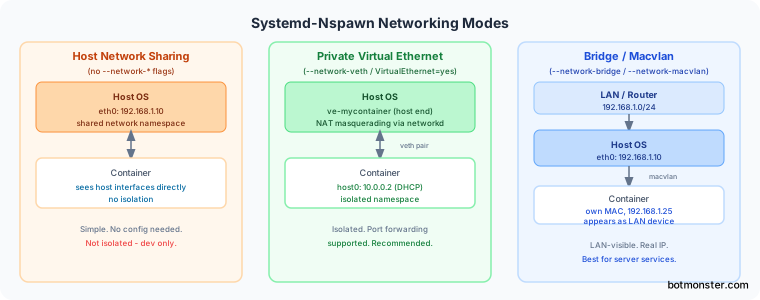
Nspawn gives you three main networking modes. Private virtual Ethernet (set with --network-veth or VirtualEthernet=yes in the .nspawn file) builds a ve-<name> interface pair. One end sits on the host, the other inside the container. Set up the host side with systemd-networkd to bridge these with NAT masquerading. Containers then pick up addresses via DHCP. This is the right mode for anything in production.
For dev work, the easiest path is to skip networking flags and share the host’s network stack. The container sees every host interface and port, but there is no network isolation.
For LAN exposure, --network-bridge=br0 adds the container’s interface to an existing bridge. It then gets a real LAN IP via DHCP. The --network-macvlan=eth0 flag builds a virtual interface with its own MAC on the physical NIC. The container then looks like a separate machine on the network.
Port forwarding needs private networking. Use the Port= line in the .nspawn file, or -p on the command line:
# Forward host port 8080 to container port 80
sudo systemd-nspawn --network-veth -p tcp:8080:80 -b -D /var/lib/machines/nginx-box
Note the host’s FORWARD chain in iptables or nftables must allow forwarded traffic. Nspawn writes the NAT rules, but not the broader forwarding policy.
Bind Mounts
Share directories between host and container with --bind:
# Read-write mount
sudo systemd-nspawn --bind=/home/user/projects:/projects -D /var/lib/machines/debian-dev

# Read-only mount
sudo systemd-nspawn --bind-ro=/data/reference:/data -D /var/lib/machines/debian-dev
For persistent mounts, add them to the .nspawn file’s [Files] section, as shown above.
Resource Limits via Cgroups v2
All resource controls run on cgroups v2 and live in the .nspawn file’s [Exec] section:
CPUQuota=200%: cap at 2 CPU coresCPUWeight=50: relative scheduling weight (default 100)MemoryMax=4G: hard OOM-kill boundaryMemoryHigh=3G: soft limit, kicks off memory reclaim before OOM
You can also watch resource use live with systemctl status systemd-nspawn@<name> or machinectl status <name>. Both show CPU and memory in the same format as any other systemd unit.
Practical Use Cases and Production Patterns
Isolated Development Environments
The most common homelab pattern: one container per project. Each one gets its own language runtime, database, and toolchain. Bind-mount the project folder from the host so edits show up inside the container right away. Then use VS Code Remote-SSH or JetBrains Gateway to plug in your IDE.
Example flow for a Node.js project:
machinectl start node-project
machinectl shell node-project /bin/bash -c "cd /projects/myapp && npm install && npm run dev"
Reach the dev server from the host via the container’s IP (shown in machinectl status node-project). No Node.js on the host. The runtime lives only inside the container.
Sandboxed Network Services
Run services like Nginx, PostgreSQL, or Pi-hole inside nspawn containers with private networking and PrivateUsers=yes. That flag maps root inside the container to a plain user on the host. If the service is breached, the attacker can’t escape to host root.
# /etc/systemd/nspawn/nginx-sandbox.nspawn
[Exec]
Boot=yes
PrivateUsers=yes
CPUQuota=100%
MemoryMax=512M

[Network]
VirtualEthernet=yes
Port=tcp:80:80
Port=tcp:443:443
Turn on auto-start with sudo machinectl enable nginx-sandbox. You now have a sandboxed web server run by systemd. It shows up in systemctl, logs to journald, and is capped by cgroups.
Security Hardening
Systemd-nspawn turns on a seccomp syscall allowlist by default. Unknown syscalls return ENOSYS. Known but off-list syscalls return EPERM. This baseline fits most workloads. You can extend it with --system-call-filter=<syscall> to allow extra syscalls your app needs.
Capability dropping is automatic. Nspawn strips risky capabilities from the container’s set even with no extra config. Key ones like CAP_DAC_READ_SEARCH (blocks open_by_handle_at attacks) and CAP_SYS_PTRACE (blocks process attachment) are dropped by default. If a service inside the container needs a given capability, add just that one with Capability=<cap> in the .nspawn file. Don’t grant the full set.
Ephemeral Build Environments
For a self-hosted CI/CD pipeline or repeatable builds, the --ephemeral flag spins up a throwaway copy-on-write overlay of a base container. All changes get dropped when the container stops:
sudo systemd-nspawn --ephemeral -b -D /var/lib/machines/build-baseThe base image stays clean. Every build starts from the same fresh state, with no need to reprovision from scratch.
The Template/Clone Pattern
Keep a “golden” base container with your standard tools, then clone it for new projects:
machinectl clone debian-base project-x
machinectl start project-x
If /var/lib/machines lives on a btrfs filesystem, cloning uses btrfs snapshots. That is instant and cheap on disk, since only the diffs are stored. On ext4, it does a full copy. Pair ephemeral containers with btrfs snapshots, and you get a light, Docker-free build environment with near-zero overhead.
When to Stick with Docker
Nspawn is not a drop-in Docker replacement. If you pull images from Docker Hub, push to a registry, or ship to Kubernetes, Docker or Podman is still the right tool. If your team runs docker-compose flows, moving to nspawn means rewriting that tooling from scratch with machinectl and .nspawn files.
For long-running background services on a single Linux host (database engines, web servers, self-hosted apps, build agents), nspawn’s native systemd hook-in is often simpler and easier to maintain. There is no extra daemon to keep healthy, no extra logging pipeline, no storage driver to tune. The container shows up in systemctl like anything else. Your existing monitoring and ops habits carry over with no changes.