 Botmonster Tech
Local AI security cameras: Frigate with Google Coral TPU
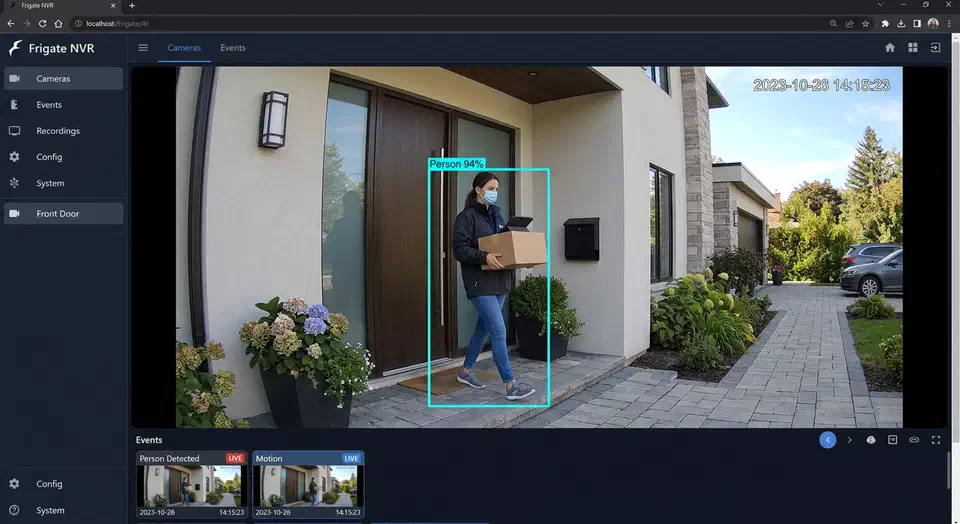
Cloud security camera fees have become one of the priciest bills in the smart home. At $10 to $30 per camera each month, a full setup runs $500 to $1,000 a year. You pay that to have your own footage handled on someone else’s servers. Frigate NVR changes the math. Paired with a Google Coral TPU, it runs real-time AI person and object detection across many 4K streams. Inference takes single-digit milliseconds. It all runs on hardware you own, on a network that never phones home.
Why Local AI Security Cameras?
The financial case is straightforward: a Google Coral USB Accelerator costs around $60 as a one-time purchase. A Coral M.2 can be found used for $25. Either device, combined with an existing mini-PC or home server, replaces a subscription service within the first month or two of savings.
The privacy case is stronger. Every time a cloud camera spots motion, it uploads that clip to a remote server for review. For outdoor cameras, that’s just awkward. For cameras inside your home, it means a steady stream of family footage leaving your network. Indoor AI cameras with local processing keep that footage on site. No clip ever leaves your router.
Resilience is the third win. Internet outages tend to hit at the worst times. They knock out cloud cameras for both recording and alerts. A local Frigate setup keeps recording, running motion checks, and sending alerts over your LAN to a locally hosted Home Assistant instance, no matter what your ISP is doing.
Finally, Frigate’s detection list is broad. Out of the box, it spots people, cars, dogs, cats, birds, and dozens of other COCO dataset classes. Optional add-ons extend that to face recognition and license plate reading. All of it runs on your premises. The same local-first idea fits every sensor in your smart home. See how to assemble a cloud-free indoor air monitor that feeds data to Home Assistant with no cloud link.
Hardware Requirements and Setup
Frigate is not too demanding. An Intel N100 mini-PC or a Raspberry Pi 5 with 4 GB of RAM is enough to start. That is even more true once you offload inference to a Coral. If you plan to run Home Assistant, Frigate, and a local language model on the same box, aim higher. A stronger x86 system with 16 GB of RAM and a PCIe slot is worth the spend.
The Coral comes in three main form factors. The USB Accelerator ($60) is the easiest start. Plug it in, set up Frigate, and you’re running. It serves 4 TOPS of inference, which handles two to four 1080p streams in real time. The M.2 A+E variant ($25 used) connects over PCIe x1. That cuts USB bus latency, so it fits boxes that will run six or more cameras. The Dual Edge TPU M.2 (~$35) doubles the compute to 8 TOPS. It’s the right pick for setups with eight or more streams at 1080p, or four at 4K.
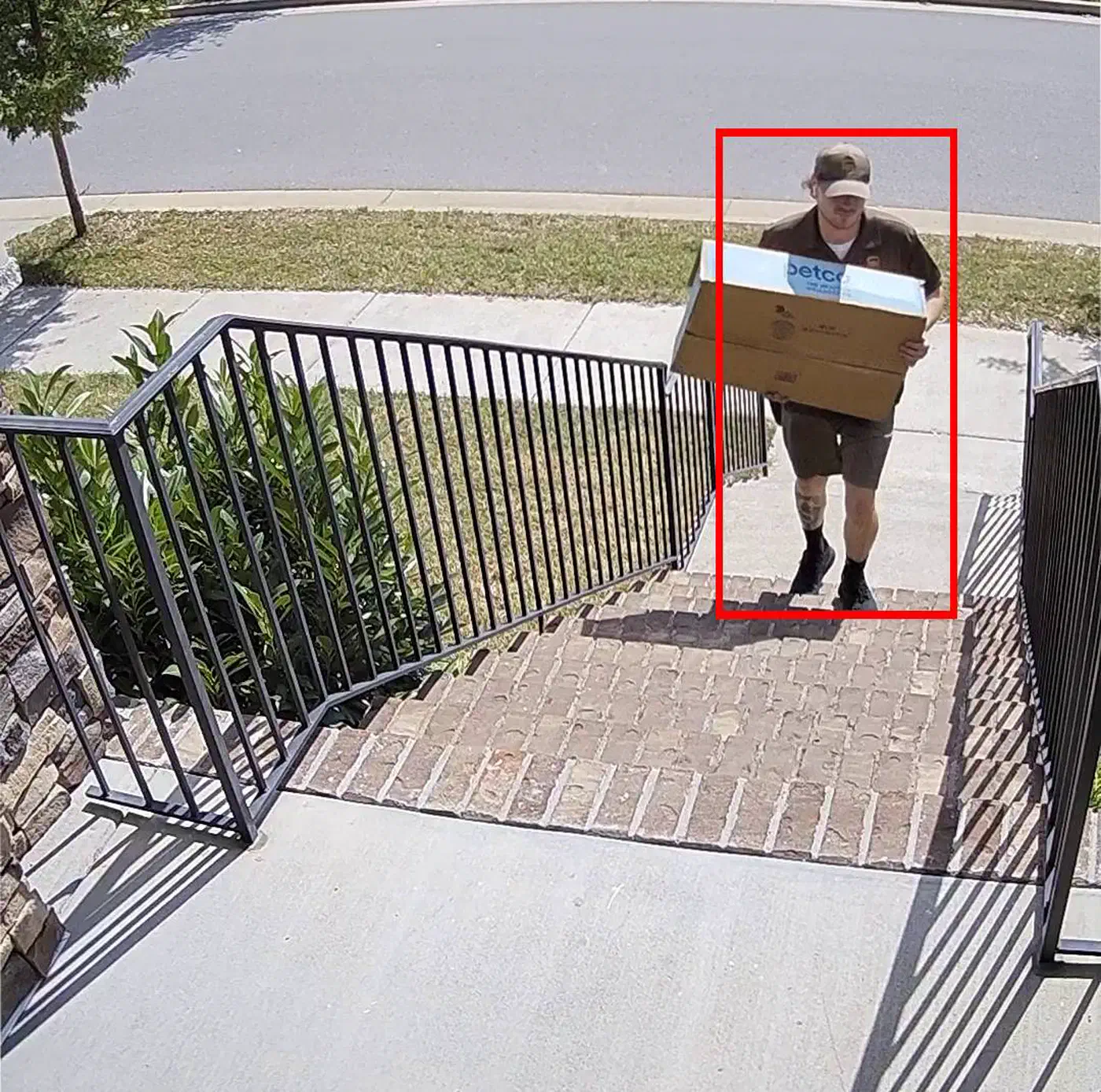
Camera choice is as important as the server hardware. Frigate needs a camera that exposes an RTSP or RTMP stream and encodes in H.264 or H.265. Any camera that funnels you into a closed app with no RTSP option won’t work. Pocket recorders fall in the same bucket, since they only report status through a colored LED and never expose a stream. Good budget picks include the Reolink RLC-810A (4K PoE, about $50), the Amcrest IP8M-2483EW, and any Hikvision or Dahua OEM. These cameras let you pull a direct RTSP URL with no maker cloud at all, and Reolink models in particular run fully local through go2rtc inside Home Assistant.
Network Infrastructure: Put Cameras on Their Own VLAN
Before a single cable goes in, plan your camera VLAN. Cameras belong on a walled-off IoT VLAN with no internet access and no path to your main LAN. Your Frigate server runs in that VLAN, or has a leg in it via a trunk port. It’s the only device that passes camera streams out to the rest of your network. A hacked camera firmware can’t reach your NAS, your desktop, or your Home Assistant box. Most prosumer routers and managed switches support 802.1Q VLANs. UniFi, pfSense/OPNsense, and TP-Link Omada all handle this setup well.
Moving to On-Camera AI (Edge AI)
2026 has brought a new class of camera worth knowing before you commit to a Frigate-only setup. Cameras built on the Ambarella H32 SoC pack a built-in NPU. It can run person and vehicle detection on the camera itself. Rather than send a full video stream to an NVR for review, these cameras send only short metadata events: “PersonDetected at timestamp X in zone Y”. The NVR just stores the recorded video.
Matter 1.4’s new “Camera” device type makes this pattern official. A Matter-certified camera can emit PersonDetected and VehicleDetected events to any Matter controller. That includes Home Assistant’s Matter server, with no custom glue code.
For high-priority cameras like the front door, main entry, and indoor spaces, Frigate on a Coral TPU still wins on accuracy. Its models are larger. They run on faster dedicated hardware than an embedded NPU. For lower-priority outdoor cameras on a driveway or backyard perimeter, an edge AI camera cuts both network use and server load. The practical answer in 2026 is a hybrid: edge AI cameras on the perimeter, Frigate plus Coral on the high-value cameras.
NVR Comparison
Before you sink time into a Frigate setup, it helps to see how it stacks up against other tools:
| Feature | Frigate | Shinobi | MotionEye | Scrypted |
|---|---|---|---|---|
| AI detection | Yes (YOLO, custom) | Plugin-based | Motion only | Yes (CoreML, TF) |
| Coral TPU support | Native | No | No | Limited |
| Home Assistant integration | Native (HACS) | Manual | Manual | Yes |
| Web UI | Modern, built-in | Full-featured | Basic | Modern |
| Hardware encoding | Yes (QSV, NVENC) | Limited | No | Yes |
| License | Open source | Open source | Open source | Open source |
| Active development | High | Moderate | Low | High |
Shinobi is the most full-featured general-purpose NVR. Its AI parts are bolted on rather than built in. MotionEye is still widely used, but it lacks any modern AI detection. Scrypted is a great HomeKit-first option with growing HA support. Still, its Coral support is less mature than Frigate’s. If AI detection and Home Assistant are your top picks, Frigate is the clear win.
Installing Frigate with Docker Compose
The fastest path to a working setup is Docker Compose. The service block below covers a USB Coral with hardware video decoding via Intel Quick Sync (QSV):
services:
  frigate:
    container_name: frigate
    image: ghcr.io/blakeblackshear/frigate:stable
    restart: unless-stopped
    privileged: true
    shm_size: "256mb"
    devices:
      - /dev/bus/usb:/dev/bus/usb       # USB Coral TPU
      # For PCIe/M.2 Coral, use instead:
      # - /dev/apex_0:/dev/apex_0
      - /dev/dri/renderD128:/dev/dri/renderD128  # Intel QSV
    volumes:
      - /etc/localtime:/etc/localtime:ro
      - ./frigate/config:/config
      - /mnt/nvr/frigate:/media/frigate
    ports:
      - "8971:8971"   # Authenticated web UI
      - "8554:8554"   # RTSP restream
      - "8555:8555/tcp"  # WebRTC
      - "8555:8555/udp"
    environment:
      FRIGATE_RTSP_PASSWORD: "changeme"
For NVIDIA GPU encoding, swap the QSV device line for - /dev/nvidia0:/dev/nvidia0 and add runtime: nvidia to the service block. For AMD GPUs, use VAAPI with /dev/dri/renderD128 and set hwaccel_args to preset-amd-vaapi in your config.
The minimum config.yml to get Frigate running with a single camera and Coral detection looks like this:
mqtt:
  host: 192.168.1.10   # Your MQTT broker IP
  user: frigate
  password: changeme

detectors:
  coral:
    type: edgetpu
    device: usb

cameras:
  front_door:
    ffmpeg:
      inputs:
        - path: rtsp://admin:password@192.168.10.50:554/stream1
          roles:
            - detect
            - record
    detect:
      width: 1920
      height: 1080
      fps: 5
    record:
      enabled: true
      retain:
        days: 7
    snapshots:
      enabled: true
      retain:
        default: 14
After you bring the stack up with docker compose up -d, open port 8971 on your server to see the Frigate UI. Port 8971 is the authenticated UI; port 5000 is an unauthenticated internal port meant for the Docker network only. The key check is the /api/stats endpoint. With a working Coral, the detector_inference_speed value should read below 10 ms per frame. On CPU alone, that number tends to land between 100 ms and 500 ms. That’s a 20 to 50x gap. It explains why the Coral is non-negotiable for multi-camera setups.
Storage Planning
Storage use depends on motion rate and camera count. A useful rule of thumb: at default settings with seven-day clip keep and ten cameras, budget 50 to 100 GB per month. Frigate records only motion-triggered clips by default. That’s far leaner than 24/7 recording. If you turn on full 24/7 capture, multiply that number by 5 to 10x, based on resolution and codec. An 8 TB drive covers a ten-camera setup with room to spare. For longer keep windows, Frigate supports tiered storage to network shares via NFS or SMB mounts.
Configuring Detection Zones and Masks
A raw Frigate setup will fire a flood of alerts from wind-blown trees, passing cars, and flags in the breeze. Zones and masks are what turn Frigate from noisy to useful.
Motion masks are polygon shapes drawn in the Frigate UI. Motion inside them is ignored. Draw one over a tree, a flag, or a busy road in the frame. Frigate will stop reacting to motion in those zones at the pixel level.
Object masks work at the detection layer, not the motion layer. If a garden statue or a parked bicycle keeps firing person detections, drop an object mask over that spot. Frigate will toss detections in that zone even after the neural net has tagged them.
Zones are named polygon shapes that carry meaning for your automations. Set a front_door_zone that covers just the porch. Add a driveway_zone for the driveway and a street_zone for the public sidewalk. Your Home Assistant automations can then fire only when a person enters front_door_zone, not just when one shows up anywhere in the camera view.
The required_zones config key is the best false-positive cure Frigate offers. It tells Frigate not to emit a detection event unless the object has entered a named zone. A person walking past on the street will not trigger your front-door alert. A person walking up the driveway and into front_door_zone will.
Object filters add a last layer of quality control. Setting min_score: 0.7 rejects any detection below 70% confidence. min_area rejects tiny detections (a far-off figure that takes up only 40 pixels). max_ratio rejects detections with an odd width-to-height ratio. That catches common false hits, like a strip of sunlight tagged as a person.
Face and Pet Recognition with Local VLMs
Frigate’s built-in detection tells you that a person is present. What most users want to know is which person. There are two approaches.
Frigate+ is a paid service at $50/year. It gives you access to custom-trained models that also make Frigate’s face recognition and license plate reading more efficient (both are built into Frigate itself from 0.16). The model training portal is cloud-based. The inference, though, runs on your local hardware. Your video never leaves the premises. The fee buys a better model, and no cloud compute is involved.
For a fully free option, a local Visual Language Model gives you something often more useful than face recognition: a plain-text description of the scene. When Frigate emits a person event over MQTT, a Home Assistant automation grabs the latest snapshot from Frigate’s snapshot API. It then sends the image to a local Ollama instance running LLaVA-7B or MiniCPM-V. The model returns a sentence like “A person in a red jacket is at the front door holding a package.” That description gets tacked onto your mobile alert.
This is much better than a plain “person detected” ping. You can decide without opening an app whether the alert is worth a look. LLaVA-7B on a dedicated GPU chews through a 1080p snapshot in 0.5 to 2 seconds. That’s fine for alert text that doesn’t need to be real time. The same local Ollama host can answer voice commands too, doubling as the brain for a private Home Assistant voice pipeline.
Home Assistant Integration and Automations
Install the Frigate integration from HACS. Search for “Frigate” in the HACS store. Then add the integration via the Home Assistant UI with Frigate’s hostname and port 5000. The integration spins up a rich set of entities for each camera: binary_sensor.front_door_person, binary_sensor.front_door_motion, and camera.front_door_latest_person. The last one is a snapshot entity that updates with each detection.
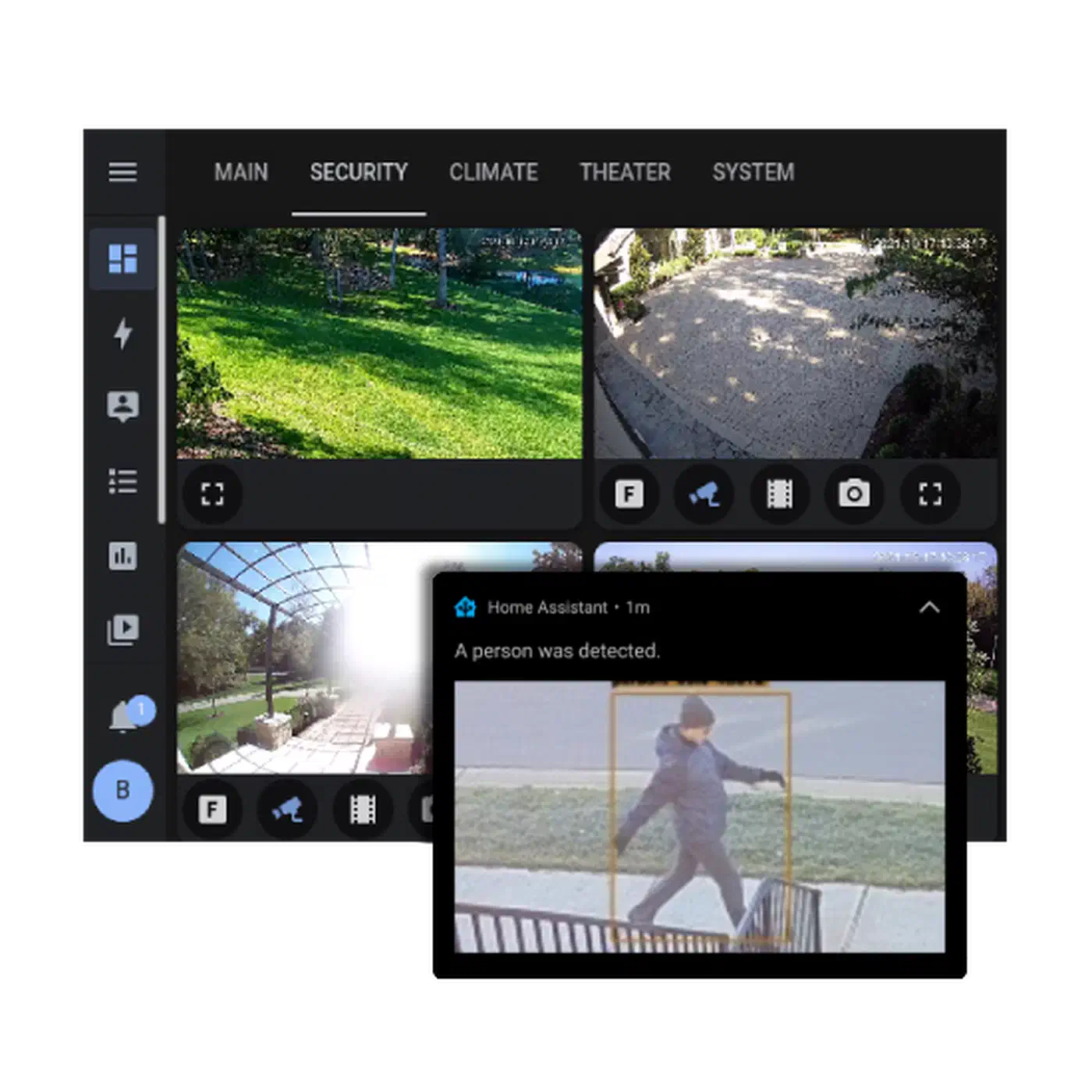
For lower-latency automations, skip the HTTP-based integration. Listen to Frigate’s MQTT events instead. Frigate publishes events to frigate/events and per-camera topics like frigate/front_door/person. An MQTT trigger in a Home Assistant automation reacts within milliseconds of the detection, rather than waiting for the polling step.
Three automations cover the most common use cases:
Person at Front Door. Trigger: Frigate person event in front_door_zone. Action: fetch the latest snapshot from http://frigate:5000/api/front_door/latest.jpg. Send it as a mobile alert with “View Camera” or “Dismiss” buttons. This swaps out the default Ring-style doorbell ping for a fully local, no-fee version.
Armed Away + Intruder Alert. Trigger: any Frigate person event while the Home Assistant alarm is in armed_away. Action: fire a siren via Home Assistant. Switch Frigate’s recording mode to 24/7 via its REST API. Send a high-priority alert to every household device. You get a full intruder response chain that runs with no internet at all.
Package Delivery Detection. Trigger: person detected in front_door_zone, then no person in the same zone within 30 seconds, between 08:00 and 20:00. Action: “A package may have been delivered to the front door” alert. This pattern, presence then absence within a short window, has a high hit rate for spotting drop-offs with no extra hardware.
Putting It Together
A full Frigate setup takes an afternoon. The payoff is a camera system that beats most consumer cloud rigs on detection accuracy, privacy, resilience, and long-term cost. The Google Coral TPU is the key hardware. It makes multi-camera real-time AI work on modest server gear, though the Hailo-8 now beats it on raw throughput if you are buying fresh. Frigate’s tie-in with Home Assistant turns raw detections into smart, context-aware automations.
The one-time hardware cost is small: a mini-PC, a Coral TPU, and a handful of PoE cameras. It pays for itself within a few months versus equivalent cloud tiers. Before you order the parts, you can estimate what your Frigate box draws in electricity each month. After that you keep footage that stays yours, a system that works when the internet goes down, and automations that get sharper as you refine your zones and filters.