 Botmonster Tech
Setup local voice control with Willow for Home Assistant
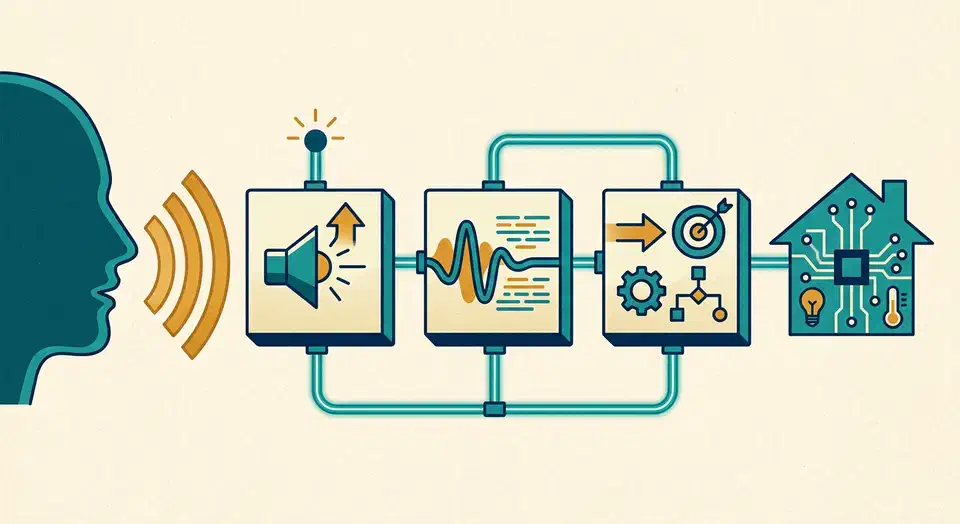
Willow gives you sub-second local voice control for Home Assistant without sending your audio to the cloud. With an ESP32-S3 Box, you can build a private smart speaker that matches the speed of commercial assistants. Every spoken word stays inside your own network. This guide walks through the full setup: hardware, server deployment, firmware flashing, pipeline config, and the fixes for the most common problems.
Why Local Voice Control Is Worth It in 2026
Say “Hey Alexa” or “OK Google” and an audio clip travels from your home to a data center. There it gets transcribed by a third-party model, passes through an intent classifier, triggers an action, and returns a response. The whole trip usually takes under two seconds. That pipeline is impressive engineering. It is also a steady stream of your household’s spoken data flowing to Amazon and Google servers, where it is logged, reviewed by contractors, and used to train future models.
Cloud voice assistants have three built-in problems for privacy-minded homeowners. First, every command is recorded and tied to your account. Second, the system stops working during internet outages, which tend to hit at the exact moments home automation is most useful. Third, vendors control the models and features. They can change pricing or data policies whenever they want.
Local voice control fixes all three. When wake word detection runs on the device itself, no audio leaves your home until you speak the trigger phrase. Even then, the audio goes only to your own server. When the speech-to-text model runs on your home server, transcription happens in milliseconds with no outside dependency. Home Assistant’s “Year of the Voice” effort, which ran through 2023 and 2024, built a first-class local intent engine, the “Assist” pipeline, for this exact setup. Willow is the firmware layer that links cheap ESP32-S3 hardware to that pipeline.
A warmed-up local stack on decent server hardware (a four-core mini-PC or a Raspberry Pi 5) typically runs 300 to 700 ms from end of speech to device response. That feels the same as a commercial assistant. On a home server with a dedicated GPU or a modern x86 CPU running the tiny.en Whisper model, response times can drop below 300 ms.
Hardware Requirements
The main platform for Willow is the M5Stack ESP32-S3 Box-3, which sells for about $50. It packs dual MEMS microphones with a dedicated DSP chip for wake word processing, a 2-inch IPS touchscreen, a built-in speaker, and a USB-C port for both power and flashing. The dual-mic array with hardware DSP is not a cosmetic feature. It is what makes always-on wake word detection both power-efficient and accurate. The DSP handles the signal work at milliwatt-level power draw, so the main CPU never wakes for every audio frame.
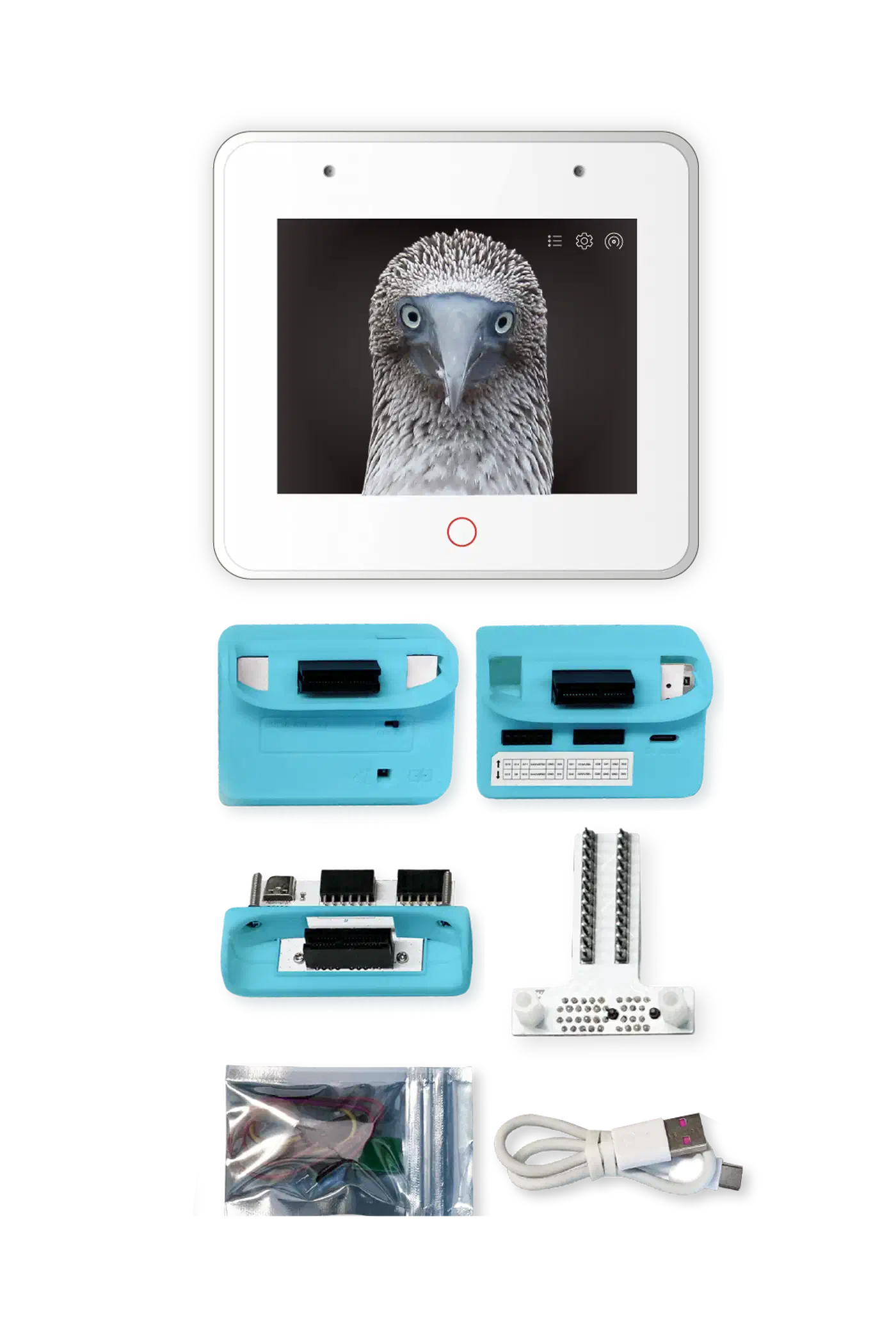
Two cheaper variants exist. The ESP32-S3 Box (original, about $40) shares the same core hardware but uses an older enclosure. The ESP32-S3 Box-Lite (about $30) drops the display. That makes it a good fit where you do not need visual feedback, such as inside a cabinet or mounted near a light switch.
On the server side, you run the Willow Application Server (WAS). This is a Docker container that handles device config, firmware updates, and the bridge between the ESP32 devices and Home Assistant. You need at least 2 GB of RAM and a 64-bit CPU (x86_64 or ARM64). A Raspberry Pi 4 with 4 GB RAM, a Synology NAS running DSM 7, or any Linux mini-PC works well. To run local speech-to-text on the same machine instead of a cloud fallback, budget at least 4 GB of RAM for the Whisper inference container.
The Willow Inference Server (WIS) is the optional local STT backend. It runs OpenAI Whisper models on your server. WIS is where audio from the ESP32 turns into text before it heads to Home Assistant’s Assist pipeline. Running WIS locally is strongly recommended. It drops the cloud fallback, cuts latency by keeping traffic on the LAN, and means your audio never leaves your home no matter what happens to outside services.
One network rule trips up many users. All devices, meaning the ESP32-S3 Box units, the WAS/WIS server, and the Home Assistant instance, must sit on the same Layer 2 broadcast domain. At a minimum, they need mDNS or multicast routing between them. If your ESP32 devices live on a guest VLAN that is firewalled from your server VLAN, Willow won’t work without explicit routing rules for UDP multicast and the WAS API port.
Installing the Willow Application Server
Before you start, make sure Docker and Docker Compose are installed on your server and that Home Assistant is running with the REST API reachable. You also need a Home Assistant long-lived access token. Generate one at http://your-ha-instance:8123/profile under “Long-Lived Access Tokens.”
Create a directory for WAS and add the following docker-compose.yml:
version: "3.8"
services:
  willow-application-server:
    image: ghcr.io/toverainc/willow-application-server:latest
    container_name: willow-was
    restart: unless-stopped
    ports:
      - "8080:8080"
    volumes:
      - ./was-config:/app/config
    environment:
      - WAS_PORT=8080
Start the container with docker compose up -d. The WAS web UI is then available at http://your-server-ip:8080. On first run, the UI walks you through the required fields:
- Home Assistant URL: The full URL of your HA instance, e.g.,
http://192.168.1.10:8123 - Long-Lived Token: The token generated in your HA profile
- Default Language: Select from supported languages (English, German, French, Spanish, and more)
- Wake Word: Choose between “Alexa” (licensed from Espressif, highest accuracy), “Hi ESP” (fully open), or a custom model
If you are also running WIS for local STT, add a second service to the same docker-compose.yml:
  willow-inference-server:
    image: ghcr.io/toverainc/willow-inference-server:latest
    container_name: willow-wis
    restart: unless-stopped
    ports:
      - "9000:9000"
    volumes:
      - ./wis-models:/app/models
    environment:
      - WIS_PORT=9000
In the WAS UI, set the STT backend to “Local (WIS)” and enter http://your-server-ip:9000 as the WIS endpoint. On first start, WIS downloads the chosen Whisper model: several hundred MB for tiny.en, around 1.5 GB for small. Check that WAS is reachable from the ESP32’s network segment. Open http://your-server-ip:8080/api/v1/config in a browser from a device on the same subnet. It should return a JSON config object.
Flashing the ESP32-S3 Box with Willow Firmware
Willow ships a browser-based web installer that flashes firmware with no command-line tools, drivers, or dev toolchain. Go to heywillow.io and click “Flash Device.” The installer uses the WebSerial API, which works only in Chromium-based browsers like Chrome and Edge. Connect your ESP32-S3 Box over USB-C and pick it from the serial port picker in the browser dialog.
Flashing takes two to four minutes. The device reboots several times along the way, which is normal. Don’t disconnect the USB cable until the installer reports success.
Once flashing finishes, unplug the USB cable and power the device from a USB adapter. On first boot, the ESP32-S3 Box broadcasts a Wi-Fi access point named willow-XXXXXX. Connect your laptop or phone to this hotspot. A captive portal opens on its own, or you can browse to 192.168.4.1 by hand. In the captive portal, enter:
- Your home Wi-Fi SSID and password
- The URL of your WAS instance:
http://192.168.1.x:8080 - Your preferred wake word (this can be changed later from WAS)
After you save, the device joins your home Wi-Fi and registers with WAS. Within 30 seconds, it should show up in the WAS dashboard as “online” with its IP address and firmware version. The device’s screen shows a ready-state animation.
After pairing, the WAS UI lets you adjust wake word selection, microphone gain, speaker volume, display brightness, and the language for both STT and TTS responses.
Wake Word and Speech-to-Text Pipeline
Knowing the full audio pipeline helps you tune speed and find problems. The pipeline has three distinct stages, each running in a different place.
Stage 1: Wake word detection on-device. The ESP32-S3 Box’s DSP chip runs wake word detection nonstop at very low power, typically 50 to 80 mW in always-listening mode. The DSP scans audio in real time with a pre-trained neural network model stored in the device’s flash. No audio is sent anywhere during this phase. When the model’s confidence score clears the set threshold, the DSP signals the main CPU and audio capture starts. This design is why smart speakers don’t drain their batteries running full inference all day.
Stage 2: STT transcription on the server. After wake word detection, the device captures 2 to 4 seconds of audio. It sends that over a WebSocket connection to WAS, which forwards it to WIS. WIS runs Whisper inference on the audio buffer and returns a text transcription. Your choice of Whisper model has a big effect on both latency and accuracy:
| Model | Language | Size | Latency (4-core CPU) | Best for |
|---|---|---|---|---|
tiny.en | English only | 75 MB | ~120 ms | Speed-critical, English-only homes |
base | Multilingual | 145 MB | ~200 ms | Multilingual households |
small | Multilingual | 483 MB | ~400 ms | Best accuracy, adequate hardware |
medium | Multilingual | 1.5 GB | ~900 ms | Not recommended for interactive use |
For most English-speaking households, tiny.en gives the best experience. It is fast enough that the full round-trip from end-of-speech to device response stays under 500 ms on a modest server.
Stage 3: Intent recognition in Home Assistant. The transcribed text goes to HA’s conversation API endpoint (/api/conversation/process) as a POST request with the text payload. HA’s built-in Assist pipeline parses the text against a set of registered intents. Built-in commands cover device control (“turn off the kitchen lights,” “lock the front door”), sensor queries (“what is the temperature in the bedroom,” “is the garage door open”), and scene activation. The response text travels back through WAS to the device, where it is spoken with the chosen TTS engine.
Custom Wake Words and Voice Profiles
The default wake word options are “Alexa” (from Espressif’s licensed build) and “Hi ESP.” Both work, but each has trade-offs. “Alexa” rarely misses a real trigger because it was trained on millions of samples. Still, using Amazon’s trademark for a local assistant feels odd. “Hi ESP” is fully open, but it fires falsely more often because it is a less distinctive set of sounds.
openWakeWord is an open-source framework for training custom wake word models that run on microcontrollers, including the ESP32-S3. Training a custom model needs positive examples (recordings of your chosen wake word) and negative examples (background noise, conversation, music, other speech). Aim for at least 100 positive examples for a working model and 500 for solid results. Record the wake word in different rooms, at different distances, and from several speakers if more than one person will use the device. That sharply improves accuracy.
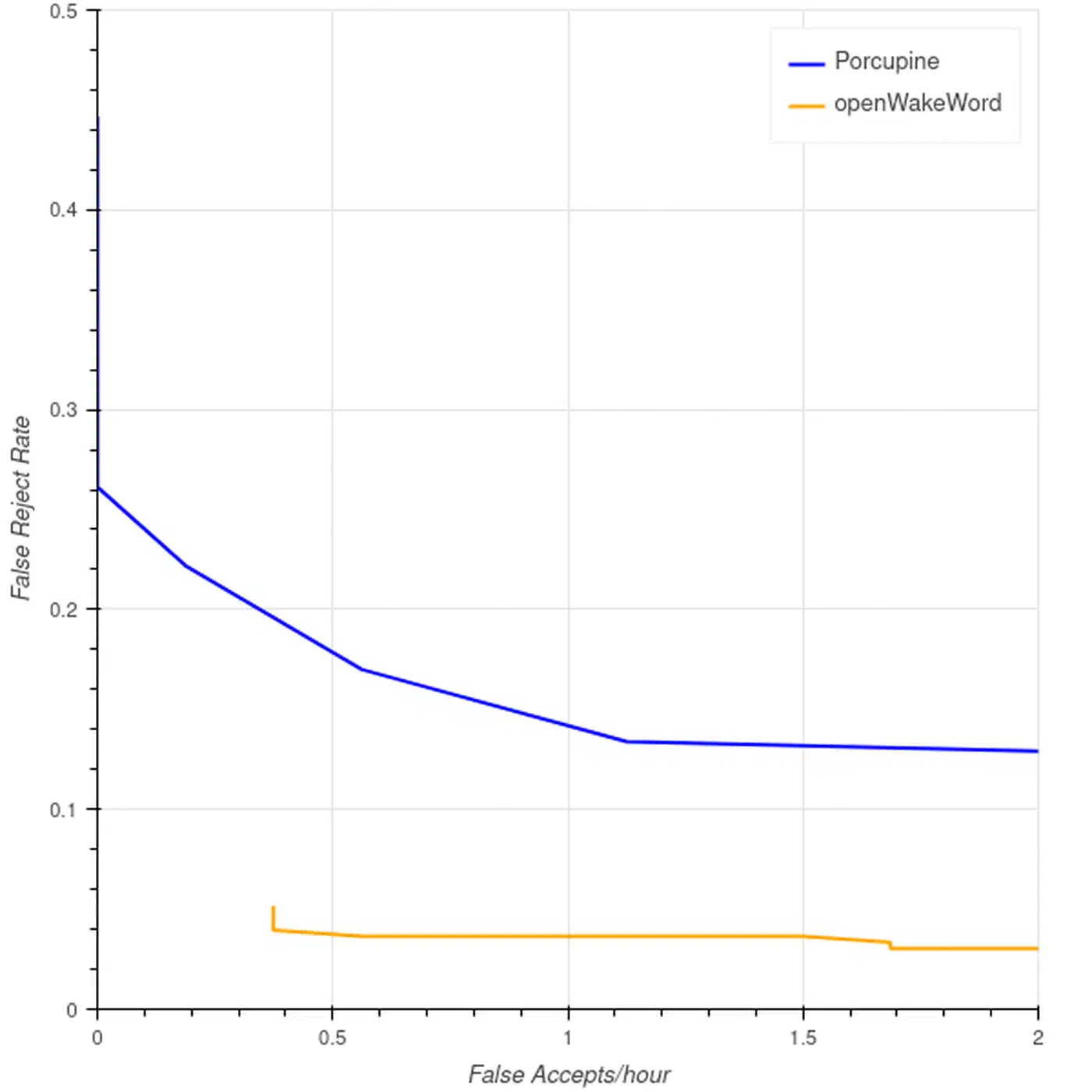
After training, export the model as a .tflite file and upload it to WAS through the wake word management section of the UI. WAS pushes the model to all registered devices on their next connection. Custom wake word models fire falsely more often than commercial ones until you gather enough training data. Plan for an early tuning period where you adjust the sensitivity threshold in WAS. The openWakeWord GitHub repository also hosts a community model library. There you can download pre-trained models for common phrases like “Hey Jarvis” and “Computer” with no training at all.
Multi-Room Setup and the Assist Pipeline
One of Willow’s practical strengths is that a single WAS instance supports many ESP32-S3 Box devices at once. Each device registers on its own with WAS, holds its own WebSocket connection, and can take a name like “kitchen” or “bedroom” that Home Assistant uses for room-aware commands. When a device sends a request, WAS tags it with the device ID. That lets HA read a command like “turn on the lights” in the context of which room the device sits in. You set this up in HA by adding each Willow device as its own conversation entry with an area assigned.
Home Assistant’s Assist pipeline arrived in 2023 and has grown a lot since. It goes well past simple device on/off commands. Assist handles multi-step conversations, context across turns, and custom sentence templates written in YAML. For example, you can define custom intents for queries like “run the dishwasher at midnight” or “remind me to take my medication in 30 minutes.” The built-in sentence parser alone would not catch those. Pairing Willow’s always-on hardware with Assist’s flexible intent system gives you a voice interface that truly rivals commercial assistants for home automation. For a hands-on example, see how to use voice-controlled LED strips with WLED to bring room-by-room lighting under the same setup. The same room-aware approach pairs neatly with Snapcast audio you can sync across the house, so a spoken command can start music in the room you are standing in.
Custom TTS with Piper
The default TTS voice WAS uses for responses works, but it sounds robotic. Piper is an open-source neural text-to-speech engine from the Rhasspy project. It produces far more natural speech and runs fully on your own hardware. To go further and build a standalone offline assistant beyond just Home Assistant commands, see our guide on running a fully self-hosted voice stack. Piper ships pre-trained voice models for dozens of languages and accents, from compact 30 MB models to high-quality 130 MB ones. If none of them sound right, you can train a voice of your own with Coqui TTS from a few minutes of audio.
To use Piper as the TTS backend, add it as a third service in your docker-compose.yml and point WAS at http://your-server-ip:5000 as the TTS endpoint. The WAS UI has a TTS backend selector where you switch from the default engine to the Piper URL. Once you save, all device responses use the Piper voice. Picking a voice model is a personal call. The en_US-lessac-high model is a popular choice for English because it sounds natural at a conversational pace and handles smart home words like device names, room names, and numbers cleanly.
Comparing Local Voice Options: Willow, Wyoming, and Rhasspy
If you are evaluating local voice control options for Home Assistant, three projects are worth comparing:
| Feature | Willow (ESP32-S3 Box) | Wyoming Protocol (HA native) | Rhasspy v3 |
|---|---|---|---|
| Hardware | Dedicated ESP32-S3 Box | Any mic-equipped device | Any mic-equipped device |
| Wake word | On-device DSP (low power) | CPU-based (higher power) | CPU-based |
| Setup complexity | Low (web installer) | Medium | High |
| HA integration | Native via REST API | Native (built-in) | Via MQTT or REST |
| Custom wake words | Yes (openWakeWord) | Yes (openWakeWord) | Yes |
| Display/touchscreen | Yes (Box-3) | No | No |
| Power consumption | ~80 mW (always-on) | Depends on host hardware | Depends on host hardware |
| Multi-device | Yes (one WAS, many devices) | Yes | Yes |
Wyoming Protocol is Home Assistant’s own local voice standard, built into HA from 2024 onward. It works with USB microphones plugged straight into the HA host, or with Wyoming satellite devices built on a Raspberry Pi. It is the right pick if you already have Pi hardware or want the deepest HA integration with the fewest moving parts. Rhasspy is the veteran of the space. It is highly configurable, but it has a steeper learning curve and a rougher setup. Willow is the best pick when you want a dedicated, good-looking always-on device with a display and a hardware wake word DSP, and you are fine using Docker for the server parts.
Troubleshooting Common Issues
Commands recognized but not executed in HA. Check whether the long-lived access token in WAS has expired. HA tokens don’t expire by default, but a token created with a custom expiry will stop working with no warning. Regenerate the token and update it in the WAS config UI. Also confirm the HA REST API is reachable from inside the WAS container. Run curl -H "Authorization: Bearer YOUR_TOKEN" http://your-ha-ip:8123/api/ from the server. It should return HA’s API status JSON.
High false wake word trigger rate. The device is firing from speech or media playing nearby. In the WAS UI, open the wake word settings and lower the sensitivity value. A lower number means fewer activations. If the device sits near a television, move it or trim the mic gain to shrink its pickup range. Custom wake word models trained with the right negative examples (TV audio, music) also cut false triggers a lot.
Slow response (more than 3 seconds end-to-end). Switch the Whisper model from small to base or tiny.en in the WIS config. Watch server CPU use during a command. If the CPU is pinned at 100% during inference, the server is too weak for the chosen model. On ARM64 hardware like a Raspberry Pi 4, the tiny.en model with 4 threads usually gives the best balance of speed and accuracy.
No audio output from the device after a command. This almost always means WAS has no valid TTS backend set. In the WAS UI, check the TTS settings. If you use HA’s built-in TTS, confirm the TTS URL resolves from inside the WAS container. If you use Piper, confirm the Piper container is running and answering on its port.
Checking logs. For server-side errors, docker logs willow-was shows the WAS application log with all API calls, auth errors, and device connections. docker logs willow-wis shows Whisper inference logs with model load times and transcription output. That is handy for confirming what the server actually hears from the device. For firmware errors on the ESP32 itself, connect the device over USB and open a serial monitor at 115200 baud to see boot logs and runtime output.
Power Consumption and Practical Deployment
The ESP32-S3 Box-3 in always-listening mode draws about 70 to 90 mW. Over a full year that comes to roughly 0.7 kWh, less than a dollar of electricity in most markets. That is well below a Raspberry Pi 4 running a Wyoming satellite (around 2.5 to 5 W idle), and far below a full always-on smart speaker (typically 2 to 4 W). The hardware DSP handles wake word detection without waking the application CPU, and that is the main reason for this efficiency.
For placement, the ESP32-S3 Box-3 works well with the included desktop dock. You can also mount it flat against a wall with the rear magnetic connector and an optional bracket. Put devices in the rooms where you issue commands most: kitchen, living room, bedroom. Each device should be within easy earshot of where you stand or sit, ideally no more than 2 to 3 meters away for reliable wake word detection in a noisy room.
Willow’s local-first design is not just a privacy choice. It is also a reliability choice. When your internet connection drops during a storm, your local voice control keeps working. When a cloud service changes its pricing, retires a skill, or updates its data policy, your local assistant is unaffected. A one-time spend on an ESP32-S3 Box and a few hours of setup gives you a voice control system that is faster, more private, and more reliable than anything you can subscribe to.