 Botmonster Tech
Blender MCP: control Blender with Claude AI through natural language

Siddhartha Ahuja’s Blender MCP is the open-source project that puts Claude at the Blender keyboard. A Model Context Protocol server talks to a Blender add-on over a TCP socket on port 9876. From there, Claude can build shapes, paint materials, read the scene, pull free assets from Poly Haven, make meshes through Hyper3D Rodin, import Sketchfab models, and run any Python inside Blender. Similar add-ons exist for Unreal, Godot, Maya, and Figma, and Palmier Pro brings the same idea to video editing on the Mac. This one has the biggest crowd and the deepest tool list by far.
What Blender MCP Is and Why 19K Stars Matter
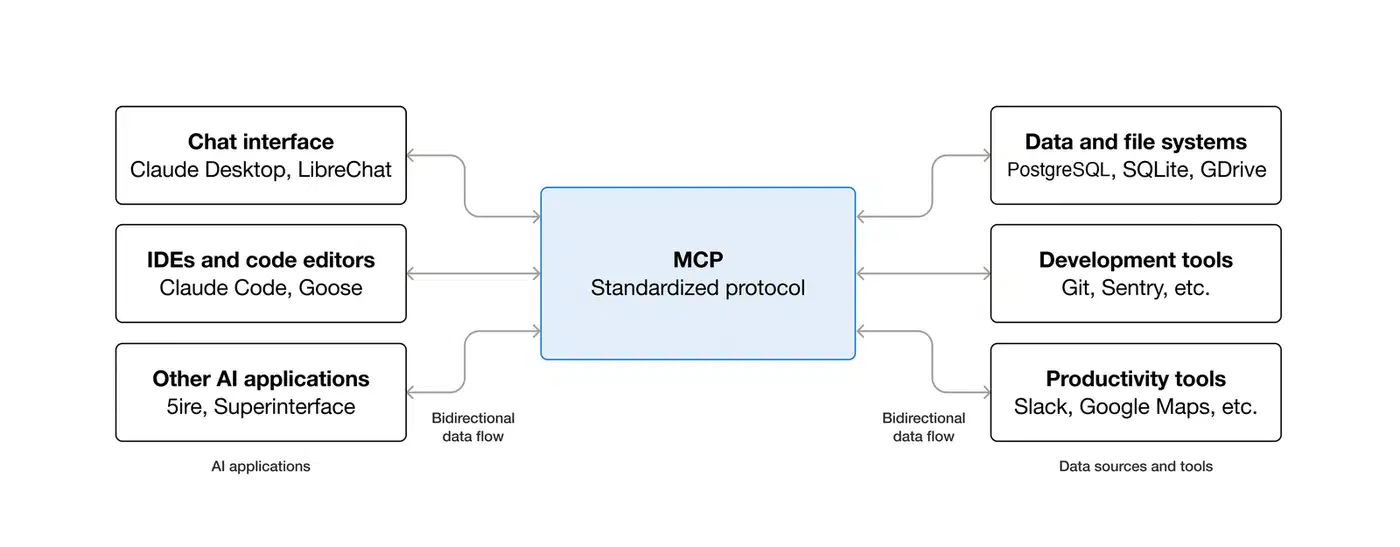
The project wires two mismatched things together. On one side is Blender, a 40-year-old 3D suite whose bpy module exposes nearly every modeling, shading, lighting, and rendering action. On the other is MCP, a year-old protocol that gives large language models a typed way to call tools. Between them sits a 2,000-line Blender add-on and a small Python MCP server. Claude now reaches the whole DCC surface, not just a toy draw_cube call.
Ahuja’s codebase stays small on purpose. addon.py runs inside Blender, src/blender_mcp/server.py runs as the MCP server, and JSON flows between them. Version 1.5.5 follows 139+ commits that added Sketchfab search, Hyper3D Rodin text-to-3D, viewport screenshot feedback, remote-host support, Hunyuan3D, and anonymous telemetry. With 19,694 stars and 1,896 forks, the repo tops similar tools in the Anthropic world.
Past tries at gluing an LLM to Blender never took off. ChatGPT plugin demos died when the plugin store closed. Hand-rolled bpy copilots needed custom glue for every chat client. The built-in AI features that shipped with Blender 5.1 in March 2026 are locked to one vendor. MCP is vendor-neutral, so the same add-on works with Claude Desktop, Cursor, VS Code, Claude Code CLI, and whatever MCP client ships next month. Your install effort compounds across tools instead of getting stranded.
Architecture: How Claude Actually Drives Blender
The wiring is two processes and one socket. The Blender add-on runs inside Blender’s Python runtime and opens a TCP listener on localhost:9876. The MCP server, launched by uvx blender-mcp, takes Claude’s tool-call requests and turns them into JSON commands shaped like {"type": "create_object", "params": {...}}. Blender runs the command and replies with {"status": "success", "result": {...}} or {"status": "error", "message": "..."}. TradingView’s MCP server uses the same two-process shape, reaching the desktop app over its debug port instead of an add-on socket.
Two env vars tune that wiring. BLENDER_PORT swaps the default 9876 when something else on your box already holds it. BLENDER_HOST opens the server beyond localhost, which you need when the MCP client runs in a Docker container and must reach the host with BLENDER_HOST=host.docker.internal. Everything else stays at defaults.
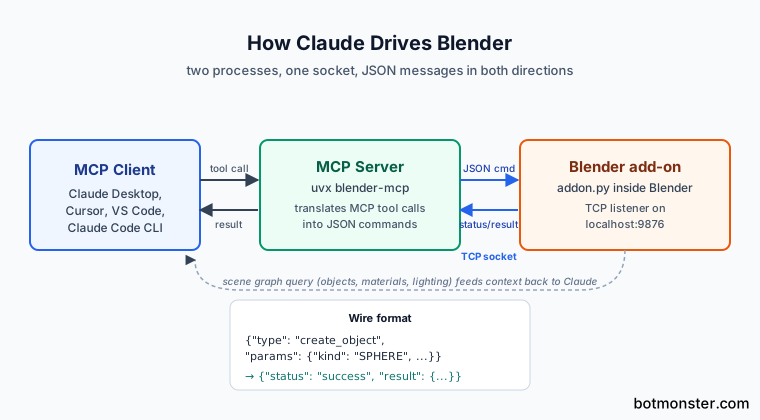
Two-way context is what makes the setup truly usable. Before Claude makes a change, it can query the scene for objects, modifiers, materials, lighting, and render settings. It can then propose tweaks that fit with current work instead of stomping on it. Without that query path you get an assistant that treats every prompt as a blank canvas and wipes your work every third reply.
Viewport screenshots push the tool further. The add-on can grab the current 3D view and feed the image back as tool output, so Claude sees what it made. The model can then judge composition, color balance, rim lighting, and framing. These are look-and-feel calls that no blind tweaking can match. Pair it with a describe-render-critique loop and you get steady steps toward a visual target, not one-shot guessing.
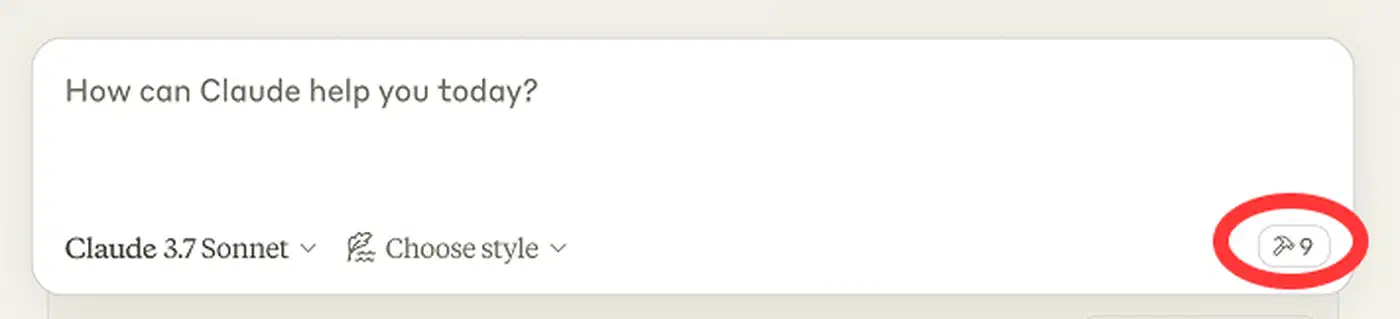
Hard needs: Blender 3.0 or newer, Python 3.10 or newer, and the uv package manager. uvx launches the MCP server, and there is no pip fallback in the docs. On macOS, install uv with brew install uv. On Windows, run the Astral PowerShell installer and add %USERPROFILE%\.local\bin to the user PATH before starting Claude Desktop. Otherwise the client won’t find the binary.
Installing Blender MCP on Claude Desktop, Cursor, VS Code, and Claude Code CLI
Claude Code CLI is the shortest path. One command sets up the MCP server. No JSON to edit:
claude mcp add blender uvx blender-mcpClaude Desktop needs a config edit. Open Claude, then Settings, Developer, Edit Config. That opens claude_desktop_config.json. Add a blender entry to mcpServers:
{
  "mcpServers": {
    "blender": {
      "command": "uvx",
      "args": ["blender-mcp"]
    }
  }
}
Cursor on macOS uses the same JSON. Settings, MCP, Add new server, paste it in, save. A .cursor/mcp.json file at the project root works for a per-project config instead of a global one.
Cursor on Windows is the one setup that trips people up. Cursor doesn’t find uvx on Windows PATH on its own, so you wrap the call through cmd /c:
{
  "mcpServers": {
    "blender": {
      "command": "cmd",
      "args": ["/c", "uvx", "blender-mcp"]
    }
  }
}
VS Code ships a click-to-install badge in the README that writes the MCP config for you. To audit what it changed, the settings live under the user profile’s mcp.json and list the same command/args pair.
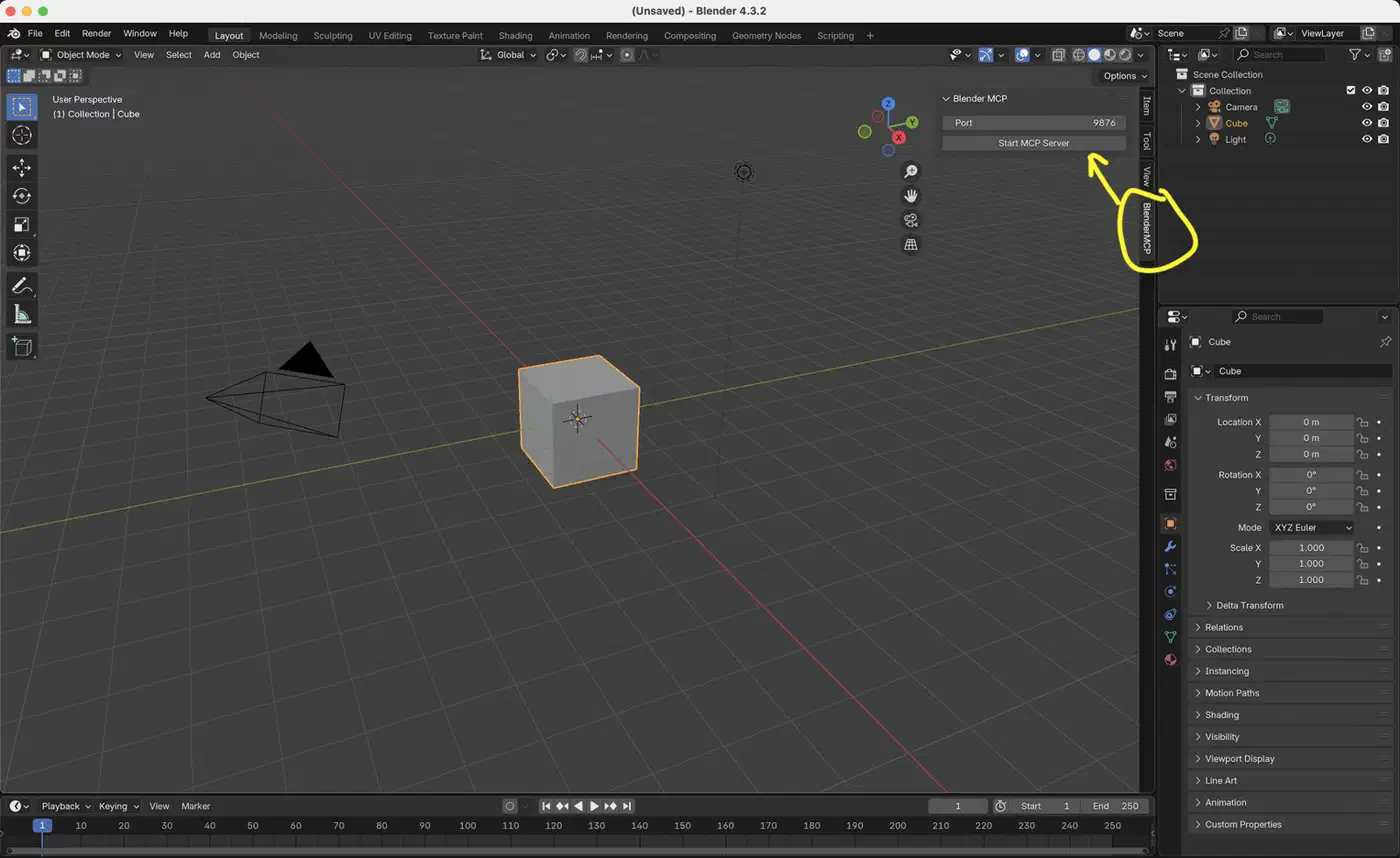
The Blender side of the install is manual. Grab addon.py from the repo. Inside Blender, go to Edit, Preferences, Add-ons, Install, and pick the file. Turn on “Interface: Blender MCP”. Open the 3D View sidebar with the N key, find the BlenderMCP tab, tick “Use Poly Haven” if you want asset downloads, and click Connect to Claude. The button turns green when the socket is live.
One sanity check saves a lot of debugging. Ask Claude to list the objects in the current scene. If it returns the default cube, camera, and light, the wiring works end to end. If it times out, the add-on likely isn’t running inside Blender. Or port 9876 is held by something else and you didn’t export BLENDER_PORT.
Natural-Language Prompts That Actually Work
Basic CRUD is the most reliable prompt shape. Each sentence maps to one or two bpy operators. Claude can split the request into a short tool-call sequence without branching:
- “Create a sphere and place it above the cube.”
- “Make the car red and metallic.”
- “Point the camera at the scene and make it isometric.”
- “Set up studio-style three-point lighting.”
Scene-scale builds work too, though wait times grow. The showcase prompt from the author’s demo video is “create a low-poly scene in a dungeon, with a dragon guarding a pot of gold.” Claude breaks it into shape, material, lighting, and camera passes and runs them in order. Expect 30 seconds to a couple of minutes based on detail.
Environment builds lean on Poly Haven. Asking for “a beach vibe using HDRIs, textures, rocks, and plants from Poly Haven” fires the download path and pulls in licensed, top-grade assets. Generated asset drops use Hyper3D. A prompt like “make a 3D garden gnome using Hyper3D” calls Rodin text-to-mesh and auto-imports the resulting GLB. Photo-to-scene is the newest shape. Attach a photo and ask Claude to copy the layout, then let it tune the framing.
| Prompt style | Example | Tool path | Typical latency |
|---|---|---|---|
| Primitive CRUD | “Add a red sphere above the cube” | create_object, set_material | 1-3 s |
| Scene composition | “Low-poly dungeon with dragon” | multi-step bpy ops | 30-90 s |
| Poly Haven asset | “Sunset HDRI, grass field” | download_polyhaven_asset | 5-20 s per asset |
| Hyper3D Rodin | “Garden gnome” | create_rodin_job + GLB import | 60-180 s |
| Viewport review | “Improve the lighting” | screenshot + re-plan | 10-30 s |
Iteration is where the workflow pays off. Describe the scene, render a viewport screenshot, ask Claude to critique and refine. Claude’s extended thinking mode does well on dense scenes. One-shot megaprompts that try to cover shape, material, lighting, and motion in a single breath tend to bail out halfway through. Break them into stages.
Three External Integrations: Poly Haven, Hyper3D Rodin, Sketchfab
Poly Haven ships top-tier HDRIs, PBR textures, and full models, all under CC0. That means commercial use without credit needed. Uptime can be spotty because the link relies on their public API. The README says to turn off the Poly Haven toggle if you start seeing timeouts. Claude’s fallback when the service is half up tends to act in odd ways.
Hyper3D Rodin is the text-to-3D generator. The free tier starts at $0 per month with a small daily quota. Each render runs about $0.50 to $1.50 based on detail and output size. Every tier grants full commercial rights to the assets you make. For more throughput, plug in your own API key via fal.ai or the Hyper3D developer portal. Returned GLB meshes land in the scene with sane placement.
Sketchfab opens a catalog of millions of user-uploaded and pro-scanned models. Claude can search by keyword, pull previews, and import them. The license caveat is real. Each model has its own terms, and the MCP link does not filter. Free-to-download is not the same as free for client work. Check the model page before you ship.
A combined workflow uses all three services. “Build a forest clearing at dusk” can pull a Poly Haven HDRI for the skybox, Poly Haven trees and rocks for foliage, a Hyper3D Rodin render for a custom creature in the middle, and a fantasy prop from Sketchfab. Credentials live in the MCP config. That keeps API keys out of prompts and out of your chat history.
The execute_blender_code Tool: The Power and the Danger
execute_blender_code is the escape hatch that makes the whole project boundless. It lets Claude write and run any Python inside Blender. That means full access to bpy, bmesh, file I/O, network sockets, and anything else Python can reach from the Blender process. Custom modifiers, geometry-node setups, render farm jobs, batch work across thousands of objects: all of it becomes one prompt away.
The same power can wreck your project. Claude can delete objects, save over files with bpy.ops.wm.save_as_mainfile pointed at the wrong path, import and run outside Python scripts, open network sockets, or get stuck in a while True loop that pins a CPU core until you kill Blender. The README puts it bluntly: “ALWAYS save your work before using it.”
A few mitigations work in practice:
- Commit your
.blendto git before a heavy agent session so you can reset if it goes sideways. - Use a clean Blender on a throwaway file when you are testing new prompt shapes for the first time.
- Review Claude’s Python before you approve it. Claude Desktop’s per-tool prompts make this doable when you keep
execute_blender_codein “ask each time” mode, not auto-approve. - Turn the tool off by pulling it from the MCP server entry when you are running live demos for clients. A typo can nuke the scene you just spent an hour on.
The threat model matches other arbitrary-code MCP tools like file servers, shell runners, and SQL clients. Review before you approve, fence the blast radius, keep backups one git reset away, and you are fine.
Telemetry, Privacy, and How to Opt Out
Telemetry is on by default in version 1.5.5. It logs anonymized prompts, code snippets, and viewport screenshots for product work. Hobbyists poking at a demo file can probably live with that trade-off. Anyone with client IP or NDA work in the scene can’t, and the defaults are wrong for them.
Two opt-out paths exist. The UI checkbox lives under Edit, Preferences, Add-ons, Blender MCP. Uncheck the telemetry consent box and logging drops to tool names, success or failure, and run time. No prompts, no code, no images. The env var DISABLE_TELEMETRY=true kills everything outright. Set it at the shell:
DISABLE_TELEMETRY=true uvx blender-mcpOr bake it into the MCP config so it applies every time the server starts:
{
  "mcpServers": {
    "blender": {
      "command": "uvx",
      "args": ["blender-mcp"],
      "env": {
        "DISABLE_TELEMETRY": "true"
      }
    }
  }
}
No delete-after API is documented. If you care about privacy, opt out before your first connect, not after. The env var is also the safer lever. It survives UI resets, works headlessly in CI, and holds on shared boxes where another user might flip the checkbox back on.
Who This Is Actually For
Blender power users tired of menu-clicking the same lighting rigs and material setups every project will get the biggest quick boost. Speaking a three-point studio setup in prose and getting it in a second beats dragging area lights around.
Learners stuck in Blender’s dense UI get a narrating helper that does the work while explaining it. Ask Claude to add a subdivision surface modifier and say what it changed. You get both the result and the lesson in one go.
Developers building 3D content in code (procedural makers, batch jobs, data-driven scene builds) should treat this as the shortest path from a prompt to a working bpy script. execute_blender_code is basically a translator from plain text to Blender Python. It plays well with version-controlled asset flows. Mechanical parts get the same treatment from SolidCraft’s built-in MCP server, where Claude builds a CAD model one timeline step at a time.
Game, animation, and arch-vis teams doing rapid prototyping benefit too. Speaking a scene in prose is roughly ten times faster than blocking it out by hand. Final-shot hero work still needs a human pass, so this is a previs and iteration tool, not an artist replacement.
AI-workflow researchers studying LLM-driven creative tools have a reference build worth reading line by line. The protocol design, the tool sign-up, the screenshot feedback loop, the fallback when outside APIs flake: every pattern you would copy for your own creative-app MCP is already here.
Who should skip it: anyone on an air-gapped box (Poly Haven, Hyper3D, Sketchfab, and telemetry all need network), anyone shipping client work without the rigor to review execute_blender_code output, and anyone chasing the last 5% of polish that a human artist still nails better than any LLM driving bpy.