 Botmonster Tech
Kudu cleans your PC with no ads and no paid upgrade

This post is open for corrections. Highlight any line of text to challenge it or ask for a clearer explanation and leave a comment.
Kudu is a free PC cleaner for Windows, macOS, and Linux. It ships with no ads, no upsell prompt, and no telemetry. It clears caches, uninstalls leftovers, scans for malware, and flips Windows privacy switches. Its cleaning rules ship as plain JSON files you can read before you trust them.
Key Takeaways
- Kudu is a free system cleaner with no ads, no upsell, and no telemetry.
- The same app runs on Windows, macOS, and Linux.
- Cleaning rules are plain JSON files you can read before trusting them.
- It also scans for malware and gathers Windows privacy switches into one panel.
- Deleting system files is risky, so make a restore point first.
What a free PC cleaner is allowed to charge you
A free PC cleaner usually wants your attention through ads, your money through an upgrade prompt, or your data through telemetry. The category earned its bad name honestly. CCleaner itself shipped a backdoored build to 2.27 million users in 2017 after attackers got into its build system.
Kudu charges none of the three. It’s MIT licensed, written in TypeScript, and its pitch is that you can read the code and audit every scan. A cleaner asks for permission to delete files anywhere on your machine, and that is exactly the permission you want to verify for yourself.
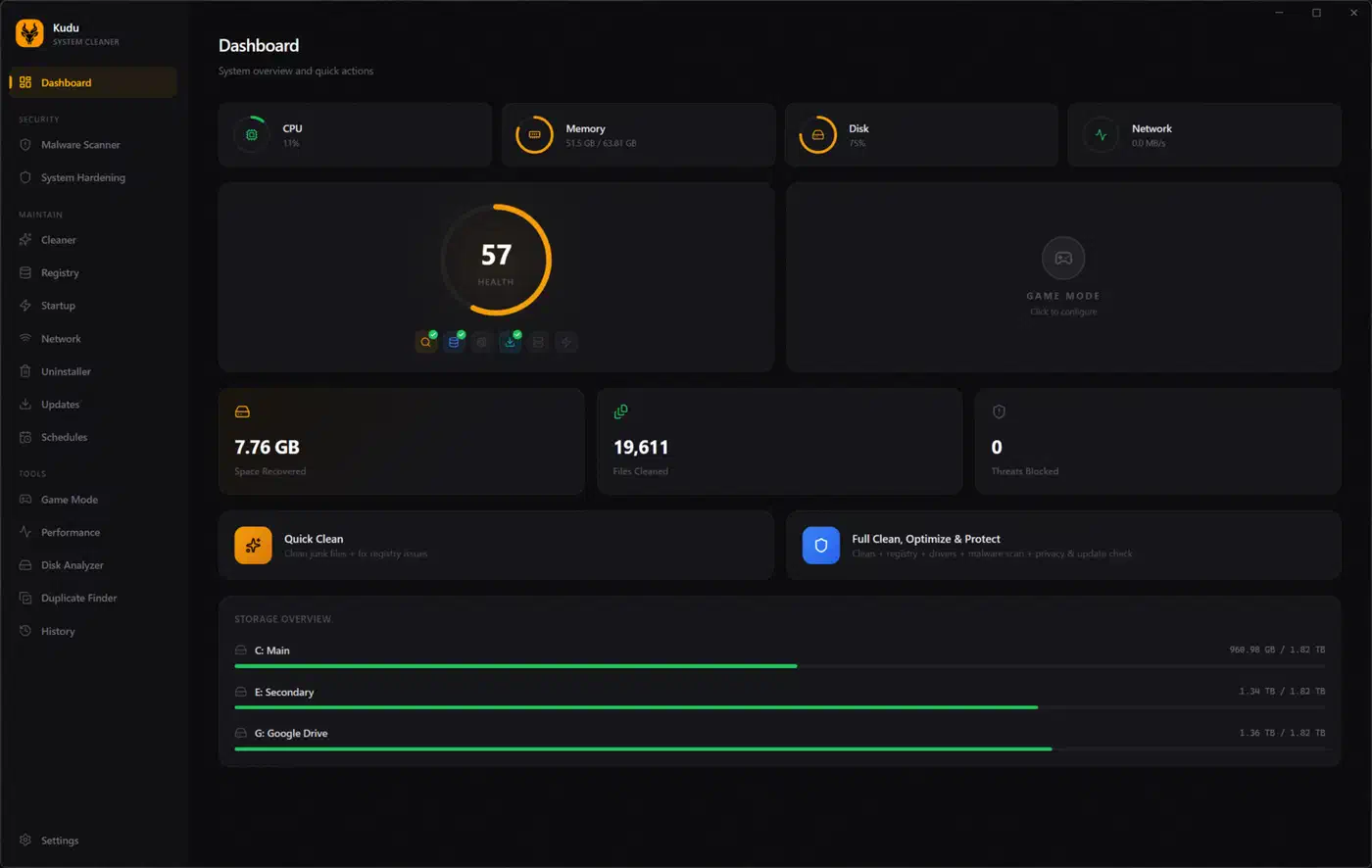
With free software the bill usually arrives later. AdventDev’s answer to who pays is a second product. Kudu Cloud is a paid fleet dashboard for Windows machines. It runs $5 per device per month, or $9 for the tier with CVE scanning and automated fixes. The desktop app stays free and needs no account.
Still, an open repository only tells you the source is readable. Whether the installer you downloaded was built from that source is a separate question. Kudu narrows the gap by publishing a VirusTotal analysis link for each artifact on every GitHub release. That helps, though it stops well short of a reproducible build.
| Tool | What it costs | Source | Ads or upsell | Platforms |
|---|---|---|---|---|
| Kudu | Free | MIT | None | Windows, macOS, Linux |
| CCleaner | Free tier plus paid Professional | Closed | Yes | Windows, macOS |
| BleachBit | Free | GPL | None | Windows, Linux |
What it actually cleans, scans, and switches
Here is what the app covers, per the project README, and where each group works.
| Group | What it covers | Where it works |
|---|---|---|
| Cleaning | Temp files, logs, crash dumps, browser caches, leftover app data, game launcher and shader caches | All three |
| Uninstalling | Programs plus the leftovers a normal uninstall abandons | All three |
| Disk analysis | An interactive treemap, still the fastest way to find the folder holding 40 GB | All three |
| Security | Malware scanner with signature matching and heuristic analysis, plus a secure delete that overwrites first | All three, with a Defender hook on Windows |
| Monitoring | Per-core CPU, memory, disk and network stats, S.M.A.R.T. drive health, cleaning history, scheduled scans | All three |
| Updating | Bulk updates across winget, Chocolatey, Scoop, and npm | Mostly Windows |
| Deep cleanup | Registry cleaner, debloater for preinstalled apps, service manager, stale driver removal | Windows only |
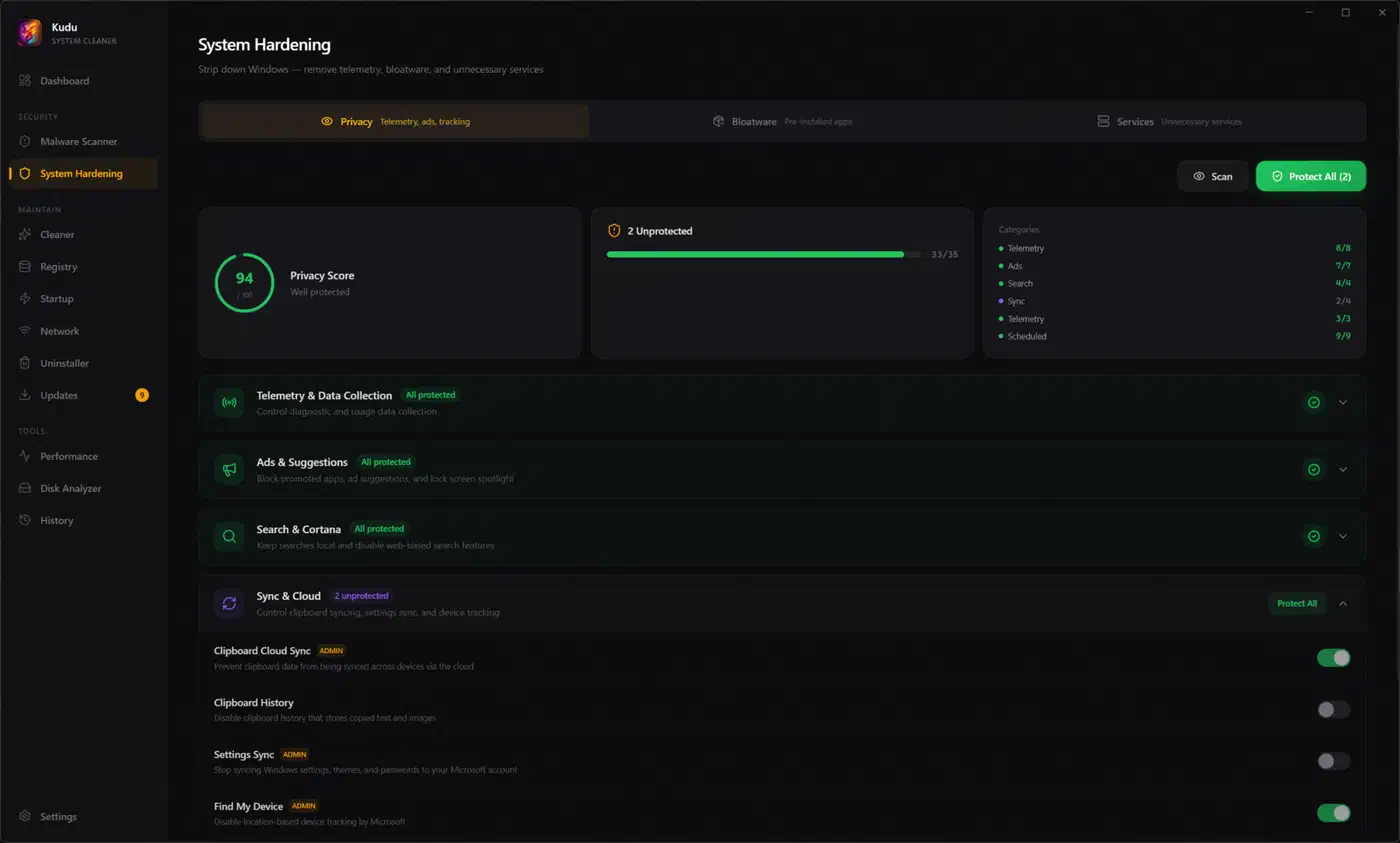
| Privacy | 30 or more Windows settings in one panel: telemetry, advertising ID, assistant features, tracking | Windows only |
A bulk software updater is an odd thing to find inside a cleaner, and it is one of the more useful pieces here. The bottom two rows are the catch for anyone on Linux or a Mac.
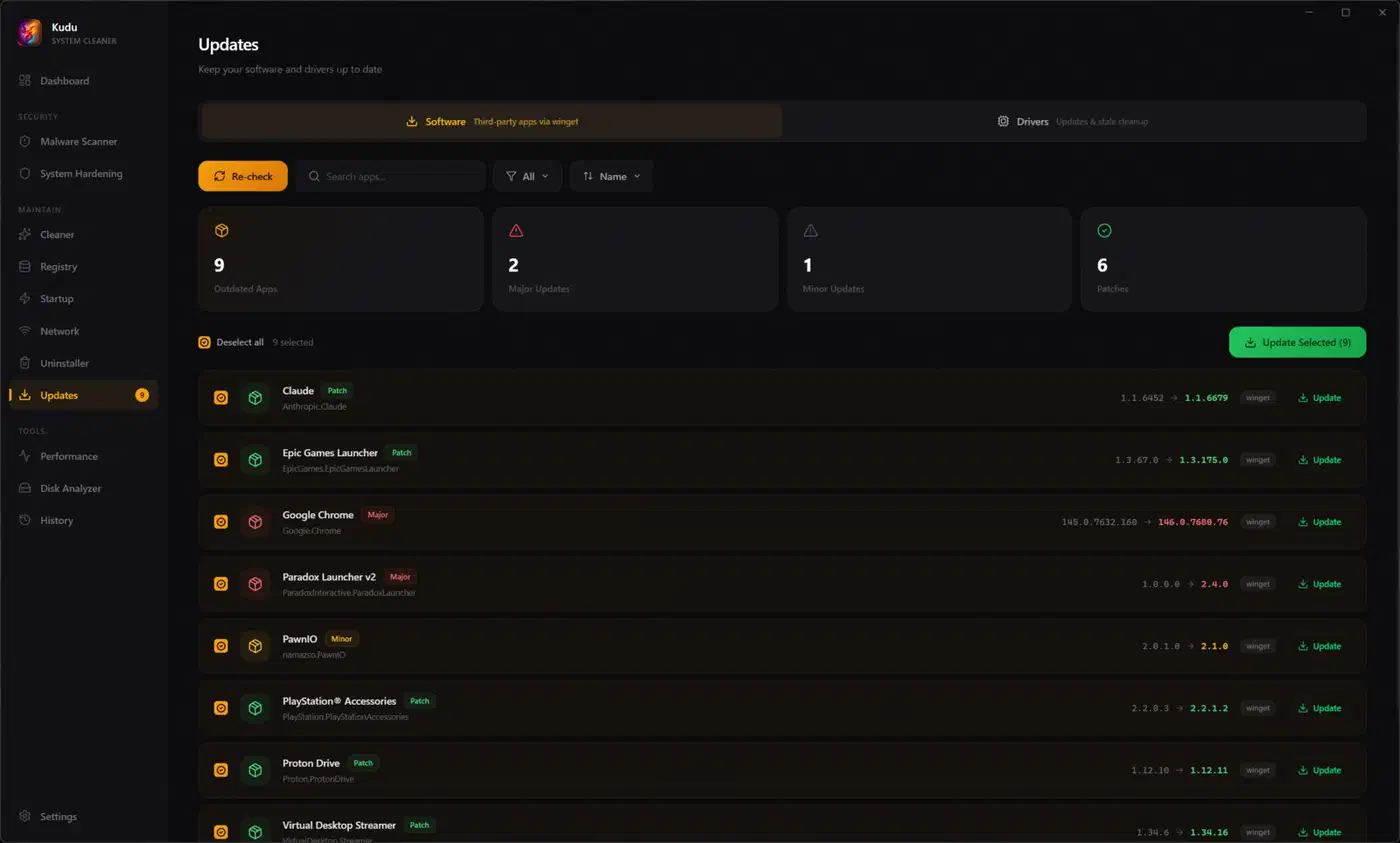
The published cleaner directory lists 180 Windows entries against 135 for macOS and 130 for Linux. The repository catalog counts 100 unique app rules, split 88, 75, and 73 the same way. On the cleaning side, the Mac and Linux builds carry roughly three quarters of the Windows coverage.
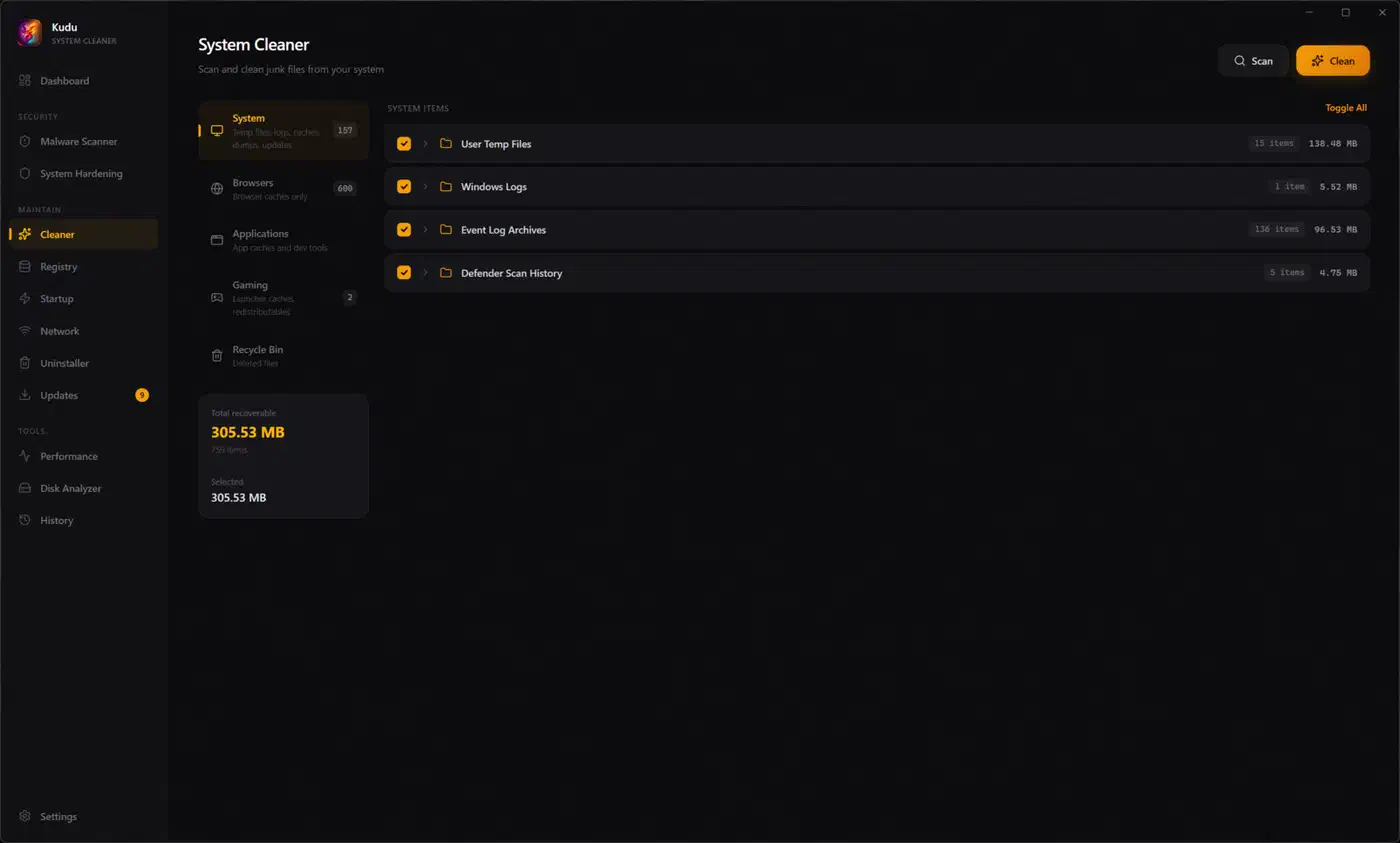
Across the release history the installers have been pulled more than 270,000 times, and roughly 223,000 of those were the Windows .exe.
Cleaning rules you can read
What separates Kudu from a closed cleaner is where the cleaning targets live. They sit in the repository as JSON files, eight per platform, instead of inside the compiled binary. The set covers apps, browsers, gaming, GPU shader caches, system junk, databases, Steam, and a small misc file.
Each entry is short enough to read in ten seconds. This is the real Discord rule for Windows:
{
  "id": "discord",
  "name": "Discord",
  "paths": [
    "${APPDATA}/discord/Cache/Cache_Data",
    "${APPDATA}/discord/Code Cache",
    "${APPDATA}/discord/GPUCache"
  ],
  "description": "Discord Electron app cache, compiled code cache, and GPU cache"
}
Paths use template variables such as ${APPDATA}, ${CACHES}, and ${CONFIG}. The loader resolves them per platform at runtime, so you can open the rule for any app you care about and see the exact folders it targets.
For contributors the barrier drops just as far. The cleaner rules guide ships an interactive generator, npm run new-rule, that writes the JSON for you. It also ships a scanner for cache folders no rule covers yet, a dry-run previewer, and a parity checker for gaps between platforms. Every file carries a $schema reference, and CI validates all of them on each pull request.
So coverage grows as contributors show up, and a wrong path is a one-line fix. The trade is that a rule is only as careful as whoever wrote it. Review counts for more here than in a project where the delete logic sits in one place.
The parts that can break your system
The project doesn’t oversell its safety. Its disclaimer says plainly that Kudu removes files by design. You are responsible for reviewing items before removal, and it accepts no liability for data loss or system instability.
Four features deserve real caution. Registry cleaning is the classic case. It promises speed and sometimes hands you a broken app instead. Debloating strips preinstalled Windows software, and other apps sometimes expect that software to be there. Service tuning changes what starts with the machine, so a wrong choice shows up weeks later as a feature that stopped working with no warning. Secure delete overwrites files before it removes them, so anything you pick by accident is gone for good.
Service changes aren’t always reversible in the interface either. One open issue reports being unable to re-enable a service from the Services Manager after disabling it. A change you can’t undo from the same screen is a bad thing to find in a maintenance tool.
Expect the odd antivirus argument too. A user reported that Kaspersky flagged Kudu.exe as a trojan on Windows 11 while VirusTotal showed nothing. Two others confirmed it, and a third narrowed it to the malware database update step. False positives are routine for software that scans and deletes, and knowing that in advance saves a scare.
Against that, the tool makes restore points, logs past cleans, and shows you the scan before you approve it. Kudu is also young and moving fast: it sits on a 1.4x release line after dozens of releases, with around 17 open issues and 30 languages shipped.
How to install Kudu and run a careful first clean
Download the right installer
Releases ship a Windows .exe, a macOS .dmg for both Intel and Apple Silicon, and a Linux .AppImage or .deb. Grab the one for your platform from the GitHub releases page.
Check the release scan
Each release lists VirusTotal analysis links for its artifacts. Open the link for the exact file you downloaded before you run it.
Create a restore point first
On Windows, make a restore point with the built-in feature before your first big clean. You can’t create one after something breaks, which is when you’ll want it.
Scan before cleaning
Run the scan and read the list it produces before you approve anything.
Clean in stages
Start with browser and system caches, which regenerate safely on their own. Leave the registry cleaner and the debloater alone until you understand what they touch.
Check what starts with the machine
Use the startup manager to see boot impact per entry. Disable rather than delete anything you’re unsure about.
Set the privacy switches
On Windows, work through the privacy panel once. Telemetry, the advertising ID, and tracking settings all live in one place instead of six.
Schedule it if you want it hands-off
Scheduled scans run daily, weekly, or monthly. The CLI mode covers the same jobs without the interface. A line like kudu --cli --system --clean fits a cron job or a Task Scheduler entry, and --json makes the output scriptable.