 Botmonster Tech
How to Set Up a Reverse Proxy with Caddy for Self-Hosted Services

Caddy (currently at version 2.11) is the simplest reverse proxy for self-hosted services because it automatically provisions and renews TLS certificates from Let’s Encrypt with zero configuration. Install the single static binary, write a Caddyfile with three lines per service, and Caddy handles HTTPS, HTTP/2, OCSP stapling, and certificate renewal on its own - replacing hundreds of lines of Nginx config and separate Certbot cron jobs.
If you run even a handful of services on a home server or VPS, putting them behind a reverse proxy with proper TLS is non-negotiable. Caddy makes this painless enough that there is no excuse to skip it.
Why Caddy Over Nginx or Traefik
Nginx has been the default reverse proxy for over a decade, and it still works fine. But for a typical homelab or small-server setup, Caddy removes enough friction to be worth the switch.
The biggest win is automatic HTTPS. Caddy provisions TLS certificates from Let’s Encrypt (or ZeroSSL
) for any domain that resolves to your server, no extra configuration needed. With Nginx, you install Certbot, run certbot certonly --nginx, set up a cron job for renewal, and reload Nginx after each renewal. Caddy does all of that on its own.
Then there is configuration simplicity. Proxying a service in Caddy looks like this:
gitea.example.com {
    reverse_proxy localhost:3000
}
The equivalent Nginx config requires a server block with listen 443 ssl, ssl_certificate, ssl_certificate_key, location /, and proxy_pass directives - 15 or more lines minimum.
Caddy is also a single Go binary, around 40 MB, with no external dependencies. Install via apt install caddy, download from caddyserver.com, or pull the Docker image caddy:2.11-alpine. Nginx drags in OpenSSL, PCRE, and zlib.
HTTP/2 is enabled by default on all HTTPS sites, and HTTP/3 (QUIC) is available with one global option: servers { protocols h1 h2 h3 }. Nginx requires explicit http2 directives and has no stable HTTP/3 support without custom compilation.
Performance-wise, for services handling under 10,000 requests per second (which covers virtually all homelab use cases), Caddy and Nginx perform the same. Caddy uses about 20 MB more RAM at idle due to its Go runtime, which is negligible on any modern server.
Traefik is worth mentioning as the other popular option. It excels at dynamic, label-based routing in Docker and Kubernetes environments. If you are running a large container orchestration setup, Traefik might be the better fit. For everything else, Caddy’s static Caddyfile approach is simpler to reason about. For a detailed walkthrough of the label-based routing workflow, see our guide on deploying Docker Compose with Traefik in production .
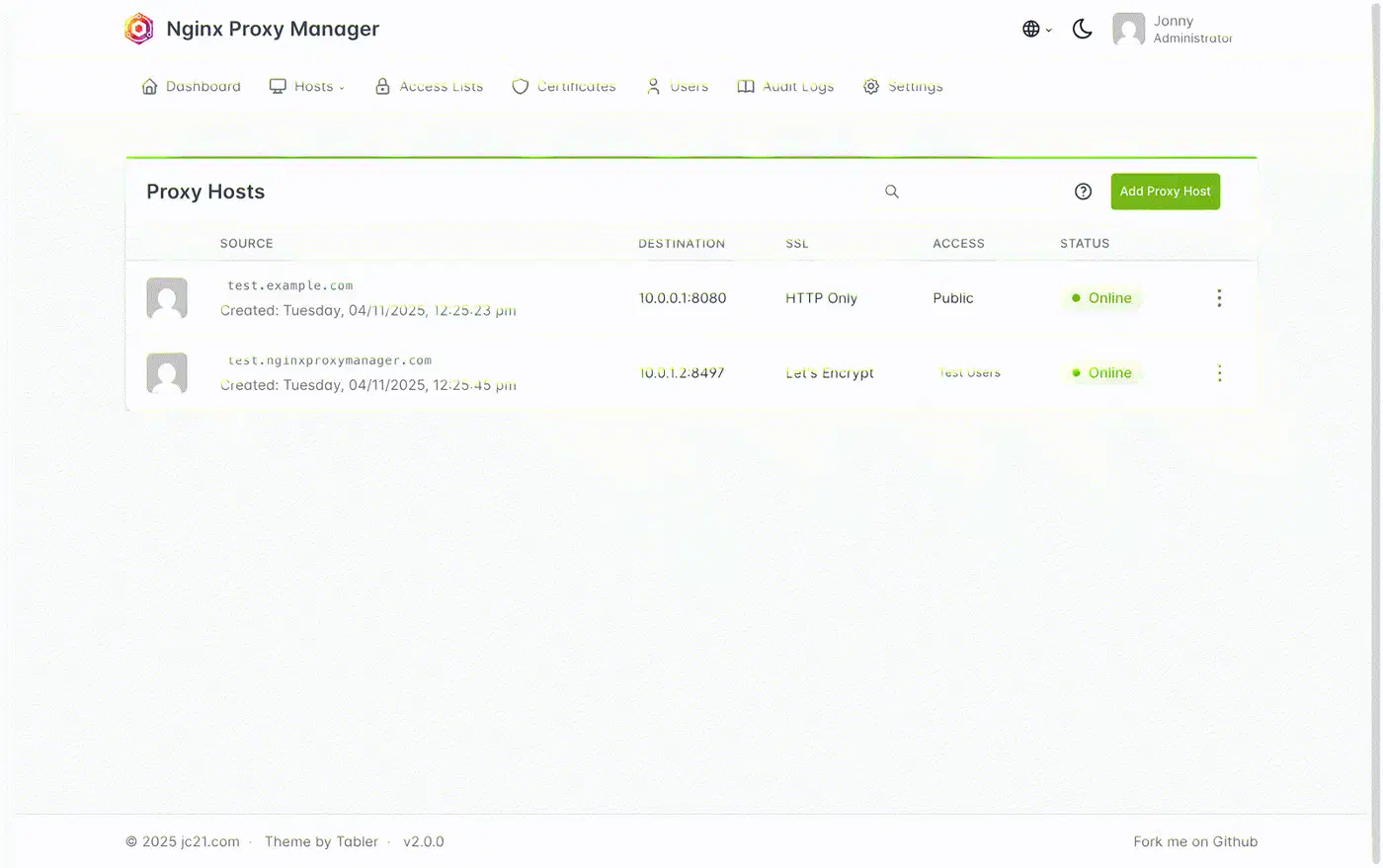
Nginx Proxy Manager (NPM) is the GUI alternative - it wraps Nginx in a web interface, making it approachable for people who prefer clicking over editing config files. The trade-off: NPM runs Nginx plus a Node.js management API plus SQLite, uses more resources, and stores your configuration in a database rather than a version-controllable text file. Caddy gives you a single file you can commit to Git and deploy anywhere.
Nginx is still the better choice if you need advanced TCP/UDP stream proxying, complex map directive logic, Lua scripting via OpenResty, or your team already has deep Nginx expertise. Caddy can handle basic TCP proxying through the layer4 plugin, but it is less mature.
Installing Caddy and Writing Your First Caddyfile
Debian/Ubuntu installation:
sudo apt install -y debian-keyring debian-archive-keyring apt-transport-https
curl -1sLf 'https://dl.cloudsmith.io/public/caddy/stable/gpg.key' | sudo gpg --dearmor -o /usr/share/keyrings/caddy-stable-archive-keyring.gpg
echo "deb [signed-by=/usr/share/keyrings/caddy-stable-archive-keyring.gpg] https://dl.cloudsmith.io/public/caddy/stable/deb/debian any-version main" | sudo tee /etc/apt/sources.list.d/caddy-stable.list
sudo apt update && sudo apt install caddy
Docker Compose:
services:
  caddy:
    image: caddy:2.11-alpine
    ports:
      - "80:80"
      - "443:443"
    volumes:
      - ./Caddyfile:/etc/caddy/Caddyfile
      - caddy_data:/data
      - caddy_config:/config

volumes:
  caddy_data:
  caddy_config:
The /data volume is critical - it stores your TLS certificates. Losing it means re-issuing all certificates, which can hit Let’s Encrypt rate limits.
When installed via the package manager, the Caddyfile lives at /etc/caddy/Caddyfile. Validate syntax before reloading:
caddy validate --config /etc/caddy/Caddyfile
caddy reload
The reload is zero-downtime. Your existing connections stay intact while Caddy picks up the new configuration.
Multiple services are just stacked site blocks in the same Caddyfile:
gitea.example.com {
    reverse_proxy localhost:3000
}

jellyfin.example.com {
    reverse_proxy localhost:8096
}
Caddy manages separate TLS certificates for each domain and routes traffic based on the SNI hostname.
Wildcard certificates require a DNS provider plugin. For Cloudflare:
*.example.com {
    tls {
        dns cloudflare {env.CF_API_TOKEN}
    }
}
This requires building Caddy with the DNS plugin via xcaddy
: xcaddy build --with github.com/caddy-dns/cloudflare.
To avoid hitting Let’s Encrypt rate limits (50 certificates per registered domain per week) while experimenting, add this global option at the top of your Caddyfile:
{
    acme_ca https://acme-staging-v02.api.letsencrypt.org/directory
}
Staging certificates are not trusted by browsers but the rate limits are much more generous. Remove this line once your configuration is working.
Proxying Common Self-Hosted Services
Each self-hosted application has its own quirks behind a reverse proxy - WebSocket support, large file uploads, custom headers. Here are tested Caddyfile blocks for popular services.
Gitea (port 3000):
gitea.example.com {
    reverse_proxy localhost:3000
}
Also set ROOT_URL = https://gitea.example.com/ in Gitea’s app.ini so generated clone URLs use the correct domain. SSH passthrough requires either a layer4 block or running Gitea SSH on a non-standard port.
Jellyfin (port 8096):
jellyfin.example.com {
    reverse_proxy localhost:8096 {
        header_up X-Real-IP {remote_host}
    }
}
Set the Jellyfin “Base URL” to empty and “Known Proxies” to 127.0.0.1 in the Networking dashboard.
Immich (port 2283):
immich.example.com {
    reverse_proxy localhost:2283 {
        transport http {
            read_timeout 600s
        }
    }
    request_body {
        max_size 50GB
    }
}
The extended timeouts and body size limit are necessary for uploading large photo and video libraries without mid-transfer failures.
Home Assistant (port 8123):
ha.example.com {
    reverse_proxy localhost:8123 {
        transport http {
            read_timeout 0
        }
    }
}
Setting read_timeout 0 disables the timeout entirely, which is required because Home Assistant
uses long-lived WebSocket connections that Caddy would otherwise terminate after 30 seconds.
Vaultwarden (port 8080):
vault.example.com {
    reverse_proxy localhost:8080 {
        header_up X-Real-IP {remote_host}
    }
}
General pattern: Start with reverse_proxy localhost:PORT. Add transport http { read_timeout } for WebSocket or streaming services, request_body { max_size } for upload-heavy services, and header_up directives when the backend needs the real client IP.
Security Hardening
Your reverse proxy is the boundary between the internet and your services. Caddy has several built-in features for locking that down.
You can define reusable security headers with a Caddyfile snippet:
(security-headers) {
    header {
        Strict-Transport-Security "max-age=31536000; includeSubDomains; preload"
        X-Content-Type-Options "nosniff"
        X-Frame-Options "SAMEORIGIN"
        Referrer-Policy "strict-origin-when-cross-origin"
    }
}
Then import it in any site block: import security-headers.
For admin panels, add basic authentication:
caddy hash-password
# Enter your password, get a bcrypt hash
route /admin/* {
basicauth {
admin $2a$14$...
}
reverse_proxy localhost:8080
}You can also restrict access by IP to keep services available only on your local network:
@allowed remote_ip 192.168.1.0/24 10.0.0.0/8
handle @allowed {
    reverse_proxy localhost:8080
}
handle {
    respond 403
}
For Fail2ban integration, enable file-based access logging:
log {
    output file /var/log/caddy/access.log
}
Then create a Fail2ban filter matching 401/403 responses to automatically ban IPs after repeated failed authentication attempts. For a complete server-level security baseline, the Linux server hardening checklist covers SSH lockdown, automatic security updates, and nftables firewall rules.
If you cannot open ports 80 and 443 on your router, Cloudflare Tunnel
(cloudflared) is a good alternative. Caddy still handles the reverse proxying locally, but Cloudflare Tunnel provides the public ingress without port forwarding.
DNS and Split-Horizon Access
For services accessible both locally and remotely, you need proper DNS. Create A records pointing *.example.com to your server’s public IP. For local access without hairpin NAT issues, run a local DNS server like Pi-hole
or Technitium
that resolves those same domains to your server’s internal IP (e.g., 192.168.1.100). This is called split-horizon DNS - external queries hit your public IP, internal queries go straight to the LAN address.
Pair this with Tailscale for remote access and you get a setup where your services work identically whether you are at home or on the road, no VPN client juggling required.
Caddy does not care where the traffic comes from. It just sees incoming requests on port 443 and proxies them. The DNS layer decides which path the traffic takes to get there.
Troubleshooting Tips
A few common issues when getting started with Caddy.
If certificates fail to issue, Caddy needs ports 80 and 443 open and reachable from the public internet for the HTTP-01 and TLS-ALPN-01 ACME challenges. If your ISP blocks port 80, switch to the DNS challenge method by adding a DNS provider plugin. Check journalctl -u caddy for detailed error messages about certificate provisioning.
502 Bad Gateway errors mean Caddy reached the backend but got no valid response. Confirm the backend service is actually running on the expected port with ss -tlnp | grep PORT. Also check whether the service is bound to 127.0.0.1 versus 0.0.0.0 - some Docker setups only expose ports on specific interfaces.
If a service like Home Assistant or Vaultwarden loses its real-time WebSocket connection, you probably need read_timeout 0 in the transport block. Caddy’s default timeout works for standard HTTP, but WebSocket connections are expected to stay open indefinitely.
One more thing: always run caddy validate --config /etc/caddy/Caddyfile before reloading. A syntax error in one site block will prevent all sites from loading, not just the broken one.