 Botmonster Tech
Multi-monitor Linux setup with mixed DPI displays

On Wayland with GNOME 46+ or KDE Plasma 6.1+, each monitor gets its own scale factor. A 4K center display at 200% and side 1080p monitors at 100% work without trade-offs. X11 still hurts here. The whole desktop shares one scale, so one display always looks wrong. If old Linux DPI pain has kept you on a single monitor, the 2026 Wayland stack has caught up.
Why Mixed DPI Is Hard
The typical developer setup pairs a 27" 4K center monitor (163 PPI) with one or two 24" 1080p side panels (92 PPI). That’s nearly a 2x pixel density gap. The OS has to draw UI elements at different sizes on each screen.
X11 was never built for this. The X server uses one scale across the whole desktop. Scale for the 4K panel, and the 1080p screens turn huge. Scale for the 1080p screens, and 4K text shrinks to unreadable. There is no middle ground, only trade-off.
macOS fixed this when Apple shipped Retina displays. Each screen draws at its own native resolution with its own scale. Windows 10 added per-monitor DPI awareness too. Yet many Win32 apps still look blurry when you drag them between screens.
Linux caught up through Wayland. The Wayland protocol was built from day one to let compositors do per-output scaling. By 2026, every major compositor ships per-monitor fractional scaling: GNOME Mutter, KDE KWin, Hyprland, Sway, and COSMIC. The same holds on Apple hardware: revive an old MacBook Pro on Linux and Wayland scales its Retina panel just as cleanly.
GNOME Wayland Setup
GNOME’s Wayland session is the most common pick for mixed DPI. Recent GNOME releases ship faster fractional scaling and VRR on by default.
First, verify you are running Wayland:
echo $XDG_SESSION_TYPE
# should output: wayland
Open Settings, go to Displays, and pick each monitor in turn. Set the scale to match its density: 200% for 4K, 100% for 1080p.
For fractional values like 125% or 150%, enable the experimental feature:
gsettings set org.gnome.mutter experimental-features "['scale-monitor-framebuffer']"This unlocks per-monitor fractional scaling in 25% steps. After you set the scale, drag the monitors in the arrangement view to match where they sit on your desk. GNOME smooths DPI shifts at the edges on its own. The cursor even resizes as it crosses between displays.
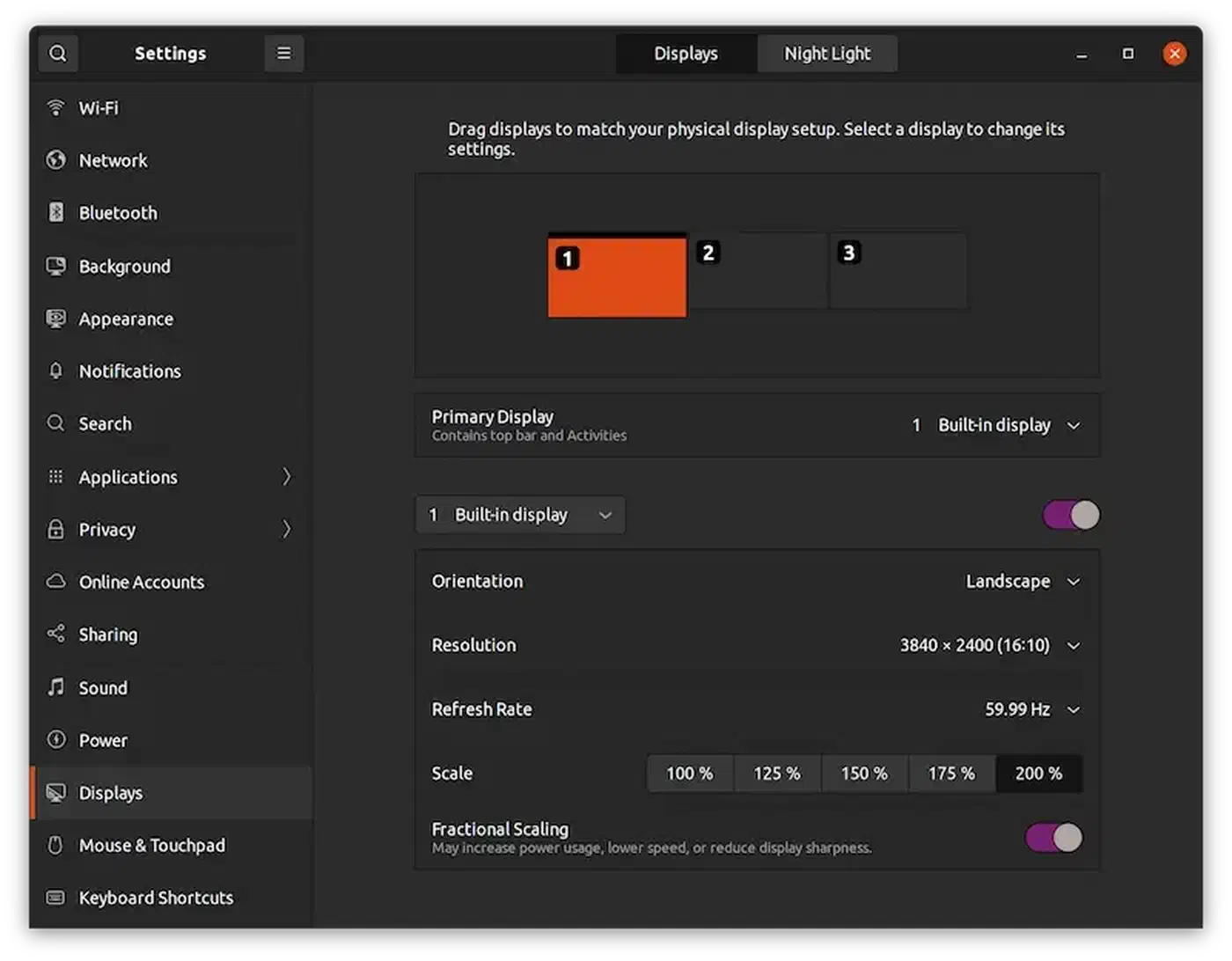
A few GNOME-specific notes:
- GTK4 apps scale right on all monitors. Some older GTK3 apps snap to the nearest whole scale and skip fractional values.
- GNOME 50 added a low-latency cursor mode. The pointer runs at the monitor’s top refresh rate even when the app frame rate is slower. It feels best on high-refresh 4K panels.
- NVIDIA users gain from driver tweaks in GNOME 50 that cut stutter during window moves across screens.
KDE Plasma Wayland Setup
KDE Plasma 6 brought big gains to mixed DPI. The stable release is Plasma 6.6 (February 2026). KDE’s edge over GNOME is finer scale steps. You can set any value, like 137% or 163%, while GNOME locks you to 25% steps. Plasma 6.7 fractional scaling renders native apps sharp at those in-between values too.
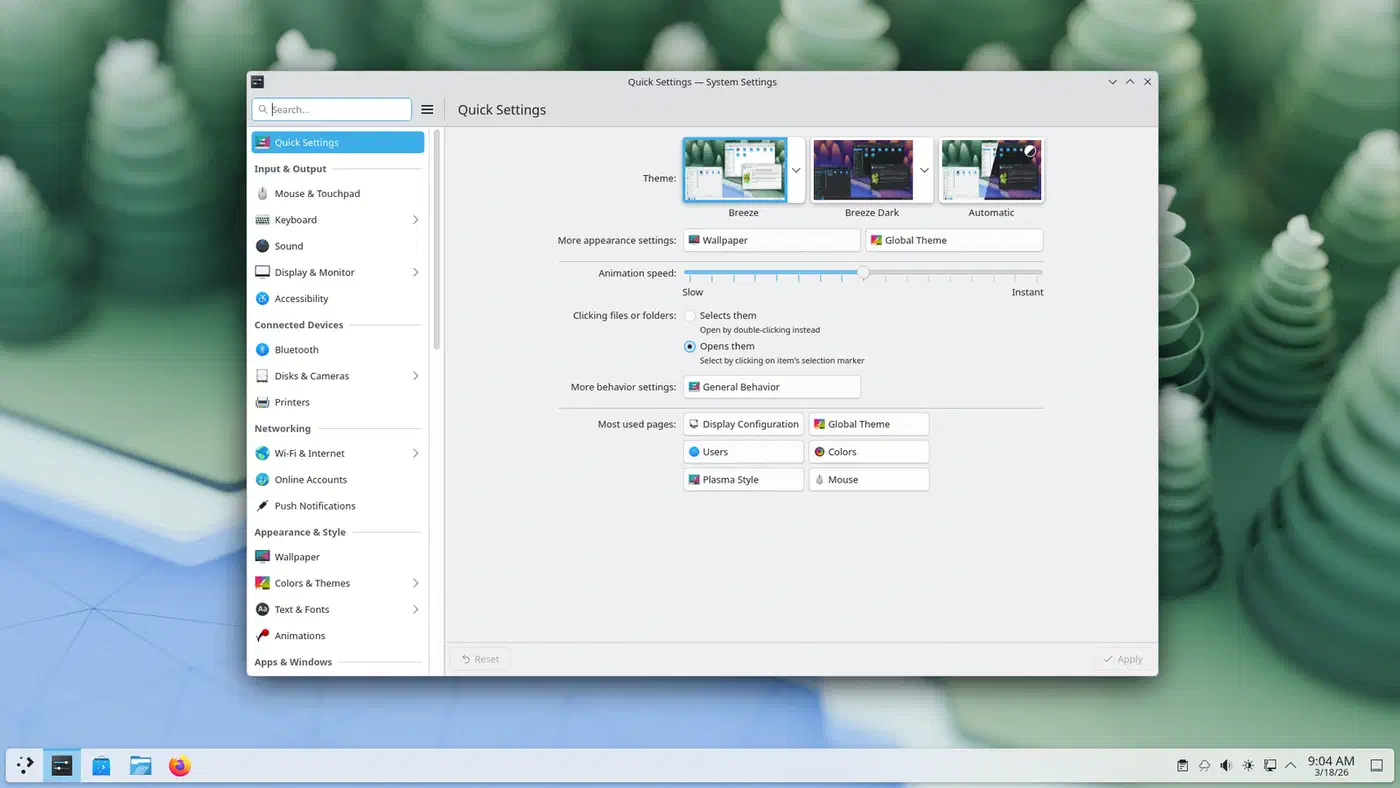
Open System Settings, go to Display and Monitor, pick each display, and set its Scale Factor on its own. Each monitor can run at its native size with its own scale value.
For Qt6 applications, scaling works automatically. Qt5 apps may need an environment variable:
export QT_ENABLE_HIGHDPI_SCALING=1KWin handles DPI edges smoothly. Drag a window from a 4K screen to a 1080p one, and it redraws at the new scale. KDE Plasma 6.2+ also supports per-monitor color temperature (Night Color) and HDR. You can set both on their own next to the scale.
| Feature | GNOME 50 | KDE Plasma 6.6 |
|---|---|---|
| Fractional scaling increments | 25% steps | Arbitrary (any %) |
| VRR support | Enabled by default | Supported |
| Per-monitor HDR | Via color management protocol | Native since 6.2 |
| GTK app scaling | GTK4 full, GTK3 integer-only | Via XWayland or xdg-desktop-portal |
| Qt app scaling | Via XWayland | Native |
| Cursor behavior | Resizes per-monitor | Fixed size globally |
Tiling Compositors: Hyprland and Sway
Tiling Wayland compositors suit developers who like keyboard-driven workflows. Both Hyprland (v0.54) and Sway (v1.12) do per-monitor scaling natively through config files.
In Hyprland, edit ~/.config/hypr/hyprland.conf:
monitor=DP-1,3840x2160@144,0x0,2
monitor=DP-2,1920x1080@60,1920x0,1
The last value is the scale factor. Set 2 for a 4K display and 1 for 1080p. Fractional values like 1.5 work, but some apps look slightly blurry.
In Sway, edit ~/.config/sway/config:
output DP-1 resolution 3840x2160 position 0,0 scale 2
output DP-2 resolution 1920x1080 position 1920,0 scale 1
Both compositors let you pin workspaces to monitors, so apps always open on the right screen. This pays off in a mixed-DPI setup. Keep text-heavy work like a crisp HiDPI-aware terminal on the 4K panel, and park docs or chat on the 1080p side screens.
For XWayland apps on Hyprland, you can force them to draw at native size instead of being upscaled:
xwayland {
    force_zero_scaling = true
}
Then set GDK_SCALE=2 in your shell so GTK apps still draw at the right size on the high-DPI screen.
COSMIC Desktop
System76’s COSMIC desktop hit its first stable release (Epoch 1) in December 2025, shipped with Pop!_OS 24.04 LTS. COSMIC is Wayland-only from the start and written in Rust. It does per-monitor scaling without the X11 baggage that GNOME and KDE had to work around. A month of daily driving it says the scaling holds up better than the app ecosystem around it.
Multi-monitor setup in COSMIC happens in System Settings with a layout view like GNOME’s. Per-monitor fractional scaling works out of the box. COSMIC has no X11 fallback path. So every app speaks Wayland or runs through XWayland, with no mixed-session guesswork.
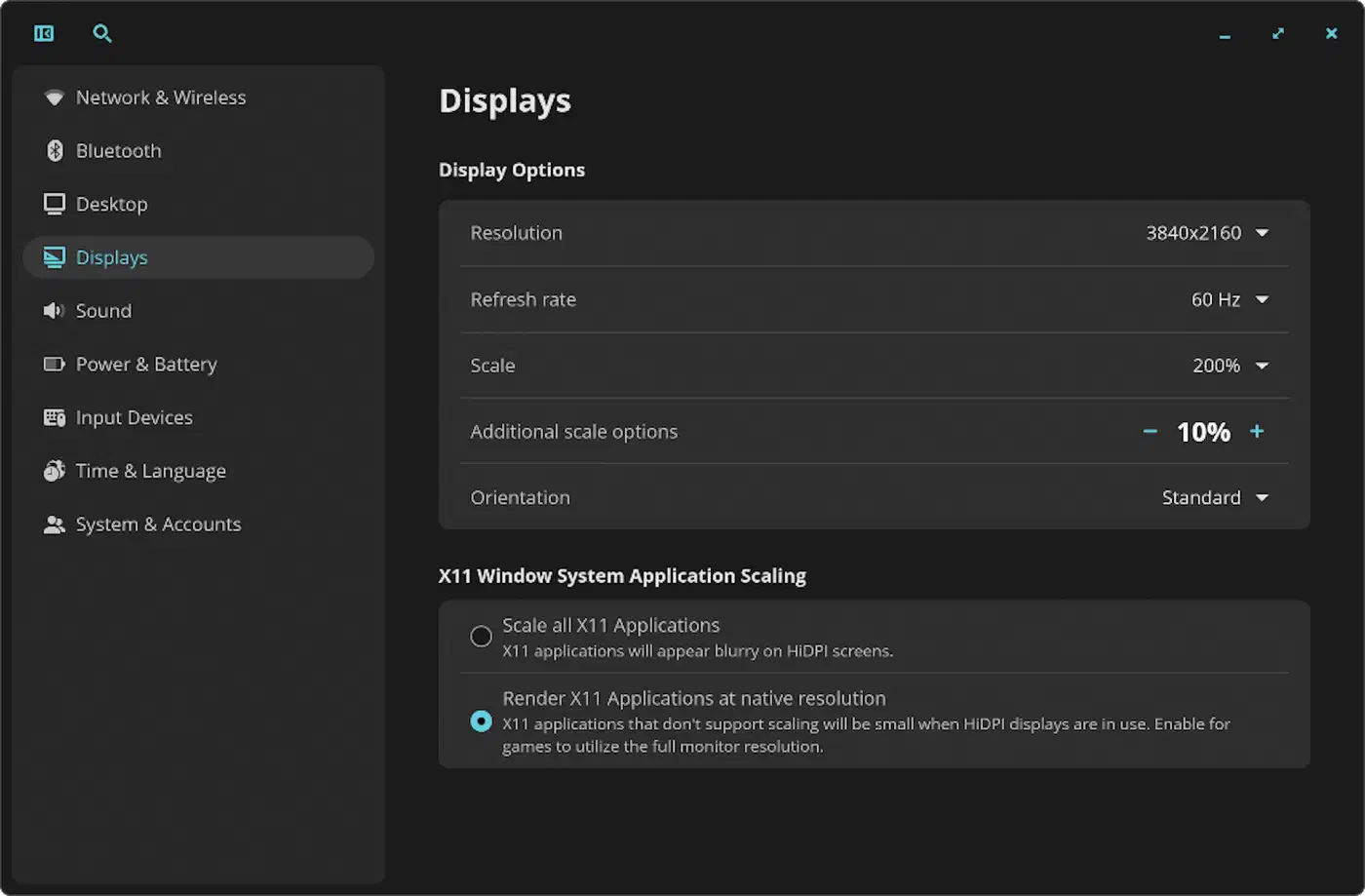
COSMIC is still young next to GNOME and KDE. Expect rough edges around drag-and-drop between monitors and third-party app support. But if you are starting fresh, its clean Wayland-native design skips several of the headaches in the next section.
Handling XWayland and Legacy Apps
Not every app speaks Wayland. Apps that still need X11 run through XWayland, a shim layer. XWayland draws at one scale. The compositor then scales the result up or down for other monitors. Text looks soft on the non-native screen. Still on X11 and want to switch? See our guide to the full X11-to-Wayland switch for driver needs and step-by-step notes.
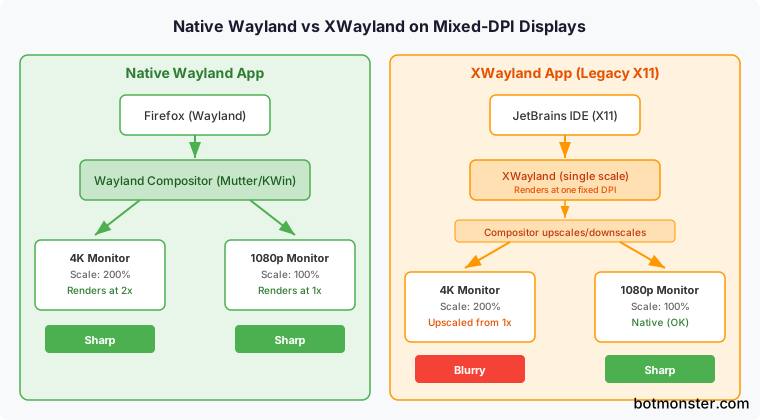
Common XWayland apps include older Electron apps (before Ozone setup), some Qt5 apps, Wine/Proton games, and JetBrains IDEs before 2026.1.
Fixes for the most common cases:
Electron apps (VS Code, Slack, Discord): Add the Ozone Wayland flag to the app’s .desktop file or set it for all apps at once:
# Per-app: edit the Exec line in the .desktop file
Exec=/usr/bin/code --enable-features=UseOzonePlatform --ozone-platform=wayland

# Global: set the environment variable
export ELECTRON_OZONE_PLATFORM_HINT=waylandFirefox: Native Wayland is the default since Firefox 120+. If you are on an older version:
export MOZ_ENABLE_WAYLAND=1JetBrains IDEs: Since 2026.1 (now in EAP), IntelliJ-based IDEs run on Wayland with no manual setup. On older builds, add -Dawt.toolkit.name=WLToolkit to your custom VM options. The 2026.1 release adds real fractional scaling, drag-and-drop, and input method support on Wayland.
Java apps: Set _JAVA_AWT_WM_NONREPARENTING=1 in your shell. For full native Wayland in Java apps, the Wakefield project offers a test Wayland toolkit.
Spotting XWayland apps: Run xlsclients to list every app on XWayland. For a quick visual test, launch xeyes. The eyes track your cursor only when it hovers over XWayland windows.
If an app still refuses to scale right, run it inside a Distrobox container with a fixed X11 DPI. That’s the last resort.
DisplayPort Daisy-Chaining (MST) with Mixed DPI
DisplayPort MST (Multi-Stream Transport) lets you daisy-chain monitors over one cable. It works on Linux, with a few caveats.
Wayland compositors treat each MST stream as its own output. So per-monitor scaling works as usual. The catch: MST splits the upstream port’s bandwidth across every screen on the chain. A single DisplayPort 1.4 link can drive two 4K@60Hz monitors, or one 4K@144Hz plus one 1080p@60Hz. It won’t drive two 4K@144Hz panels.
Practical considerations for mixed-DPI MST setups:
- AMD GPUs support MST out of the box. On older kernels, Radeon users may need to add
radeon.mst=1to the boot params. - NVIDIA’s Wayland MST support has improved, but it can flake with some dock chipsets. A direct DisplayPort cable is more reliable.
- Mixing monitor brands in a daisy chain works best when every panel speaks the same DisplayPort version. Dell monitors tend to give the steadiest MST results on Linux.
- If only one monitor shows up at boot, power-cycle the downstream monitor after the desktop loads. That works around a known timing bug in some MST hubs.
DisplayLink USB Docking Stations
DisplayLink USB docks use a software driver (EVDI). It draws frames on the CPU and pipes them over USB. Wayland support exists, but it’s still flaky in 2026.
Current status:
- GNOME 3.32+ laid the groundwork for DisplayLink on Wayland. Recent builds work in some setups.
- KDE Wayland with DisplayLink docks often shows no output on the linked screens. The same dock still works on X11.
- The open-source EVDI driver has an open issue tracking Wayland support. It has been open for years.
If you depend on a DisplayLink dock, stay on X11 or GNOME Wayland. GNOME Wayland has the best fit. For new buys, prefer Thunderbolt 4 or USB-C Alt Mode docks. They use native GPU output, not DisplayLink’s CPU-based draw.
Troubleshooting Common Issues
Blurry wallpaper on fractional scaling: Pick a wallpaper sized to your sharpest monitor’s native size. The compositor scales it down for smaller screens, which looks better than scaling up.
Screen tearing on one monitor: Toggle VRR (Variable Refresh Rate) on the affected display. On GNOME 50, VRR is on by default. If one monitor lacks VRR while another has it, the compositor can stutter. Turn VRR off on the odd one out via gnome-control-center or your compositor’s settings.
Cursor jumping at monitor edges: This means the logical sizes of side-by-side monitors don’t line up. A 4K display at 200% has a logical size of 1920x1080. That matches a 1080p panel just right. At 150%, the 4K becomes 2560x1440. Now it won’t align with a 1080p screen along the vertical axis. Nudge monitor positions in your display settings to close the gap.
Mouse cursor size shifts between monitors: On GNOME, that’s by design. The cursor scales with each monitor’s DPI. On KDE, the cursor size is global. So it may look huge on 1080p screens if you sized it for a 4K panel.
App windows opening on the wrong screen: Most compositors remember per-app window slots after the first launch. On tiling compositors, use window rules to pin apps to certain monitors and workspaces.
Performance overhead: Fractional scaling makes the compositor draw at a higher internal size, then downsample. Expect about 5-10% more GPU use than with integer scaling. On integrated graphics, that gap can hurt. If you see frame drops in compositor animations, switch the 4K monitor from 150% to 200% to cut the load. Recent dedicated GPUs handle fractional scaling with no real performance hit.