 Botmonster Tech
PCIe bifurcation: add 4 NVMe drives for $25-50 per adapter

PCIe bifurcation splits one physical PCIe x16 slot into multiple independent x4 or x8 links, so one cheap adapter card can hold two to four NVMe drives. A passive bifurcation adapter costs about $20 to $50, and because the CPU itself does the split, each drive gets dedicated lanes and the full speed of a normal M.2 slot: a Gen4 x4 link delivers around 7 GB/s per drive. However, your processor decides how many ways the slot can split, and plenty of desktop chips stop at two.
Key Takeaways
- PCIe bifurcation splits one x16 slot into x8/x8, x8/x4/x4 or x4/x4/x4/x4 links.
- Intel 12th to 14th gen desktop CPUs only allow x8/x8 on their x16 lanes, so a 4-drive bifurcation card shows 2 drives.
- Core Ultra 200S allows x8/x4/x4 (3 drives); AMD APUs don’t allow 4x4.
- Passive PCIe bifurcation cards cost $20 to $50; PCIe switch cards work anywhere but cost $100 to $300+.
- Prove the result in Linux with
lspci -tvand theLnkStaline, not by counting drives.
How PCIe bifurcation splits a slot
A PCIe x16 slot has 16 lanes, and by default all of them are routed to one device. PCIe bifurcation tells the CPU’s root complex to treat those lanes as multiple separate groups. Each group becomes an independent link, so the drives appear in the operating system as separate NVMe controllers, exactly as if each one occupied its own M.2 slot.
| Bifurcation mode | Devices | Lanes per device | Typical use |
|---|---|---|---|
| x16 (default) | 1 | 16 | Single GPU or add-in card |
| x8/x8 | 2 | 8 each | Two NVMe drives, or GPU plus NVMe |
| x8/x4/x4 | 3 | 8+4+4 | GPU or NIC plus two drives |
| x4/x4/x4/x4 | 4 | 4 each | Four NVMe drives |
The word “bifurcation” never appears in the PCIe specification, which only requires a separate link state machine (LTSSM) for each link and leaves the configuration “implementation specific.” Because each link trains independently, a Gen3 drive and a Gen4 drive on the same card each run at their own speed. Moreover, the split is fixed at boot and never negotiated, which is why you configure it in the BIOS.
Bifurcation cards vs PCIe switch cards
Buy the wrong type of PCIe adapter and you waste money. A bifurcation card is a passive circuit board that routes the traces from the x16 connector to multiple M.2 slots, with no chip beyond perhaps a voltage regulator and a fan. Since the processor handles the PCIe bifurcation itself, these adapters cost only $20 to $50. However, they only work when the motherboard BIOS offers a split mode.
A PCIe switch card carries an active chip (historically the Broadcom PEX8747, now newer Broadcom and Microchip parts) that fans one upstream link out to multiple drives. Consequently, it works in any PCIe x16 slot, with or without bifurcation support in the BIOS. In exchange, you pay more, draw more power and add a little latency, typically 100-200 nanoseconds per request.
| Feature | Bifurcation card | PCIe switch card |
|---|---|---|
| Price range | $20-50 (up to ~$100 with a fan and housing) | $100-300+ |
| Requires BIOS support | Yes | No |
| Added latency | None | ~100-200ns |
| Power draw (card) | ~0-2W | ~5-15W |
| Works in an x8 or x4 slot with 4 drives | No | Yes, at shared bandwidth |
| Example products | IOCREST SI-PEX40129 ( | HighPoint SSD7505, PEX8747-based quad cards |
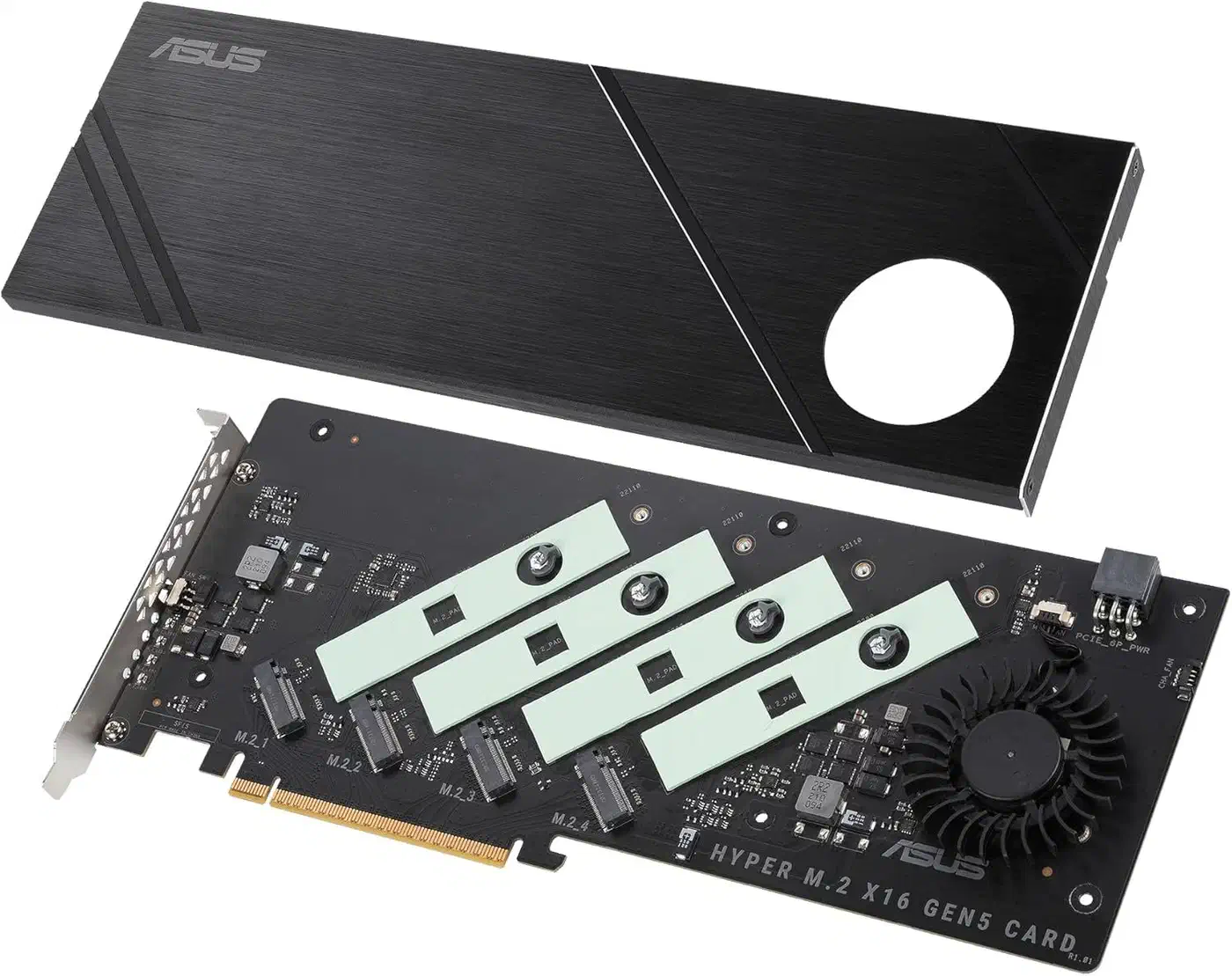
The ASUS Hyper M.2 looks premium, yet it’s still a passive bifurcation card, since its fan and heatsink don’t add a switch. If your motherboard allows a 4-way PCIe bifurcation split, the passive adapter wins on cost, heat and speed.
Which CPUs and motherboards support PCIe bifurcation
This is where most multi-drive NVMe builds go wrong. The motherboard vendor writes the BIOS menu, but the processor sets the ceiling for PCIe bifurcation. Intel publishes the allowed lane splits on each chip’s specification page under “PCI Express Configurations.”
| Platform | What the CPU’s x16 lanes can do | Drives seen on a 4-slot passive card |
|---|---|---|
| Intel Core 12th to 14th gen (LGA1700: Z690, Z790, B760) | x16 or x8/x8. i9-14900K on ARK: “Up to 1x16+4, 2x8+4” | 2 |
| Intel Core Ultra 200S (LGA1851: Z890, B860) | x16, x8/x8 or x8/x4/x4. Core Ultra 9 285K on ARK: “Up to 1x16+2x4, 2x8+2x4, 1x8+4x4” | 3 |
| AMD Ryzen desktop CPUs without graphics on AM4 (X570, B550) and AM5 (X670E, B650E, X870E) | Up to x4/x4/x4/x4, if the motherboard BIOS allows it | 4 |
| AMD Ryzen APUs (G-series) | No x4/x4/x4/x4: “4x4 is not supported with AMD Ryzen 5750GE processor or APUs”, per AMD support | 3 at most (x8/x4/x4) |
| Xeon, EPYC, Threadripper workstation and server motherboards | Per-slot control, x4/x4/x4/x4 on most slots | 4 per slot |
A Z790 motherboard can have a working bifurcation menu and still never show four NVMe drives, because the processor has no 4-way PCIe split to give. AM5 support is better on paper, although it varies by vendor: ASUS ProArt motherboards document it well, while some budget B650 motherboards leave the option out. Used server motherboards are the safest bet, and on Xeon or EPYC homelab hardware the option is almost certainly available.
Which card slots work in each mode
On a typical 4-slot bifurcation card, slot 1 uses PCIe lanes 0-3, slot 2 uses lanes 4-7, slot 3 uses lanes 8-11 and slot 4 uses lanes 12-15. The bifurcation mode then decides which of them train:
- x4/x4/x4/x4: all four slots work.
- x8/x4/x4: slots 1, 3 and 4 work. Slot 1 trains as a x4 drive on an x8 link, and slot 2 is dead.
- x8/x8: slots 1 and 3 work. Slots 2 and 4 do not work.
- x16 (no split): only slot 1 works.
Some motherboards wire the lanes in reverse order, so check the adapter’s manual or test one drive at a time. On an Intel 12th to 14th gen system, therefore, buy a dual-drive x8 bifurcation card, or install the two drives in slots 1 and 3 of a quad card.
How do I know if my motherboard supports PCIe bifurcation?
Run four checks before you buy a PCIe bifurcation card:
- Look up the processor. For Intel, read “PCI Express Configurations” on ARK, and for AMD, check whether the chip is an APU with integrated graphics.
- Open the motherboard manual. Find the lane-sharing table and block diagram, and confirm the x16 slot runs on CPU lanes at full x16.
- Search the motherboard manual (the PDF, not the spec page) for “bifurcation,” “x4x4x4x4” or “PCIe slot configuration.”
- Check the vendor’s list. ASUS keeps a PCIe bifurcation compatibility FAQ for its motherboards with the Hyper M.2 card. For other brands, search forums for your exact motherboard model plus “bifurcation.”
Finding the BIOS setting
The setting moves around by vendor, and a consumer BIOS rarely calls it “bifurcation”:
- ASUS: Advanced > Onboard Devices Configuration, or Advanced > PCIe Configuration
- Gigabyte: Settings > IO Ports > PCIe Slot Configuration
- MSI: Settings > Advanced > PCI Subsystem Settings
- ASRock: Advanced > Chipset Configuration
Look for “PCIe x16 Slot Mode,” “M.2/SSD Configuration,” “PCIe Lane Allocation” or “PCIe RAID Mode,” then switch the slot from “Auto” or “x16” to “4x4” for four drives or “2x8” for two.
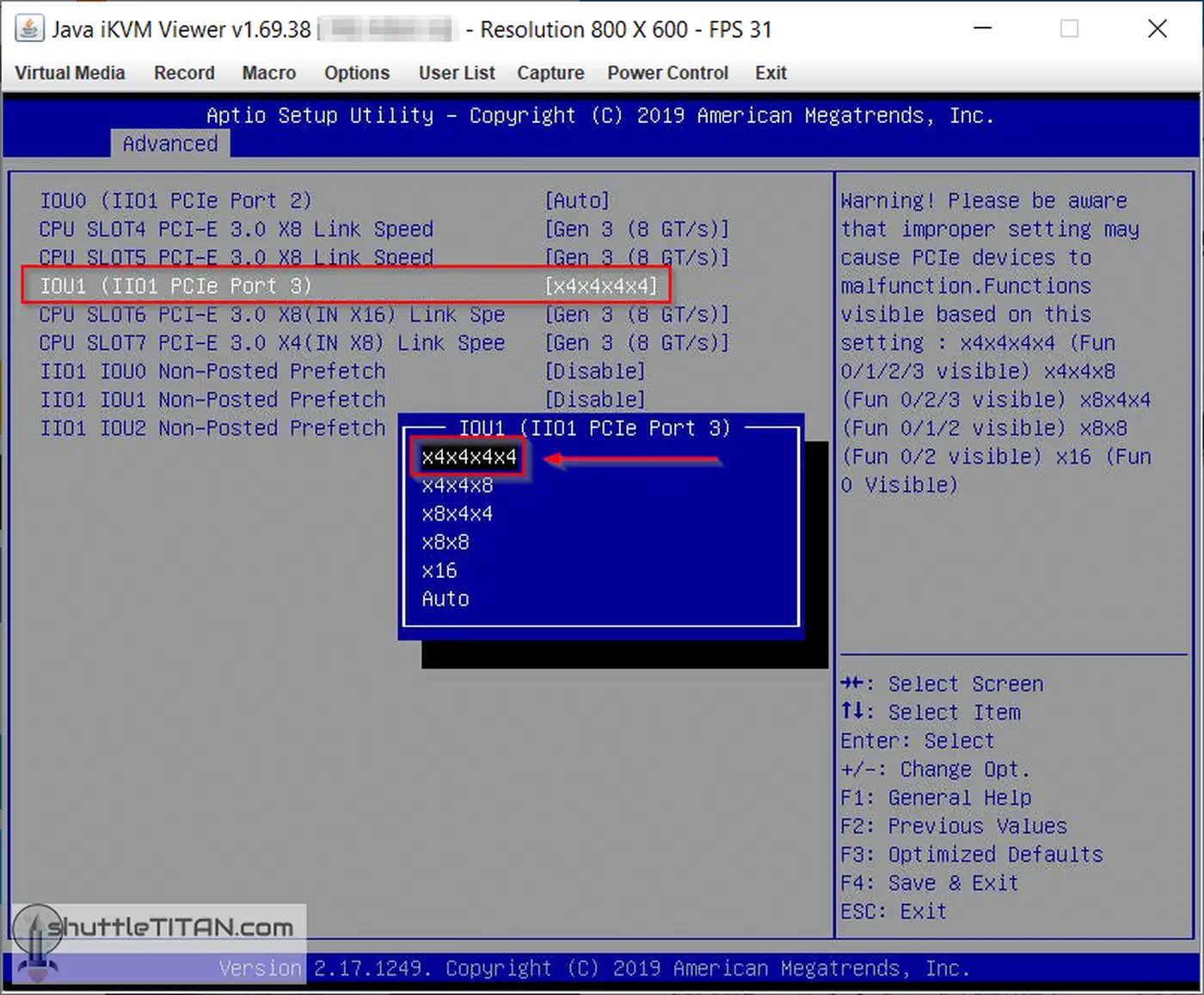
If the BIOS allows no split at all, you need either a PCIe switch card or a different motherboard.
CPU-direct slots only
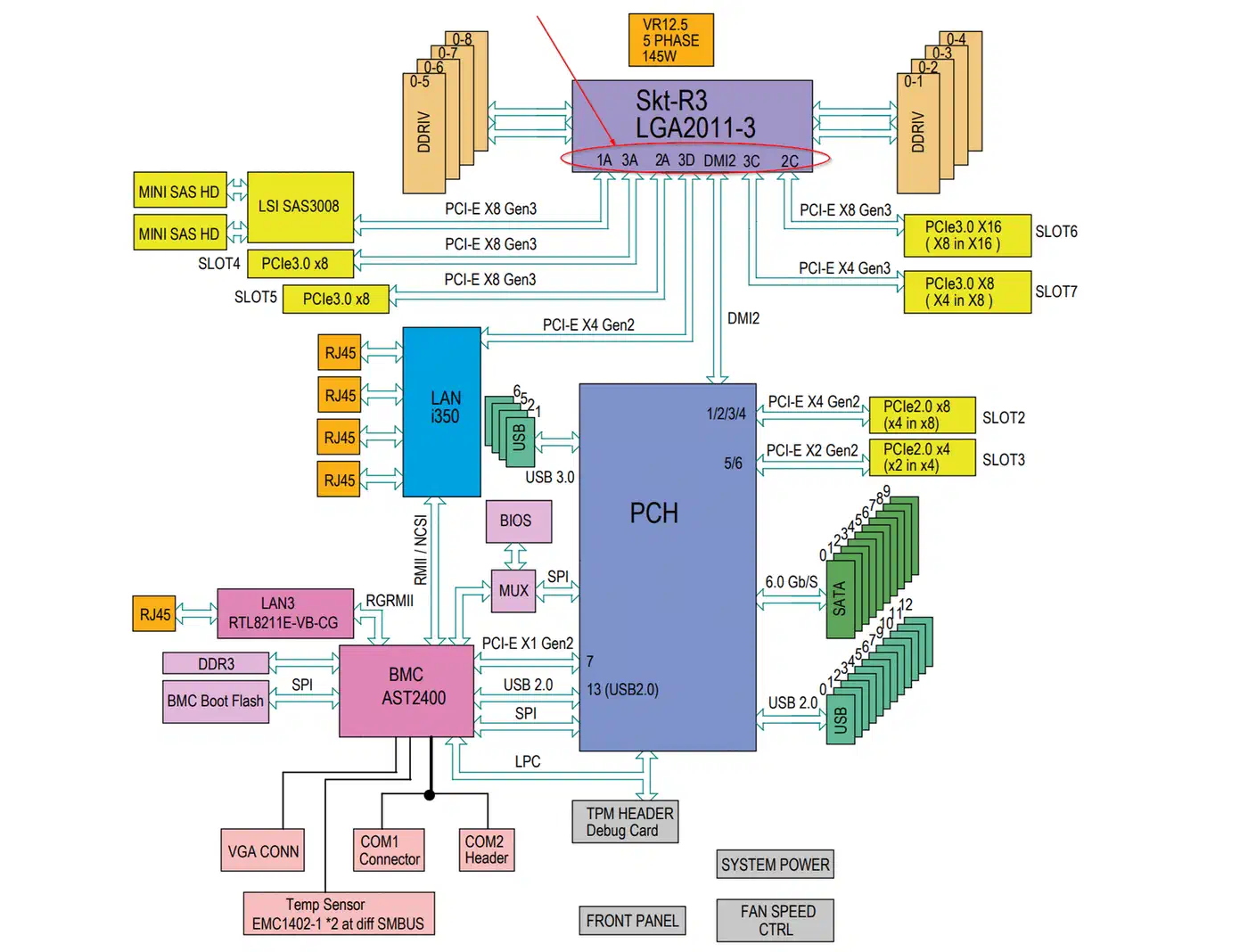
PCIe bifurcation only works on motherboard slots wired directly to the processor, and the top x16 slot nearest the socket is almost always one of them. In contrast, lower slots often run through the chipset, and chipset slots don’t split. Many of those slots are x16 in physical size but only x4 in electrical wiring, so a quad card installed there shows one drive. Your motherboard manual’s block diagram identifies which slot connects where.
Choosing a PCIe bifurcation adapter
Check two things before ordering: the PCIe generation and the physical size. Popular adapters include:
- The IOCREST SI-PEX40129 (~$25) is a basic 4x M.2 card, Gen3 and Gen4 ready, with no heatsink, which makes it a good budget pick.
- The GLOTRENDS PA54 (~$30) adds Gen5 support and aluminum heatsink standoffs.
- The Sabrent EC-P4BF (~$100) has a full aluminum housing, thermal pads on all four slots and a switchable fan. It fits 2230 to 2280 drives.
- The ASUS Hyper M.2 x16 Gen4 (~$50-70) has a full-length heatsink and fan. On supported ASUS motherboards it pairs with CPU RAID (Intel VROC or AMD RAID), but it still needs bifurcation.
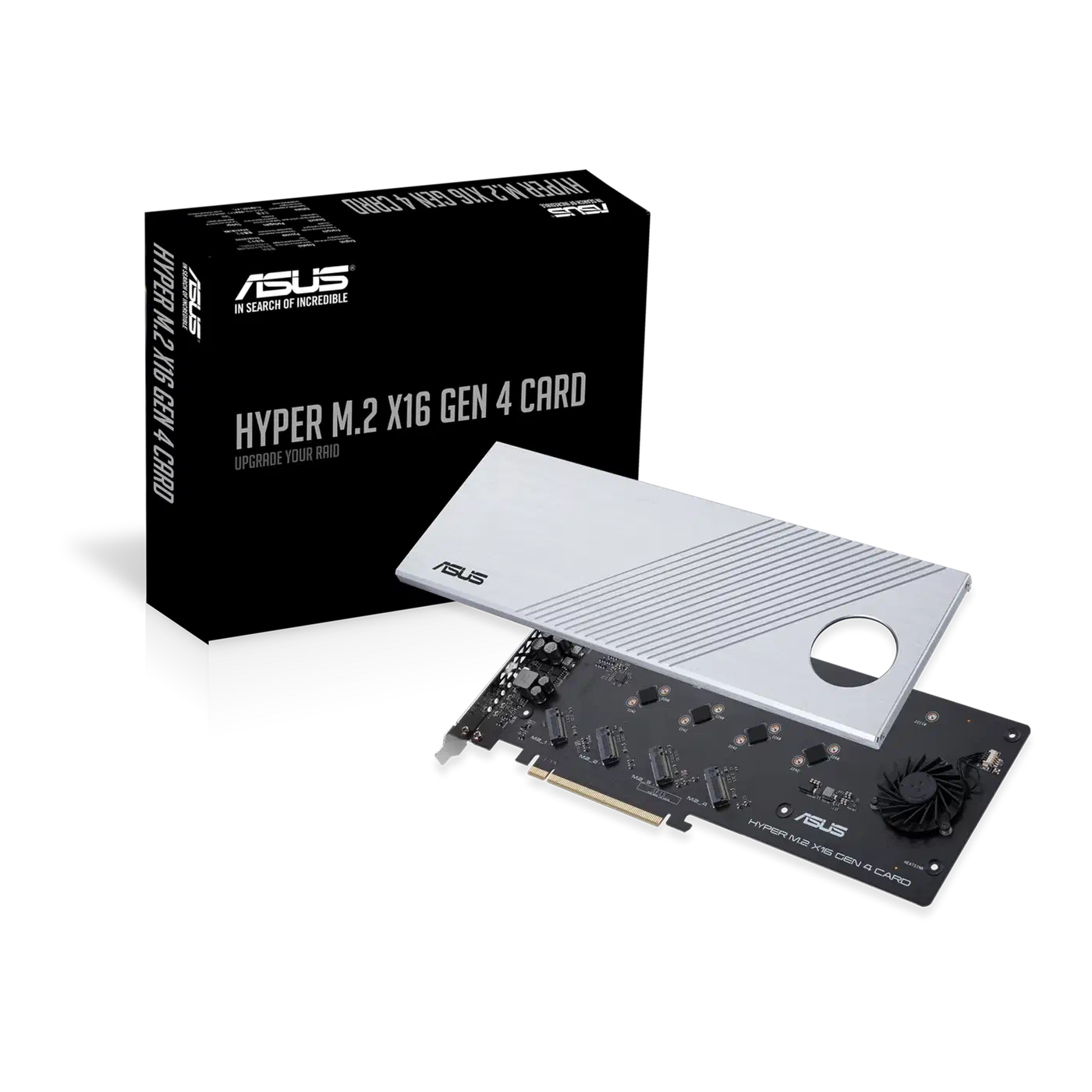
Match the adapter to your PCIe slot generation. A Gen3 card in a Gen4 slot works, although it caps your bandwidth. Similarly, a Gen5 card in a Gen4 slot runs fine, but you’ve paid for speed you can’t use.
Step-by-step PCIe bifurcation setup
Once the hardware checks out, the install takes about 15 minutes.
Step 1: install the drives and the card
Power off and unplug the system. Then install the NVMe drives into the adapter’s M.2 slots, following the slot order for the bifurcation mode you plan to configure. NVMe drives use M-key connectors, whereas B+M key (SATA M.2) drives won’t work in most of these cards. If the drives are still on your list, the M.2 NVMe picks worth buying for a homelab covers endurance and power draw.
Insert the adapter into the CPU-direct PCIe x16 slot, secure the bracket screw and plug power back in.
Step 2: set the slot mode in the BIOS
Enter the motherboard BIOS during boot (usually with Delete or F2). Find the PCIe setting for that slot and change it from “Auto” or “x16” to “4x4,” “8x4x4” or “2x8,” whichever your processor allows, then save and reboot.
Step 3: verify the drives in Linux
Linux needs no extra driver, because the standard nvme kernel driver detects each drive automatically. First, count the controllers:
lspci | grep -i "non-volatile"A 4x4 split should list four. Then confirm the block devices:
lsblk -d -o NAME,MODEL,SIZEEach NVMe drive appears as its own device (/dev/nvme0n1, /dev/nvme1n1 and so on).
Troubleshooting missing drives
- Only the first drive shows up. The PCIe bifurcation setting did not take. Clear CMOS, set the option again and update to the latest BIOS, since some motherboards gained bifurcation in later releases.
- Two of four drives show up. The slot is in x8/x8, which is the CPU ceiling on Intel 12th to 14th gen. Move the drives to slots 1 and 3, or use AMD or server hardware for four.
- Three of four drives show up. The slot is in x8/x4/x4. Slot 2 is the dead one.
- One drive, no matter the setting. The adapter is in a chipset slot or an x4-wired slot. Move it to the CPU-direct slot.
- A drive drops out under load. Reseat it, and check the Gen5 error advice below.
Can you boot from a bifurcated card?
Usually yes on a modern UEFI motherboard, although not always, and server and workstation motherboards handle it better than consumer ones. If you need to boot from the card, test it before you commit. Otherwise, a small SATA or onboard M.2 boot drive is a common workaround.
Linux checks that prove what the slot is doing
Counting drives shows that something works, while the following commands show why, and several of them are useful before you even buy an adapter.
List the physical slots and what is in them:
sudo dmidecode -t slot | grep -E "Designation|Type|Current Usage|Bus Address"Type shows the electrical width, such as x16 PCI Express 4 x16. An x16-size slot that reports x4 here is usually a chipset slot, so a quad NVMe adapter installed in it will show one drive.
Next, see where each drive hangs in the PCIe tree:
lspci -tvWith bifurcation, each NVMe drive is behind its own root port. On Intel desktop motherboards, CPU lanes hang off 00:01.x (plus 00:06.0 for the CPU’s M.2 slot), while chipset lanes hang off ports such as 00:1c.x and 00:1d.x. On a PCIe switch card, all the NVMe drives are behind one bridge chip instead. Find it with:
lspci | grep -i -E "plx|pex|broadcom"If that prints a “PEX” switch, you are not using PCIe bifurcation at all, and your BIOS setting does nothing.
Then compare what each link supports with the width and speed it trained to:
sudo lspci -vv | grep -E "Non-Volatile|LnkCap:|LnkSta:"LnkCap is the drive’s maximum capability, and LnkSta is the live link. For a Gen4 drive you want Speed 16GT/s, Width x4. Current pciutils versions mark a reduced link as (downgraded), so a drive that trained at x2 or Gen3 is easy to spot.
Gen5 is where passive bifurcation adapters become unreliable. At 32 GT/s, long traces and riser cables consume signal margin, which is why Gen5 risers often need retimer chips. Therefore, watch the kernel log:
sudo dmesg | grep -i "pcie bus error"A stream of severity=Corrected, type=Physical Layer lines means the link is marginal, so set that slot to Gen4 in the BIOS. You lose half the peak speed per drive, but a stable Gen4 x4 link still moves about 7 GB/s.
PCIe bifurcation for GPUs
The same lane rules explain why a GPU sometimes reports fewer lanes than its slot, and they decide how much a GPU loses when you split the slot for a multi-GPU or GPU plus NVMe build.
Why is my GPU running at 8x instead of 16x?
The usual causes of a GPU stuck at x8, in rough order:
- A second GPU or other card is in the second CPU slot. Most motherboards with two PCIe x16 slots share one set of 16 CPU lanes, so filling the second slot drops the GPU and the second card to x8/x8 automatically.
- An M.2 slot borrows lanes. On many newer motherboards, the manual’s lane table says that filling a specific M.2 slot takes lanes from the main GPU slot.
- The GPU slot mode was set by hand. A slot left at “2x8” or “4x4” after removing a bifurcation card will run a GPU at x8 or x4.
- The GPU or riser is not fully seated.
Check the GPU’s live link width with sudo lspci -vv -s <gpu address> | grep LnkSta while the GPU is under load. A lower speed (GT/s) at idle is normal power management, whereas a lower width usually points to one of the causes above.
Should PCIe bifurcation be on or off?
PCIe bifurcation is a lane layout, so there’s no on/off choice. With a single GPU and no split adapter, leave the PCIe slot on “Auto” or “x16.” Change it only when you install a bifurcation card or a riser that needs it, such as a GPU plus NVMe riser.
How much does x8 cost a GPU?
Less than most people expect. In an RTX 5090 PCIe scaling test, a Gen4 x16 link delivered 99% of Gen5 x16 gaming performance at 4K, and Gen3 x16 delivered 98%. A Gen5 x8 GPU link has the same bandwidth as Gen4 x16, and Gen4 x8 matches Gen3 x16. On a Gen5 motherboard, giving the GPU x8 and two drives x4 each (x8/x4/x4) costs about 1% of gaming performance.
Linux storage layouts for four NVMe drives
Each bifurcated NVMe drive is a plain block device, so any Linux storage stack works.
Stripe four Gen4 drives into one multi-drive array with mdadm for maximum throughput, which in ideal conditions can reach around 25-28 GB/s of sequential reads:
sudo mdadm --create /dev/md0 --level=0 --raid-devices=4 \
  /dev/nvme0n1 /dev/nvme1n1 /dev/nvme2n1 /dev/nvme3n1
For a homelab NAS, a ZFS raidz pool gives you parity, compression and the ARC cache:
sudo zpool create tank raidz /dev/nvme0n1 /dev/nvme1n1 /dev/nvme2n1 /dev/nvme3n1Btrfs RAID10 stripes and mirrors across all four:
sudo mkfs.btrfs -d raid10 -m raid10 \
  /dev/nvme0n1 /dev/nvme1n1 /dev/nvme2n1 /dev/nvme3n1
Btrfs RAID5/6 is still not safe for data you care about, so stick with RAID1 or RAID10 there. A third option now that bcachefs runs as an out-of-tree module is its built-in SSD-to-HDD tiering.
NVMe drives handle their own queueing, so the none I/O scheduler is usually the best choice. A udev rule makes it permanent:
# /etc/udev/rules.d/60-nvme-scheduler.rules
ACTION=="add|change", KERNEL=="nvme[0-9]*n[0-9]*", ATTR{queue/scheduler}="none"
On dual-socket servers, put the bifurcation adapter in a PCIe slot on the same NUMA node as the CPU that runs your storage work. numactl --hardware or lstopo shows the layout, and choosing the wrong node adds latency to every I/O operation.
Thermal management and power
Four NVMe drives in one PCIe slot pack a lot of heat into a small space. Gen4 drives draw 5-8W under sustained load, and Gen5 drives can pull 10-14W each. That is 20-32W from four Gen4 drives, in an area about the size of a playing card.
Passive bifurcation adapters like the IOCREST and GLOTRENDS rely entirely on case airflow. Rackmount chassis with front-to-back airflow usually cope, whereas tower cases with weak airflow may throttle the inner drives. Adapters with a fan and full housing, like the Sabrent EC-P4BF, hold lower temperatures and earn their price under long sequential loads.
Point a 40mm or 80mm fan directly at a passive adapter. Watch temperatures with sudo nvme smart-log /dev/nvme0n1 | grep -i temperature, and treat sustained readings above 70C as a warning, since many drives start to throttle around there. With three drives, leave the empty slot between them for an air gap. Four drives plus the adapter add 20-40W, so check your PSU headroom, and use your server’s power draw estimate in our calculator to see the yearly cost.
Homelab use cases for PCIe bifurcation
Proxmox VM storage. Run VM disks on a four-drive RAID10 for fast boots and snapshots, without a $500+ NVMe RAID card. On most platforms each bifurcated drive also lands in its own IOMMU group. That allows you to pass single drives to VMs with VFIO passthrough. Turn on IOMMU in the BIOS (VT-d or AMD-Vi), add intel_iommu=on or amd_iommu=on to the kernel command line, and check the groups with find /sys/kernel/iommu_groups/ -type l.
All-flash NAS. Two adapters in two CPU-direct PCIe slots give you 4-8 NVMe drives for a high-performance ZFS NAS that can fill a 10GbE or 25GbE link, where spinning disks cannot keep up.
Ceph OSD nodes. In a Ceph cluster each NVMe drive becomes its own OSD. One bifurcation adapter adds four OSDs to a single-socket server, and a three-node cephadm deploy is where they earn their keep.
Mixed slots. An x8/x4/x4 split can run a 10GbE NIC or a second low-power GPU on the x8 link and two drives on the x4 links, all from one slot, which suits compact motherboards with a single full-size PCIe slot.
Cost comparison
For a four-drive NVMe setup, the adapter alone costs:
| Approach | Card cost | Requires BIOS support | Notes |
|---|---|---|---|
| Passive bifurcation adapter | $20-50 | Yes, x4/x4/x4/x4 | Best value if your CPU can split 4 ways |
| Bifurcation adapter with fan and housing | $80-110 | Yes | Better thermals |
| PCIe switch card | $150-300+ | No | Works in any x16 slot, and the only 4-drive option on Intel 12th to 14th gen |
| NVMe HBA or RAID card | $300-800+ | No | Enterprise features |
On AMD or server hardware, a $25 passive PCIe bifurcation adapter does the same job as a $200 switch card, and the $175 you save buys another drive. On an Intel 12th to 14th gen desktop, the choice is a $25 adapter running two NVMe drives or a PCIe switch card running four.
Is PCIe bifurcation right for your build?
It comes down to three checks: a CPU-direct x16 slot, a processor that allows the split you need, and a motherboard BIOS that exposes the PCIe bifurcation option. Pass all three, and four NVMe drives cost you under $30 in hardware beyond the drives themselves. Fail the processor check, and you still get two drives for the same money, or four with a switch card.
Check the processor’s lane splits first and the BIOS menu second, then let lspci confirm what you got.