 Botmonster Tech
A smart pet feeder on ESPHome costs $20 and stays local

Two paths lead to a smart pet feeder ESPHome setup. You can flash the ESP32 inside a feeder you already own, or build the whole thing for about $20 from an ESP32 board, a continuous rotation servo and a 3D-printed auger. Both end up local, run by ESPHome and Home Assistant , with scheduled meals, portion sizes, a “feed now” button on your phone and a full feeding log. PetSafe ($100 to $150) and PETLIBRO ($65 to $160) charge a premium for the same features, and their hardware is often flashable. This guide covers both paths, then walks the build end to end.
Key Takeaways
- Flashing a feeder you own buys factory reliability; building one costs $20 and cannot brick.
- Calibrate portions on a kitchen scale, because every guide that skips this is off by 25%.
- Many feeders pair a Wi-Fi radio with a second MCU on one PCB, so flashing wins nothing.
- A flashed Petkit Fresh Element Solo reboots hourly until its RTC battery comes out.
- Both paths need SNTP, so a local schedule is not fully offline.
Flash an existing feeder or build a DIY ESPHome pet feeder from scratch
Nearly every guide picks one lane. Here is the side-by-side.
| Flash a commercial feeder | Build from scratch | |
|---|---|---|
| Cash cost | $50 to $100 for the feeder, plus a $3 USB-serial adapter | About $20 in parts |
| Skill needed | Soldering to test pads, serial flashing, risk of stripping soft screws | Jumper wires and a 3D print, no soldering |
| Time | An evening if the chip is directly flashable. Days to weeks if the model uses a two-chip UART design | An afternoon plus print time |
| Reliability | High. Injection-moulded auger, factory optical scoop counter | Depends on your auger tolerances and kibble size |
| Portion accuracy | Scoop-count based, repeatable | Time based, drifts with kibble density unless you add a load cell |
| Failure mode | A bricked feeder you paid for | A $5 servo |
| Reversible | Only if you dumped the factory flash first | Not applicable |
| Enclosure | Food-safe and dishwasher-friendly out of the box | You design it |
The short rule: if you own a feeder on the list below, open it. If you own nothing yet, build, because the downside is a servo, not a $90 appliance.
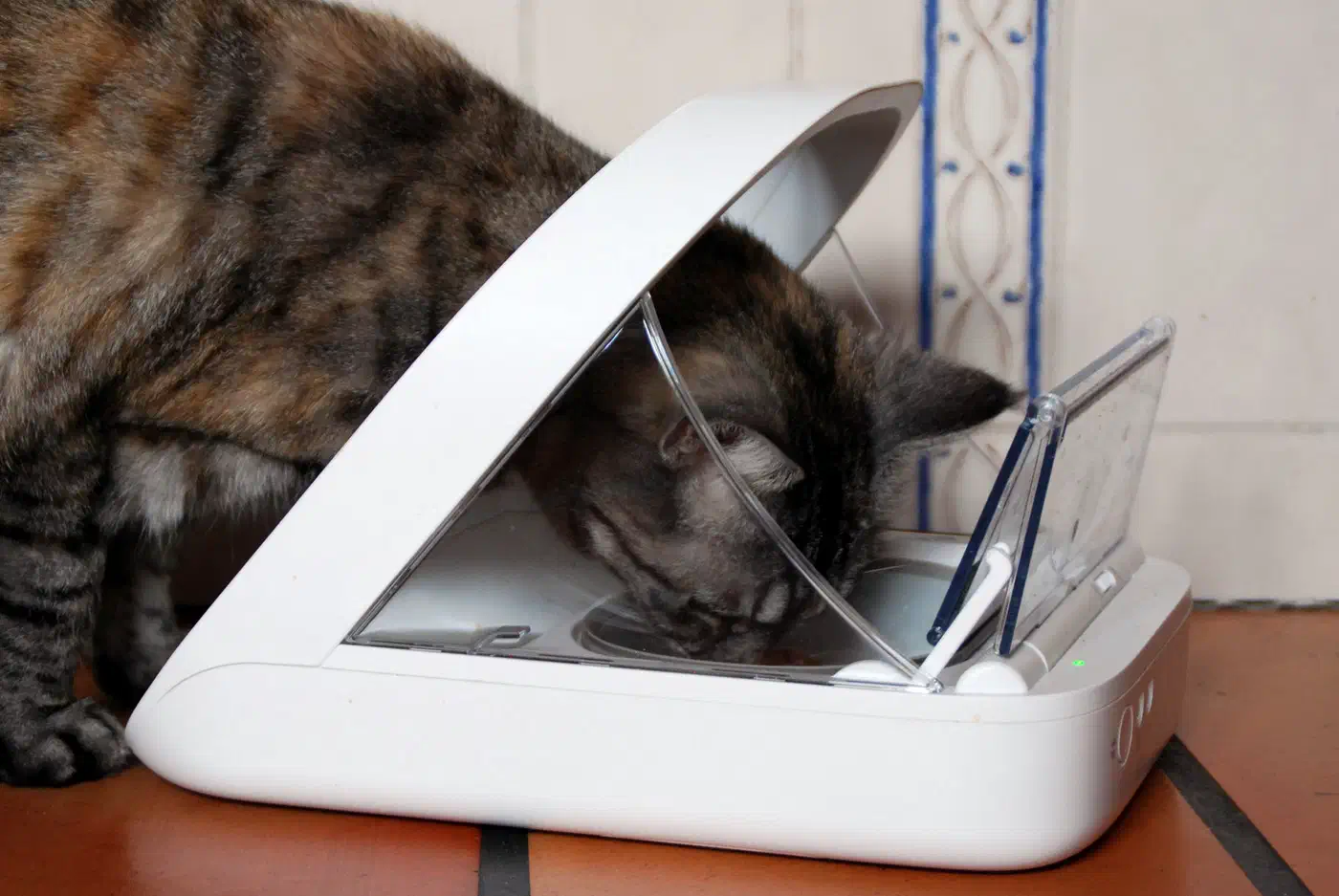
Which pet feeders can run ESPHome
Flashability is per model, not per brand, and the details are scattered across five write-ups. Here is what each device needs.
| Feeder | Chip | Flashable | What it takes |
|---|---|---|---|
| PETLIBRO Air PLAF108 | ESP32-C3-WROOM-02 | Yes, directly | Test pads under the chip, external 3.3V supply |
| Petkit Fresh Element Solo | ESP32-WROOM-32D | Yes, directly | Screws under the rubber feet, glued connectors, button-held boot |
Generic Tuya spf-1010-ty | ESP8266 (esp_wroom_02) | Yes, directly | Serial pins on the PCB edge, TC118S motor driver |
| HoneyGuaridan S30D | Espressif | Likely | Shows up on the network as an Espressif device, teardown needed |
| Petkit Fresh Element Mini | ESP-WROOM-02 | No | Wi-Fi radio only, an ARM chip owns the pins, needs a spy board |
| Petkit Yumshare | Two radio PCBs | No | FCC photos show two chips with antennas on separate PCBs |
| PetSafe 5 Meal | None | No | Relay across the timer contacts |
| Tuya WBR3 feeders | RTL8720CF | No | Not an ESP chip, disable it and run a parallel ESP32 board |
Two rows carry the same brand name and opposite answers. Tuya is a cloud platform, and that says nothing about the chip. A Tuya feeder is a coin flip between an ESP module you can flash and a Realtek or Beken one you cannot. Read the marking before you buy a serial adapter.
Read the PCB before you buy anything
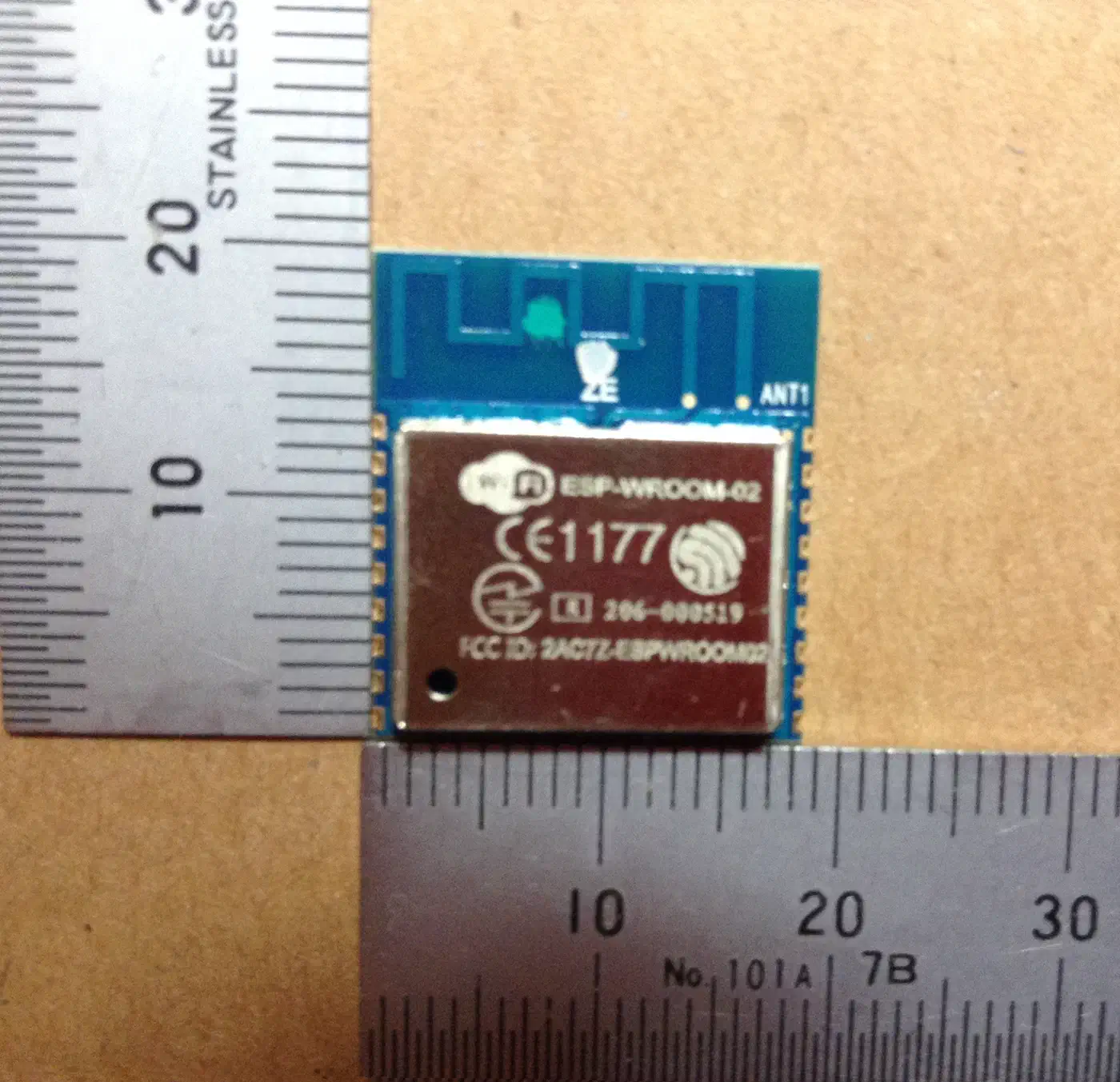
Every row above starts with a look inside. Undo the base screws, lift the main PCB out, and find the Wi-Fi module: the metal-shielded can beside a zigzag antenna trace etched into the PCB. The marking on that shield is the answer.
| PCB marking | What it is | Runs ESPHome |
|---|---|---|
ESP-WROOM-02 | ESP8266 | Yes |
ESP32-WROOM-32D | ESP32 | Yes |
ESP32-C3-WROOM-02 | ESP32-C3 | Yes |
TYWE3S, TYWE1S | ESP8266 under a Tuya label | Yes |
WBR3, CB3S, BK7231 | Realtek or Beken | No |
Then count what else connects to that PCB. One ribbon cable to the motor and feed button means the radio owns the device. A second large chip with its own connectors means the two-chip trap below.
Photograph the PCB from both sides before disconnecting a cable: nothing is labelled and connectors go back wrong easily. Then search that marking on ESPHome Devices , where somebody has often published the device, its pin map and a working configuration.
PETLIBRO Air PLAF108
The flash pads sit on the PCB under the ESP32 chip: VCC, RX, TX, GND, plus two unlabeled boot pins left of GND. Bridge those while powering on. The serial lines are crossed, so your adapter’s TX pin goes to RX.
Power is the gotcha that stops most people. The wall adapter supplies 3.8V, not 3.3V, and that surfaces as a bare “No serial data received” error. Power the board from an external 3.3V supply with the internal cable, the wall adapter and the battery all disconnected.
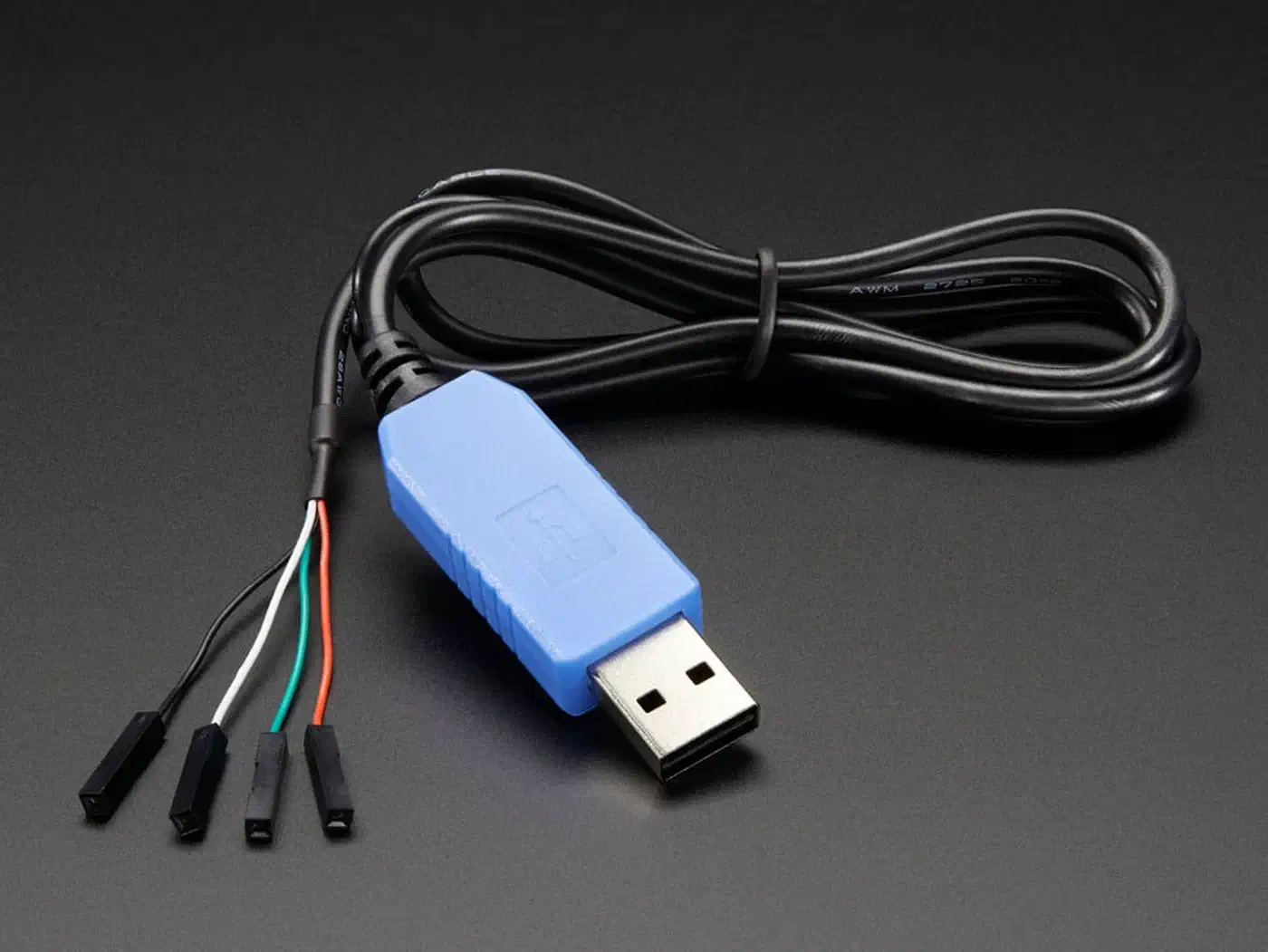
Dump the factory flash before you write anything:
python3 -m esptool --chip esp32c3 --port /dev/ttyUSB0 read_flash 0x0 0x400000 petlibro_factory_dump.binThat is about 4MB over roughly 7 minutes, and it holds cloud keys unique to your device, so keep it local. Flashing kills the PETLIBRO app for good. In exchange the ESPHome device exposes wall power status, battery connection, food chute presence and motor rotation. Pinecone Data’s teardown and taylorfinnell/petlibro-esphome cover the pins.
Petkit Fresh Element Solo
Four base screws hide under the rubber feet, and red glue on the PCB connectors needs real force to break. For boot mode, hold the right Wi-Fi button while connecting power, releasing after 1 to 2 seconds. ESPHome Devices rates this device “Soldering required (4/5)”.
Portions are scoop-based, 1 to 6 scoops, with the pin at GPIO27 counting auger rotations. That sounds more repeatable than a time-based build, and it is not. One owner measured the count against real kibble and found it non-linear: one scoop of Royal Canin registers about 8 counts, two scoops about 27 . The counter also takes 3 or 4 cycles to reach zero after the hopper runs dry, so it cannot drive a low food alert. Treat it as a rough activity signal.
It also needs internet for SNTP, or the schedule will not run even in offline mode.
The reboot trap nobody warns you about. Three owners in that thread report a flashed Solo restarting on its own: “about every 30 minutes”, “every ~3600 seconds, with the logs indicating a power failure”, and “every hour (almost to the second)”, which stopped only when the RTC backup battery came out. Setting the onboard I2C clock makes it worse, leaving the chip unstable enough that over-the-air updates die before the image hits 100%.
The only fix anyone has landed is prying out that spot-welded battery, which tears its tab off the PCB, and newer PCB revisions bury it under hard white compound. Nobody proved a root cause, so treat it as a known failure with a crude workaround. To flash a feeder that then behaves, pick the PETLIBRO Air.
The generic Tuya feeder, and its full pin map
The cheapest smart feeder on Amazon is usually an unbranded Tuya unit, and one of them, the spf-1010-ty, is the best-documented flash target here. Its PCB holds a plain ESP8266, so an ESPHome configuration takes this device with platform: ESP8266 and board: esp_wroom_02. A TC118S driver runs the motor, and every pin on the PCB is published:
| Pin | Function |
|---|---|
| GPIO4 and GPIO5 | Motor driver, one pin per direction |
| GPIO13 | Motor position switch, one pulse per scoop |
| GPIO0 | Front feed button |
| GPIO16 | Red status LED |
| GPIO14 | Blue status LED |
That pin map is worth more than the feeder costs. You can write the whole configuration before the serial adapter arrives, and the two-direction motor driver gives jam recovery free: pulse the GPIO5 pin instead of GPIO4 and the auger backs up.
The two-chip trap
Almost no write-up spells this out, and it is why “just flash it” fails on so many models.
Plenty of Wi-Fi feeders are two computers on one PCB. A wireless module handles the network, while a separate application MCU owns every GPIO pin: the motor driver, the scoop sensor, the buttons. The two connect over a serial UART line, usually at 9600 baud.
Flash the wireless module and you get a perfectly working ESPHome node that controls nothing. It cannot turn the auger, because the auger was never wired to it.
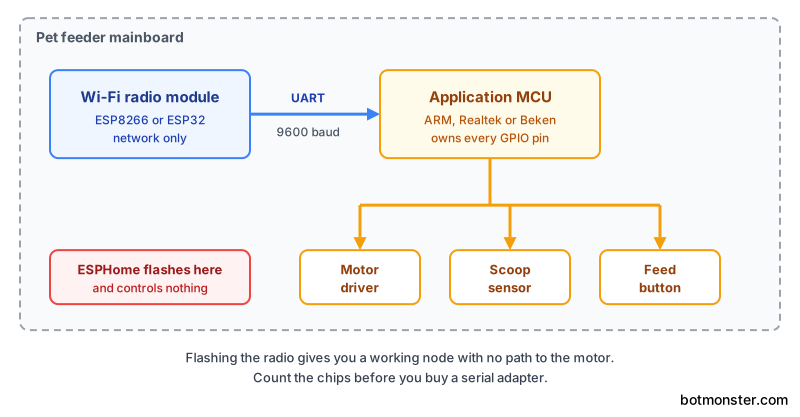
Two named feeders prove the pattern. On the Petkit Fresh Element Mini, the onboard ESP-WROOM-02 is a Wi-Fi radio and nothing else, with an ARM chip holding every GPIO pin
. On the Petkit Yumshare, FCC photos show two chips with antennas on two separate PCBs.
That points at a free check before you buy. FCC internal photos are public for most devices, and two antennas on two PCBs is the tell. Otherwise open the case and count the chips: a second MCU beside the radio means the spy-board route.
Fallback ladder for feeders you cannot flash
Three rungs, each with a model that proves it works:
- Spy board. Leave the original chip alone and connect a NodeMCU beside it, reading the PCB’s existing signals through optocouplers. This is the working approach for the Fresh Element Mini. Feed-button timing to grams is per unit, so calibrate it.
- Disable the radio, run your own. On Tuya WBR3 feeders the module is an RTL8720CF and cannot run ESPHome at all. Rather than desolder it, pull its EN pin to GND, add an ESP32-S3 Super Mini beside it, and speak the Tuya serial protocol locally. Fully reversible.
- Simulate the mechanism. The PetSafe 5 Meal has no chip to flash. A Wemos D1 Mini drives a relay soldered across the point where the timer pulls output 2 to ground, faking a press.
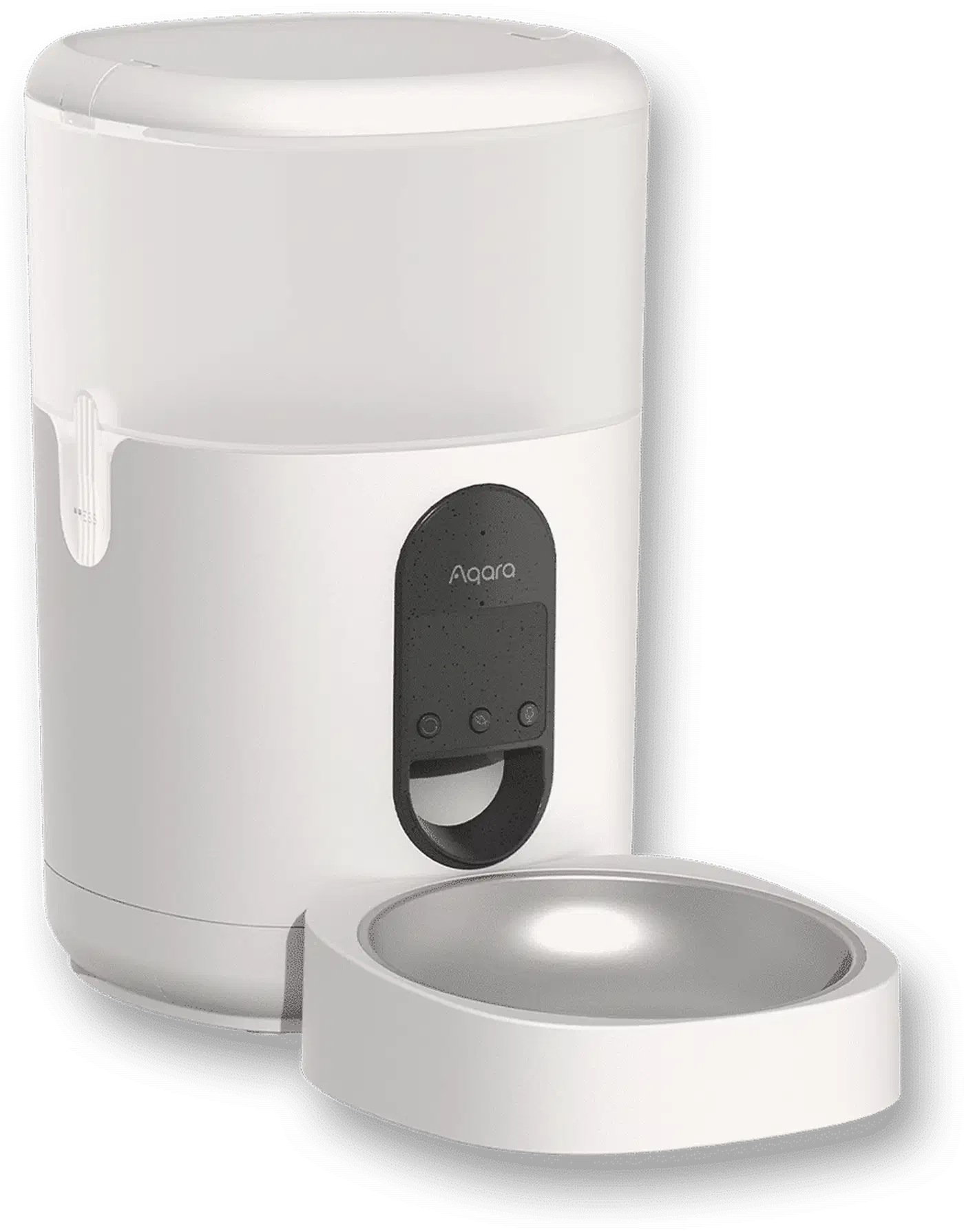
If none of that appeals, one commercial feeder is local out of the box: the Aqara Smart Pet Feeder C1, model ZNCWWSQ01LM. A plain Zigbee 3.0 device, it pairs to Home Assistant with no hub and no account, and on Zigbee2MQTT the schedule lives on the feeder, so meals happen when Home Assistant is down. Kibble has to be 1 to 12mm. Local Smart Home Guide
covers pairing.
The rest of this guide covers the scratch build, which is the path I took.
Dispense food by weight, not by timer guesswork
This step decides whether the feeder is any good, and almost every guide skips it. Go looking and you find portions given as unmeasured numbers.
- The most detailed build guide online sets portions as a raw motor step count, 800 by default, with no gram figure and no scale.
- The ESPHome device page for the Petkit Solo dispenses in scoops and never weighs anything.
- Two owners of the same Petkit Mini held the feed button for the same 2000ms and got about 4g and about 5g, a 25% spread on identical hardware.
- Scoop counting on the Solo is non-linear, as above.
A 25% error on a cat’s daily ration is about a can of food a week either way. The fix takes ten minutes and a kitchen scale.
The five-run calibration
Run this once, before the pet feeder dispenses food unattended:
- Set
portion_durationto 1 second. - Put an empty bowl on a kitchen scale and zero it.
- Press the feed button, then record the weight it dispensed.
- Repeat five times and average, because the first pull off a full hopper differs from the fifth.
- Repeat the whole set for 2, 3, 4 and 5 seconds.
Those 25 numbers tell you two things. The averages give a grams-per-second rate: expect 8 to 12g per second for standard cat kibble through a 25mm auger. The spread inside each set of five says how far to trust it. Three-second runs within half a gram of each other mean time-based dispensing is fine. A two-gram scatter means the auger is binding or the hopper is bridging, and no ESPHome configuration fixes that.
Write the rate down, because every Home Assistant automation that turns grams into servo time depends on it. Redo it whenever you switch kibble: density varies enough between brands that a rate from one bag is wrong for the next.
Close the loop with a scale
Calibration is right on the day you measure it. It does not follow the auger wearing, the hopper emptying, or a new bag packing differently. A load cell does.
Put the cell under the bowl and wire it to an HX711 amplifier board, about $2. The dispense script runs the auger until the scale reads the target weight, so the portion is measured rather than predicted.
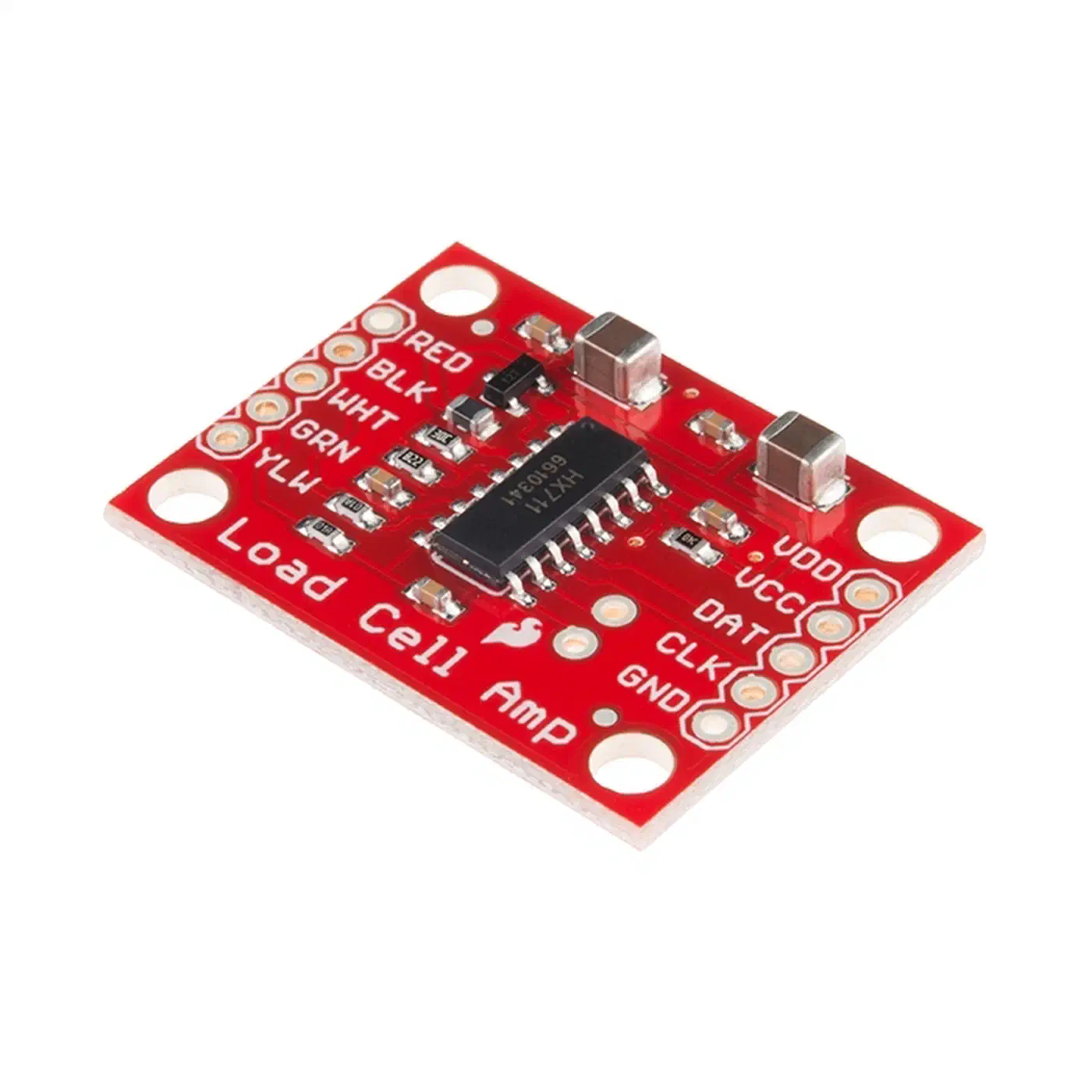
The sensor closes a second gap too. A rotation counter reads a jam that spins without dispensing as a success, because the auger did turn. A scale cannot be fooled: if the weight does not move, the pet feeder dispensed nothing, and Home Assistant alerts instead of logging a meal.
Hardware design: servo types, food hopper, and dispensing mechanism
The build side of a pet feeder decides whether food drops cleanly or jams on the second day. Two designs are common, and only one of them can dispense food in an amount you control.
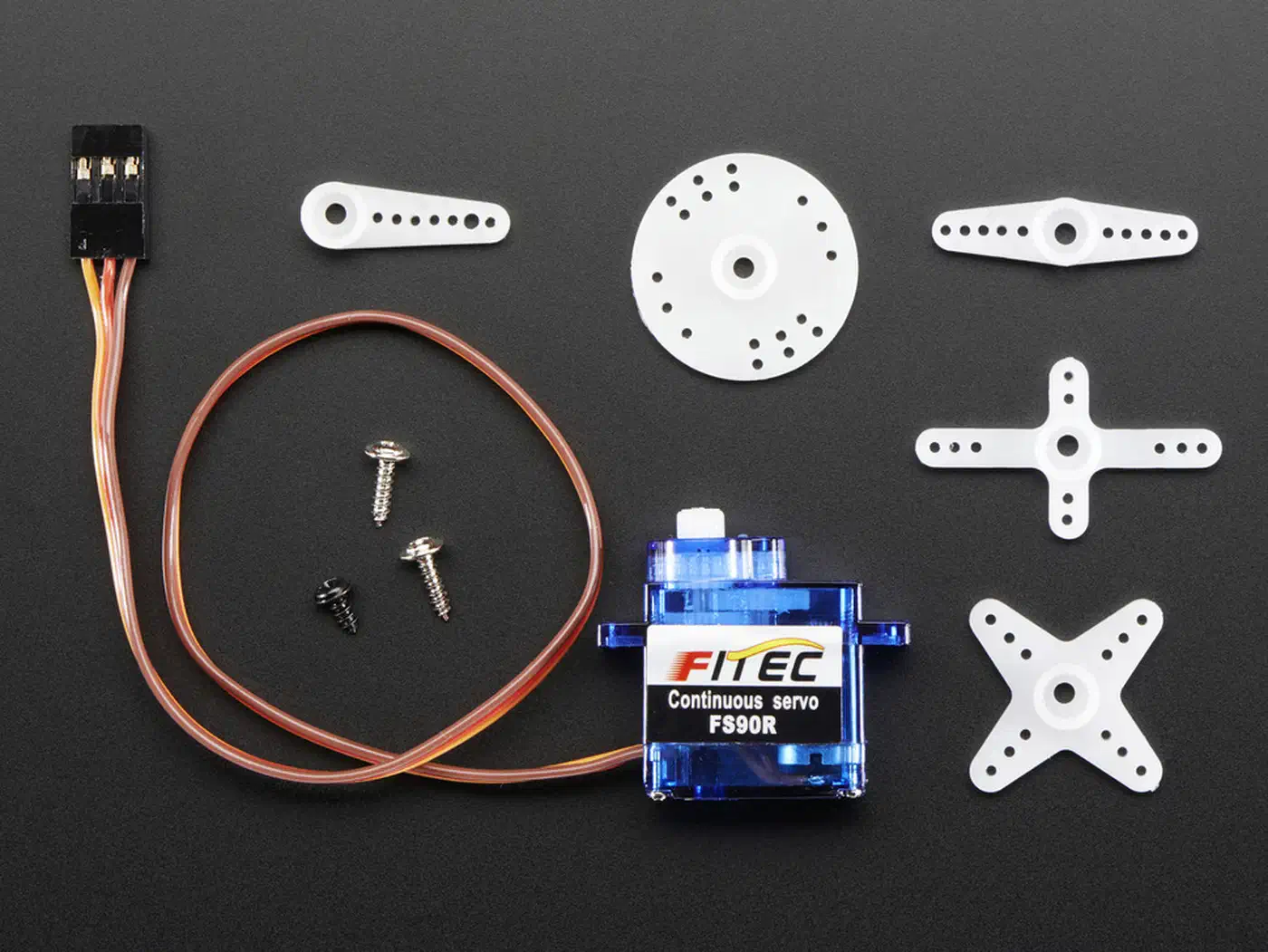
A trap-door turns a flap with a standard servo motor like the SG90 or MG996R and lets gravity do the rest, giving one fixed portion and nothing to calibrate. An auger spins a screw inside a tube with a continuous rotation servo like the FS90R . Food then moves in step with the motor: four seconds dispenses twice what two seconds does, and that straight line is what the calibration rests on.
Print the auger as a helical screw sized for a 25mm PVC pipe. Proven designs sit on Printables and Thingiverse . Pitch and tube width set the flow rate: a tighter pitch moves less food per turn and gives finer control.
The hopper can be a flipped 2-liter bottle, a funnel, or a printed bin above the auger inlet. Size it for 2 to 3 days, roughly 500ml for a cat or 2 liters for a medium dog. Keep the path from hopper to tube free of ledges and sharp angles, because kibble bridges on those and jams.
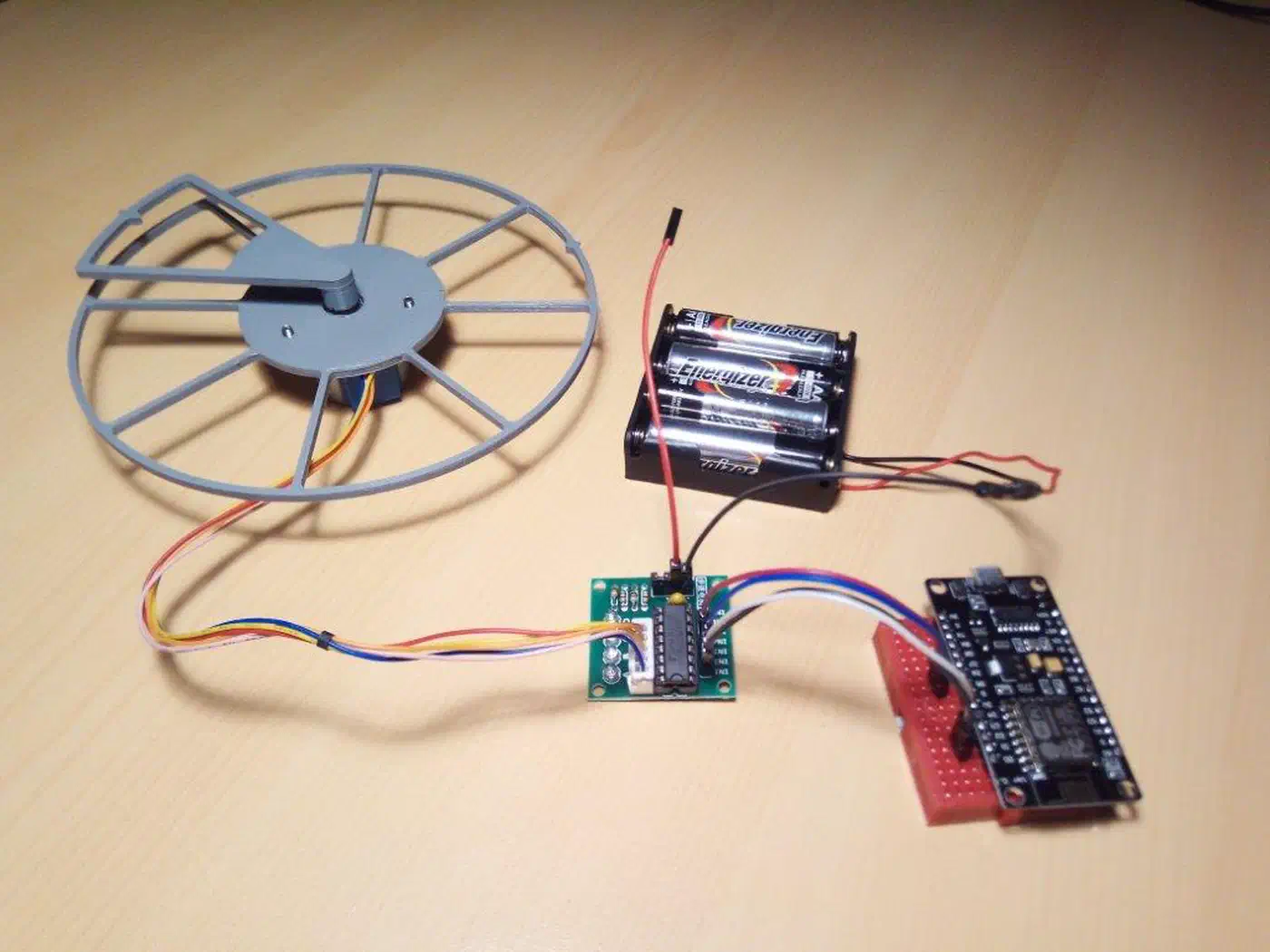
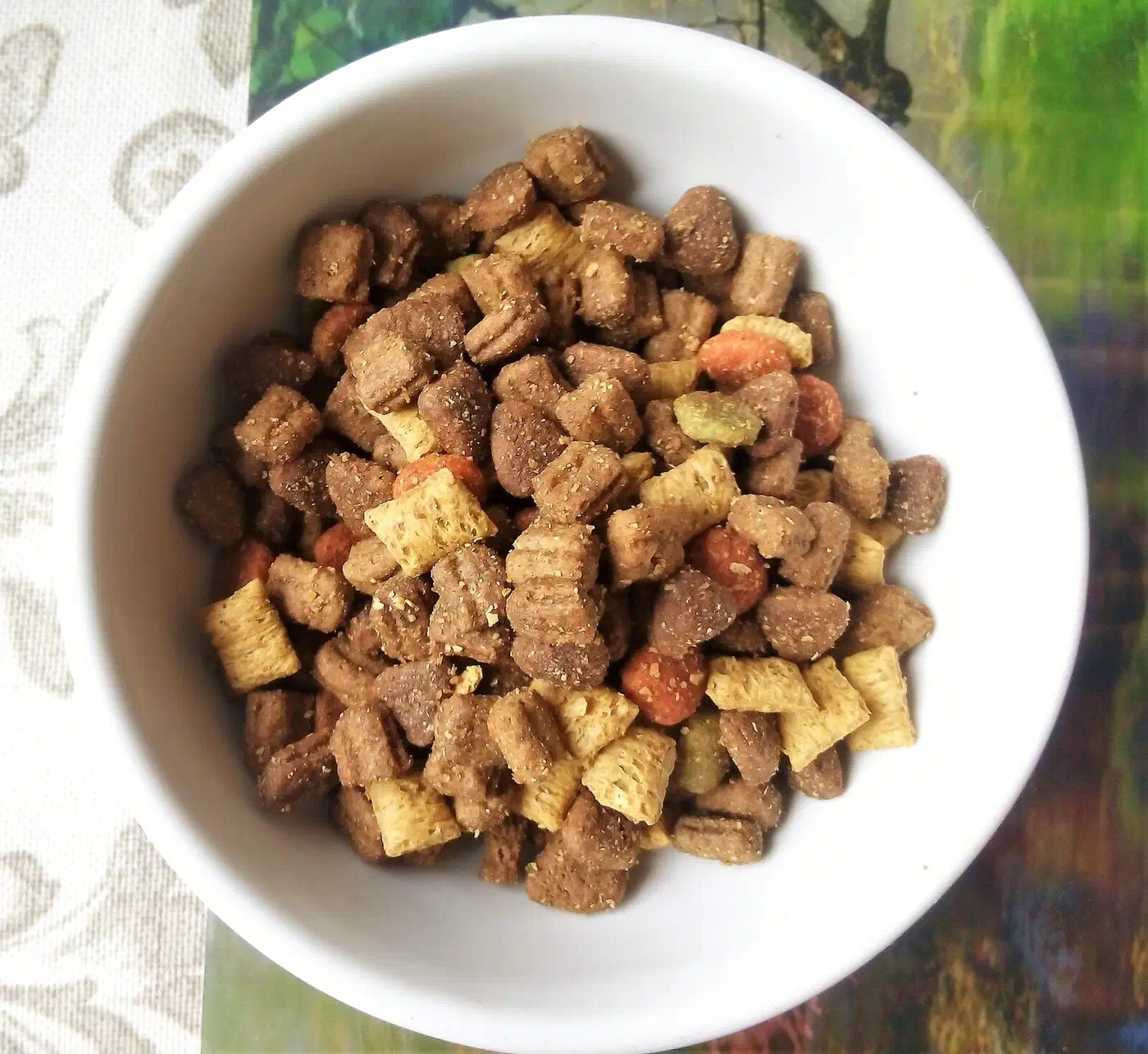
One limit: this design takes dry kibble in the 5 to 12mm range. Wet food, soft treats and odd shapes need a different mechanism.
The full bill of materials:
| Component | Approximate Cost |
|---|---|
| ESP32-C3 Super Mini | $3 |
| FS90R continuous rotation servo | $5 |
| PVC pipe 25mm x 150mm | $2 |
| 3D-printed auger and hopper (PETG filament) | $2 |
| Jumper wires + USB-C power supply | $5 |
| 100uF capacitor | $0.50 |
| Food-safe container for hopper | $3 |
| Total | ~$20.50 |
The ESP32-C3 Super Mini is the board to use. At 22.5 x 18mm it runs a RISC-V core at 160MHz and exposes 11 programmable pins, enough for the servo signal, the I2C sensors and whatever you add later. If you want a battery build or a different radio, the full ESP32 lineup compares deep-sleep draw and radios chip by chip.
How this compares to commercial feeders
| Feature | DIY ESPHome Feeder | PetSafe Smart Feed | PETLIBRO Granary |
|---|---|---|---|
| Price | ~$20 | ~$150 | ~$140 |
| Portion control | Time-based (calibrated) | Up to 12 meals/day | Up to 6 meals/day |
| App control | Home Assistant (local) | PetSafe app (cloud) | PETLIBRO app (cloud) |
| Camera | Optional (add ESP32-CAM ) | No | Yes |
| Works offline | Yes, with a local time source | Limited | Limited |
| Custom automations | Unlimited via HA | None | None |
| Food capacity | Custom hopper size | 24 cups | 5L |
The DIY route wins on cost and flexibility, commercial feeders on polish and support. If Home Assistant already runs in your house, the choice makes itself.
Wiring and assembly
Wiring decides the most common failure in a DIY pet feeder: the ESP32 browning out when the servo motor pulls current from the wrong rail.
The FS90R servo has three wires, and each goes to a different pin:
- Brown (GND) connects to the board’s GND pin
- Red (VCC) connects to a separate 5V power source, never the 3.3V pin
- Orange (signal) connects to the GPIO5 pin
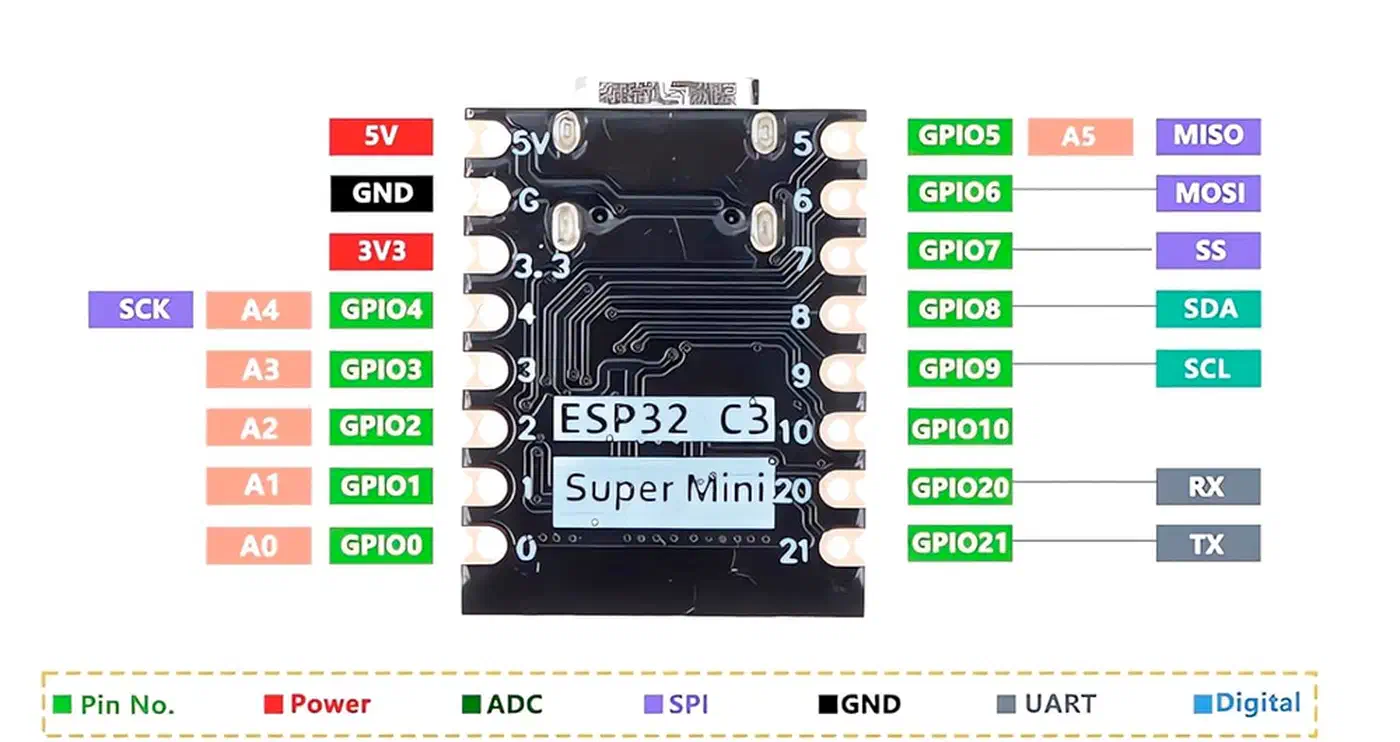
Power isolation keeps the board alive. A servo motor pulls 500mA or more, past what the board’s regulator can supply. Run the motor off the USB supply’s 5V power rail, share only the GND pin, and put a 100uF capacitor across the servo’s VCC and GND pins to soak up start and stop spikes.
For assembly:
- Insert the printed auger into the PVC tube with 1 to 2mm clearance each side
- Attach the servo horn to the auger shaft with a set screw or hot glue
- Mount the servo at one end, auger running the full length
- Cut a slot in the bottom of the tube near the drop end
- Mount the hopper above the auger inlet, opposite the servo
Slot width sets the maximum flow rate. Start at 15mm and tune it against your kibble.
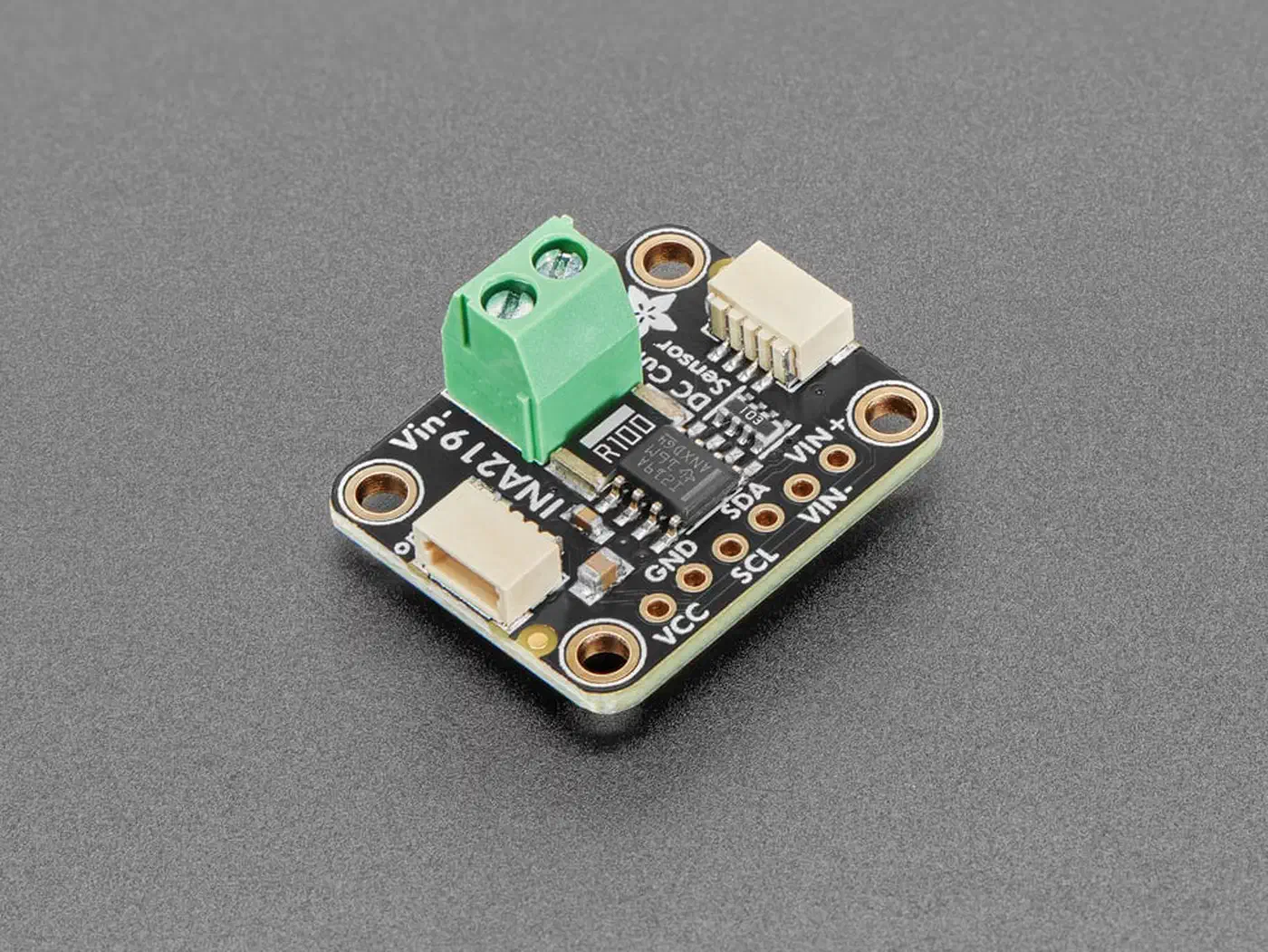
Add an INA219 current sensor ($3) on the servo’s power line for jam detection. Draw above 400mA while it dispenses means the auger is stuck, and stopping the motor saves it. Optional, but worth it on an unattended pet feeder.
ESPHome firmware for servo control and scheduling
ESPHome drives servo motors natively through its servo component . The configuration below sets up a continuous rotation servo with portion control, local schedules, and a manual feed button.
Here is the complete ESPHome YAML configuration:
esphome:
  name: pet-feeder
  friendly_name: Pet Feeder

esp32:
  board: esp32-c3-devkitm-1
  framework:
    type: esp-idf

wifi:
  ssid: !secret wifi_ssid
  password: !secret wifi_password

api:
  encryption:
    key: !secret api_key

ota:
  - platform: esphome
    password: !secret ota_password

logger:

# Time sync for local scheduling
time:
  - platform: sntp
    id: sntp_time
    timezone: "America/New_York"
    on_time:
      # Morning feeding
      - hours: 7
        minutes: 0
        seconds: 0
        then:
          - script.execute: dispense_food
      # Evening feeding
      - hours: 18
        minutes: 0
        seconds: 0
        then:
          - script.execute: dispense_food

# PWM output for servo
output:
  - platform: ledc
    pin: GPIO5
    id: servo_output
    frequency: 50 Hz

# Servo component
servo:
  - id: feeder_servo
    output: servo_output
    min_level: 3%
    idle_level: 7.5%
    max_level: 12%

# Adjustable portion duration (seconds)
number:
  - platform: template
    name: "Portion Duration"
    id: portion_duration
    optimistic: true
    min_value: 1
    max_value: 10
    step: 0.5
    initial_value: 3
    restore_value: true
    unit_of_measurement: "s"

# Feed now button
button:
  - platform: template
    name: "Feed Now"
    on_press:
      - script.execute: dispense_food

# Dispensing script
script:
  - id: dispense_food
    mode: single
    then:
      - servo.write:
          id: feeder_servo
          level: 100%
      - delay: !lambda "return id(portion_duration).state * 1000;"
      - servo.write:
          id: feeder_servo
          level: 0%
      - homeassistant.event:
          event: esphome.pet_feeder_dispensed
          data:
            duration: !lambda "return to_string(id(portion_duration).state);"
Three details there trip people up. A continuous rotation servo reads level as motor speed: 0% is the idle duty cycle that stops it, 100% runs it forward, -100% reverses it to clear a jam. The mode: single ignores a second feed button press mid-dispense. And portion_duration becomes a Home Assistant slider held across reboots by restore_value: true.
Now the caveat most guides skip. A local schedule is not the same as offline. The on_time trigger only fires once the clock is set, and SNTP sets it by reaching a time server over the internet. Cut the feeder’s internet, reboot, and the schedule sits idle waiting for a time it never gets. The Petkit Solo has the same dependency. Two fixes: point the time block at a local NTP server, or add a homeassistant time source so Home Assistant supplies the clock.
Home Assistant integration: scheduling, portions, and tracking
Connecting the two takes no work. Once the device is on Wi-Fi, Home Assistant finds it through the ESPHome integration and asks for the encryption key from your api: block. Confirm it and the device arrives with its entities connected: the button.pet_feeder_feed_now feed button, number.pet_feeder_portion_duration, and any sensors in your configuration.
If discovery misses it, connect the device by hand under Settings, Devices and services, Add integration, ESPHome and enter its IP address. A feeder that never connects is usually on the wrong Wi-Fi band, or its API key no longer matches the one Home Assistant stored.
Everything below sits on top of those entities in Home Assistant, not in the firmware, so you can change it without reflashing.
Schedules and portions anyone can change
Hardcoding meal times in the firmware works until somebody else needs to move dinner by an hour. Put the times and the portions into Home Assistant helpers instead:
input_datetime:
  feeding_time_morning:
    name: Morning Feeding Time
    has_date: false
    has_time: true

input_number:
  portion_morning:
    name: Morning Portion
    min: 10
    max: 100
    step: 5
    unit_of_measurement: "g"
A Home Assistant automation fires at the chosen time, turns grams into servo seconds with the rate you measured, writes that to number.pet_feeder_portion_duration, then presses the feed button. If your auger dispenses 10g per second, a 30g portion is 3 seconds. Add an input_boolean.vacation_mode for a midday meal and 25% larger portions, covering the treats that stop when the house is empty.
Feeding history and low food alerts
A Home Assistant counter increments on each dispense, and a utility_meter rolls it up weekly:
counter:
  daily_feedings:
    name: Daily Feedings
    initial: 0
    step: 1

utility_meter:
  weekly_feedings:
    source: counter.daily_feedings
    cycle: weekly
Pair that counter with the hopper sensor below and Home Assistant warns you of low food before the bowl is empty.
Dashboard card
A Lovelace dashboard card with the next meal, today’s count, the portion slider, a big feed button and the food level gives the household what it needs.
Safety features and reliability
This is one of the few DIY projects where failure has a real cost: your pet goes hungry. Build in the backup.
Confirming the meal, and not repeating it
Log every dispense with a timestamp and portion size. If the pet feeder logs nothing within 30 minutes of a scheduled meal, alert your phone. That one rule catches motor failures, jams, power cuts and Wi-Fi drops.
Then stop the opposite problem with an input_boolean.recently_fed that turns on after each meal and resets after 30 minutes. Every Home Assistant automation checks it before dispensing, blocking double portions from stacked automations, a button press during a scheduled feed, or a restart replaying queued events.
Jam recovery and long-run failures
Jams are the failure that shows up. A gravity-fed feeder that ran for two years named its real long-run problems as awkward food loading, ants in the hopper, and jamming on certain kibble. All three are mechanical.
With the INA219 current sensor fitted, run a two-stage recovery:
- If current exceeds 400mA for more than 2 seconds, stop the servo
- Reverse direction briefly (0.5 seconds) to clear the jam
- Retry once at normal speed
- If the second attempt also jams, stop permanently and send an alert
That clears most kibble jams with no human involved, and it spares the motor the damage of stalling against a hard block for minutes.
Two of those three are hygiene, not code. Design every food-contact part, the auger, the tube and the hopper, to come out and go in the sink. Print them in PETG rather than PLA, which handles moisture better and is safer against food. Then set a weekly cleaning reminder in Home Assistant.
Power loss resilience
The on_time block keeps meals going if Home Assistant crashes, as long as the pet feeder can reach a time server on your LAN. SNTP resets the clock on reboot, and restore_value holds the last portion setting. The same offline-first pattern runs a $150 ESPHome radon detector
.
For longer outages, add a USB power bank with pass-through charging. The ESP32-C3 pulls about 80mA, so even a 2000mAh bank gives hours of backup.
Low food monitoring
Mount a VL53L0X time-of-flight sensor at the top of the hopper, pointing down. The same sensor drives this DIY mailbox notification sensor build . Its laser reads the distance to the food surface to the millimetre over a 2-metre range. Score what is left as a percent of hopper depth, and fire a low food alert below 20%.
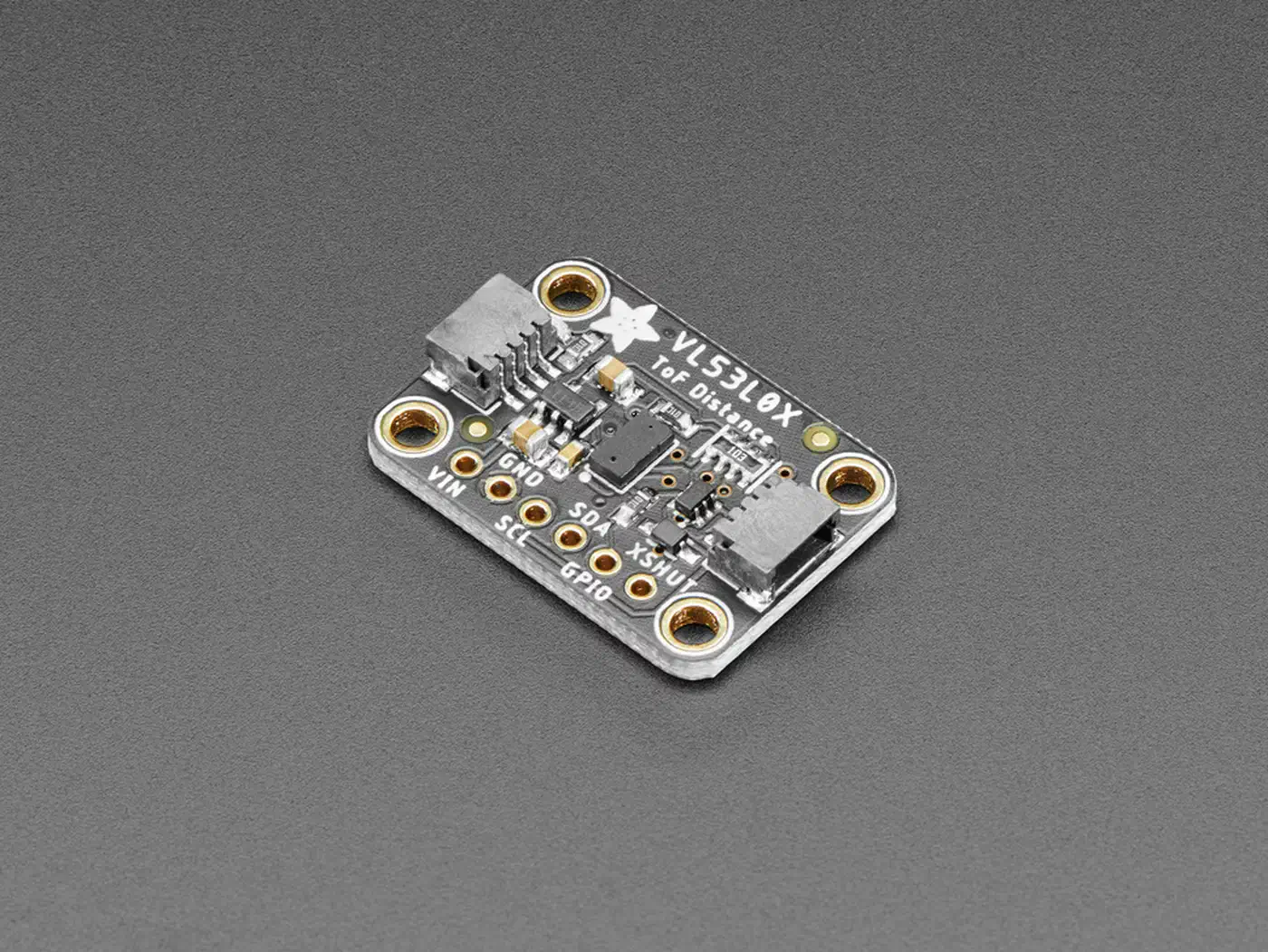
sensor:
  - platform: vl53l0x
    name: "Food Level"
    address: 0x29
    update_interval: 60s
    unit_of_measurement: "mm"
Map the raw distance to a percent in Home Assistant with a template sensor: minimum distance is a full hopper at 100%, maximum is empty at 0%.
Give the low food alert a long delayed_off, a few minutes at least. Kibble slumps as the auger pulls from underneath, so a raw threshold flaps between 19% and 21% for an hour and buries your phone.
Common questions about a smart pet feeder on ESPHome
How do I connect my smart pet feeder to my Wi-Fi?
The wifi: block in the ESPHome configuration above handles it. Your network name and password live in secrets.yaml, and the pet feeder joins on first boot. If it cannot find the network it raises its own access point, so you can hand it new credentials from a phone. On a flashed unit, that configuration replaces the manufacturer’s app for good.
One constraint trips people up: no ESP32 or ESP8266 speaks 5GHz. If your router hides both bands behind one network name, the pet feeder may refuse to join until you split them or pin it to 2.4GHz.
Can I leave my cat alone for 2 days with an automatic feeder?
Two days, yes, if you tested it first. Longer than that, no, and water is the reason rather than food. A bowl a cat can empty or tip over is the real limit, and no feeder addresses it.
Two nights is where everything here is survivable: a jam skips one meal and your phone tells you, a power cut returns to a working schedule. Before trusting it with a weekend, confirm three things. The schedule fires after a reboot with the internet unplugged. A jam alerts Home Assistant rather than skipping a meal in silence. And the hopper holds three days of food when you leave for two.
Why is my smart pet feeder not working?
Four failures cover nearly everything, and each has a different tell.
| Symptom | Likely cause | Fix |
|---|---|---|
| Meals never fire, manual button works | No clock, SNTP could not reach the internet | Add a local time source, see the firmware section |
| Motor runs but dispenses nothing | Kibble bridging in the hopper or a jammed auger | Widen the drop slot, check the current sensor |
| ESP32 reboots on every dispense | Servo drawing power through the onboard regulator | Separate 5V rail, add the capacitor |
| “No serial data received” while flashing | Wrong voltage, or serial lines not crossed | External 3.3V supply, swap the serial TX and RX |
The third one is the most common on a fresh build and the easiest to misread, because the feeder looks like a firmware problem when it is a power problem.
What is the best smart pet feeder?
For running locally there are three answers. To flash, the PETLIBRO Air PLAF108: a real ESP32-C3, documented pins, no self-reboots. To buy and never open, the Aqara C1, Zigbee with the schedule on the device. And if you will build, the feeder in this guide, because it is the only one you can put a scale under.
For around $20 and an afternoon you get what the $150 shelf models do, on your own network, bent to any Home Assistant automation. Extra servos on spare GPIO pins make it a two-pet feeder. The same dispensing pattern drives a soil moisture sensor or a timed garden watering controller .