 Botmonster Tech
Home Assistant dashboards: 6 conditional card types and HACS extensions

Yes, Home Assistant ships a built-in conditional card. It shows or hides any dashboard card based on live state: entity value, time of day, who is home, screen size, and more. Add template sensors and a few HACS cards, and you can build dashboards where morning shows weather and coffee buttons, evening shows media and light scenes, and an empty house shows cameras and alarm controls. Cards pop in and out without leaving blank gaps, all through the stock Lovelace frontend. No custom code needed.
This guide covers the native conditional card (updated through Home Assistant 2026.4), time-based layouts, presence-aware dashboards, device-state triggers, and tricks with HACS cards.
The Conditional Card and Its Condition Types
The conditional card wraps any other Lovelace card. It checks one or more rules in real time and toggles visibility. When the rules match, the wrapped card renders as usual. When they don’t, the card drops out of the layout. No empty space left behind.
Here is a basic example that shows a card only when a person is home:
type: conditional
conditions:
  - condition: state
    entity: person.john
    state: "home"
card:
  type: entities
  entities:
    - light.johns_desk_lamp
- switch.johns_monitorHome Assistant supports six condition types for conditional cards:
| Condition | What It Checks | Example Use Case |
|---|---|---|
state | Entity matches a specific state | Show card when person.jane is home |
numeric_state | Numeric value above/below threshold | Show AC controls when temperature > 25C |
screen | CSS media query on viewport | Show simplified card on mobile devices |
user | Currently logged-in HA user | Show admin controls only for your account |
time | Current time and day of week | Show work commute card on weekday mornings |
location | User’s current location/zone | Show controls for the zone you are in |
The state condition is the workhorse. It supports state: for a match and state_not: for the inverse. The numeric_state condition takes above: and below:. Use both together for a range.
The screen condition uses CSS media queries. Set media_query: "(max-width: 768px)" to show a card only on phones. Use "(min-width: 1024px)" to target desktops and tablets. That’s how you build dashboards that look one way on a wall-mounted tablet and another on a phone. Picking and mounting the tablet itself is its own small project.
The time condition accepts after, before, and weekdays parameters:
conditions:
  - condition: time
    after: "08:00"
    before: "17:00"
    weekdays:
      - mon
      - tue
      - wed
      - thu
      - fri
Valid weekday values are mon, tue, wed, thu, fri, sat, sun.
Combining Conditions with Logic Operators
Multiple rules in a conditional card default to AND logic. All of them must be true for the card to show. Home Assistant now ships explicit logic operators too:
AND- all conditions must be met (this is the default behavior)OR- at least one condition must be metNOT- negates a condition
type: conditional
conditions:
  - condition: or
    conditions:
      - condition: state
        entity: person.john
        state: "home"
      - condition: state
        entity: person.jane
        state: "home"
card:
  type: markdown
  content: "Welcome home!"
This kills the old hack of building helper sensors just to get OR logic on the dashboard.
Visibility Tab vs. Conditional Card Wrapper
Recent Home Assistant builds let you add visibility rules right on most card types through their Visibility tab in the UI editor. Instead of wrapping a card, you edit the card, open the Visibility tab, and add rules there. The result is the same: the card shows or hides. The Visibility tab makes cleaner YAML and skips the nesting that wrappers add. One note: while you’re in edit mode, all conditioned cards stay visible. Leave edit mode to test.
Time-Based Dashboard Layouts
Different times of day call for different controls. A morning dashboard should put weather, commute info, and coffee buttons up front. An evening one should lead with media players and lighting scenes. You can build this with the native time condition, or with a template sensor for finer control.
Using the Native Time Condition
For simple time windows, the built-in time condition works well:
type: conditional
conditions:
  - condition: time
    after: "06:00"
    before: "10:00"
card:
  type: vertical-stack
  cards:
    - type: weather-forecast
      entity: weather.home
    - type: button
      entity: switch.coffee_machine
      name: "Start Coffee"
Using the Time of Day Integration
If you want named time windows you can reuse across cards and automations, the Time of Day (tod) integration is cleaner. Add this to your configuration.yaml:
binary_sensor:
  - platform: tod
    name: Morning
    after: "06:00"
    before: "10:00"
  - platform: tod
    name: Daytime
    after: "10:00"
    before: "17:00"
  - platform: tod
    name: Evening
    after: "17:00"
    before: "22:00"
  - platform: tod
    name: Night
    after: "22:00"
    before: "06:00"
Each tod sensor flips on during its window and off outside of it. Your conditional cards can now point at these sensors:
type: conditional
conditions:
  - condition: state
    entity: binary_sensor.morning
    state: "on"
card:
  type: vertical-stack
  cards:
    - type: weather-forecast
      entity: weather.home
    - type: button
      entity: switch.coffee_machine
      name: "Start Coffee"
    - type: calendar
      entities:
        - calendar.personal
Template Sensor for Custom Time Periods
If you’d rather have one sensor with named states than several binary sensors, build a template sensor:
template:
  - sensor:
      - name: "Time of Day"
        unique_id: sensor_time_of_day
        state: >
          {% set hour = now().hour %}
          {% if 6 <= hour < 10 %}morning
          {% elif 10 <= hour < 17 %}day
          {% elif 17 <= hour < 22 %}evening
          {% else %}night
          {% endif %}
Then build your cards around sensor.time_of_day:
- Morning (
sensor.time_of_day = morning): Weather forecast, commute time via Waze or Google Travel Time integration, coffee machine button, today’s calendar events - Day (
sensor.time_of_day = day): Solar panel output, security camera feeds, robot vacuum controls - Evening (
sensor.time_of_day = evening): Media player controls, lighting scene buttons (Movie, Dinner, Reading), thermostat with night setback preview, door lock status - Night (
sensor.time_of_day = night): Alarm panel arm button, all-lights-off confirmation, door/window status summary, minimalist clock with dark styling
The evening and night shifts pair well with adaptive lighting schedules. A sun-angle automation plus the Adaptive Lighting HACS add-on builds a light setup that backs up the same time-of-day logic your dashboard runs.
Smooth Transitions with card-mod
Cards pop in and out instantly by default. If that feels jarring, the card-mod custom component from HACS lets you add CSS transitions:
card_mod:
  style: |
    ha-card {
      transition: opacity 0.3s ease-in-out;
    }
That softens the visual change when time-based cards swap in and out.
Presence-Aware Dashboards
Home Assistant tracks people through the app, routers, Bluetooth, and other ways. You can drop person entities straight into card conditions. The dashboard then changes based on who’s in the house.
Person-Specific Controls
Wrap each person’s controls in a conditional card tied to their person entity:
type: conditional
conditions:
  - condition: state
    entity: person.jane
    state: "home"
card:
  type: vertical-stack
  title: "Jane's Controls"
  cards:
    - type: media-control
      entity: media_player.janes_speaker
    - type: light
      entity: light.janes_office
    - type: button
      entity: scene.janes_reading_mode
      name: "Reading Mode"
Jane’s music controls, office light, and personal scenes only show up when she’s home. When she leaves, they vanish from the dashboard. Nobody has to touch a thing.
Guest Mode
Create an input_boolean.guest_mode toggle for when visitors come over. When it’s on, show simple cards with basic controls and hide the deeper automation settings:
type: conditional
conditions:
  - condition: state
    entity: input_boolean.guest_mode
    state: "on"
card:
  type: vertical-stack
  title: "Guest Controls"
  cards:
    - type: light
      entity: light.living_room
    - type: thermostat
      entity: climate.main
    - type: markdown
      content: "WiFi: GuestNetwork / Password: welcome2024"
Pair this with a state_not condition on your admin panels and security controls so they hide while guest mode is on.
Occupancy-Based Controls
Use a group entity that holds all your person entities to tell “someone home” from “nobody home”:
group:
  family:
    name: Family
    entities:
      - person.john
      - person.jane
      - person.kids
When group.family is home (at least one person present), show welcome scenes and comfort controls. When it’s not_home (everyone out), show cameras, alarm arming buttons, and energy-saving toggles.
Arriving-Home Cards
If you use the Home Assistant Companion app, you can spot when someone is on the way home and show pre-arrival cards. Make a proximity sensor or use zone-based automation to flip an input_boolean.arriving_home when someone enters a 1km radius. Show the garage opener and alarm disarm button before they reach the door.
Wall-Mounted Tablet Per-Room Controls
If you have tablets in different rooms, make a separate Home Assistant user account for each one. Then use the user condition to show only the controls that fit:
type: conditional
conditions:
  - condition: user
    users:
      - abc123def456  # kitchen_tablet user ID
card:
  type: vertical-stack
  cards:
    - type: light
      entity: light.kitchen
    - type: entities
      entities:
        - timer.cooking
        - timer.oven
The kitchen tablet shows kitchen lights and cooking timers. The bedroom tablet shows bedroom scenes and a clock. Same dashboard file, different view per device. The same user condition tailors a dashboard for a smart mirror, so the glass shows only the lights, locks, and calendar that suit that wall.
Device-State Conditional Cards
Some of the handiest conditional cards react to device state. They show controls when a device needs your eye and stay hidden otherwise. The same trick keeps a 3D printer dashboard free of empty gauges between prints.
Laundry Done Notification
Build a template binary sensor that spots when the wash cycle ends (power drops below 5W after being above 100W):
template:
  - binary_sensor:
      - name: "Washing Machine Done"
        unique_id: washing_machine_cycle_complete
        state: >
          {{ states('sensor.washing_machine_power') | float < 5
             and states('input_boolean.washer_was_running') == 'on' }}
        icon: mdi:washing-machine
Then show a notification card on the dashboard:
type: conditional
conditions:
  - condition: state
    entity: binary_sensor.washing_machine_done
    state: "on"
card:
  type: markdown
  content: "## Laundry is done! Time to switch it over."
Garage Door Open Alert
Show a prominent card with a close button when the garage has been left open:
type: conditional
conditions:
  - condition: state
    entity: cover.garage_door
    state: "open"
card:
  type: vertical-stack
  cards:
    - type: markdown
      content: "## Garage Door is OPEN"
    - type: button
      entity: cover.garage_door
      name: "Close Garage"
      icon: mdi:garage-alert
Add a history_stats sensor to show how long it’s been open. That’s useful for catching doors left open overnight.
Active Media Player
Instead of showing all your media players at once, show only the one that’s playing right now:
type: conditional
conditions:
  - condition: state
    entity: media_player.living_room
    state: "playing"
card:
  type: media-control
  entity: media_player.living_room
Repeat this pattern for each media player. Only the active ones show up. That cuts the clutter from idle Chromecasts and speakers. It also keeps the dashboard for synchronized audio across the house tidy, surfacing only the rooms currently playing.
Low Battery Alerts
Build a template sensor that counts devices with low battery:
template:
  - sensor:
      - name: "Low Battery Devices"
        unique_id: low_battery_count
        state: >
          {{ states.sensor
             | selectattr('attributes.device_class', 'eq', 'battery')
             | map(attribute='state')
             | map('int', default=100)
             | select('lt', 20)
             | list | count }}
Show a warning card only when the count is above zero:
type: conditional
conditions:
  - condition: numeric_state
    entity: sensor.low_battery_devices
    above: 0
card:
  type: markdown
  content: >
    ## Low Battery Warning
    {{ states.sensor
       | selectattr('attributes.device_class', 'eq', 'battery')
       | selectattr('state', 'lt', '20')
       | map(attribute='name')
       | list | join(', ') }}
Door Unlocked After Hours
Show a warning about unlocked doors only after 11 PM with compound conditions:
type: conditional
conditions:
  - condition: time
    after: "23:00"
  - condition: state
    entity: lock.front_door
    state: "unlocked"
card:
  type: markdown
  content: "## Front door is unlocked after 11 PM!"
Both rules must be true (AND logic by default). So the card only shows up when it’s late and the door is unlocked.
Advanced Techniques with HACS Custom Cards
The built-in conditional card covers most cases. HACS cards add tricks that are hard to copy with native tools alone.
auto-entities: Dynamic Entity Lists
The auto-entities card fills a card with entities that match a filter. Instead of hand-building conditional cards for each device, auto-entities does it on the fly:
type: custom:auto-entities
card:
  type: entities
  title: "Lights Currently On"
filter:
  include:
    - domain: light
      state: "on"
  exclude:
    - entity_id: light.hallway_indicator
sort:
  method: name
This card lists every light that’s on, updates in real time, and vanishes when all lights are off (with show_empty: false). It works for any entity type: battery sensors below 25%, open doors, live automations.
state-switch: Conditional on Steroids
The state-switch card acts like a switch/case for dashboard cards. Instead of many conditional cards that each check one state, a single state-switch card shows different content based on an entity’s state:
type: custom:state-switch
entity: sensor.time_of_day
states:
  morning:
    type: vertical-stack
    cards:
      - type: weather-forecast
        entity: weather.home
      - type: button
        entity: switch.coffee_machine
  evening:
    type: vertical-stack
    cards:
      - type: media-control
        entity: media_player.living_room
      - type: light
        entity: light.living_room
  night:
    type: markdown
    content: "Good night. All systems armed."
default:
  type: markdown
  content: "Welcome home."
One card, many views, clean YAML. It also supports user, deviceID, and mediaquery as entity types, plus transition animations like slide-left and flip.
layout-card: Preventing Dashboard Gaps
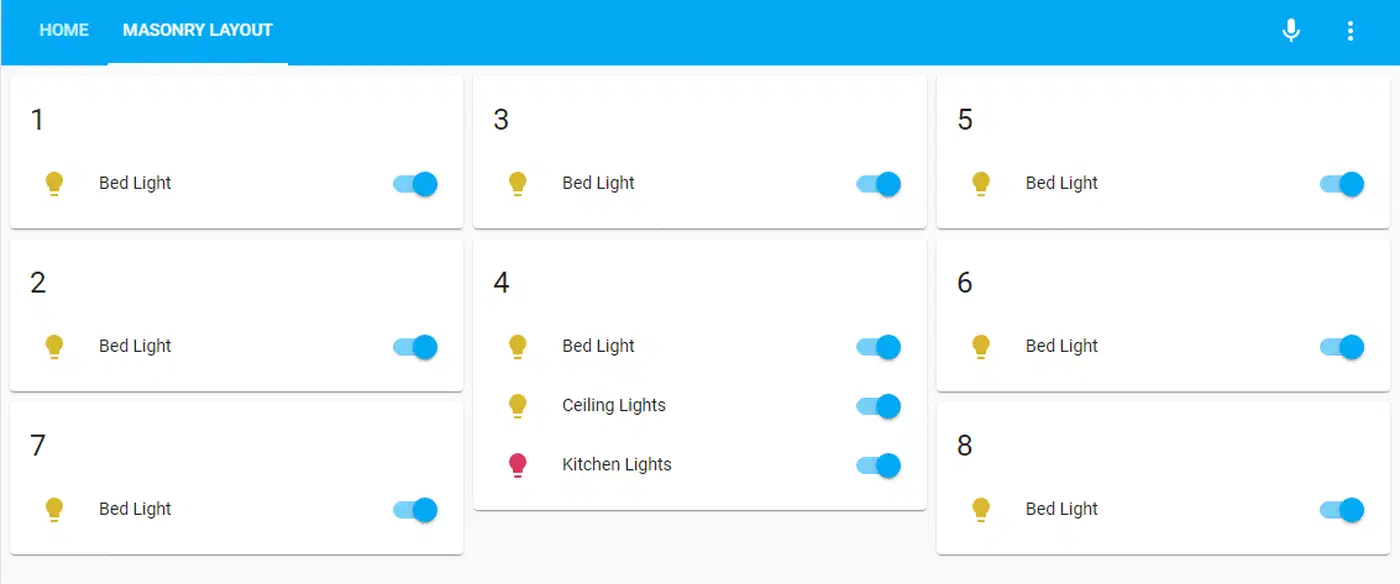
When conditional cards come and go, the default Lovelace layout can leave awkward gaps. The layout-card fixes this. It offers masonry, grid, horizontal, and vertical modes that reflow cards smoothly:
type: custom:layout-card
layout_type: masonry
cards:
  - type: conditional
    conditions:
      - condition: state
        entity: binary_sensor.morning
        state: "on"
    card:
      type: weather-forecast
      entity: weather.home
  - type: conditional
    conditions:
      - condition: state
        entity: cover.garage_door
        state: "open"
    card:
      type: button
      entity: cover.garage_door
The masonry layout shifts the rest of the cards to fill the gap when one hides. For a broader look at building professional-looking Lovelace dashboards with CSS Grid and HACS cards, that guide covers room-based layouts in depth.
card-mod: Conditional Styling
card-mod lets you apply CSS to any card based on entity states. Instead of hiding a card outright, you can change how it looks:
type: entities
entities:
  - entity: sensor.temperature
card_mod:
  style: |
    ha-card {
      {% if states('sensor.temperature') | float > 30 %}
        border: 2px solid red;
        background: rgba(255, 0, 0, 0.1);
      {% elif states('sensor.temperature') | float < 10 %}
        border: 2px solid blue;
        background: rgba(0, 0, 255, 0.1);
      {% endif %}
    }
This makes a temperature card glow red when it’s hot and blue when it’s cold. Same card, different look based on state.
Performance Considerations
Each conditional card checks its rules through the WebSocket link in real time. Dashboards with 50 or more cards on a single view can lag. That’s worst on low-end wall tablets or Raspberry Pi setups. A few tactics help:
- Instead of five cards each checking
now().hour, build onesensor.time_of_daytemplate sensor and point all five cards at it. That cuts the work from five Jinja2 runs to one. - A single state-switch card stands in for several conditional cards. That trims the WebSocket subscription count.
- Heavy Jinja2 in markdown cards or card-mod runs in the browser. Push logic to backend template sensors when you can.
- If your dashboard has grown past 30-40 conditional cards, split it into tabbed views (Home, Security, Media, Climate). Each view then loads and checks only its own subset.
Handling Unknown and Unavailable States
When sensors go offline or return unknown/unavailable, conditional cards stop matching. Your careful dashboard might show nothing if a key sensor drops out. Build in fallbacks.
type: conditional
conditions:
  - condition: state
    entity: sensor.time_of_day
    state_not: "unavailable"
card:
  # your normal card here
Or use auto-entities with an exclude filter for unavailable entities. Design your dashboard for the day a sensor fails. Make sure the result is still usable, not a blank screen.