 Botmonster Tech
ESP32, RP2040, STM32: MQTT beyond ESPHome

You can wire any microcontroller into Home Assistant over MQTT. Publish sensor data to discovery topics and subscribe to command topics. You get full firmware control without ESPHome’s abstraction layer. The trick works on any chip: ESP32, RP2040, STM32, or a Raspberry Pi Pico W. It’s the right pick when your device needs custom protocols, bare-metal timing, or firmware features ESPHome can’t reach.
This post covers when raw MQTT makes sense, the discovery protocol that auto-registers devices, firmware examples on the ESP32 and RP2040, two-way control patterns, and security hardening.
ESPHome STM32
ESPHome support for STM32 boards is missing, so an ESPHome STM32 build is off the table. The way in is raw MQTT. You write the firmware on the STM32 yourself, publish sensor data to Home Assistant’s discovery topics, and subscribe to command topics for control. Home Assistant registers the device on its own, the same way it does for an ESPHome node. An STM32 with Ethernet suits this well, since it needs a network link to reach the broker.
When to Skip ESPHome and Go Raw MQTT
ESPHome works well for most home automation sensors and switches. You write a YAML file, flash it, and the device shows up in Home Assistant. For 80% of projects that’s all you need. Something like a waterproof pool and spa sensor build belongs in ESPHome. In the other 20%, ESPHome gets in the way, and raw MQTT saves you hours of fighting the framework.
Custom radio protocols are a common reason. Maybe your device needs to decode 433 MHz weather stations with precise timing. Maybe it bit-bangs I2C to an unsupported sensor, or speaks a custom Modbus dialect. ESPHome’s component model may not expose the low-level control you need. Writing your own firmware lets you own every microsecond of the signal.
High-frequency sampling like vibration tracking, audio FFT, or scope-style capture needs tight bare-metal loop timing. ESPHome’s main loop runs at its own pace, and the YAML layer adds overhead that breaks sub-millisecond work.
The ESP32 has two cores. Dedicating one core to real-time motor control or LED animation, while the other handles MQTT, is a clean pattern. ESPHome’s single-threaded model fights you here.
Then there are non-ESP boards: the RP2040 (Raspberry Pi Pico W), STM32 with Ethernet, nRF52 with a Thread or BLE bridge, or any chip where ESPHome support is thin or missing. If you already write C or MicroPython for these chips, adding MQTT is easy. MQTT is also the path of least resistance when you would rather not commit to picking between Zigbee2MQTT and Matter at all.
Firmware size can also tip the call. ESPHome’s compiled binary for a full device easily passes 1.5 MB. Hand-written firmware with just MQTT and sensor code fits in 200 KB. That leaves room for OTA partitions on chips with tight flash.
Learning the MQTT protocol and Home Assistant’s discovery flow shows you how smart home integration works under the hood, and makes you better at debugging ESPHome devices.
MQTT Discovery: Auto-Registering Devices in Home Assistant
The most common myth about raw MQTT devices is that you must hand-add each entity in Home Assistant’s YAML. You don’t. Home Assistant’s MQTT discovery protocol lets your device announce itself. It creates entities with zero config on the Home Assistant side.
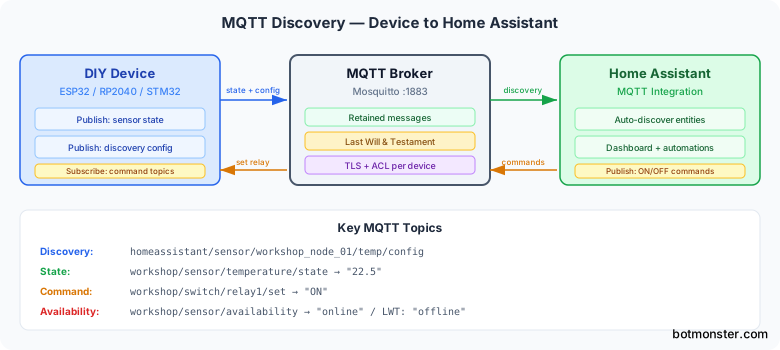
Home Assistant listens on a fixed topic pattern for JSON discovery payloads:
homeassistant/<component>/<node_id>/<object_id>/configPublishing a well-formed JSON message to this topic creates the entity at once. The <component> can be sensor, binary_sensor, switch, light, climate, cover, and many more.
Here’s a minimal temperature sensor discovery payload:
{
  "name": "Workshop Temp",
  "state_topic": "workshop/sensor/temperature/state",
  "unit_of_measurement": "\u00b0C",
  "device_class": "temperature",
  "unique_id": "workshop_temp_01",
  "device": {
    "identifiers": ["workshop_node_01"],
    "name": "Workshop Sensor",
    "manufacturer": "DIY",
    "model": "ESP32-WROOM",
    "sw_version": "1.0.0"
  }
}
The device block groups several entities under one device in the Home Assistant UI. If your board reports temperature and humidity, and has a relay, all three entities appear on one device card when they share the same identifiers value. Add name, model, sw_version, and manufacturer for a polished device page.
Availability and Last Will
Use availability_topic with an MQTT Last Will and Testament (LWT) message. Then Home Assistant marks the device offline when it drops. When you connect to the broker, set the LWT to publish offline to workshop/sensor/availability. After the connection succeeds, publish online to the same topic. Add this to your discovery payload:
{
  "availability_topic": "workshop/sensor/availability",
  "payload_available": "online",
  "payload_not_available": "offline"
}
If your device loses power or the network drops, the broker publishes the LWT message on its own. Home Assistant updates the entity status within seconds.
Controllable Entities
For switches and lights, add command_topic to the discovery payload. Home Assistant publishes ON or OFF to that topic when someone toggles the switch in the UI. Your firmware subscribes to the topic and drives the relay or LED.
{
  "name": "Workshop Relay",
  "state_topic": "workshop/switch/relay1/state",
  "command_topic": "workshop/switch/relay1/set",
  "unique_id": "workshop_relay_01",
  "device": {
    "identifiers": ["workshop_node_01"],
    "name": "Workshop Sensor",
    "manufacturer": "DIY"
  }
}
Retain the discovery config with retain: true so Home Assistant picks it up even if it restarts after your device. Retain state messages too, so the dashboard shows the last known value at once instead of “unknown” until the next reading.
Firmware Implementation on ESP32 and RP2040
These firmware patterns cover the two most popular hobbyist platforms.
ESP32 with Arduino Framework
The PubSubClient library (v2.8+) is the most common pick. For non-blocking work, the AsyncMqttClient library is the better choice, though it adds setup work.
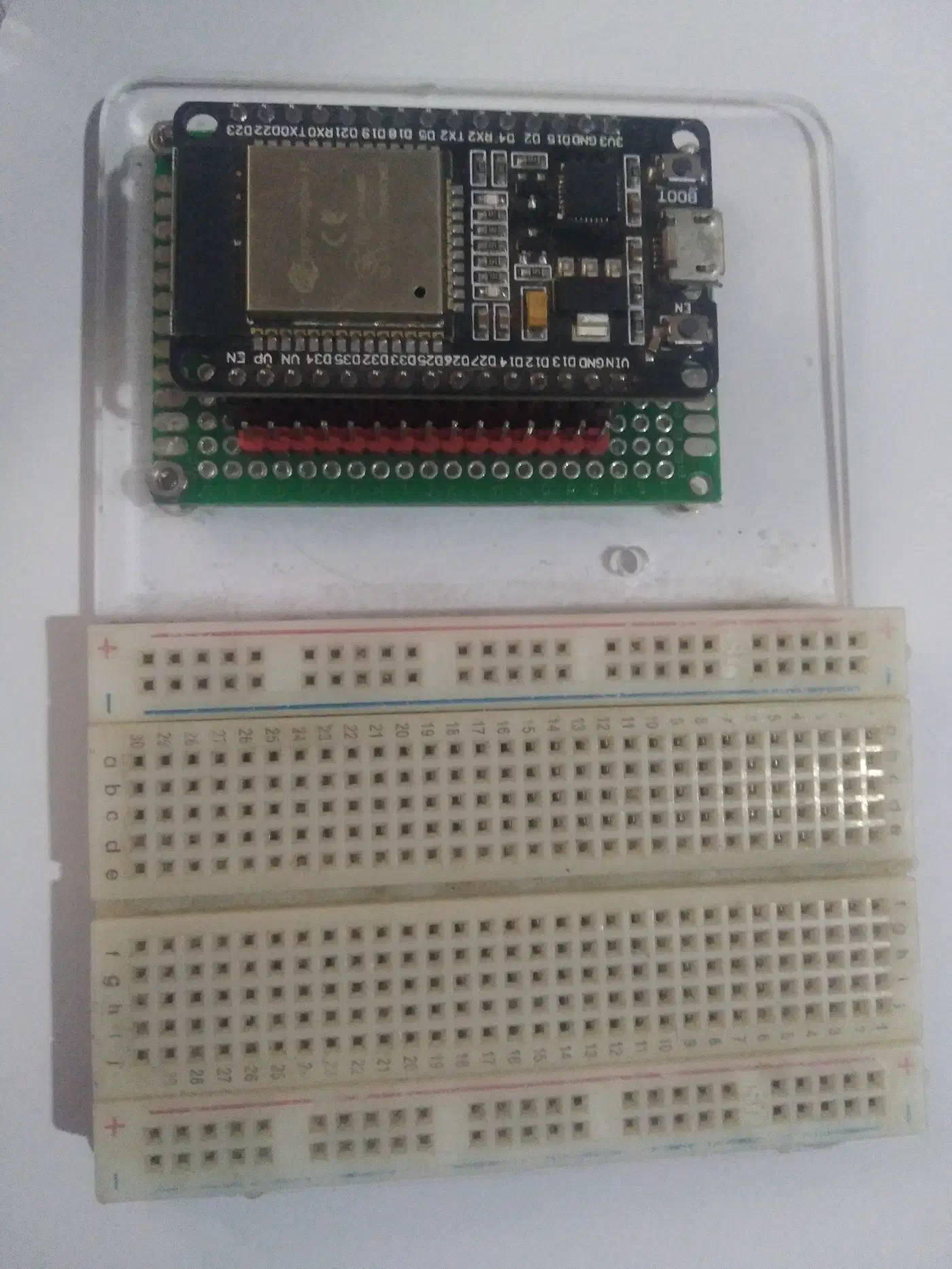
Here’s a minimal ESP32 Arduino sketch. It connects to WiFi and MQTT, publishes a discovery payload, and reads a temperature sensor:
#include <WiFi.h>
#include <PubSubClient.h>
#include <DHT.h>

#define DHT_PIN 4
#define DHT_TYPE DHT22
#define MQTT_BROKER "192.168.1.100"
#define MQTT_PORT 1883
#define NODE_ID "workshop_node_01"

WiFiClient espClient;
PubSubClient mqtt(espClient);
DHT dht(DHT_PIN, DHT_TYPE);
unsigned long lastPublish = 0;

void publishDiscovery() {
  String payload = "{\"name\":\"Workshop Temp\","
    "\"state_topic\":\"workshop/sensor/temperature/state\","
    "\"unit_of_measurement\":\"C\","
    "\"device_class\":\"temperature\","
    "\"unique_id\":\"workshop_temp_01\","
    "\"availability_topic\":\"workshop/sensor/availability\","
    "\"device\":{\"identifiers\":[\"workshop_node_01\"],"
    "\"name\":\"Workshop Sensor\",\"manufacturer\":\"DIY\"}}";

  mqtt.publish(
    "homeassistant/sensor/workshop_node_01/temp/config",
    payload.c_str(), true  // retain = true
  );
}

void reconnect() {
  while (!mqtt.connected()) {
    if (mqtt.connect(NODE_ID, "mqtt_user", "mqtt_pass",
        "workshop/sensor/availability", 1, true, "offline")) {
      mqtt.publish("workshop/sensor/availability", "online", true);
      publishDiscovery();
      mqtt.subscribe("workshop/switch/relay1/set");
    } else {
      delay(5000);
    }
  }
}

void callback(char* topic, byte* payload, unsigned int length) {
  String msg;
  for (unsigned int i = 0; i < length; i++) msg += (char)payload[i];

  if (String(topic) == "workshop/switch/relay1/set") {
    if (msg == "ON") {
      digitalWrite(5, HIGH);
      mqtt.publish("workshop/switch/relay1/state", "ON", true);
    } else {
      digitalWrite(5, LOW);
      mqtt.publish("workshop/switch/relay1/state", "OFF", true);
    }
  }
}

void setup() {
  pinMode(5, OUTPUT);
  dht.begin();
  WiFi.begin("YourSSID", "YourPassword");
  while (WiFi.status() != WL_CONNECTED) delay(500);

  mqtt.setServer(MQTT_BROKER, MQTT_PORT);
  mqtt.setCallback(callback);
}

void loop() {
  if (!mqtt.connected()) reconnect();
  mqtt.loop();

  if (millis() - lastPublish > 30000) {
    float temp = dht.readTemperature();
    if (!isnan(temp)) {
      mqtt.publish("workshop/sensor/temperature/state",
        String(temp, 1).c_str(), true);
    }
    lastPublish = millis();
  }
}
The LWT lives in the mqtt.connect() call. The fourth argument is the will topic, and the last argument is the will message. The reconnect() function re-publishes discovery payloads after each reconnect, since the broker may have lost the retained messages on restart. Sensor readings publish every 30 seconds with a non-blocking timer instead of delay(). A delay() here would block MQTT keepalive packets and cause drops.
ESP32 with ESP-IDF
For production devices, the ESP-IDF framework’s built-in esp_mqtt_client is more reliable. It supports TLS, auto-reconnect, and an outbox that queues messages when the link briefly drops. The API is event-driven:
esp_mqtt_client_config_t config = {
    .broker.address.uri = "mqtt://192.168.1.100:1883",
    .credentials.username = "mqtt_user",
    .credentials.authentication.password = "mqtt_pass",
    .session.last_will.topic = "workshop/sensor/availability",
    .session.last_will.msg = "offline",
    .session.last_will.retain = true,
};
esp_mqtt_client_handle_t client = esp_mqtt_client_init(&config);
esp_mqtt_client_register_event(client, ESP_EVENT_ANY_ID, mqtt_event_handler, NULL);
esp_mqtt_client_start(client);
The event handler gets MQTT_EVENT_CONNECTED, MQTT_EVENT_DATA, and MQTT_EVENT_DISCONNECTED events. That lets you write the firmware as a clean state machine.
RP2040 Pico W with MicroPython
The Raspberry Pi Pico W running MicroPython is a cheap option. Use umqtt.simple2 from the micropython-lib package:
from umqtt.simple2 import MQTTClient
import network, json, time

wlan = network.WLAN(network.STA_IF)
wlan.active(True)
wlan.connect("YourSSID", "YourPassword")
while not wlan.isconnected():
    time.sleep(0.5)

client = MQTTClient("pico_node", "192.168.1.100",
                     user="mqtt_user", password="mqtt_pass")
client.set_last_will("workshop/sensor/availability", b"offline", retain=True)
client.connect()
client.publish(b"workshop/sensor/availability", b"online", retain=True)

discovery = json.dumps({
    "name": "Pico Temp",
    "state_topic": "workshop/sensor/pico_temp/state",
    "unit_of_measurement": "C",
    "device_class": "temperature",
    "unique_id": "pico_temp_01",
    "availability_topic": "workshop/sensor/availability",
    "device": {
        "identifiers": ["pico_node_01"],
        "name": "Pico Sensor",
        "manufacturer": "DIY"
    }
})
client.publish(b"homeassistant/sensor/pico_node_01/temp/config",
               discovery.encode(), retain=True)

while True:
    temp = read_onboard_temp()  # your sensor reading function
    client.publish(b"workshop/sensor/pico_temp/state",
                   str(round(temp, 1)).encode(), retain=True)
    time.sleep(30)
For the lowest latency and smallest footprint on the Pico W, the C SDK’s lwIP MQTT client is on the table. It needs hand-rolled memory management and callback-based code, which is harder to write than MicroPython.
Bidirectional Control: Commands, State Feedback, and OTA Updates
A useful DIY device does more than report sensor data. It accepts commands and confirms state changes.
Command Handling and State Confirmation
Subscribe to command topics in your connect callback. When a message arrives, parse the payload, drive the hardware, and publish the confirmed state back to the state topic. That is the state the hardware reports after actuation, which can differ from the command. If the relay fails to switch because overcurrent protection trips, the state topic should reflect that.
For dimmable lights, Home Assistant sends JSON payloads to the command topic:
{"state": "ON", "brightness": 180, "color_temp": 350}Your firmware parses this with ArduinoJson (on ESP32) or json.loads() (in MicroPython). It applies the PWM values, reads them back, and publishes the real state. This round-trip pattern stops the UI from showing a state that doesn’t match the hardware. For a full walkthrough of addressable LED control over MQTT on an ESP32, see the guide on WLED and Home Assistant integration.
Remote Management
A restart command topic fires ESP.restart() or machine.reset() for remote recovery of stuck devices. That saves a walk to the garage when a sensor hangs.
A config topic accepts runtime tweaks: polling interval, calibration offsets, WiFi credentials. Save them in NVS (ESP32) or flash (RP2040) so they survive reboots without a reflash.
An OTA update topic can work two ways. The simple one publishes a firmware URL over MQTT and lets the device fetch it via HTTP OTA. The harder one streams firmware binary chunks straight over MQTT, which works when the device can’t reach an HTTP server. On ESP32, the esp_ota_ops.h API writes chunks to the OTA partition. On Pico W, you can write to flash and reboot into the new firmware.
Reconnection Strategy
MQTT connections drop when a WiFi router restarts or the broker goes down for updates. Your firmware needs a reconnect strategy with exponential backoff: retry after 1 second, then 2, then 4, then 8, up to a cap of 60 seconds. After each successful reconnect, re-publish discovery payloads and re-subscribe to command topics. Without this, a brief network blip turns into a device that stays offline for good.
unsigned long backoff = 1000;
void reconnectWithBackoff() {
  if (mqtt.connect(NODE_ID, user, pass, lwt_topic, 1, true, "offline")) {
    backoff = 1000;  // reset on success
    publishDiscovery();
    mqtt.subscribe("workshop/switch/relay1/set");
    mqtt.publish("workshop/sensor/availability", "online", true);
  } else {
    delay(backoff);
    backoff = min(backoff * 2, 60000UL);
  }
}
Security and Reliability Best Practices
Lock down both the MQTT broker and the network your DIY devices run on, then make the firmware recover from hangs and outages without help.
Authentication and Encryption
Use MQTT auth with per-device usernames and passwords. In Mosquitto, create a password file with mosquitto_passwd and point to it in mosquitto.conf. Never use anonymous access on a production network. One hacked device could publish to any topic.
Turn on TLS at the MQTT broker. Mosquitto supports TLS with Let’s Encrypt certificates. Set your firmware to check the server certificate. ESP-IDF ships with built-in TLS and CA certificate bundles. MicroPython’s ssl module can wrap the socket connection. The cost is small on modern chips. The ESP32’s hardware crypto accelerator handles TLS handshakes with no felt latency.
A Mosquitto config with TLS and per-device access control looks like this:
listener 8883
certfile /etc/mosquitto/certs/fullchain.pem
keyfile /etc/mosquitto/certs/privkey.pem
cafile /etc/mosquitto/certs/chain.pem

password_file /etc/mosquitto/passwd
acl_file /etc/mosquitto/acl

per_listener_settings true
allow_anonymous false
The ACL file limits which topics each device can read and write:
user workshop_node_01
topic readwrite workshop/#
topic write homeassistant/sensor/workshop_node_01/#
Network Isolation
Isolate IoT devices on their own walled-off network tier so a hacked sensor can’t reach your main network. The MQTT broker bridges the VLAN boundary. It has an interface on both networks, or lives on a management VLAN with firewall rules that allow only MQTT traffic (port 1883/8883) from the IoT VLAN. Even if someone exploits a bug in your ESP32 firmware, they’re stuck on a network segment with no path to your workstation or NAS.
Watchdog Timers
Hardware watchdog timers are your safety net for firmware bugs. On ESP32, turn on the task watchdog with a 30-second timeout so the device reboots on its own if the main loop hangs:
#include "esp_task_wdt.h"
esp_task_wdt_init(30, true);  // 30s timeout, panic on trigger
esp_task_wdt_add(NULL);       // add current task

// In your main loop:
esp_task_wdt_reset();         // feed the watchdog each iteration
On RP2040, the hardware watchdog is available through machine.WDT(timeout=30000) in MicroPython.
Telemetry Buffering and QoS
When the MQTT broker is offline for a stretch, buffer telemetry readings on the device. Store them in a ring buffer in RAM or on flash (SPIFFS on ESP32, littlefs on RP2040), then flush the buffer when the link comes back. That stops data gaps during broker maintenance.
For QoS levels, use QoS 1 for state and discovery messages to get at-least-once delivery. Use QoS 0 for high-rate telemetry where a dropped packet is fine. QoS 0 cuts broker load and keeps latency low for time-series data that gets averaged anyway.
Raw MQTT or ESPHome
Raw MQTT in Home Assistant takes about the same work as ESPHome, just in different places. You trade YAML ease for full firmware control. For standard sensors and switches, ESPHome is still the faster path. But when you need custom protocols, multi-core code, non-ESP boards, or firmware that fits in 200 KB, rolling your own MQTT firmware on top of Home Assistant’s discovery flow makes more sense.
Start with one sensor publishing temperature over MQTT. Get discovery working so the entity appears on its own in Home Assistant. Add a relay with command handling and state confirmation. Then layer on TLS, watchdog timers, and OTA updates. Before long, you have a template you can adapt to any chip and any sensor in your workshop. If you later need to expose richer device behaviour in the Home Assistant UI, the guide to writing custom Python integrations covers full HACS components on top of any backend.