 Botmonster Tech
Writing custom Python integrations for Home Assistant (HACS)

A custom Home Assistant integration is a Python wrapper for your hardware’s API, packaged as a HACS component. You get full entity control and automation support for unsupported or legacy devices. No fork of core HA. No wait for an official integration.
That said, custom integrations carry real upkeep. Before you reach for Python, check if a simpler path already exists.
When to Write a Custom Integration
Home Assistant ships with over 3,000 built-in integrations. Before you write a line of Python, visit home-assistant.io/integrations and search the HACS default store. Odds are good your device is already covered, or a community add-on exists. Even an old receiver is usually reachable already, through HDMI-CEC rather than a custom component.
For one-off API calls, HA’s built-in rest sensor and command_line sensor handle a lot of ground with no custom code. A rest sensor polls a JSON endpoint every 30 seconds and pulls a value with a value_template. That covers a large class of cases you’d otherwise over-build as a full Python package. The same goes for commands: a rest command or a shell_command calling curl can drive many devices over plain HTTP.
A custom integration becomes truly needed when the device has a complex stateful API that requires session management or a persistent connection. It also fits when you need multiple entity types. For example, one device that should show up as both a sensor (temperature) and a switch (power). The simpler paths produce entities that don’t share state or a common device entry. Devices that push data via WebSocket, or that publish sensor readings straight to Home Assistant, are another strong case, since the rest sensor model does not fit push at all. Also, if you plan to deploy the same logic across many HA instances, a packaged integration beats copy-pasted YAML.
One more signpost: ESPHome covers about 90% of DIY hardware cases. For a polished firmware-only hardware project end-to-end, this walkthrough of a budget air monitor is a solid reference. If you control the firmware, ESPHome is almost always the right call. It builds a native HA integration for you, with no Python at all. Custom Python integrations fit best for commercial devices with documented but unsupported APIs.
Understanding the Home Assistant Integration Architecture
Every HA integration, built-in or custom, uses the same directory layout and the same set of Python modules. Knowing the layout up front saves a lot of confusion later.
The integration lives in a directory named after its domain. The domain is a lowercase string with no spaces that uniquely names the integration. For a custom one, this directory sits under custom_components/ in the HA config folder:
custom_components/
  my_integration/
    __init__.py
    manifest.json
    config_flow.py
    sensor.py
    switch.py
    strings.json
    translations/
      en.json
The manifest.json file is the integration’s declaration to HA. It sets the domain, a human-readable name, the version, any PyPI packages you need, and flags like config-entry support. A minimal manifest looks like this:
{
  "domain": "my_integration",
  "name": "My Integration",
  "version": "1.0.0",
  "config_flow": true,
  "documentation": "https://github.com/yourname/hacs-my-integration",
  "requirements": ["my-device-sdk==2.1.0"],
  "iot_class": "local_polling"
}
The iot_class field tells HA how the integration talks to the device. Use local_polling for devices you poll on a timer, local_push for push-based links, cloud_polling or cloud_push for cloud-bound devices. This field shapes how HA presents the integration to users.
__init__.py is the integration’s entry point. It must define two async functions. async_setup_entry() runs when HA loads a config entry. async_unload_entry() runs during a clean shutdown or when the user removes the integration. async_setup_entry() sets up the data coordinator, forwards platforms, and stores shared state on hass.data. async_unload_entry() must cancel background tasks and unload the registered platforms.
config_flow.py is the interactive setup wizard users see when they click “Add Integration” in HA’s settings. Entity platform files like sensor.py and switch.py each register HA entities of a specific type and bind them to your device data.
Setting Up the Development Environment
The official dev setup is the home-assistant/core repo opened in VS Code with its devcontainer. Open the repo with Docker running, and the Dev Containers extension builds a full HA dev environment for you. All deps installed, auto-reload on file changes, and a pre-set HA instance you can test against right away. This is the fastest feedback loop.
If you already have a running HA OS box and want to work against it, mount the custom_components/ directory over SSH or Samba. Drop your integration directory inside, then restart HA to pick up changes. It’s slower, since you get full HA restarts rather than module reloads. Still, it lets you test against real hardware on your network.
Either way, install homeassistant-stubs in your Python env:
pip install homeassistant-stubsThis package ships type stubs for HA’s internal APIs. Your IDE gets useful autocomplete and catches many type errors before you run a thing. Pair it with mypy or Pylance in VS Code for the best experience.
For logging, use Python’s standard logging module with the __name__ convention:
import logging
_LOGGER = logging.getLogger(__name__)
Log lines from your integration land in HA’s Settings → System → Logs UI. To turn on debug-level logging during dev work, add this to configuration.yaml:
logger:
  default: warning
  logs:
    custom_components.my_integration: debug
This keeps your debug output out of the rest of HA’s log stream.
Writing the Config Flow (UI Setup)
The config flow is what users see when they first add your integration. Getting it right is key. A confusing setup flow is the top friction point in community integrations.
Config flows live in config_flow.py and subclass homeassistant.config_entries.ConfigFlow. The DOMAIN class variable must match the directory name of your integration exactly:
import voluptuous as vol
from homeassistant import config_entries
from homeassistant.const import CONF_HOST, CONF_API_KEY

from .const import DOMAIN

class MyIntegrationConfigFlow(config_entries.ConfigFlow, domain=DOMAIN):
    VERSION = 1

    async def async_step_user(self, user_input=None):
        errors = {}
        if user_input is not None:
            try:
                # Validate credentials before creating the entry
                client = MyDeviceClient(
                    host=user_input[CONF_HOST],
                    api_key=user_input[CONF_API_KEY],
                )
                await client.async_verify_connection()
            except CannotConnect:
                errors["base"] = "cannot_connect"
            except InvalidAuth:
                errors["base"] = "invalid_auth"
            else:
                return self.async_create_entry(
                    title=user_input[CONF_HOST],
                    data=user_input,
                )

        schema = vol.Schema({
            vol.Required(CONF_HOST): str,
            vol.Required(CONF_API_KEY): str,
        })

        return self.async_show_form(
            step_id="user",
            data_schema=schema,
            errors=errors,
        )
The key pattern: validate the device connection inside async_step_user() before you call async_create_entry(). If you create the entry first and validate later, users end up with a broken entry they must delete by hand. Reject bad credentials before the entry ever lands in HA’s config_entries storage.
For human-readable form labels, create a translations/en.json file:
{
  "config": {
    "step": {
      "user": {
        "title": "Connect to My Device",
        "data": {
          "host": "IP Address or Hostname",
          "api_key": "API Key"
        }
      }
    },
    "error": {
      "cannot_connect": "Failed to connect. Check the IP address.",
      "invalid_auth": "Invalid API key."
    }
  }
}
Without this file, HA shows raw key names (host, api_key) as form labels. That’s a poor experience for end users. If your integration supports post-setup options, like changing the polling interval without removing and re-adding the integration, then add async_get_options_flow(). Return an OptionsFlow subclass that follows the same async_step_user() pattern.
For integrations that need OAuth2 (common for cloud devices), HA gives you homeassistant.helpers.config_entry_oauth2_flow.AbstractOAuth2FlowHandler as a base class. It handles the full OAuth2 authorization code flow. It opens the browser to the authorize URL, takes the callback, swaps the code for tokens, and saves the token data. You supply the OAuth2 client ID, secret, and authorize/token URLs. HA does the rest. Token refresh is also managed for you by homeassistant.helpers.config_entry_oauth2_flow.OAuth2Session. It wraps your API calls and refreshes the access token when it expires.
Implementing Sensor and Switch Entities
Sensor and switch entities are the two most common types in custom integrations. Sensors for read-only data, switches for on/off control. Both follow the same pattern. Subclass the right HA entity base class, set the required properties, and bind to a shared data coordinator.
The DataUpdateCoordinator Pattern
Before you write entity classes, set up a DataUpdateCoordinator. It’s the right way to share one polling connection across many entities. Without it, each entity would poll the device on its own schedule. You’d get N network calls where one would do.
from datetime import timedelta
from homeassistant.helpers.update_coordinator import DataUpdateCoordinator, UpdateFailed

_LOGGER = logging.getLogger(__name__)

class MyDeviceCoordinator(DataUpdateCoordinator):
    def __init__(self, hass, client):
        super().__init__(
            hass,
            _LOGGER,
            name="My Device",
            update_interval=timedelta(seconds=30),
        )
        self.client = client

    async def _async_update_data(self):
        """Fetch data from the device. Called by the coordinator on each interval."""
        try:
            return await self.client.async_get_state()
        except DeviceConnectionError as err:
            raise UpdateFailed(f"Error communicating with device: {err}") from err
The coordinator calls _async_update_data() on the set interval. If the fetch fails, raising UpdateFailed makes HA mark all entities tied to this coordinator as unavailable. That’s the right behavior when the device is offline. All entities that need the device data subscribe to the coordinator. HA then pings them when fresh data arrives.
Sensor Entity
from homeassistant.components.sensor import SensorEntity, SensorDeviceClass, SensorStateClass
from homeassistant.const import UnitOfTemperature
from homeassistant.helpers.update_coordinator import CoordinatorEntity
from homeassistant.helpers.entity import DeviceInfo

from .const import DOMAIN

class MyTemperatureSensor(CoordinatorEntity, SensorEntity):
    _attr_device_class = SensorDeviceClass.TEMPERATURE
    _attr_native_unit_of_measurement = UnitOfTemperature.CELSIUS
    _attr_state_class = SensorStateClass.MEASUREMENT
    _attr_has_entity_name = True
    _attr_name = "Temperature"

    def __init__(self, coordinator, device_id):
        super().__init__(coordinator)
        self._device_id = device_id
        self._attr_unique_id = f"{device_id}_temperature"
        self._attr_device_info = DeviceInfo(
            identifiers={(DOMAIN, device_id)},
            name="My Device",
            manufacturer="Acme Corp",
            model="Widget Pro",
        )

    @property
    def native_value(self):
        return self.coordinator.data.get("temperature")
The DeviceInfo object groups related entities under one “device” in HA’s Settings → Devices UI. All entities that share the same identifiers tuple show up together. That makes the integration feel polished and easy to manage.
Switch Entity
from homeassistant.components.switch import SwitchEntity
from homeassistant.helpers.update_coordinator import CoordinatorEntity

class MyPowerSwitch(CoordinatorEntity, SwitchEntity):
    _attr_has_entity_name = True
    _attr_name = "Power"

    def __init__(self, coordinator, client, device_id):
        super().__init__(coordinator)
        self.client = client
        self._attr_unique_id = f"{device_id}_power"
        self._attr_device_info = DeviceInfo(
            identifiers={(DOMAIN, device_id)},
            name="My Device",
        )

    @property
    def is_on(self):
        return self.coordinator.data.get("power_state") == "on"

    async def async_turn_on(self, **kwargs):
        await self.client.async_set_power(True)
        await self.coordinator.async_request_refresh()

    async def async_turn_off(self, **kwargs):
        await self.client.async_set_power(False)
        await self.coordinator.async_request_refresh()
After you send a command in async_turn_on() or async_turn_off(), call coordinator.async_request_refresh() to fetch fresh state right away. Don’t wait for the next poll. This keeps the switch feeling snappy in the HA UI.
Why Everything Must Be Async
Home Assistant runs on a single-threaded asyncio event loop. All I/O must be awaited. That covers network requests, file reads, anything that blocks. If you call a blocking function directly (without await), it freezes the whole event loop. HA can’t process any other events, including other automations and UI clicks. Your device SDK must expose async methods. If it doesn’t, wrap blocking calls with hass.async_add_executor_job(blocking_function, args) to run them in a thread pool and keep the loop free.
Packaging for HACS Distribution
Once the integration works locally, packaging it for HACS takes a few extra files and a public GitHub repo.
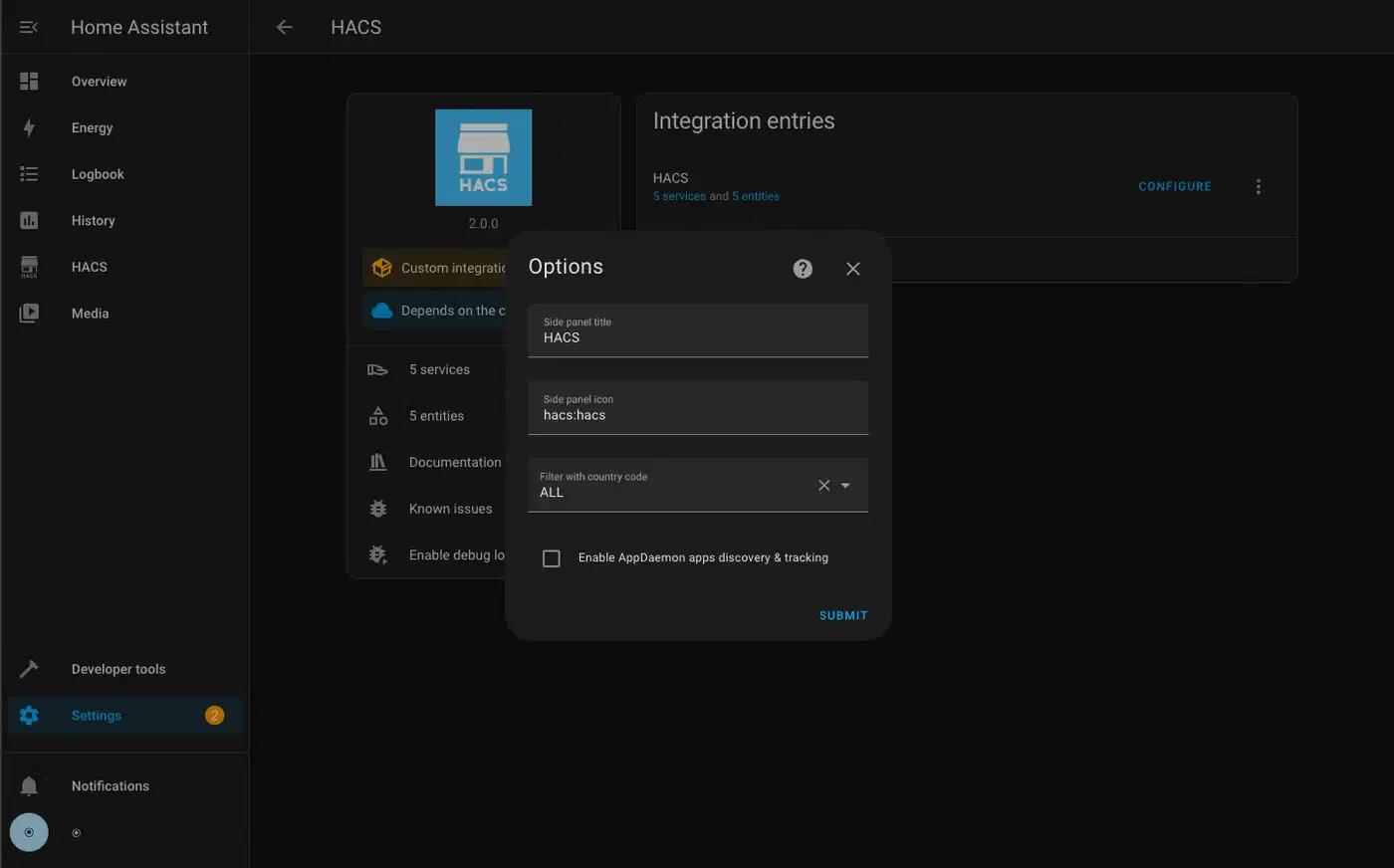
The repo must hold the custom_components/DOMAIN/ directory at its root, where DOMAIN matches your integration’s domain string. HACS also needs a hacs.json file at the repo root:
{
  "name": "My Integration",
  "render_readme": true
}
That’s the minimum. HACS uses GitHub releases to version integrations. Cut a release tagged v1.0.0 (semver, matching the version field in manifest.json). HACS installs always pull the latest release tag, not raw main. So you must cut a GitHub release for each version you want users to get.
To get listed in the HACS default store (the integration list users see out of the box, with no custom repo URL), open a pull request to the hacs/default repo. That kicks off automated checks. They look at code quality, manifest completeness, translations, and repo layout. The validation is strict but well-documented. The HACS validation tool can run locally as a GitHub Action before you submit.
A useful README.md is also required for HACS default store acceptance. It must cover: how to install the integration (HACS and manual), the setup options the config flow asks for, and a table of entities the integration creates with their entity IDs, units, and meaning.
Before you submit to the HACS default store, run a short security check. Make sure API keys and creds are never logged, even at debug level. Confirm the integration makes no outbound calls to unexpected hosts. Check that all user input is validated before use in API calls. Verify the integration doesn’t write files outside HA’s expected data directories.
Testing and Debugging
Production-grade HA integrations ship automated tests. The official testing library is pytest-homeassistant-custom-component. It gives you pytest fixtures that fake HA’s internals, with no running HA instance needed.
A basic integration test mocks the device client, calls async_setup_entry(), and then checks HA’s state machine to see if the expected entities show up with the right values:
import pytest
from unittest.mock import AsyncMock, patch
from homeassistant.core import HomeAssistant
from pytest_homeassistant_custom_component.common import MockConfigEntry

from custom_components.my_integration.const import DOMAIN

@pytest.fixture
def mock_client():
    with patch(
        "custom_components.my_integration.MyDeviceClient",
        autospec=True,
    ) as mock:
        mock.return_value.async_get_state = AsyncMock(return_value={
            "temperature": 22.5,
            "power_state": "on",
        })
        mock.return_value.async_verify_connection = AsyncMock(return_value=True)
        yield mock

async def test_sensor_setup(hass: HomeAssistant, mock_client):
    entry = MockConfigEntry(
        domain=DOMAIN,
        data={"host": "192.168.1.100", "api_key": "test-key"},
    )
    entry.add_to_hass(hass)
    await hass.config_entries.async_setup(entry.entry_id)
    await hass.async_block_till_done()

    state = hass.states.get("sensor.my_device_temperature")
    assert state is not None
    assert state.state == "22.5"
The hass.states.get() call is your main check. It pulls the current state of any entity by its full entity ID. You can then test both the state value and any state attributes.
For config entry schema migrations (when you ship a new version that changes the shape of stored config data), add async_migrate_entry() in __init__.py. HA calls it for you when it spots a stored config entry with a lower VERSION than the current integration. Inside, you reshape the old data into the new format and return True on success:
async def async_migrate_entry(hass, config_entry):
    if config_entry.version == 1:
        new_data = {**config_entry.data, "polling_interval": 30}
        hass.config_entries.async_update_entry(
            config_entry, data=new_data, version=2
        )
    return True
Without async_migrate_entry(), an upgrade can leave existing users with a broken config entry HA can’t load.
Common runtime errors to know:
IntegrationNotFound: The directory name doesn’t match thedomainfield inmanifest.json, or the directory is in the wrong spot.ConfigEntryNotReady: Raised inasync_setup_entry()when the device is unreachable at startup. HA catches it and schedules auto-retries with exponential backoff. Use it instead of failing silently.HomeAssistantError: The general-purpose error for user-facing failures in entity methods. Raise it fromasync_turn_on()or similar when the device errors out. HA shows it as a notification to the user.
To check your config file syntax without starting the full HA server, use the built-in check script:
python -m homeassistant --config /path/to/config --script check_configThis catches YAML syntax errors and missing required fields in configuration.yaml without a full restart.
A Template to Fork
Rather than start from zero, the smart path is to fork a well-structured example. The integration_blueprint repo gives you a full, minimal integration skeleton. All the required files, a working config flow, a coordinator, a sensor platform, and a full test suite. It’s the canonical starting point the HA developer docs recommend, and it passes HACS default store checks out of the box. Clone it, rename the domain in every file, swap the mock API client for your real device SDK, and you have a working HACS integration in under an hour.
The integration blueprint also shows you how to wire up async_migrate_entry(), set up GitHub Actions to run the test suite on every push, and shape the strings.json and translations/en.json files for localization. These are easy to skip when building from scratch but key for HACS default store acceptance.
Writing a custom integration takes real time, but the payoff is big. The device behaves like any other first-class HA integration. It shows up in the devices registry, supports per-entity enables and disables, joins areas, and works in every automation and dashboard. For devices outside HA’s built-in coverage, it’s the most complete answer.