 Botmonster Tech
Spot a real 100W USB-C cable in about twenty seconds

This post is open for corrections. Highlight any line of text to challenge it or ask for a clearer explanation and leave a comment.
A 100W USB-C cable looks exactly like a 60W one. Same connector, same colour, often the same price. The difference is a chip the size of a grain of rice buried in the plug, and you can find out which cable you are holding in about twenty seconds.
That chip is the e-marker. Without it, every charger in the world treats your cable as a 3A cable and caps it at 60W, no matter how thick or expensive it looks.
Key Takeaways
- No printed rating on the cable means 60W, not 100W.
- A hidden chip called the e-marker unlocks 100W.
- Thunderbolt and USB4 cables always carry 100W.
- Linux and macOS can read the cable, Windows cannot.
- Test each cable once, label it, and stop guessing.
How to identify a 100W USB-C cable
Three checks, fastest first.
Check 1: read the connector shell. Look at the metal or plastic housing at either end, and along the jacket. Certified cables print their rating there: 100W, 240W, or 5A. A cable with no printed rating is a 3A cable until proven otherwise. This takes about five seconds per cable.
Check 2: look for a Thunderbolt or USB4 mark. A lightning bolt with a 3, 4, or 5 next to it, or the USB4 logo, means the cable is e-marked by definition. Every Thunderbolt 3, Thunderbolt 4, and full-feature USB4 cable carries at least 100W. If you see that mark, you are done.
Check 3: measure it. The two checks above only tell you what the cable claims, while a USB-C power meter shows what it does. Plug the meter between a charger rated above 60W and a device that will draw it, and read the negotiated voltage and current. A reading of 20V at 5A is a 100W cable, and 20V at 3A is a 60W cable in a nice jacket.
Only check 3 is conclusive, and it is the one no amount of squinting replaces. The rest of this post covers what the chip does, how to read your cable from Linux, macOS, and Windows, and how to audit a whole drawer of them at once.
Are all USB-C cables 100W?
No. Most are not. A USB-C cable with no e-marker chip is limited to 3A, which is 60W at 20V. The 5A tier that 100W needs is opt-in, costs the manufacturer money, and is skipped on the cheap cables that make up most of the market. Assume 60W unless the cable says otherwise.
How to tell what wattage a USB-C cable is
In order of confidence: a printed rating on the connector, a Thunderbolt or USB4 logo, then a power meter reading. There is no way to tell by thickness, weight, or price. A $40 braided cable with no e-marker is a 60W cable, and a plain $8 cable with one is a 100W cable.
How to identify USB-C cable speed
Speed and power are separate ratings, and buyers mix them up constantly. A cable can carry 240W and still move data at USB 2.0 speed, 480Mbps. Another can hit 40Gbps and cap at 3A. The e-marker stores both figures independently. If you need both, buy a Thunderbolt 4 or USB4 cable, which is the only category that guarantees a floor on each.
How USB Power Delivery negotiation works
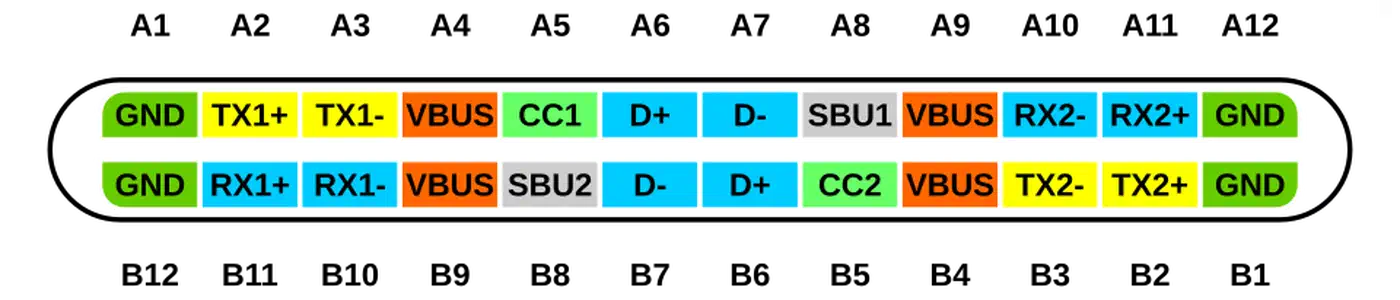
Plug a USB-C cable into a charger and the two negotiate before any real current flows. The exchange runs over the CC pin, a signal line in the connector that carries no power of its own. It takes about half a second, and it sets how much power you get.
The charger, called the source, sends out a list of Power Data Objects (PDOs). Think of it as a menu of the voltage and current pairs it can supply. The standard set under USB-PD 3.1 SPR (Standard Power Range) is:
| Voltage | Current | Power |
|---|---|---|
| 5V | 3A | 15W |
| 9V | 3A | 27W |
| 15V | 3A | 45W |
| 20V | 3A | 60W |
| 20V | 5A | 100W |
The device (the sink) reads this list, picks the highest option it supports, and sends back a Request Data Object (RDO). The charger replies with an Accept message and switches to the negotiated voltage. You never notice any of it.
If negotiation fails (a broken cable, a charger that doesn’t speak USB-PD, a mismatch), the device falls back to the USB-C baseline: 5V at 0.9A, or 4.5W. That’s why some devices charge so slowly with “the wrong charger.”
USB-PD 3.1 EPR goes up to 240W
The USB-IF ratified Extended Power Range (EPR) in 2022, and devices started shipping with EPR support in 2024. EPR adds three new high-voltage PDOs:
| Voltage | Current | Power |
|---|---|---|
| 28V | 5A | 140W |
| 36V | 5A | 180W |
| 48V | 5A | 240W |
These rails are aimed at gaming laptops and big mobile workstations. Apple’s Thunderbolt 5 MacBook Pros take EPR up to 140W. The USB-IF expects over 60% of new laptops to handle PD 3.1 by late 2026. EU rules push that along, since a laptop sold in Europe has to charge over USB-C.
PPS gives fine-grained voltage control for phones
USB-PD 3.0 introduced Programmable Power Supply (PPS), which lets a charger and device negotiate voltage in 20mV steps within a continuous range (for example, 3.3-11V at 3A), rather than jumping between fixed PDO steps. Samsung Galaxy S24/S25 and Google Pixel 9 use PPS to deliver their “super fast charging” modes, up to 45W on the S25, while minimizing heat. Without a PPS-capable charger, these phones fall back to standard PD speeds of around 15W.
Cables are the hidden bottleneck
The cable is the part of the charging chain most people buy on impulse and think about the least. It is also the most common cause of charging running slower than expected: you plug in, charging starts, but at a fraction of the rated speed.
The 3A/5A split and e-marker chips
USB-C cables come in two tiers. 3A cables top out at 60W at 20V. They need no chip, and they cover most phones and lighter laptops. 5A cables reach 100W or 240W, and they must carry an e-marker. That is a tiny chip in the plug that tells the charger the cable’s current rating, its USB version, and who made it.
Without an e-marker chip, the charger assumes 3A. A $40 braided USB-C cable can look premium and still cap out at 60W because it lacks the chip.
On an unmarked cable your eyes cannot tell 3A from 5A. Two things can: the box it came in, which states the amps or watts, and a USB-C power meter reading the e-marker.
The same limit bites USB-C tools. A soldering iron asks PD for full heat, so it runs cool on an unmarked 3A cable. Our guide on choosing a soldering station covers how cable and charger picks play out. Small board builds hit it too. A battery-powered Pi 5 field lab will brown out under load if the HAT feeds through a weak cable.
Reading the USB-IF certification marks
Since USB-PD 3.1, the USB-IF has published a set of certified-cable logos that put the rating on the connector itself. A certified cable carries a small badge showing either 60W or 240W for its power tier, and separately a speed figure such as 40Gbps. There is no 100W badge in the scheme: cables above 60W are marked 240W even when the e-marker is set to 5A at 20V, so a 240W badge tells you the cable is 5A, not that your charger can push 240W through it.
Two badges are worth more trust than the rest. The Thunderbolt bolt with a 3, 4, or 5, and the USB4 logo, are both handed out after real testing. Printed wattage on any other cable is a maker’s claim and nothing more.
Cables that print 100W and are not
The badge scheme only helps when the badge is accurate. Nothing physically stops a factory from printing 100W or 5A on a cable with a 3A e-marker, or with no e-marker at all, and cheap marketplace listings do exactly that. The cable will still work, it will simply cap at 60W while claiming otherwise.
A cable that claims 240W but costs under $10 is almost certainly not EPR rated, because the 50V-rated e-marker and the conductor spec cost more than that to build. A cable that claims both 100W and 40Gbps but ships in a plain bag with no brand is claiming two separate certifications that neither the seller nor anyone else has paid for.
This is the one case where a power meter earns its price back immediately. A misprinted cable reads as 3A the moment you measure it.
EPR cables for 240W
EPR charging adds a third tier: cables with an EPR-capable e-marker that can safely carry 48V at 5A. These are still relatively uncommon and carry a price premium ($25-40). Verified options include the Anker 765 USB-C cable and Cable Matters 240W EPR cable. If you plug an EPR charger into a non-EPR cable, the PD controller will cap negotiation at 100W maximum, and it will not attempt 28V or above without the correct cable.
USB4 and Thunderbolt cables as a reliable option
USB4 Gen 2x2 and Thunderbolt 3/4 cables are always e-marked. They always carry at least 100W, plus 40Gbps of data. If you want one cable that just works anywhere up to 100W, buy one of those. The Cable Matters 40Gbps USB4 and Apple’s Thunderbolt 4 Pro Cable both qualify. They cost more than generic cables, and they end the guessing.
Wire gauge and cable length
The wire inside the cable counts too. AWG (American Wire Gauge) rates how thick it is. Lower numbers mean thicker wire, less resistance, and less voltage lost at high current. For 5A, look for 20AWG power wires. They hold voltage steady at 1 to 2m under load. 28AWG is fine for a 3A cable at 60W. At 5A over a long run, though, the voltage drops far enough to force the charger to renegotiate or fall back.
For 100W+ charging, stick to cables 1m or shorter. A 2m cable at 5A drops roughly 0.5V more than a 1m cable, which can push the received voltage below the threshold for the negotiated PDO.
USB-A to USB-C cables
USB-A to USB-C cables never do USB-PD. The talk happens on the CC pins, and only USB-C connectors have them. A USB-A port falls back to the older BC 1.2 rules, which cap it at 5V and 2.4A, or 12W. Charge a modern laptop that way and you get 12W at best, whatever the brick claims.
What a charger’s wattage rating means
A charger labeled “100W” does not always give your device 100W. That number is its total output. The charger may split it across ports, or it may need a PDO your device cannot use.
Total vs per-port wattage
Multi-port GaN chargers distribute power dynamically. A typical breakdown for a 3-port 100W charger looks like:
| Ports in Use | Port 1 | Port 2 | Port 3 |
|---|---|---|---|
| 1 device | 100W | - | - |
| 2 devices | 65W | 35W | - |
| 3 devices | 45W | 30W | 25W |
Always look up the per-port power delivery table in the spec sheet, not just the headline wattage on the box.
GaN technology in 2026
Gallium Nitride (GaN) has replaced silicon in almost every good charger by 2026. GaN chargers run about 10 to 15 degrees cooler. They are also around 40% smaller than silicon ones. Brand names vary, and the gap between them is small. Compare PDO support and per-port power instead.
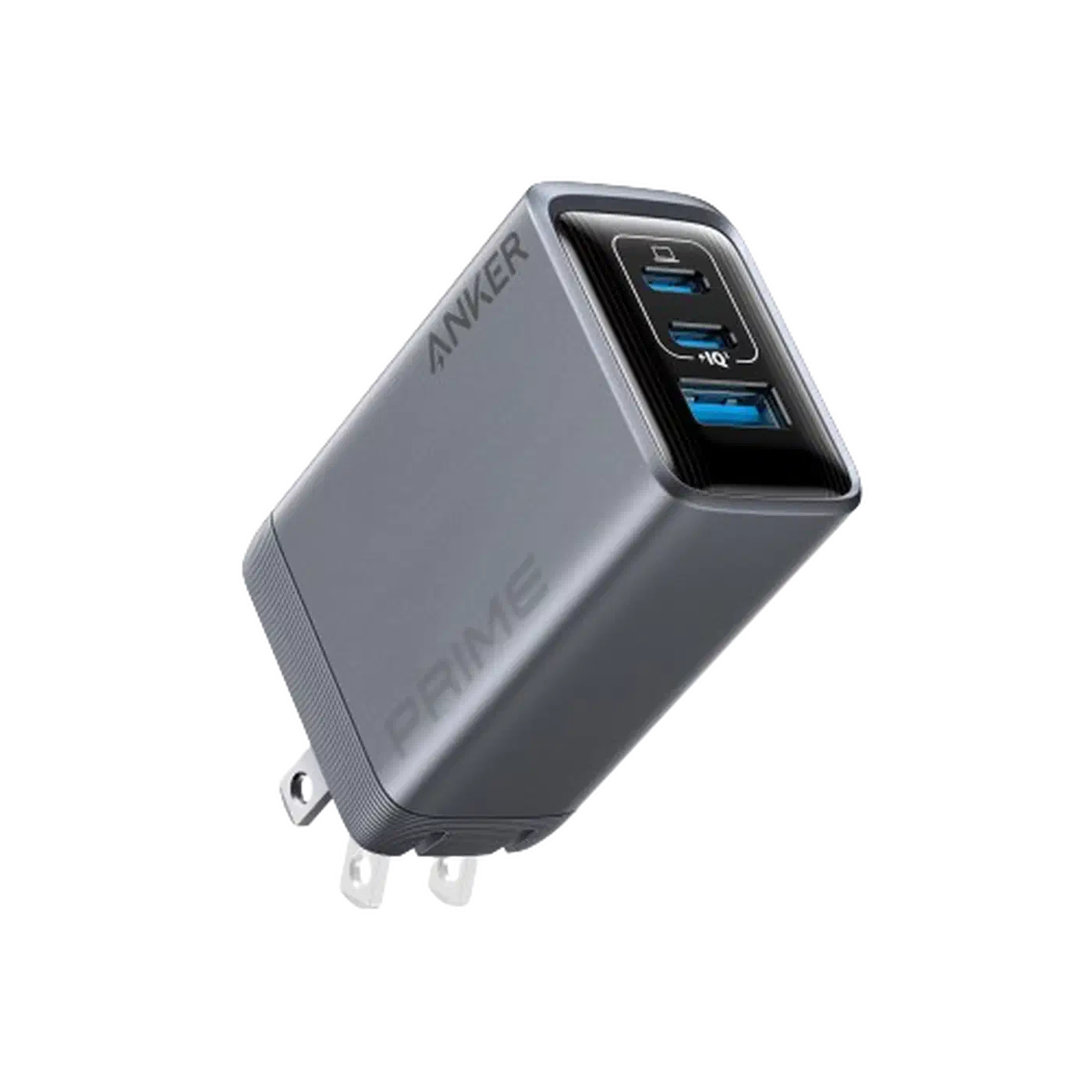
Three chargers worth considering by use case: the Baseus 65W GaN5 ($25) for budget single-device use covering most phones and thin laptops, the Anker Prime 100W ($55) for all-round multi-port use with solid per-port power management, and the Ugreen Nexode Pro 160W (~$70) for EPR-capable setups supporting MacBook Pro 16" and power-hungry laptops.
PDO profiles count for more than wattage
Say a “65W” charger lists only 5V/3A, 9V/3A, and 20V/3.25A. It has no 15V PDO. Chromebooks and some Microsoft Surface models ask for 15V to charge at full speed. Without it they drop to 9V/3A, or 27W. Nothing is harmed, but you charge at less than half speed.
Check that any charger you buy for a laptop explicitly lists supported voltages: 5V, 9V, 15V, and 20V, not just the highest wattage.
Laptop-specific PD requirements
Laptop PD requirements vary considerably by manufacturer and model:
| Laptop | Minimum PD | Optimal PD | Notes |
|---|---|---|---|
| MacBook Air M3/M4 | 30W | 67W | Apple 30W charges slowly; 67W for full speed |
| MacBook Pro 14" | 67W | 96W | Will run off lower wattage but not charge under load |
| MacBook Pro 16" | 96W | 140W EPR | Thunderbolt 5 models support EPR |
| Dell XPS 13 | 45W | 65W | Below 45W: plugged in, not charging |
| Dell XPS 15/17 | 90W | 130W | Requires barrel connector on highest-TDP configs |
| Lenovo ThinkPad X1 | 45W | 65W | Rapid Charge requires PD 2.0 or higher |
| Framework 13 | 45W | 60W | Will trickle-charge below 45W |
| Framework 16 | 65W | 100W | Larger GPU config needs 100W to charge under load |
Below the minimum wattage, most laptops either refuse to charge or show “plugged in, not charging” while they run off the battery. That is normal, and nothing is damaged.
Quick Charge vs USB-PD
Qualcomm Quick Charge 3.0 and 4.0 are not USB-PD. They use different signaling on the D+ and D- data lines and are incompatible with USB-PD devices. A phone designed for USB-PD will receive only 5W from a QC3.0-only charger. QC5 aligns with USB-PD and does work, but many chargers sold as “Qualcomm certified” still ship with QC3.0. Check the spec sheet before buying.
Testing your setup with a USB-C power meter
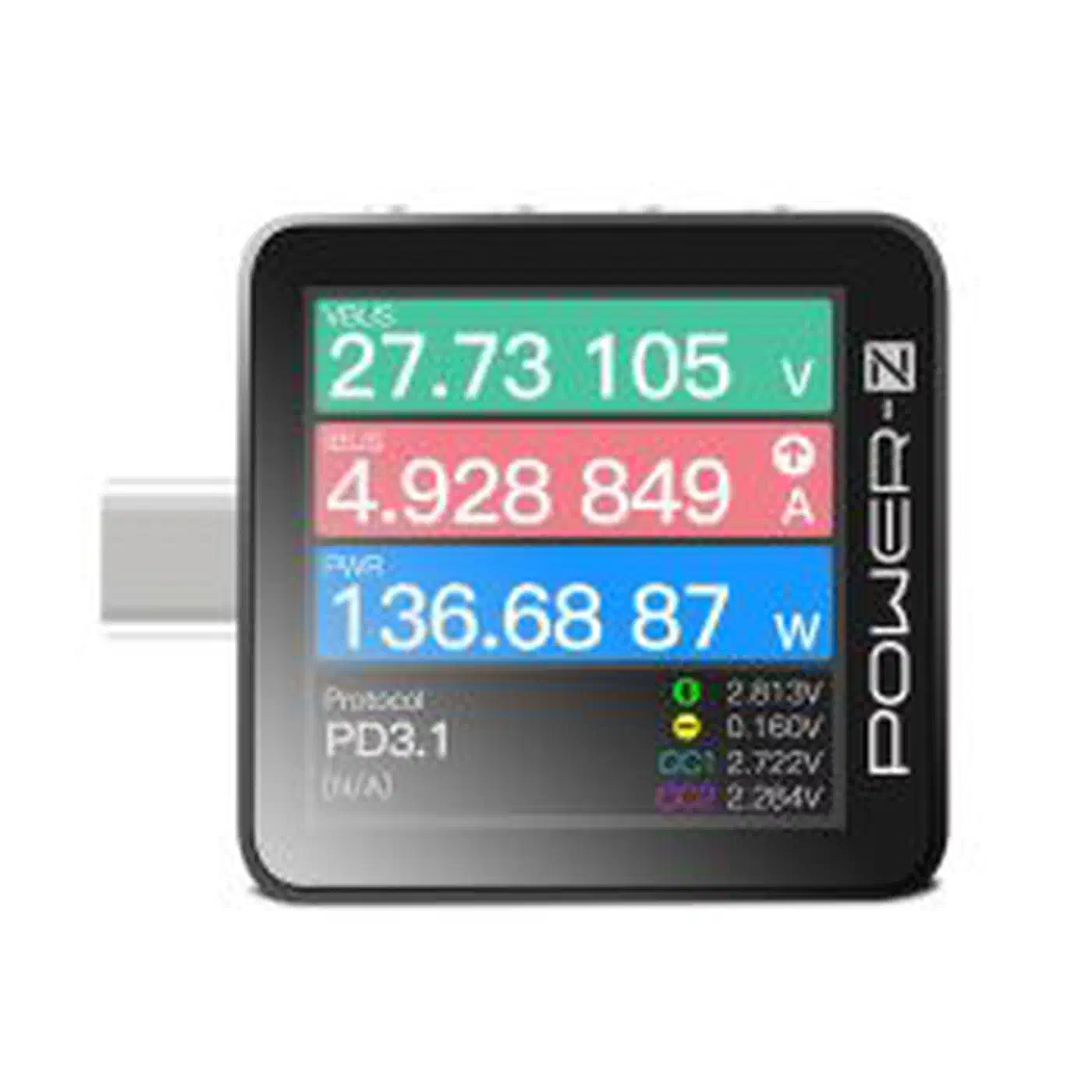
The only way to know what your charger, cable and device are doing is to measure it. USB-C inline power meters cost $20 to $110. They plug in between the charger and the device, and show live voltage, current, power and protocol.
Three worth knowing, at three prices. The ChargerLAB Power-Z KM003C costs about $110 and does the most: a 1.54" OLED screen, PD 3.1 up to 50V and 6A, e-marker reading, the full PDO list, and logging software for a PC. The YZXStudio ZY1280 is about $20 and shows plain voltage, current and power, which is enough for a quick check. It will not read e-markers or list PDOs. The Witrn U3 sits in the middle at about $25, with EPR support and e-marker reading.
What to check when testing
Plug the meter in between the charger and the cable, then check four things. The voltage should match the PDO you expect: 20V for a laptop, 9V or a PPS range for a phone. The current should sit inside the cable’s rating, 3A or 5A. The protocol should read USB-PD, not BC 1.2 or QC. And the charger’s PDO list should hold every voltage your devices ask for, above all the 15V that Chromebooks and Surface tablets want.
The KM003C can also read a cable’s e-marker chip directly to display its rated current (3A or 5A), USB speed version, and manufacturer. This is the fastest way to audit a mystery cable pulled from a drawer.
Auditing a whole drawer at once
Sorting the whole drawer takes about twenty minutes and ends the problem for good.
Work through every USB-C cable you own in one sitting. For each one, read the connector for a printed rating, then plug it into the meter and note the actual negotiated current. Write the result straight onto the cable with a label maker or a strip of tape: 100W e-marked or 60W 3A only is enough. Do the same for every charger, noting its real per-port output rather than the number on the box.
Then physically separate the two piles. Keep the 5A cables with the laptop chargers and the 3A cables with the phone chargers, in different drawers or different bags. The point is that you never again have to guess which cable you grabbed, because the slow ones are not in the pile you reach into.
Reading the cable from your operating system
A meter is the sure answer. But if the cable is already in a computer, the OS may know for free. Support is patchy across the three.
Linux gives you the most. On kernel 6.3 and newer, the USB-PD driver exposes the negotiated contract directly in sysfs:
cat /sys/class/typec/port0/partner/usb_power_delivery/*/source_capabilities/*That prints the charger’s full PDO list in human-readable form. To see what the cable itself declared, look at the cable partner instead:
ls /sys/class/typec/port0-cable/
cat /sys/class/typec/port0-cable/identity/*
A cable that shows up here at all has an e-marker, because that is the only way the port can read its identity. No e-marker means no cable node.
macOS reports the wattage. Hold Option, open the Apple menu, then System Information, then Power. The Charger Information block shows what the Mac is pulling. Plug the cable in between the Mac and a charger above 60W. If the reading climbs past 60W, you have a 5A cable. It works on any Mac, with no extra app.
Windows has no readout at all. No version of Windows shows you the PD contract or the cable’s e-marker. The battery report from powercfg /batteryreport gives charge rate, not the voltage or the cable rating, so it cannot tell a 3A cable from a 5A one. On Windows a meter is your only option.
Hubs, docks, and power passthrough
If you use a USB-C docking station or hub, the hub itself consumes some of the power you feed it, typically 15W, before passing the rest through to your laptop. A hub rated at 100W PD input delivers approximately 85W to the laptop; a 60W hub delivers about 45W; a 45W hub delivers around 30W, which is too little for most laptops under any load.
When choosing a hub for laptop use, aim for at least 100W PD input if your laptop needs 65W or more. The hub’s advertised “power passthrough” wattage is not the same as what your laptop sees, so read the spec sheet for the passthrough figure after hub overhead.
A USB-C monitor that charges your laptop works the same way. Several of the best OLED coding monitors claim 140W over one cable. The panel takes its cut first, though, so a laptop that needs 96W has little left over.
Troubleshooting common USB-PD problems
If your phone charges at 15W instead of 25 to 45W, the charger probably has no PPS. Samsung Galaxy and Google Pixel phones need PPS to hit top speed. Check with a meter that it shows PPS, not a fixed 9V PDO.
If a laptop says “plugged in, not charging”, the charger’s top PDO sits below what the laptop needs. Look up the laptop’s spec, then check that the charger lists that wattage. A 45W charger will run a 65W laptop at idle, but it will never charge it.
A “Charger not supported” warning on Samsung phones means Samsung firmware is rejecting a charger that lacks PPS or has a non-standard PDO profile. Using a PPS-capable charger clears this. It is a software restriction, not a hardware failure.
A cable that keeps cutting out and coming back is usually damaged at the CC pin contacts. Swap in a different cable. Then shine a light in the port and look for lint. A puff of compressed air clears the grit that breaks the CC link.
Getting it right
Spotting a real 100W USB-C cable comes down to the same three checks every time: read the connector for a printed rating, look for a Thunderbolt or USB4 mark, then measure the negotiated current with a meter. The first two take seconds and catch most cables. The third settles the rest, including the ones that print a rating they cannot deliver.
Everything else in USB-PD follows from the same idea. A charger with the right PDO profiles, a cable rated for the current you need, and a device that supports PD will just work. The confusion comes from a market full of parts that meet some of those requirements and look identical to the ones that meet all of them.
A USB-C power meter is the single best purchase for anyone who cares about this. Spend $25 on a Witrn U3 or save up for the KM003C, audit the drawer once, label everything, and you never have to think about it again.