 Botmonster Tech
DIY Smart Doorbell for $25: Skip Ring's $5/month subscription
Yes, you can build a fully functional smart video doorbell for under $25 using an ESP32-CAM board, a PIR motion sensor, a momentary push button, and ESPHome firmware. It streams MJPEG video directly to Home Assistant , sends push notifications with camera snapshots when someone presses the button, and records motion-activated clips to local storage. No cloud subscription. No video leaving your network. The whole build takes about two hours, and every future firmware update happens wirelessly over your Wi-Fi.
The commercial alternatives - Ring, Google Nest, Reolink - all work fine out of the box. But they come with recurring costs that add up fast, and they route your front door video through someone else’s servers. If you already run Home Assistant and have basic soldering skills (or a breadboard), building your own doorbell gives you the same core features with far more control over where your data goes.
Why Build It Yourself Instead of Buying a Ring
Start with cost. Ring’s Basic plan now costs $4.99/month ($49.99/year) per camera. The Plus plan runs $9.99/month ($99.99/year) covering all devices. Google Home Premium (formerly Nest Aware) starts at $10/month ($100/year) for the Standard tier, after a 25% price increase in late 2025. Over five years, a Ring Plus subscription adds $500 on top of the $100-200 hardware cost. The DIY build described here costs about $25 in parts with zero recurring fees.
Then there is privacy. Ring has shared video footage with law enforcement without owner consent in documented cases. All Ring and Nest video is processed and stored on corporate cloud servers. With a DIY doorbell running ESPHome, video stays on your local network. Nothing leaves your home unless you explicitly set up remote access.
That said, the DIY approach has real limitations. You will not get 24/7 cloud recording, Ring’s “Neighbors” social feed, or professional monitoring integration. Video quality tops out at the ESP32-CAM’s OV2640 sensor - 2 megapixels, roughly 800x600 for streaming. There is no HDR, no built-in IR night vision (though you can add external IR LEDs for a few dollars), and the frame rate sits at 5-10 FPS depending on Wi-Fi signal strength. If you need a polished plug-and-play experience, buy a commercial doorbell. If you want full local control at a fraction of the cost, keep reading.
| Feature | Ring Video Doorbell | DIY ESP32-CAM Doorbell |
|---|---|---|
| Hardware cost | $100-200 | ~$25 |
| Monthly subscription | $4.99-$9.99/mo | $0 |
| 5-year total cost | $400-700+ | ~$25 |
| Video storage | Cloud (Amazon servers) | Local (microSD/NAS) |
| Resolution | 1080p-1536p | 800x600 (2MP sensor) |
| Night vision | Built-in IR | Add-on IR LEDs (~$3) |
| Two-way audio | Yes | Possible with add-on modules (~$5) |
| Frame rate | 15-30 FPS | 5-10 FPS |
| Home Assistant integration | Via Ring integration | Native ESPHome API |
| Privacy | Cloud-dependent | Fully local |
Hardware: What You Need and How to Wire It
The bill of materials is intentionally minimal. Every component is available from AliExpress, Amazon, or any electronics supplier.
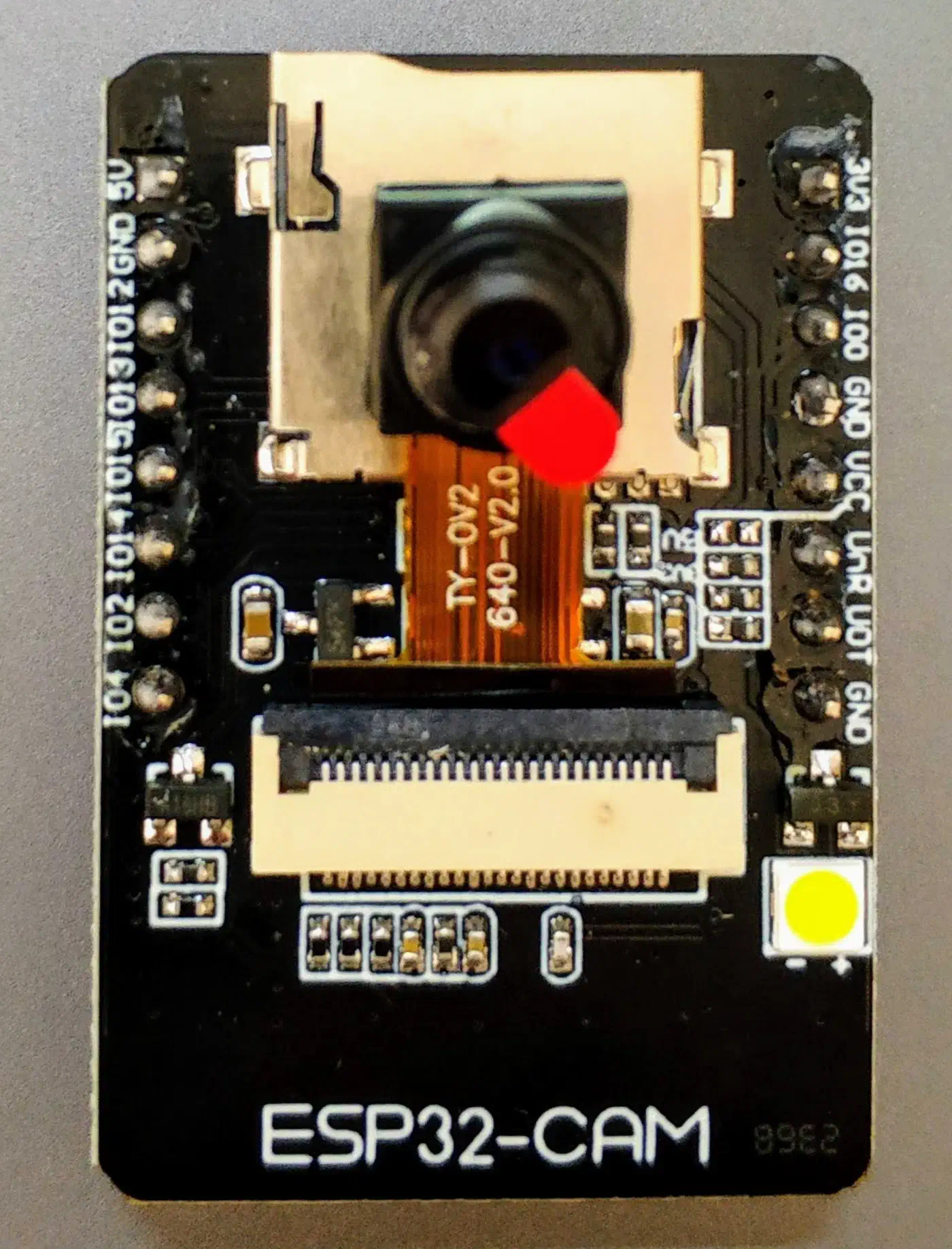
ESP32-CAM (AI-Thinker variant) - ~$8
This is the core of the build. It packs an ESP32-S module, an OV2640 camera sensor, a microSD card slot, and a built-in LED flash onto a single board roughly the size of a postage stamp. Power comes through the 5V pin - the micro-USB port is only for programming via an FTDI adapter. The board runs on 3.3V logic with a built-in regulator.
FTDI USB-to-serial adapter - ~$3
Required for the initial firmware flash only. Connect TX to RX, RX to TX, GND to GND, and 5V to 5V. Hold GPIO0 to GND during power-on to enter flash mode. After the first ESPHome flash, all future updates happen over Wi-Fi (OTA), so you can stash the FTDI adapter in a drawer.
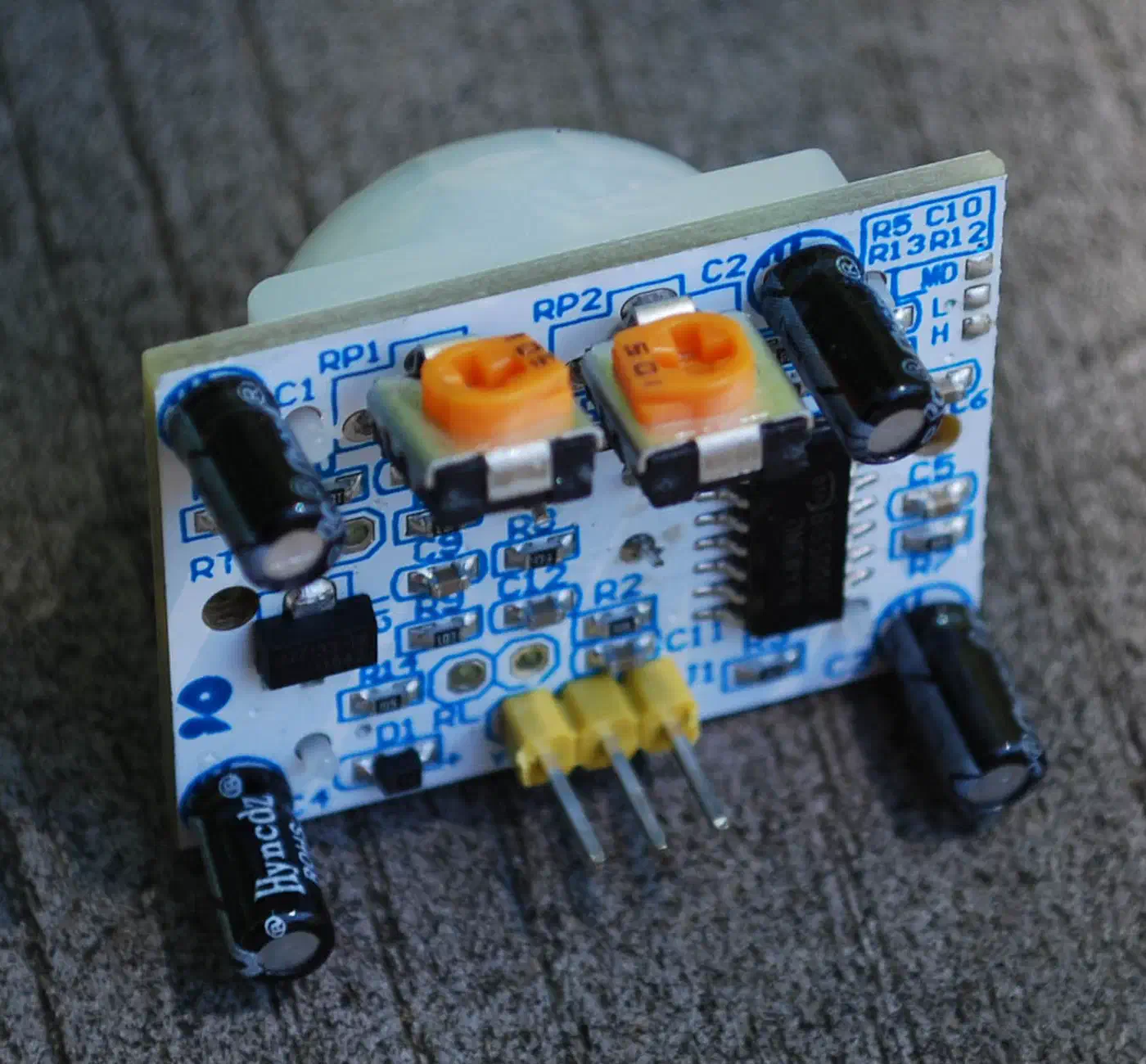
HC-SR501 PIR motion sensor - ~$2
Detects human-sized motion at up to 7 meters. Wire VCC to 5V, GND to GND, and OUT to GPIO13. The two onboard potentiometers control sensitivity and hold time - set the hold time to minimum (around 3 seconds) since Home Assistant automations will handle the timing logic.
Momentary push button - ~$0.50
Any normally-open momentary switch works. Wire one terminal to GPIO12 and the other to GND. ESPHome configures the internal pull-up resistor in firmware. If you are replacing an existing wired doorbell, you can reuse the low-voltage doorbell wiring (16-24VAC transformer with a rectifier to 5VDC).
Power supply
A 5V 2A USB power adapter with a weatherproof cable routed through the wall is the simplest option. If you want to repurpose an existing doorbell transformer (16-24VAC), add a buck converter module (HLK-PM01 or LM2596) stepping down to 5VDC. The ESP32-CAM draws 200-300mA during streaming and peaks at around 500mA during heavy Wi-Fi transmission. Do not attempt battery power - the ESP32-CAM’s continuous draw will drain any reasonable battery in hours.
Weatherproof enclosure - ~$5
You can 3D-print an angled enclosure (search Thingiverse or Printables for “ESP32-CAM doorbell” - several STL files are freely available) or use a generic IP65 junction box with a hole drilled for the camera lens. Apply silicone sealant around all cable entry points. The ESP32-CAM itself operates from -20C to 70C but has no IP rating, so the enclosure does all the weather protection work.
Wiring Summary
Here is the pin mapping for the complete build:
| Component | Component Pin | ESP32-CAM Pin |
|---|---|---|
| PIR sensor (HC-SR501) | VCC | 5V |
| PIR sensor (HC-SR501) | GND | GND |
| PIR sensor (HC-SR501) | OUT | GPIO13 |
| Doorbell button | Terminal 1 | GPIO12 |
| Doorbell button | Terminal 2 | GND |
| FTDI adapter (programming only) | TX | U0R (RX) |
| FTDI adapter (programming only) | RX | U0T (TX) |
| FTDI adapter (programming only) | GND | GND |
| FTDI adapter (programming only) | 5V | 5V |
For the initial flash, connect GPIO0 to GND before powering on. Remove this connection after flashing.
ESPHome Firmware Configuration
ESPHome turns the ESP32-CAM into a Home Assistant-native device with camera streaming, button input, motion detection, and status reporting. The latest ESPHome release (2026.3.0 as of this writing) includes a zero-copy API that reduces camera streaming latency by about 10%. The same framework powers a wide range of tiny single-purpose devices - we used it recently to build a DIY mailbox notification sensor and a low-cost ESPHome air quality sensor , both of which follow the same flashing workflow described below.
Here is the complete YAML configuration. Create a new file called front-doorbell.yaml in your ESPHome directory:
esphome:
  name: front-doorbell
  friendly_name: "Front Doorbell"

esp32:
  board: esp32cam
  framework:
    type: arduino

wifi:
  ssid: !secret wifi_ssid
  password: !secret wifi_password
  # Improve Wi-Fi reliability for streaming
  power_save_mode: none

  ap:
    ssid: "Front-Doorbell-AP"
    password: !secret fallback_password

captive_portal:

logger:
  level: INFO
  # Reduce serial logging to avoid camera interference
  baud_rate: 0

api:
  encryption:
    key: !secret api_encryption_key

ota:
  - platform: esphome
    password: !secret ota_password

# Camera configuration for AI-Thinker ESP32-CAM
esp32_camera:
  name: "Front Door Camera"
  external_clock:
    pin: GPIO0
    frequency: 20MHz
  i2c_pins:
    sda: GPIO26
    scl: GPIO27
  data_pins:
    - GPIO5
    - GPIO18
    - GPIO19
    - GPIO21
    - GPIO36
    - GPIO39
    - GPIO34
    - GPIO35
  vsync_pin: GPIO25
  href_pin: GPIO23
  pixel_clock_pin: GPIO22
  resolution: 800x600
  jpeg_quality: 12
  max_framerate: 15fps
  idle_framerate: 0.2fps

# MJPEG stream server
esp32_camera_web_server:
  - port: 8080
    mode: stream
  - port: 8081
    mode: snapshot

# Doorbell button
binary_sensor:
  - platform: gpio
    pin:
      number: GPIO12
      mode: INPUT_PULLUP
      inverted: true
    name: "Doorbell Button"
    device_class: door
    filters:
      - delayed_on: 50ms

  # PIR motion sensor
  - platform: gpio
    pin: GPIO13
    name: "Front Door Motion"
    device_class: motion
    filters:
      - delayed_off: 30s

  # Connection status
  - platform: status
    name: "Doorbell Status"

# Camera flash / status LED
output:
  - platform: gpio
    pin: GPIO4
    id: led_output

light:
  - platform: binary
    output: led_output
    name: "Camera Flash"

# Diagnostic sensors
sensor:
  - platform: wifi_signal
    name: "Doorbell Wi-Fi Signal"
    update_interval: 60s
Some configuration details that matter:
power_save_mode: nonekeeps the Wi-Fi radio fully active. This is necessary for reliable camera streaming but increases power consumption.baud_rate: 0disables serial logging. The ESP32-CAM shares some pins between the serial port and the camera, so serial output can cause frame corruption.idle_framerate: 0.2fpsreduces the frame rate to one frame every 5 seconds when nobody is actively viewing the stream. This cuts power consumption and heat generation.jpeg_quality: 12is a good balance between image quality and frame size. Lower numbers mean higher quality but larger frames and slower streaming. Range is 10 (best) to 63 (worst).- The
delayed_off: 30sfilter on the PIR sensor keeps the motion state “on” for 30 seconds after the last trigger, preventing rapid on/off cycling in automations.
Flashing the Firmware
Install ESPHome on your computer (via Home Assistant add-on or pip install esphome), then flash the initial firmware:
esphome run front-doorbell.yamlSelect the serial port connected to your FTDI adapter. After the first flash, disconnect the FTDI adapter and power the board from its permanent power supply. All subsequent updates use esphome run front-doorbell.yaml over Wi-Fi automatically.
Home Assistant Automations
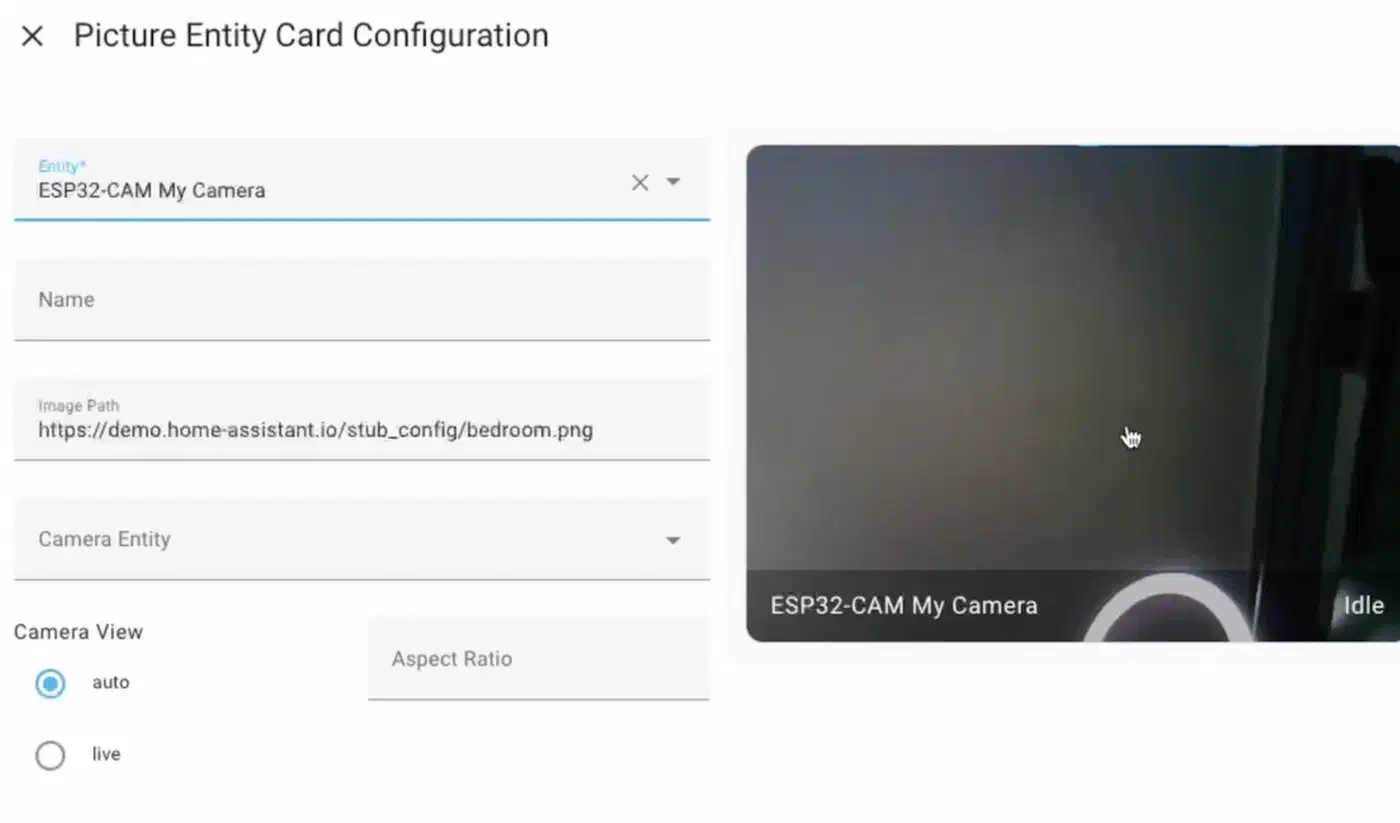
Once the ESP32-CAM shows up in Home Assistant (it should be auto-discovered via the ESPHome integration), you can start building automations. The DIY approach pays off here because you have complete control over what happens when the button is pressed or motion is detected. If you would rather skip ESPHome and handle the wire protocol yourself, the same doorbell hardware can report events via Home Assistant MQTT discovery for custom DIY devices .
Doorbell Press Notification with Snapshot
This automation captures a camera snapshot when the button is pressed and sends it as a push notification to your phone via the Home Assistant companion app:
automation:
  - alias: "Doorbell pressed - notify with snapshot"
    trigger:
      - platform: state
        entity_id: binary_sensor.doorbell_button
        to: "on"
    action:
      - service: camera.snapshot
        target:
          entity_id: camera.front_door_camera
        data:
          filename: "/config/www/doorbell_snapshots/front_door_latest.jpg"
      - service: notify.mobile_app_your_phone
        data:
          title: "Doorbell"
          message: "Someone is at the front door"
          data:
            image: "/local/doorbell_snapshots/front_door_latest.jpg"
            actions:
              - action: "UNLOCK_DOOR"
                title: "Unlock Door"
              - action: "IGNORE"
                title: "Ignore"
Motion-Activated Recording
Record a 30-second clip whenever the PIR sensor detects motion, but only during nighttime hours or when the alarm is armed:
  - alias: "Front door motion - record clip"
    trigger:
      - platform: state
        entity_id: binary_sensor.front_door_motion
        to: "on"
    condition:
      - condition: or
        conditions:
          - condition: sun
            after: sunset
            before: sunrise
          - condition: state
            entity_id: alarm_control_panel.home_alarm
            state: "armed_away"
    action:
      - service: camera.record
        target:
          entity_id: camera.front_door_camera
        data:
          filename: >
            /config/www/doorbell_recordings/front_door_{{ now().strftime('%Y%m%d_%H%M%S') }}.mp4
          duration: 30
Chime on Smart Speakers
Play a doorbell chime sound on all smart speakers when someone rings:
  - alias: "Doorbell pressed - play chime"
    trigger:
      - platform: state
        entity_id: binary_sensor.doorbell_button
        to: "on"
    action:
      - service: media_player.play_media
        target:
          entity_id: media_player.living_room_speaker
        data:
          media_content_id: "/local/sounds/doorbell_chime.mp3"
          media_content_type: "music"
Actionable Notification Response
Handle the “Unlock Door” button tap from the notification:
  - alias: "Doorbell - unlock door from notification"
    trigger:
      - platform: event
        event_type: mobile_app_notification_action
        event_data:
          action: "UNLOCK_DOOR"
    action:
      - service: lock.unlock
        target:
          entity_id: lock.front_door_lock
This creates a complete workflow: someone presses the doorbell, you get a photo on your phone, tap “Unlock Door,” and the smart lock opens. You can extend this pattern to turn on porch lights, announce visitors through TTS on smart speakers, or trigger any other Home Assistant automation.
Frigate NVR for AI Object Detection
If you want to move beyond basic PIR motion detection, Frigate is an open-source NVR that runs AI-powered object detection locally. It can distinguish between people, packages, vehicles, and animals, which cuts false alerts from passing cars or neighborhood cats down to near zero.
There is one catch: Frigate expects an RTSP or RTMP stream, not MJPEG. The ESP32-CAM only outputs MJPEG natively. The workaround is to use a re-streaming tool like go2rtc (bundled with Frigate) to convert the MJPEG stream into RTSP. Add the ESP32-CAM as a source in your Frigate configuration:
cameras:
  front_doorbell:
    ffmpeg:
      inputs:
        - path: http://front-doorbell.local:8080
          roles:
            - detect
    detect:
      width: 800
      height: 600
      fps: 5
Frigate works best with a Google Coral TPU for hardware-accelerated inference, but CPU-based detection works on any reasonably modern x86 machine. The combination of ESP32-CAM + Frigate + Home Assistant gives you person detection, object tracking, and event-based recording that rivals commercial systems costing hundreds more. For a full walkthrough of that stack, see our guide to local AI security cameras with Frigate and a Coral TPU .
Outdoor Installation and Long-Term Reliability
A doorbell lives outside, exposed to weather, temperature swings, and continuous operation. Getting the installation right matters more than the firmware configuration for long-term reliability.
Mount the camera at approximately 120cm (4 feet) height, angled slightly downward to capture faces. The OV2640’s 66-degree field of view covers a standard doorstep. Avoid direct sun exposure on the lens - it causes washed-out images. A recessed mounting under an eave or porch overhang works best.
The ESP32-CAM’s built-in PCB antenna is not strong. If the doorbell is more than 5 meters from the nearest access point through walls, you will see dropped frames and connection issues. You can add an external antenna (IPEX to SMA pigtail, about $2), place a Wi-Fi mesh node near the front door, or run Ethernet with a PoE-powered ESP32 board as an upgrade. Check signal strength by watching the Wi-Fi Signal sensor in Home Assistant - aim for RSSI better than -65 dBm.
For night vision, the built-in LED flash on GPIO4 is too harsh for continuous use. Add 850nm IR LEDs instead - a ring of 6 costs about $3. Wire them to the 5V rail through a 2N2222 transistor switched by a GPIO pin. The OV2640 sensor has no IR cut filter, so it naturally sees infrared light. Switch to night mode via an automation triggered by sunset time or an ambient light sensor.
Format a 32GB microSD card as FAT32 for on-board storage. ESPHome does not manage file rotation, so set up a Home Assistant automation that runs a shell_command daily to delete recordings older than 7 days. You can also store all recordings on the HA host filesystem or a NAS share via the camera.record service, where you have more control over retention policies.
The ESP32-CAM is an $8 component, so keep a spare flashed and ready. OTA firmware updates happen over Wi-Fi with zero physical access required. In humid climates, the OV2640 lens can fog up - add a small silica gel packet inside the enclosure and drill a single downward-facing ventilation hole to let moisture escape without admitting rain.
Upgrade Path: ESP32-S3 and Better Cameras
The AI-Thinker ESP32-CAM with the OV2640 sensor is the cheapest and most widely documented option, but it is not the only one. If you want better image quality, the ESP32-S3 platform with an OV5640 sensor offers 5 megapixels, autofocus, and USB-C for easier programming. Boards like the Freenove ESP32-S3-WROOM CAM and the XIAO ESP32S3 Sense run ESPHome and cost $15-20.
| Specification | ESP32-CAM (OV2640) | ESP32-S3 (OV5640) |
|---|---|---|
| Resolution | 2MP (1600x1200 max) | 5MP (2592x1944 max) |
| Streaming resolution | 800x600 practical | 1280x720 practical |
| Autofocus | No | Yes |
| USB programming | FTDI adapter required | USB-C native |
| Price | ~$8 | ~$15-20 |
| ESPHome support | Mature, stable | Supported, improving |
| Heat during streaming | Moderate | Higher (OV5640 runs hot) |
| Best use | Video streaming | Still images and higher-res video |
The OV5640 produces noticeably sharper images, especially for snapshots used in notifications. But for live video streaming at doorbell distances, the OV2640 is fast, stable, and well-tested. The ESP32-CAM remains the best starting point for a first build. You can always swap in an ESP32-S3 board later - the ESPHome configuration changes are minimal, and all your Home Assistant automations stay the same.
For $20-25 in parts and a couple hours of work, you get a doorbell that streams live video to your dashboard, sends photos to your phone when someone rings, records motion clips locally, and ties into any automation you can think of. No subscription, no cloud, no corporate middleman. The resolution and frame rate will not match a Ring, and you will need to solder a few wires. If that does not bother you, this build will serve you well for years.