 Botmonster Tech
Containerize your entire dev environment in one Distrobox command

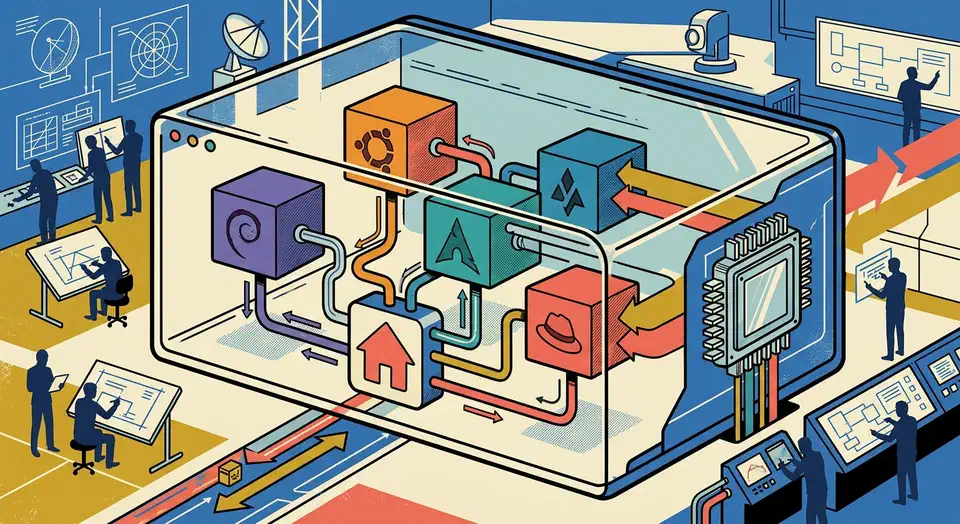
Distrobox is the shortest path to testing a build on Ubuntu 24.04 from an Arch host, running CUDA 12.x on stable Debian without touching the host drivers, or keeping six Node.js versions from fighting each other. It’s a POSIX shell wrapper around Podman , Docker , or Lilipod . The containers feel like native shells, and they run just as smoothly inside a terminal built for instant redraws as on a plain console. Your home directory, Wayland socket, GPU, SSH keys, Git config, and audio all wire in for you. GUI apps you install inside show up in the host menu.
This guide covers the mental model, the daily commands, GPU passthrough for AI and graphics work, per-project containers, and how Distrobox stacks up against Docker Dev Containers and Nix shells.
Distrobox create Ubuntu 24.04
The distrobox create Ubuntu 24.04 command is distrobox create --image ubuntu:24.04 --name webdev, followed by distrobox enter webdev. You land in a full Ubuntu 24.04 userland where whoami returns your host username and pwd shows your home directory. Install what you need with apt. Add --nvidia to the create command to share the host’s NVIDIA driver and run a different CUDA toolkit inside without touching the host.
What Distrobox is and how it differs from Docker
Docker was built to ship stateless services, and its defaults fit that goal. Filesystems and networks are isolated, volumes and ports must be declared, and the container gets no display server, audio, GPU, or real user. That model is great for production and painful for daily coding. You end up babysitting a Dockerfile plus a docker-compose.yml plus a bind mount plus an xhost line plus a custom entrypoint, just to get a working shell.
Distrobox flips those defaults. When you run distrobox create, the container shares:
- your home directory (read-write)
- your user account, UID, shell, and dotfiles
- the host’s Wayland and X11 sockets
- PipeWire/PulseAudio for audio
- the host network stack (ports are shared by default, no mapping required)
- USB devices and removable storage
- D-Bus, the systemd journal, and the SSH agent
- the GPU, including NVIDIA drivers when you pass
--nvidia
The container behaves like a second userland on the same machine. That openness suits a dev workstation and would be a disaster for production services, so keep using Docker or Kubernetes for anything that serves traffic.
If you’re undecided on which engine to pair it with, our breakdown of the rootless container runtime trade-offs walks through the choice. Podman’s rootless default is a natural fit for workstation use. Distrobox is a set of POSIX shell scripts with no runtime needs beyond the container engine, so it works on any Linux distro, including immutable systems like Fedora Silverblue , Vanilla OS, openSUSE Aeon/Kalpa, and SteamOS, where it’s often the only sane way to install regular packages. The stable release is 1.8.2, with a 2.0 release candidate in active dev (release notes ).
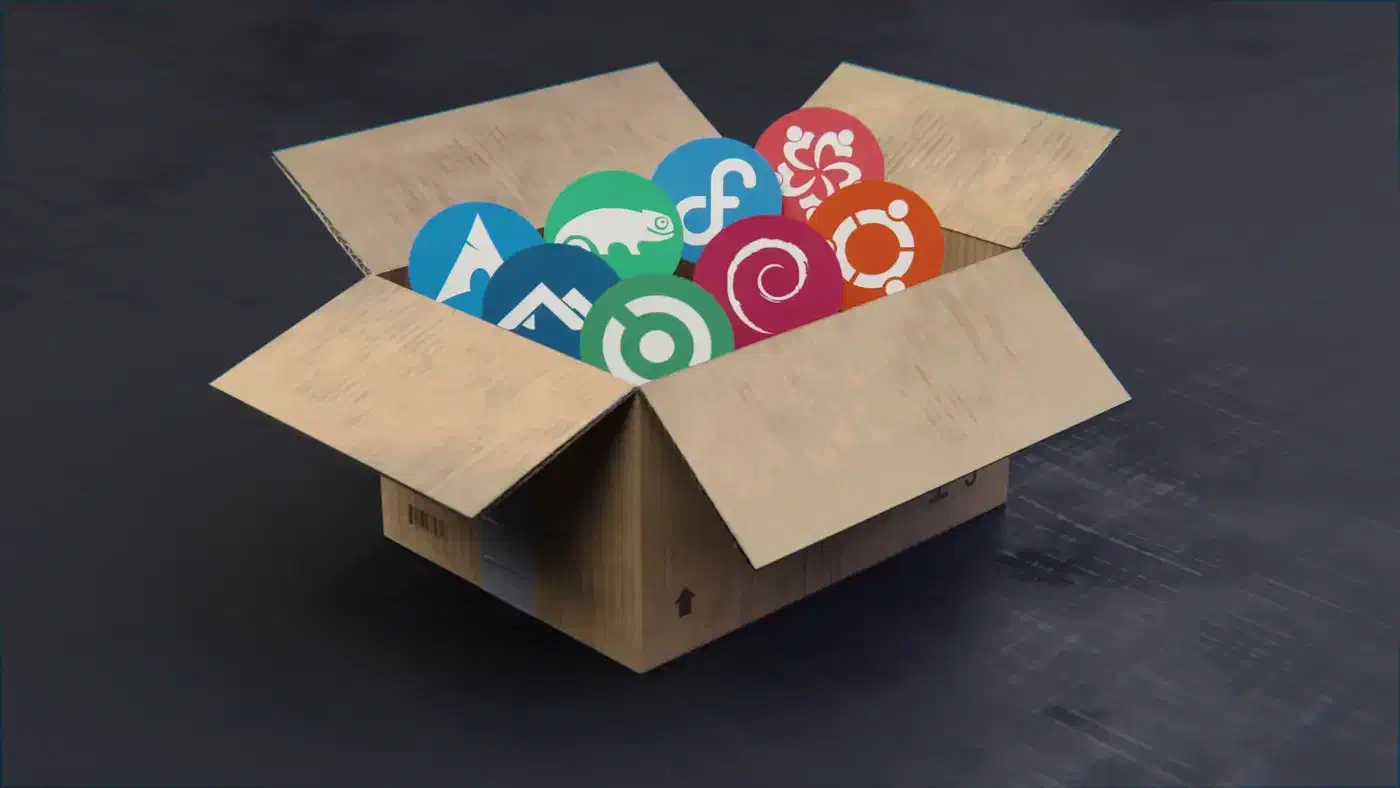
Creating Your First Dev Container
Installation is one line on most hosts:
# Debian/Ubuntu
sudo apt install distrobox

# Fedora
sudo dnf install distrobox

# Arch
sudo pacman -S distrobox

# Anything else
curl -s https://raw.githubusercontent.com/89luca89/distrobox/main/install | sudo sh
Creating a container takes one command, and entering it takes another:
distrobox create --image ubuntu:24.04 --name webdev
distrobox enter webdev
You’re now inside a full Ubuntu 24.04 userland. whoami returns your host username. pwd shows your home directory. ls lists the same files you see on the host. Install what you want with apt:
sudo apt install nodejs npm python3-pip build-essentialThe home directory is shared. Anything you save inside the container shows up on the host, and the other way around. Your .bashrc, .zshrc, .gitconfig, ~/.ssh/, and ~/.gnupg/ are all there with no extra setup. git push, ssh server, and gpg --sign just work.
Nothing stops you from making several containers at once:
distrobox create --image fedora:41 --name rustdev
distrobox create --image debian:11 --name legacy
distrobox create --image archlinux:latest --name bleeding
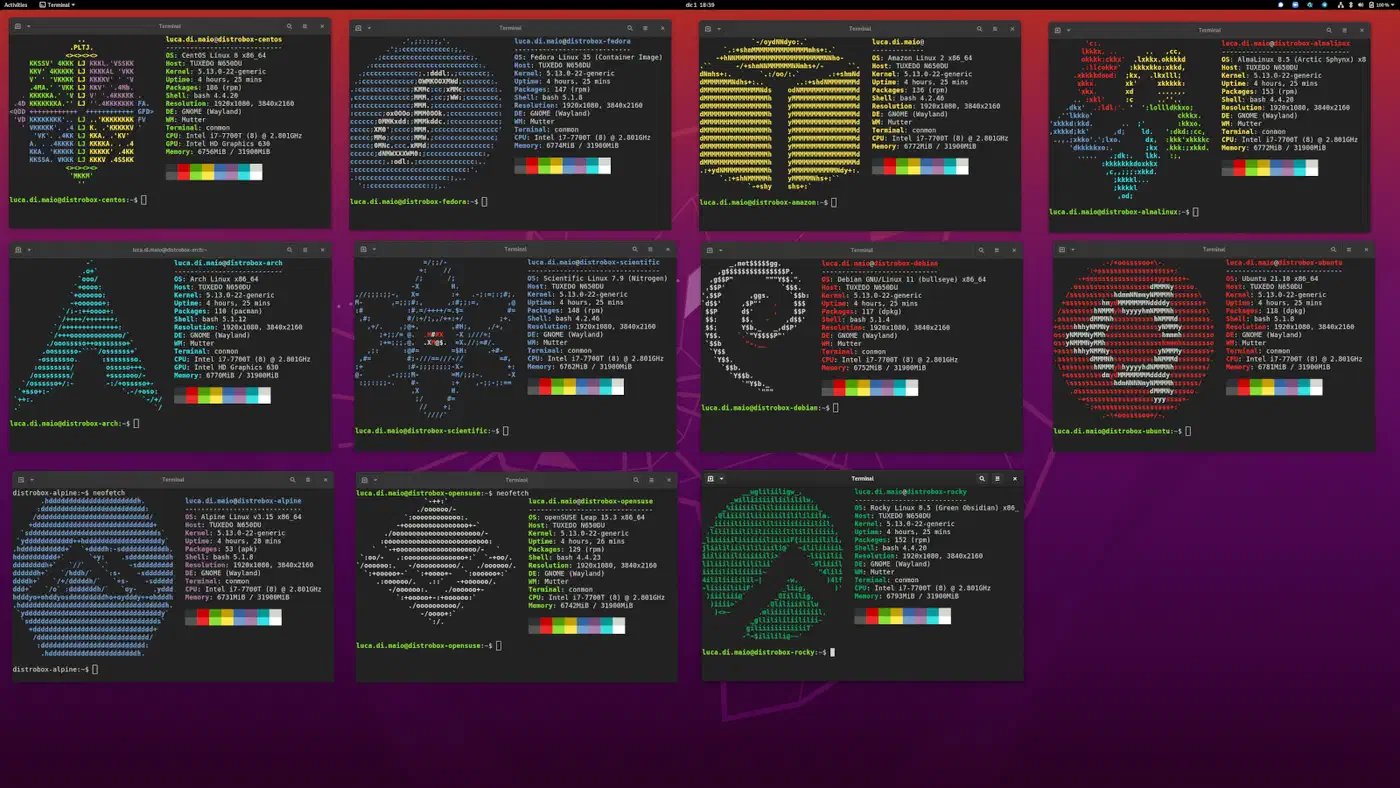
Switch between them with distrobox enter <name>. Each has its own base distro and package manager, and all of them share the same home directory. List active containers with distrobox list. Remove one with distrobox rm webdev.
Commands you want on first entry go in ~/.distroboxrc. Good candidates are xhost +si:localuser:$USER (which fixes the “cannot open display” error on some X11 setups) or small shell aliases just for containerized work.
GPU Passthrough for AI and Graphics Workloads
Running CUDA or Vulkan inside a plain Podman container usually means installing nvidia-container-toolkit
, generating a CDI spec, and passing --device nvidia.com/gpu=all on every run. Distrobox cuts that down to a single flag:
distrobox create --nvidia --image ubuntu:24.04 --name ai-dev
distrobox enter ai-dev
nvidia-smi   # shows the GPU
nvcc --version   # CUDA toolkit works
The --nvidia flag shares the host’s NVIDIA driver stack with the container. You can install a totally different CUDA toolkit inside without touching the host. A common setup is Debian stable on the host for boring reliability, and an Ubuntu 24.04 Distrobox for the latest CUDA 12.x, PyTorch nightly, and whatever else the ML stack needs this week.
AMD GPUs work through Mesa with no special flag. vulkaninfo and glxinfo confirm hardware acceleration from inside the container. Intel GPUs work the same way.
GUI apps launched from inside the container render on the host display with full hardware acceleration. You can install Blender , Godot , or a CUDA-built Ollama inside a container. They all use the host GPU through the shared driver. Audio goes through PipeWire, so anything that makes sound in the container comes out of the host speakers.
If the --nvidia flag breaks on odd setups (the declarative Nix driver model
is a known edge case), the escape hatch is passing the toolkit directly:
distrobox create --name cuda-dev \
  --image docker.io/nvidia/cuda:12.6.0-devel-ubuntu24.04 \
  --additional-flags "--gpus all"
Exporting Applications to the Host Desktop
distrobox-export makes containerized apps pleasant to use. Once you’ve installed a GUI app inside a container, a single call creates a host .desktop entry. It launches the app through the container on demand:
# Inside the container
distrobox-export --app code
distrobox-export --app jetbrains-toolbox
distrobox-export --app blender
After you run those, VS Code, JetBrains Toolbox, and Blender show up in your host launcher with their real icons. Clicking them enters the container, runs the command, and pipes the display back to the host. The shim script lives in ~/.local/share/applications/. The hookup is invisible and reversible with --delete.
You can also export single binaries to your host PATH:
distrobox-export --bin /usr/bin/node --export-path ~/.local/bin
distrobox-export --bin /usr/bin/rustc --export-path ~/.local/bin
Now node and rustc are on your host PATH but still run inside their own containers. This is how you end up with a different Node.js per project without a version manager. Each container ships exactly one Node. The exported binary is the one you want for the current project.
Services can also be exported when a container runs an init system (--init) and you want a systemd unit inside it run from the host. In practice this means you can install PostgreSQL 16 inside one container and PostgreSQL 13 inside another. Then you start whichever one fits the project you’re on, without dirtying the host or fighting update-alternatives.
Per-Project Dev Environments
Once the single-container flow clicks, the next step is to stop stuffing everything into one big container. Keep a purpose-built container per project:
| Project | Image | Purpose |
|---|---|---|
| billing-api | python:3.13-bookworm | Python 3.13 + PostgreSQL client |
| storefront | node:22-bookworm | Node.js 22 + Bun + Playwright |
| inference-lab | nvidia/cuda:12.6.0-devel | CUDA 12.6 + PyTorch nightly |
| legacy-cobol | debian:11 | GCC 10 + ancient build tooling |
| throwaway | alpine:latest | Quick experiments, delete often |
Each container is walled off from the others at the package level. They all share the home directory, so your Git repos, SSH keys, and editor configs are always there. Switching projects becomes distrobox enter storefront, with no juggling of pyenv, nvm, rustup, asdf, and three shell restarts.
For team setups, point distrobox create at a Containerfile instead of a published image:
distrobox create --image ./Containerfile --name project-aEveryone on the team gets the same toolchain without checking a giant Docker Compose file into the repo. The same Containerfile can feed a Docker-based build pipeline driven by Gitea Actions so local and build-server environments match.
When one container per project starts to drag, distrobox-assemble lets you list them all in one INI file and create them in a single shot:
[webdev]
image=ubuntu:24.04
additional_packages="git nodejs npm python3-pip build-essential"
init=false
nvidia=false
pull=true
replace=true

[ai-dev]
image=nvidia/cuda:12.6.0-devel-ubuntu24.04
additional_packages="python3-pip git"
nvidia=true
init_hooks="pip install torch torchvision"
pull=true
replace=true
Run distrobox assemble create --file distrobox.ini. Both containers come up the same way on every machine that has the file. Since 1.8, --file also takes a URL, so you can keep the manifest in a Git repo and pull it from there.
Distrobox vs Docker Dev Containers vs Nix
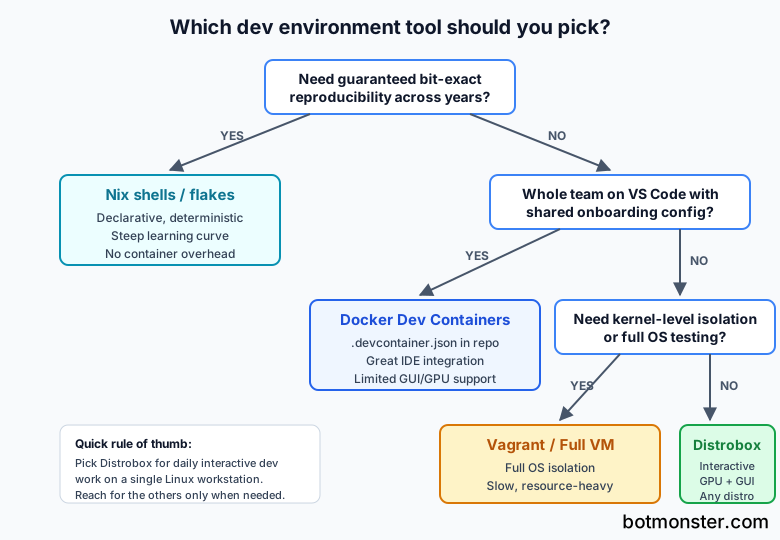
Distrobox is one of several ways to get repeatable dev environments, and it does not fit every case. Its three serious rivals are Docker Dev Containers , Nix shells , and plain virtual machines. Each solves a different problem:
| Tool | Best for | Reproducibility | GUI/GPU | Config file |
|---|---|---|---|---|
| Distrobox | Interactive dev with host integration | Medium | Excellent | Optional INI |
| Docker Dev Containers | Team standardization via VS Code | High | Limited | .devcontainer.json |
| Nix shells | Bit-exact reproducibility | Very high | Possible | flake.nix |
| Vagrant/VMs | Full OS isolation, kernel testing | High | Works but slow | Vagrantfile |
Distrobox wins when you want a shell that feels native, full GPU and display access with no setup ritual, and the freedom to mix and match distros. It’s the wrong pick when you need the same environment to come up on macOS, Windows, and Linux (Docker Dev Containers handle that). It’s also wrong when you need bit-for-bit repeats over a long horizon (Nix handles that). You can also run all three at once: Distrobox on the laptop, Dev Containers for onboarding teammates who live in VS Code, and Nix flakes for the projects where repeats are a hard contract. If you want containers tied even closer to the host init system with no outside runtime, systemd-nspawn is worth a look as a fourth option.
Closing Thoughts
Distrobox keeps your home directory, SSH agent and dotfiles available wherever you write code, whichever distro the compiler prefers today. Install CUDA, JetBrains IDEs, and a bleeding-edge Python inside a container on a rock-solid Debian host, and they behave as if they ran on the host itself.
Start with one container, get comfortable with distrobox enter and distrobox-export, and build out from there. Within a week you’ll probably have three or four containers, a distrobox.ini in your dotfiles repo, and no reason to install Node.js on the host again.