 Botmonster Tech
NixOS for non-believers: a practical guide for developers

You have sent the message “it works on my machine” at least once in your career. Maybe you have been on the receiving end of it. Either way, the problem is always the same. Two machines that should be identical are not, and no one can say why. One has Python 3.11, the other has 3.12. One has a system OpenSSL that some C extension links against, and the other does not. One engineer installed a package six months ago and forgot.
NixOS is a Linux distro built around one idea. The whole system gets declared in a single file. That file covers installed packages, the kernel version, system services, users, file permissions, and shell config. You version-control it like any other code. It is not reduced to a manifest or approximated with containers. It is fully declared. If two machines share the same configuration.nix and the same flake.lock, they are functionally identical.
The doubt is fair. NixOS asks you to learn a new functional language (Nix), rethink how Linux works, and accept a learning curve that is genuinely steep. But it pays off fast for some developers. That includes anyone who sets up many machines, who has been burned by drift, or who wants a dev setup they can rebuild from scratch in under an hour.
What Makes NixOS Different from Every Other Linux Distro
The gap between NixOS and normal distros like Ubuntu, Arch, or Fedora is not surface deep. It goes all the way down to how packages get stored and how the system tracks its own state.
The Nix Store
On a normal Linux system, installing a package writes files into shared directories. Binaries go to /usr/bin, libraries go to /lib, headers go to /usr/include. When you upgrade a package, the old files get overwritten. If something breaks mid-upgrade, the system can be left in a broken half-state.
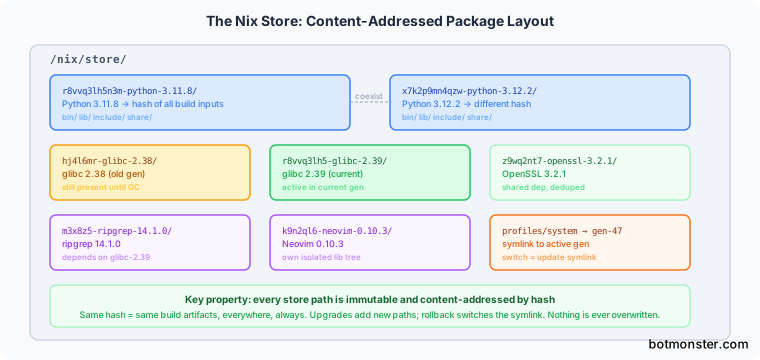
NixOS uses a different model. Every package lives in the Nix store at /nix/store/, in a locked, content-addressed directory. A real path looks like this:
/nix/store/r8vvq3lh5n3m7wk5x9f7-glibc-2.39/The hash prefix (r8vvq3lh5n3m7wk5x9f7) comes from the package’s build inputs and build recipe. If two packages share the same hash, they are bitwise identical. Say anything about the build changes: a different source URL, a different dependency version, a different compiler flag. The hash changes too, and a new directory gets created next to the old one.
So many versions of the same package can sit side by side without conflict. Your Python 3.11 project and your Python 3.12 project each get their own store path.
Derivations
The core unit of work in Nix is a derivation: an expression that says how to build a package. A derivation lists the source URL, the build dependencies, the build commands, and the outputs. Think of it like a Dockerfile. But it applies to single packages, not containers, and it stacks all the way up to the operating system.
When you write pkgs.ripgrep in your config, you point at a derivation. When NixOS reads your config, it resolves the full graph of derivations and builds or downloads everything needed.
Generations and Atomic Upgrades
Every time you run nixos-rebuild switch, NixOS creates a new generation. A generation is a full snapshot of the system config. Your bootloader (GRUB or systemd-boot) lists all past generations. If a new one has a bug, you boot the previous one from the menu and run nixos-rebuild switch --rollback. The system is back to exactly where it was before the upgrade.
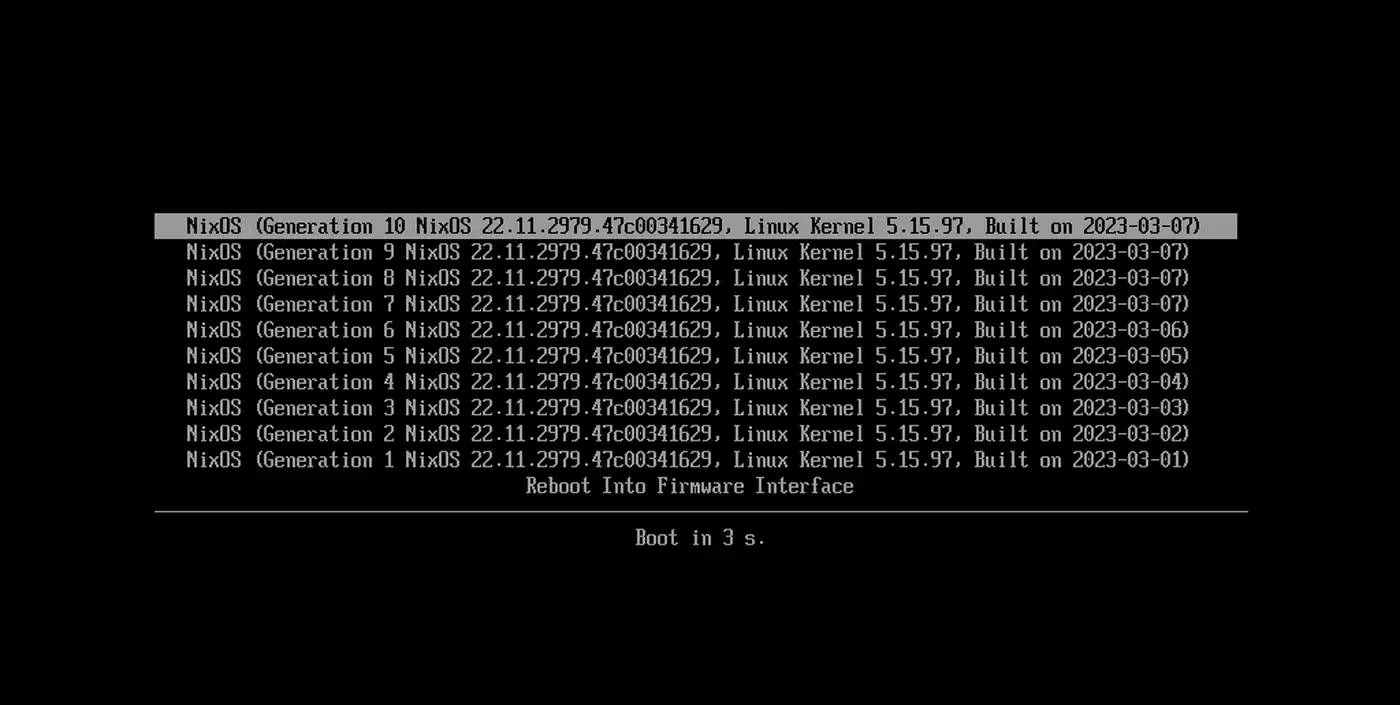
This is atomic in a real sense. The switch from one generation to the next just updates symlinks. It does not rewrite shared directories. Either the switch works and the new generation goes live, or it fails and the old generation stays untouched.
Reproducibility in Practice
Give two NixOS installs the same configuration.nix and the same flake.lock, which pins exact git revisions of the package repo. They produce bit-for-bit identical package builds. That is a stronger promise than Docker layer caching. Docker depends on the order of instructions and can produce different results based on what is cached.
The trade-offs are real. The Nix store grows large over time, so you clean it with nix-collect-garbage -d. The Nix language takes time to learn. And software that expects a standard FHS layout needs workarounds. More on that later.
Installing NixOS: The Minimal Path for Developers
Download the NixOS minimal ISO from nixos.org and write it to a USB drive. The graphical installer works fine. But manual partitioning gives you more control and a clearer sense of what you are setting up.
Partitioning
A sensible layout for a developer workstation uses BTRFS with subvolumes for easy snapshot management:
- EFI partition: 512MB, FAT32, mounted at
/boot - Root partition: remaining space, BTRFS with
@(root) and@homesubvolumes
BTRFS subvolumes let you use Snapper or btrfs-snapper to take automatic snapshots before every system change. That gives you filesystem-level rollback on top of the generation-based rollback NixOS already provides.
A Minimal Developer configuration.nix
After partitioning and mounting, nixos-generate-config creates a first configuration.nix. Here is a starting point for a developer workstation with KDE Plasma 6:
{ config, pkgs, ... }:

{
  imports = [ ./hardware-configuration.nix ];

  boot.loader.systemd-boot.enable = true;
  boot.loader.efi.canTouchEfiVariables = true;

  networking.hostName = "dev-machine";
  networking.networkmanager.enable = true;

  time.timeZone = "America/New_York";

  # Desktop environment - swap plasma6 for gnome, or use hyprland below
  services.xserver.enable = true;
  services.displayManager.sddm.enable = true;
  services.desktopManager.plasma6.enable = true;

  # For Hyprland instead:
  # programs.hyprland.enable = true;

  environment.systemPackages = with pkgs; [
    git
    neovim
    zsh
    tmux
    docker
    ripgrep
    fd
    bat
    eza
    fzf
    direnv
    nix-direnv
    wget
    curl
  ];

  users.users.developer = {
    isNormalUser = true;
    extraGroups = [ "wheel" "docker" "video" "audio" ];
    shell = pkgs.zsh;
  };

  services.docker.enable = true;

  system.stateVersion = "24.11";
}
Pin your editor of choice and whichever high-performance terminal you settled on into systemPackages the same way. Then every rebuilt machine boots into the exact same toolset.
For NVIDIA GPUs, add:
hardware.nvidia.package = config.boot.kernelPackages.nvidiaPackages.stable;
hardware.opengl.enable = true;
hardware.nvidia.modesetting.enable = true;
Switching between NVIDIA driver versions is a one-line change and a rebuild. No manual driver install. No DKMS module compile that fails without warning after a kernel update.
Run nixos-install to apply the config, reboot, and you have a fully set up developer workstation. Any setting you did not write into configuration.nix is not active. The config is the system.
Nix Flakes: The Modern Way to Manage NixOS
The classic configuration.nix approach works, but it has a flaw. The nixpkgs package repo is pinned to a channel that updates apart from your config. Two machines both running nixos-24.11 may end up with slightly different package versions. It depends on when each one last fetched channel updates.
Nix flakes fix this with a flake.lock file. It pins every input, nixpkgs included, to an exact git commit hash. Flakes became stable in Nix 2.18 and are now the recommended approach for new NixOS configs.
A Minimal flake.nix
{
  description = "My NixOS configuration";

  inputs = {
    nixpkgs.url = "github:NixOS/nixpkgs/nixos-24.11";
    home-manager = {
      url = "github:nix-community/home-manager/release-24.11";
      inputs.nixpkgs.follows = "nixpkgs";
    };
  };

  outputs = { self, nixpkgs, home-manager, ... }: {
    nixosConfigurations.myhost = nixpkgs.lib.nixosSystem {
      system = "x86_64-linux";
      modules = [
        ./configuration.nix
        home-manager.nixosModules.home-manager
        {
          home-manager.useGlobalPkgs = true;
          home-manager.useUserPackages = true;
          home-manager.users.developer = import ./home.nix;
        }
      ];
    };
  };
}
Build and switch to this configuration with:
nixos-rebuild switch --flake .#myhostThe flake.lock file records the exact git commit of nixpkgs that was used. Commit both flake.nix and flake.lock to git. When a teammate or a new machine runs nixos-rebuild switch --flake .#myhost, they get the exact same packages, no matter when they run it.
Update all inputs to their latest revisions with nix flake update. The lock file changes, and you can review the diff before you commit.
Multi-Machine Configurations
One flake.nix can declare multiple NixOS configurations:
nixosConfigurations = {
  laptop = nixpkgs.lib.nixosSystem {
    modules = [ ./hosts/laptop/configuration.nix ./modules/common.nix ];
  };
  server = nixpkgs.lib.nixosSystem {
    modules = [ ./hosts/server/configuration.nix ./modules/common.nix ];
  };
  workstation = nixpkgs.lib.nixosSystem {
    modules = [ ./hosts/workstation/configuration.nix ./modules/common.nix ];
  };
};
Shared settings (time zone, base packages, security hardening) live in ./modules/common.nix. Per-machine settings live in each host’s directory. A change to the common module applies the same way across all machines when you rebuild.
For a production-ready starting point, nix-starter-configs ships beginner, standard, and full variants of NixOS flake setups. Starting from one of these is faster than building the structure from scratch.
Home Manager
Home Manager extends the declarative model to user-level config. That covers shell aliases, git config, fonts, VSCode extensions, GTK themes, and dotfiles. A home.nix for a developer might look like:
{ pkgs, ... }:

{
  home.stateVersion = "24.11";

  programs.zsh = {
    enable = true;
    autosuggestion.enable = true;
    syntaxHighlighting.enable = true;
    oh-my-zsh = {
      enable = true;
      theme = "robbyrussell";
    };
  };

  programs.git = {
    enable = true;
    userName = "Your Name";
    userEmail = "you@example.com";
    extraConfig.init.defaultBranch = "main";
  };

  programs.neovim = {
    enable = true;
    defaultEditor = true;
  };
}
Every setting in home.nix gets applied on nixos-rebuild switch. Dotfiles are no longer a separate git repo you have to remember to sync by hand.
Nix Develop Shells: The Dependency Management Game-Changer
You may not be ready to make NixOS your main operating system. That is fine. Nix’s development shell feature solves the dependency isolation problem on any Linux or macOS machine on its own.
nix develop enters a shell with exactly the packages declared in a flake’s devShells output. When you exit the shell, those packages drop off PATH. Nothing gets installed system-wide. Any machine with Nix installed gets the same environment.
A Python Django Development Shell
{
  description = "Django project development environment";

  inputs.nixpkgs.url = "github:NixOS/nixpkgs/nixos-24.11";

  outputs = { self, nixpkgs }: {
    devShells.x86_64-linux.default =
      let pkgs = nixpkgs.legacyPackages.x86_64-linux;
      in pkgs.mkShell {
        buildInputs = with pkgs; [
          python312
          uv
          postgresql_15
          redis
          nodejs_22
          pre-commit
        ];

        shellHook = ''
          echo "Django dev environment ready"
          export DATABASE_URL="postgresql://localhost/myapp_dev"
        '';
      };
  };
}
Run nix develop in the project root to enter this environment. PostgreSQL 15, Redis, Python 3.12, and Node.js 22 are all there, exactly as declared. A colleague on another machine runs the same command and gets the same environment. The reason is simple: flake.lock pins every version.
Automatic Activation with direnv
Manually running nix develop gets old quickly. direnv combined with nix-direnv automates this:
# .envrc in the project root
use flake
Run direnv allow once. After that, cd-ing into the project directory turns the Nix shell on by itself. Moving out turns it off. VSCode with the direnv extension picks up the environment for LSP servers. So your editor’s Python or Rust tooling uses the project’s pinned versions with no manual setup. If a full Nix commitment is more than you want, mise covers asdf, nvm, pyenv, and direnv from a single file.
Replacing Docker for Development
Many teams use Docker Compose to give everyone the same development environment. Nix development shells hit the same goal with a few real perks: no container spin-up time, native filesystem speed, and better IDE integration since the tools run right on the host.
The one edge Docker keeps for development is process isolation. Running PostgreSQL in a container keeps it cleanly walled off from the rest of the host. Teams that need that can run both. Use nix develop for the language toolchain and compilers, and Docker Compose for databases and outside services.
Cross-language projects work fine in a single shell. A project that needs Python, Rust (via the fenix overlay for nightly toolchains), and Node.js can declare all three in one buildInputs list. No virtualenvs, no nvm, no rbenv.
Common NixOS Pitfalls and How to Avoid Them
The NixOS learning curve has a few rough spots you can see coming. Most developers hit the same set of problems within the first month.
Packages That Need Service Enablement
Adding a package to systemPackages installs the binary but does not start any service tied to it. PostgreSQL is the classic example. pkgs.postgresql puts psql in PATH, but the database server stays off until you add services.postgresql.enable = true;. Check the NixOS options search at search.nixos.org/options when a package does not act the way you expect.
FHS Violations
NixOS has no /usr/bin, no /lib/x86_64-linux-gnu/, and none of the other standard filesystem spots most Linux software expects. Software that hardcodes these paths fails. You have a few ways to handle it:
steam-run: wraps a command in an FHS-friendly environment. Good for gaming utilities and proprietary binaries.buildFHSEnv: creates a lasting FHS chroot for apps that need it.patchelf: rewrites ELF binaries to use Nix store library paths directly.programs.nix-ld.enable = true: turns on a shim for the most common case, where an unpatched binary expects a standard dynamic linker path. Add this to your config and most downloaded Linux binaries will run with no further work.
Nix Store Bloat
After months of nixos-rebuild switch, old generations pile up in the store. Each generation holds references to all the packages it uses, which blocks garbage collection. Clean up with:
nix-collect-garbage -d # removes all but the current generationOr automate it in configuration.nix:
nix.gc = {
  automatic = true;
  dates = "weekly";
  options = "--delete-older-than 30d";
};
A typical developer system stabilizes at 30-60GB of store size after automated cleanup is in place.
VSCode Remote SSH
Connecting to a remote NixOS server through VSCode Remote SSH needs the server to present a working shell environment. The VSCode server binary it installs expects standard FHS paths. Adding programs.nix-ld.enable = true; to the remote machine’s config fixes most issues.
Flake Experimental Features
Flakes need experimental features turned on in Nix’s config. On NixOS 24.11 and later, new installs turn this on by default. Older installs may need:
nix.settings.experimental-features = [ "nix-command" "flakes" ];The First-Build Delay
The first nixos-rebuild switch after adding many new packages can be slow if the binaries are not cached. The official binary cache at cache.nixos.org covers almost everything in nixpkgs. On a team where many developers rebuild with the same config, set up a local Nix binary cache with Attic or Cachix. It cuts out repeat downloads and slashes rebuild times.
NixOS vs. Arch Linux vs. Fedora
| Feature | NixOS | Arch Linux | Fedora |
|---|---|---|---|
| Reproducibility | Bit-for-bit with flake.lock | Manual effort required | Moderate (DNF lockfiles) |
| Rollback | Built-in, per-generation | Manual snapshots (Snapper) | Limited (rpm-ostree on Silverblue) |
| Package freshness | nixpkgs-unstable is among the freshest; stable is slightly behind | Rolling, very fresh | Latest stable per release cycle |
| Learning curve | Steep (Nix language) | Moderate (manual setup) | Low (familiar tooling) |
| Config as code | Yes, first-class | No | No (except Silverblue) |
| Multi-machine management | Excellent (flakes) | Manual | Manual |
Arch Linux gives you the freshest packages and a lot of control, but reproducibility takes manual effort. Fedora (standard edition) is easy to run, yet it has no built-in rollback and no declarative config. Fedora Silverblue uses rpm-ostree for atomic updates and rollback, which is closer to the NixOS model. Still, its declarative config story is weaker.
Where to Go From Here
The fastest way to start is to run Nix on your current machine, with no full NixOS install. Install Nix on any Linux distro or macOS with the Determinate Nix Installer. It handles multi-user install and removal cleanly. Then add a flake.nix to an existing project and try nix develop. The development shell workflow is useful on its own. It gives you hands-on time with Nix before you touch your system config.
When you are ready for a full install, use nix-starter-configs as a base and read through the NixOS manual. Expect the first two weeks to send you to the nixpkgs source often. After that, most config tasks become simple pattern-matching against what you have already written.
The reproducibility promise is real, and it grows over time. The second machine you set up takes minutes, not hours. New team members get a working environment on day one. System changes undo with a single command. That is a fair trade for a steep learning curve.