 Botmonster Tech
Linux hardening in 30 minutes: Lynis score 55 to 84

You can shrink your Linux server’s attack surface in about 30 minutes. The recipe is simple. Harden SSH with Ed25519 keys, set up nftables with default-deny, turn on auto security updates, run auditd for kernel logs, and lock down accounts with faillock. A typical Lynis score jumps from 55-62 on a stock install to 75-84 after these changes.
Each section below takes 3-7 minutes. Work through it top to bottom on a fresh server. You will have a solid security baseline before your first app deploys, whether that is a database or a privacy-respecting analytics instance.
SSH Hardening - Your First Line of Defense
SSH is the main door for both admins and attackers. A bad SSH config is behind most server breaches on the public internet. Default settings are too loose for production. Every brute-force bot out there is already poking at port 22 with stock username and password combos.
Switch to Ed25519 Keys
Generate a new key pair if you have not already:
ssh-keygen -t ed25519 -C "admin@yourserver"Ed25519 keys give 128 bits of security in a 256-bit signature. That matches RSA-3072 but with faster signing and checking. There is no reason to pick RSA for new servers. The only exception is if you must talk to very old clients (OpenSSH older than 6.5, which shipped in 2014).
Copy your public key to the server:
ssh-copy-id -i ~/.ssh/id_ed25519.pub user@serverLock Down sshd_config
Edit /etc/ssh/sshd_config and apply these settings:
PasswordAuthentication no
KbdInteractiveAuthentication no
PubkeyAuthentication yes
PermitRootLogin no
MaxAuthTries 3
LoginGraceTime 30
AllowUsers deploy admin
HostKeyAlgorithms ssh-ed25519-cert-v01@openssh.com,ssh-ed25519
KexAlgorithms curve25519-sha256,curve25519-sha256@libssh.org
Ciphers chacha20-poly1305@openssh.com,aes256-gcm@openssh.com,aes128-gcm@openssh.com
The key settings: PasswordAuthentication no kills brute-force password attacks. PermitRootLogin no forces attackers to guess both a username and a key. MaxAuthTries 3 and LoginGraceTime 30 shrink the window for each connection attempt.
For key exchange and ciphers, sticking to modern picks (Curve25519 and ChaCha20-Poly1305) blocks downgrade attacks on weaker legacy ciphers. Also drop small Diffie-Hellman moduli (under 3072 bits) from /etc/ssh/moduli:
awk '$5 >= 3071' /etc/ssh/moduli > /etc/ssh/moduli.safe
mv /etc/ssh/moduli.safe /etc/ssh/moduli
Change the Default Port
Port 2222Changing the port is not real security. Any real attacker will scan every port. Still, it cuts automated scan noise by roughly 95%. Your auth logs stay readable, and brute-force bots stop chewing CPU. Update your firewall rules to match.
Optional: Add Two-Factor Authentication
For extra cover, install libpam-google-authenticator and set up TOTP as a second factor after key auth:
# In sshd_config
AuthenticationMethods publickey,keyboard-interactive
Now every login needs both a valid SSH key and a TOTP code. The friction is small. For public servers, it is worth it. For an even stronger setup, keep SSH off the public internet behind a private gateway. Then nothing listens on the open web.
After all changes, reload the daemon:
sudo systemctl reload sshdTest in a separate terminal before closing your current session.
Firewall Configuration with nftables
Every server on the internet needs a default-deny firewall. nftables has fully replaced iptables in modern kernels. It is the default on Debian 13+, Fedora 41+, and most current distros. The iptables command still exists, but it is a shim that maps rules to nftables behind the scenes.
The big win over old iptables: rule changes are atomic. The system either loads your full ruleset or rolls back on error. No more half-applied rules that lock you out mid-change.
Verify nftables Is Active
systemctl status nftables
nft list ruleset
A Complete Default-Deny Ruleset
Here is a production-ready /etc/nftables.conf that you can drop in and adapt:
#!/usr/sbin/nft -f

flush ruleset

table inet filter {
    chain input {
        type filter hook input priority 0; policy drop;

        # Accept established and related connections
        ct state established,related accept

        # Accept loopback
        iif lo accept

        # Accept ICMP and ICMPv6 (ping, path MTU discovery)
        ip protocol icmp accept
        ip6 nexthdr icmpv6 accept

        # SSH (rate-limited to 4 new connections per minute)
        tcp dport 2222 ct state new limit rate 4/minute accept

        # HTTP/HTTPS (uncomment if running a web server)
        # tcp dport { 80, 443 } accept

        # Log and drop everything else
        log prefix "[nftables drop] " drop
    }

    chain forward {
        type filter hook forward priority 0; policy drop;
    }

    chain output {
        type filter hook output priority 0; policy accept;
    }
}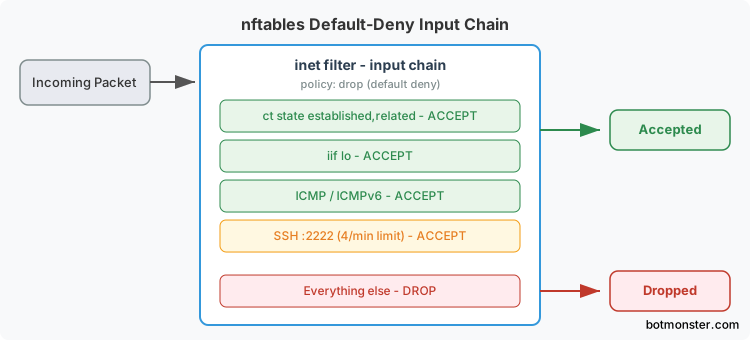
Key points about this ruleset:
| Rule | Purpose |
|---|---|
policy drop | Deny all inbound traffic by default |
ct state established,related accept | Allow return traffic for your outbound connections |
iif lo accept | Local processes can talk to each other |
limit rate 4/minute | SSH brute-force protection without needing fail2ban |
log prefix | See what gets dropped in your kernel log |
The SSH rate cap (4/minute) is tight enough to block bots but loose enough that you will not lock yourself out in normal use. If you need fail2ban-style detail, install it on the side. For the common case, this rate cap is plenty.
Apply and Persist
# Test the ruleset (catches syntax errors before applying)
nft -f /etc/nftables.conf

# Persist across reboots
systemctl enable nftables
Always test from a fresh session before closing your current SSH window. If you lock yourself out, console access (IPMI, KVM, or your cloud panel) is your recovery path.
For tight setups, set the output chain to policy drop and whitelist only what you need: DNS on 53, HTTPS on 443, NTP on 123. That stops a hacked process from phoning home to random hosts. If you want to extend these rules into a gateway that also handles NAT and bandwidth limits, learn how to build a home router on plain Linux.
Automatic Security Updates
Unpatched software is still the top cause of server breaches. The median time from CVE to live exploit is now days, not weeks. Auto security updates push key patches in hours, not whenever you next SSH in.
Debian/Ubuntu: unattended-upgrades
sudo apt install unattended-upgrades apt-listchanges
sudo dpkg-reconfigure -plow unattended-upgrades
Check the config in /etc/apt/apt.conf.d/50unattended-upgrades. Make sure the security origin is uncommented:
Unattended-Upgrade::Allowed-Origins {
    "${distro_id}:${distro_codename}-security";
};
On Debian 13+ (Trixie), auto upgrades run on systemd timers, not cron. Turn them on:
sudo systemctl enable --now apt-daily.timer
sudo systemctl enable --now apt-daily-upgrade.timer
For kernel updates that need a reboot, install needrestart and set up auto reboots in a maintenance window:
Unattended-Upgrade::Automatic-Reboot "true";
Unattended-Upgrade::Automatic-Reboot-Time "04:00";
Fedora/RHEL: dnf-automatic
sudo dnf install dnf-automaticEdit /etc/dnf/automatic.conf:
[commands]
apply_updates = yes
upgrade_type = security

[emitters]
emit_via = email
Enable the timer:
sudo systemctl enable --now dnf-automatic-install.timerReduce the Installed Package Surface
Every installed package is one more CVE waiting to land. Audit what you have. Drop what you do not need:
# Debian/Ubuntu
apt list --installed | wc -l
sudo apt purge telnet rsh-client xinetd cups

# Fedora/RHEL
rpm -qa | wc -l
sudo dnf remove telnet xinetd cups
For packages you manage by hand (say, a database pinned to a known version), use apt-mark hold <package> or dnf versionlock add <package> so auto updates do not break them.
Audit Logging and Intrusion Detection
Knowing what happened after a breach is as key as stopping the breach. App-level logs can be edited by any attacker with user-space access. auditd hooks into the kernel and grabs events before user-space code can touch them.
Install and Enable
# Debian/Ubuntu
sudo apt install auditd

# Fedora/RHEL
sudo dnf install audit

sudo systemctl enable --now auditd
Check the daemon is running:
sudo auditctl -s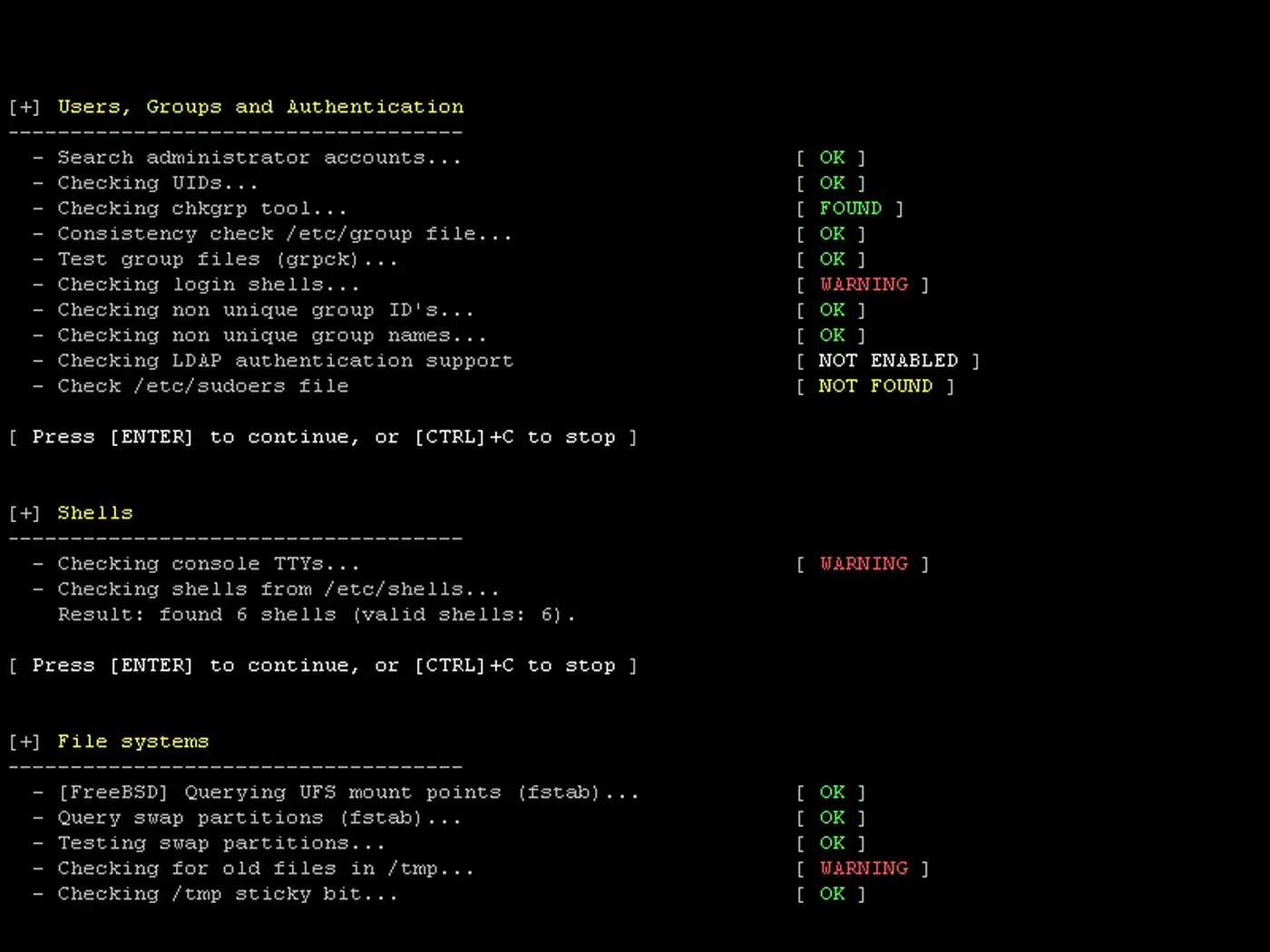
Essential Audit Rules
Create /etc/audit/rules.d/hardening.rules:
# Watch identity files for modifications
-w /etc/passwd -p wa -k identity
-w /etc/shadow -p wa -k identity
-w /etc/group -p wa -k identity
-w /etc/gshadow -p wa -k identity

# Monitor all commands run as root
-a always,exit -F arch=b64 -S execve -F euid=0 -k root_commands

# Track SSH key changes
-w /home -p wa -k ssh_keys

# Log authentication events
-w /var/log/auth.log -p wa -k auth_log

# Watch sudo configuration
-w /etc/sudoers -p wa -k sudo_config
-w /etc/sudoers.d -p wa -k sudo_config

# Monitor kernel module loading
-w /sbin/insmod -p x -k kernel_modules
-w /sbin/modprobe -p x -k kernel_modules
Load the rules:
sudo augenrules --loadSearching and Reporting
# Find identity file changes today
sudo ausearch -k identity --start today

# Authentication summary
sudo aureport --auth --summary

# All root commands in the last hour
sudo ausearch -k root_commands --start recent
Log Rotation
Set /etc/audit/auditd.conf so audit logs do not fill the disk:
max_log_file = 50
num_logs = 10
space_left_action = email
admin_space_left_action = halt
The space_left_action = email line pings you before logs fill the disk. The admin_space_left_action = halt line stops the box rather than running blind without audit logs. That fits compliance-heavy setups.
Optional: File Integrity Monitoring with AIDE
To catch unauthorized file edits, install AIDE:
sudo apt install aide    # Debian/Ubuntu
sudo aide --init
sudo mv /var/lib/aide/aide.db.new /var/lib/aide/aide.db
Run a regular check via systemd timer or cron:
sudo aide --checkAIDE compares the current filesystem state against a known-good baseline. Any change to system binaries, configs, or libraries gets flagged.
User Account Lockdown and Kernel Security
Default user account rules and kernel knobs leave gaps that targeted attacks pry open. Here is how to close them.
Account Lockout with faillock
Edit /etc/security/faillock.conf:
deny = 5
unlock_time = 600
fail_interval = 900
This locks an account for 10 minutes after 5 failed logins in a 15-minute window. That stops brute-force attacks. It is short enough that real users can wait it out without an admin step in.
Restrictive Default Permissions
Set the default umask to 027 in both /etc/login.defs and /etc/profile:
UMASK 027With umask 027, new files land at 640 (owner read/write, group read, others nothing) and new dirs at 750. Other users on the box cannot read files they should not see.
Disable Unused System Accounts
sudo usermod -L -s /usr/sbin/nologin nobody
sudo usermod -L -s /usr/sbin/nologin games

# Find all human accounts (UID >= 1000)
awk -F: '($3 >= 1000) {print $1}' /etc/passwd
Kernel Hardening via sysctl
Create /etc/sysctl.d/99-hardening.conf:
# Hide kernel logs from non-root users
kernel.dmesg_restrict = 1

# Enable reverse path filtering (anti-spoofing)
net.ipv4.conf.all.rp_filter = 1
net.ipv4.conf.default.rp_filter = 1

# Reject ICMP redirects (prevent MITM attacks)
net.ipv4.conf.all.accept_redirects = 0
net.ipv4.conf.default.accept_redirects = 0
net.ipv6.conf.all.accept_redirects = 0
net.ipv6.conf.default.accept_redirects = 0

# Restrict ptrace to root only (prevent process inspection)
kernel.yama.ptrace_scope = 2

# Prevent core dumps from SUID binaries
fs.suid_dumpable = 0
Load the settings:
sudo sysctl --systemDisable Core Dumps
Add to /etc/security/limits.conf:
* hard core 0Core dumps can hold private data from memory: passwords, encryption keys, session tokens. Turning them off keeps crashed processes from leaking creds.
Secure Temporary Filesystems
Edit /etc/fstab to add tight mount options for temp dirs:
tmpfs /tmp tmpfs defaults,noexec,nosuid,nodev 0 0
tmpfs /dev/shm tmpfs defaults,noexec,nosuid,nodev 0 0
The noexec flag blocks binaries dropped into /tmp or /dev/shm from running. That is a common trick in post-exploit payloads. Remount right away:
sudo mount -o remount /tmp
sudo mount -o remount /dev/shm
Mandatory Access Control: SELinux and AppArmor
On top of the steps above, a Mandatory Access Control (MAC) system adds policy-driven limits to every process.
On RHEL, Fedora, and CentOS, SELinux ships in enforcing mode by default. Check with getenforce. If it returns Permissive or Disabled, set SELINUX=enforcing in /etc/selinux/config and reboot. SELinux labels every file and process. Rules then stop a hacked service from reading files outside its context, even when the service runs as root.
On Debian and Ubuntu, AppArmor is the default MAC layer. Check status with sudo aa-status. Make sure profiles are loaded and enforced for sshd, nginx, and mysqld. To flip a profile from complain to enforce: sudo aa-enforce /etc/apparmor.d/usr.sbin.sshd.
Both styles cap what a hacked process can do. For most admins, the default profiles cover the key services and need almost no tuning. For workloads that fall outside those profiles, tools like Firejail or Bubblewrap give per-app sandboxing without writing custom SELinux or AppArmor rules.
Verify Your Work with Lynis
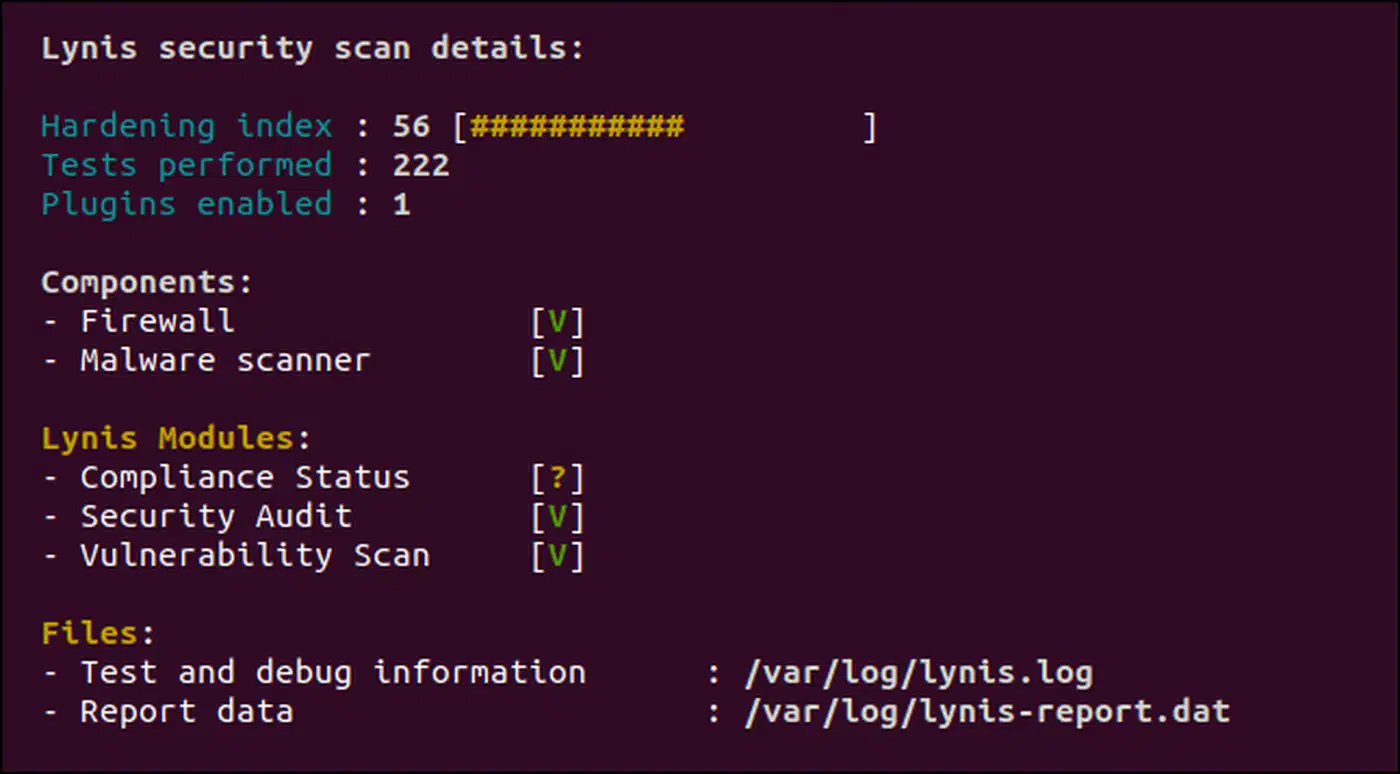
After running this checklist, kick off a Lynis audit to score your work:
sudo apt install lynis    # or: sudo dnf install lynis
sudo lynis audit system
A stock Debian or Ubuntu install scores 55 to 62. After this checklist, expect a score in the 75 to 84 range.
The CIS Benchmarks ship over 200 controls per distro for teams that need formal compliance docs. This checklist covers the high-impact subset: the 20% of controls that close 80% of real-world attack surface. For full CIS Level 1, look at auto tooling like OpenSCAP or Ansible playbooks built on the CIS profiles. If your server runs Docker workloads, the same mindset applies inside containers. See our Docker image security checklist for container-specific controls. And once you open port 443 for a web service, encrypt it properly and give every subdomain HTTPS via DNS-validated Let’s Encrypt from one cert.
Quick Reference
| Step | Time | Key Config File |
|---|---|---|
| SSH hardening | 5-7 min | /etc/ssh/sshd_config |
| nftables firewall | 5-7 min | /etc/nftables.conf |
| Auto security updates | 3-5 min | /etc/apt/apt.conf.d/50unattended-upgrades |
| Audit logging | 5-7 min | /etc/audit/rules.d/hardening.rules |
| Account and kernel lockdown | 5-7 min | /etc/sysctl.d/99-hardening.conf |
| MAC enforcement | 2-3 min | SELinux: /etc/selinux/config, AppArmor: aa-status |
That is thirty minutes of work. Your server has gone from a default-config target to a box that shrugs off bots and makes targeted attacks much harder.