 Botmonster Tech
Systemd services from scratch: write, enable, and debug custom unit files

Build a solid systemd service by writing a .service unit file in /etc/systemd/system/ with [Unit], [Service], and [Install] sections, then enable it with systemctl enable --now. Add resource caps, security sandboxing, and auto-restart so the service stays up. Then use journalctl and systemd-analyze security to debug it. Systemd v260 is the current stable release, and it ships on every major distro.
Why Systemd Unit Files Beat Init Scripts
Many developers still write shell wrapper scripts to run their apps. A 30-line bash script juggles PID files, log setup, restarts, and privilege drops. That’s a lot of code just to keep one process alive. A systemd unit file replaces all of it with a short, declarative config, often under 20 lines.
The gap shows up in practice. A unit file says what you want: restart on failure, run as user X, cap memory at 512M. An init script codes every step by hand. Systemd tracks the main process and its children via cgroups. No PID files, no zombie processes, no kill -9 hacks.
Dependencies use After=, Requires=, and Wants= instead of numbered S01/S99 scripts. Stdout and stderr go to the journal on their own, so you skip log rotation and manual /var/log/myapp.log care. CPU, memory, and I/O limits are one-line cgroup settings, not tangled ulimit wrappers.
Over 40 security directives (filesystem isolation, syscall filters, network locks) work with zero app changes. Socket activation lets systemd hold the port and start the service only when a request lands. So idle services use nothing.
| Feature | Init Script | Systemd Unit |
|---|---|---|
| Process tracking | PID files | cgroups (automatic) |
| Restart on failure | Custom trap/loop | Restart=on-failure |
| Log management | Manual rotation | journald (automatic) |
| Resource limits | ulimit wrappers | MemoryMax=, CPUQuota= |
| Security sandbox | Not available | 40+ directives |
| Dependencies | Numbered filenames | After=, Requires= |
Anatomy of a Service Unit File
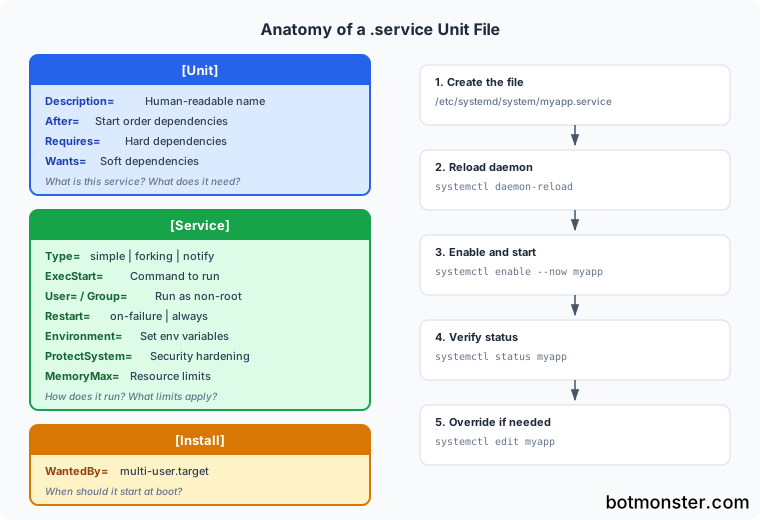
Every systemd service has three sections. Here is what each directive does and when you need it.
The [Unit] Section
This section names the service and its links to other units.
Description=- A plain name shown insystemctl statusoutput.After=network-online.target- Start once the network is fully up. Usenetwork-online.target, notnetwork.target, for services that need real connectivity. This trips up a lot of new unit files.Requires=postgresql.service- Hard dependency. If PostgreSQL fails, this service stops too.Wants=redis.service- Soft dependency. Start Redis if it’s there, but don’t fail if it’s missing.
The [Service] Section
This section says how the service runs.
Type=simple- The default. Systemd treats the service as started the moment the process launches. Right for most modern apps.Type=forking- For older daemons that fork and exit the parent. NeedsPIDFile=to track the child.Type=notify- The service signals it’s ready viasd_notify(). Best for apps with a warmup phase (DB connections, cache loads). If your app does not callsd_notify(), do not use this type. The service will hang inactivatingforever.ExecStart=- The command to run. Must be an absolute path (/usr/bin/myapp, notmyapp).ExecStartPre=- Commands to run before the main process, such as DB migrations or a config check.WorkingDirectory=- Sets the working directory for the process.User=andGroup=- Run as a non-root user. Always do this unless the service truly needs root.Restart=on-failure- Restart if the process exits non-zero. Pair withRestartSec=5to wait 5 seconds between tries. That avoids tight restart loops.Environment=andEnvironmentFile=- Set env vars inline, or load them from a file like/etc/myapp/env.
The [Install] Section
WantedBy=multi-user.target- Start the service at boot in multi-user mode. This is the standard target for servers.
A Complete Real-World Example
The unit file below runs a FastAPI app served by Uvicorn. It talks to PostgreSQL and loads env vars from a file.
[Unit]
Description=My FastAPI Application
After=network-online.target postgresql.service
Requires=postgresql.service
Wants=redis.service

[Service]
Type=simple
User=myapp
Group=myapp
WorkingDirectory=/opt/myapp
EnvironmentFile=/etc/myapp/env
ExecStartPre=/opt/myapp/venv/bin/python -c "import myapp; myapp.check_config()"
ExecStart=/opt/myapp/venv/bin/uvicorn myapp.main:app --host 0.0.0.0 --port 8000
Restart=on-failure
RestartSec=5
StandardOutput=journal
StandardError=journal

# Resource limits
MemoryMax=512M
CPUQuota=200%

# Security hardening
ProtectSystem=strict
ReadWritePaths=/var/lib/myapp /tmp
ProtectHome=true
PrivateTmp=true
NoNewPrivileges=true

[Install]
WantedBy=multi-user.target
After creating this file at /etc/systemd/system/myapp.service, run these commands:
# Reload systemd to pick up the new file
sudo systemctl daemon-reload

# Enable (start on boot) and start immediately
sudo systemctl enable --now myapp.service

# Verify it's running
sudo systemctl status myapp.service
The status output shows the service state, PID, memory usage, and the latest log lines, all in one view. A unit file like this is also the natural deployment target when you wire up continuous delivery through Gitea Actions, where the final step restarts the service after a fresh build lands.

Override Files
You can tweak one or two directives without editing the original file. systemctl edit myapp.service creates a drop-in override at /etc/systemd/system/myapp.service.d/override.conf. This is handy for per-server memory caps or env tweaks. Your base config stays clean through upgrades.
# Opens an editor for the override file
sudo systemctl edit myapp.service
Add only the section and directive you want to change:
[Service]
MemoryMax=1G
Security Hardening Directives
Systemd ships over 40 security directives that sandbox your service with zero code changes in the app. These are worth adding to every unit file:
ProtectSystem=strict- Mounts the whole filesystem read-only. Only/dev,/proc, and/sysstay writable.ReadWritePaths=/var/lib/myapp- Allows the service to write to a few named paths.ProtectHome=true- Makes/home,/root, and/run/userinvisible to the service.PrivateTmp=true- Gives the service its own isolated/tmpdirectory.NoNewPrivileges=true- Blocks the process from gaining more privileges via setuid or setgid binaries.PrivateDevices=true- Cuts access to physical devices (disks, USB sticks).ProtectKernelModules=true- Blocks loading kernel modules.ProtectClock=yes- Blocks changes to the system clock.ProtectHostname=yes- Blocks hostname changes.KeyringMode=private- Limits kernel keyring access.SystemCallFilter=@system-service- Allows only the syscalls a typical service needs. Blocks risky ones likerebootandkexec.CapabilityBoundingSet=- Drops all Linux capabilities except the ones you opt into.
Auditing Your Service
Run systemd-analyze security myapp.service to get a score from 0.0 (fully sandboxed) to 10.0 (fully exposed). The output lists every security directive and flags the ones you have not set:
$ systemd-analyze security myapp.service
  NAME                            DESCRIPTION                           EXPOSURE
  PrivateDevices=                 Service has access to hardware devices    0.2 UNSAFE
  ProtectClock=                   Service may write to hardware clock       0.1 UNSAFE
  ...
  OVERALL EXPOSURE LEVEL FOR myapp.service: 4.2 MEDIUM
A fresh unit file with no hardening usually scores around 9.6 (almost fully exposed). Adding the directives listed above tends to drop the score below 3.0. Walk through the suggestions one at a time. Tighten one directive, test the service, then move on. For matching host-level security steps that pair well with systemd sandboxing (SSH lockdown, nftables rules, and kernel knobs), see the 30-minute hardening walkthrough.
Timer Units - Replace Cron with Systemd
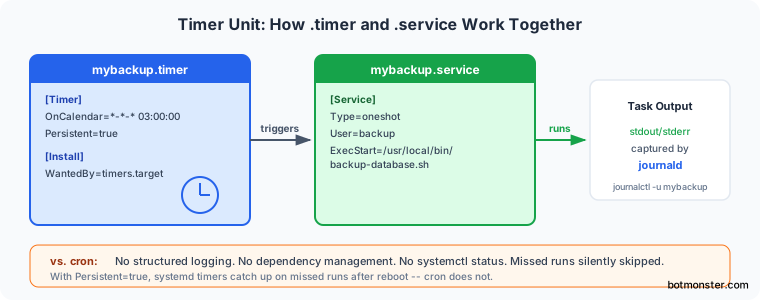
Systemd timers are the modern replacement for cron. They give you better logging, dependency control, and more flexible schedule syntax.
Every timer needs two files. A .service unit says what to run, and a .timer unit says when to run it.
# /etc/systemd/system/mybackup.service
[Unit]
Description=Database Backup

[Service]
Type=oneshot
User=backup
ExecStart=/usr/local/bin/backup-database.sh
# /etc/systemd/system/mybackup.timer
[Unit]
Description=Run database backup daily at 3 AM
[Timer]
OnCalendar=*-*-* 03:00:00
Persistent=true
[Install]
WantedBy=timers.targetKey timer directives:
OnCalendar=daily- Run once a day at midnight.OnCalendar=*-*-* 03:00:00- Run at 3 AM every day.OnCalendar=Mon *-*-* 09:00:00- Run every Monday at 9 AM.OnBootSec=5min- Run 5 minutes after boot.Persistent=true- If the system was off when the timer should have fired, run it right after the next boot. So you do not miss backups.
Activate the timer (not the service):
sudo systemctl enable --now mybackup.timer

# See all active timers with next/last run times
systemctl list-timers
The wins over cron stack up. Timer output goes to the journal (searchable, structured). Failed runs show in systemctl status. And timers can depend on other services or targets. A common real-world use is automating certificate renewal: a oneshot service plus a daily timer is exactly how you automate Let’s Encrypt wildcard renewals without ever touching the cron table.
Template Units for Multiple Instances
Template units let you run many instances of the same service with different configs from one unit file. The template filename has an @ in it: myapp@.service. When you start the service, the string after @ becomes the instance ID. Inside the unit file you reach it as %i.
# /etc/systemd/system/myapp@.service
[Unit]
Description=MyApp Instance %i
After=network-online.target

[Service]
Type=simple
User=myapp
ExecStart=/usr/local/bin/myapp --config /etc/myapp/%i.conf
Restart=on-failure
RestartSec=5

[Install]
WantedBy=multi-user.target
Start many instances, each with its own config file:
sudo systemctl enable --now myapp@production.service
sudo systemctl enable --now myapp@staging.service
sudo systemctl enable --now myapp@worker1.service
Each instance runs on its own with its own logs, PID, and resource tracking. You can manage them one by one, or hit them all at once using glob patterns with systemctl.
One-Off Resource-Limited Commands with systemd-run
Sometimes you want to run one command with a memory cap or a sandbox, but you don’t want to write a full unit file. systemd-run builds short-lived units on the fly:
# Run a batch job limited to 256MB RAM and 25% CPU
sudo systemd-run --scope -p MemoryMax=256M -p CPUQuota=25% /usr/local/bin/batch-processor

# Run a command with security sandboxing
sudo systemd-run --scope -p ProtectSystem=strict -p PrivateTmp=true /usr/local/bin/untrusted-script.sh
Data migrations, build jobs, and any one-off command that might eat unpredictable memory or CPU all fit this pattern. If you need full OS-level isolation, not just a memory cap, spinning up a container with systemd-nspawn gives you light containers built right into systemd. So you skip the extra container runtime.
Debugging Failed Services
When a service won’t start, systemd gives you a few ways to find out why.
Check Status and Logs
# Quick overview: state, PID, last 10 log lines
systemctl status myapp.service

# Full logs, jumping to the end
journalctl -u myapp.service -e

# Logs from the last 5 minutes
journalctl -u myapp.service --since "5 minutes ago"

# Only error-level messages
journalctl -u myapp.service -p err
Analyze Startup Performance
# Which services take the longest to start?
systemd-analyze blame

# Show the dependency chain and where time was spent
systemd-analyze critical-chain myapp.service
Common Failure Modes
| Exit Code | Meaning | Fix |
|---|---|---|
| 203 | ExecStart= path not found or not executable | Check the path is absolute and the binary exists |
| 217 | User specified in User= doesn’t exist | Create the user with useradd --system myapp |
| 226 | Namespace setup failed | A hardening directive is incompatible with the service; relax one directive at a time |
Stuck in activating | Type=notify but app doesn’t call sd_notify() | Switch to Type=simple |
Exit code 226 deserves a closer look. When you add security directives, some can clash with what your app needs. The fix is to relax one at a time. Turn off each hardening option, test, then turn it back on until you find the one that breaks the service.
Systemd vs Supervisord vs PM2
If you’re coming from a different process manager, this table shows where systemd differs:
| Feature | systemd | Supervisord | PM2 |
|---|---|---|---|
| Overhead | None (PID 1) | Separate daemon | ~83MB daemon |
| Language support | Any | Any | Node.js focused |
| Log management | journald | Log files | Built-in dashboard |
| Security sandbox | 40+ directives | None | None |
| Monitoring UI | CLI only | Basic web UI | Rich dashboard |
| Resource limits | cgroups | Not built-in | Basic |
| Learning curve | Moderate | Low | Low |
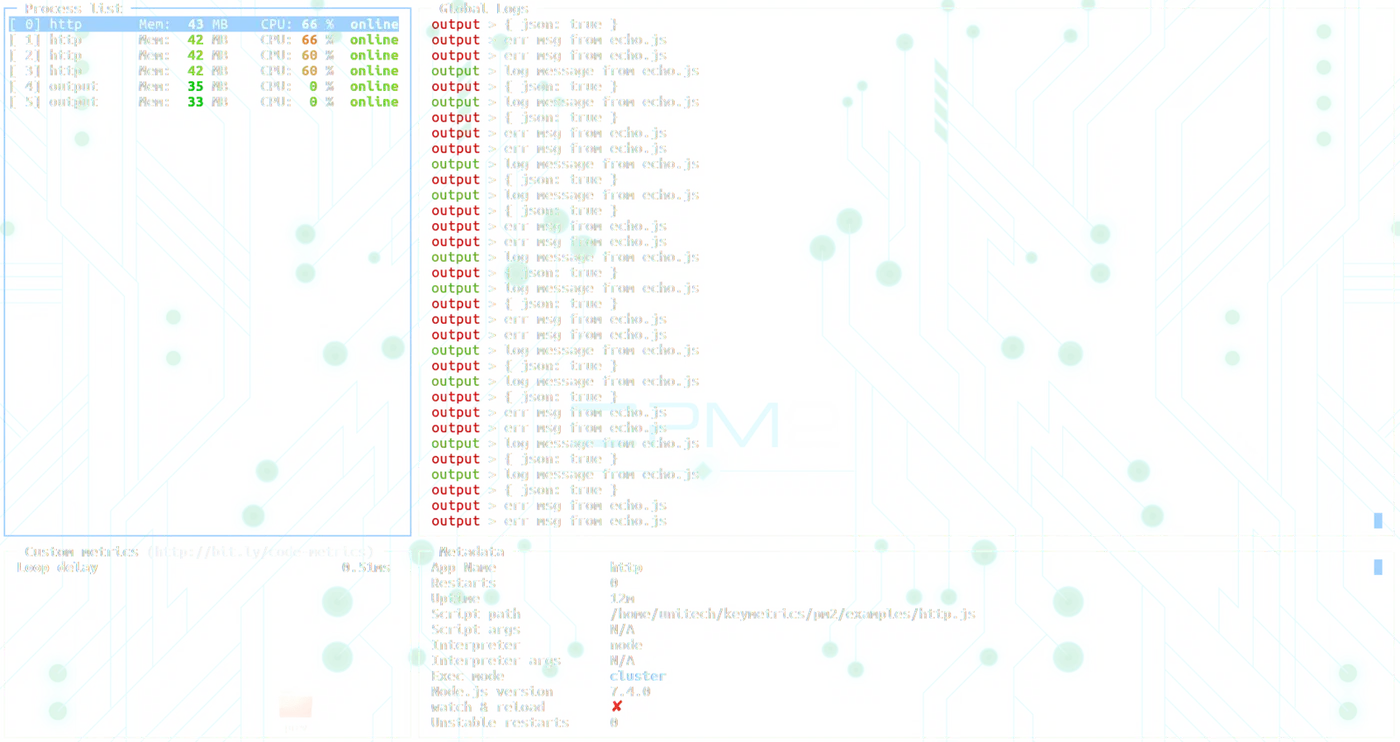
For Linux servers where speed counts, systemd is the strongest pick. No extra daemon, deep OS integration, and a security sandbox the others do not offer. Supervisord works well for multi-language stacks where you want one simple interface, and it runs on systems without systemd. PM2 is the right call for Node.js teams who want rich dashboards and don’t mind the memory cost.
For most Linux servers in 2026, though, systemd is already on the box. Writing a unit file is less work than setting up a separate process manager. And you get security sandboxing and resource caps the others just don’t have.