 Botmonster Tech
LocalSend moves files between phones with no internet
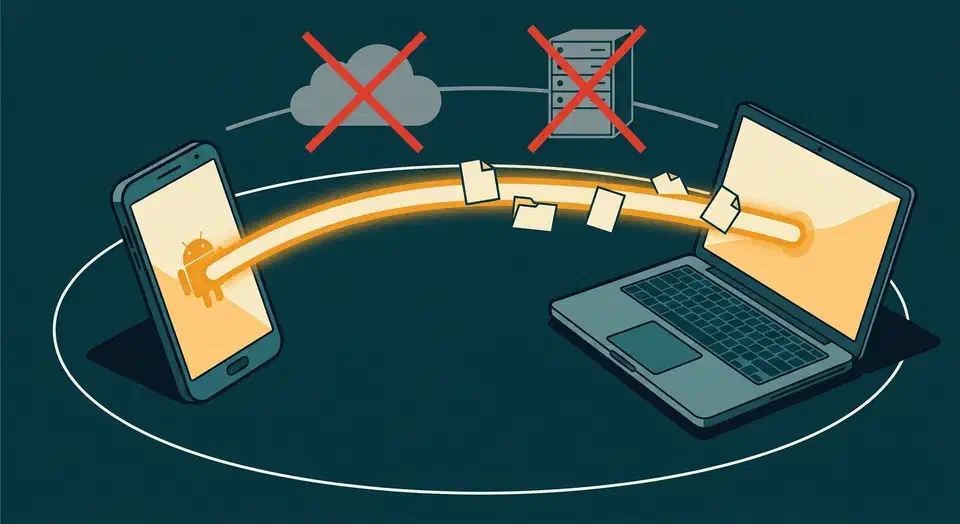
LocalSend is an AirDrop alternative that works across Android, iOS, Windows, macOS, and Linux. There is no account, no pairing code, and no server. Two devices find each other on your local network and push the file straight over an encrypted connection on port 53317. That’s why it still works on a train with no signal.
Key Takeaways
- LocalSend sends files between any two devices on the same network.
- It needs no internet connection and no account anywhere.
- Files go straight from device to device, encrypted, with nothing in between.
- Speed comes from your router, so upload bandwidth is irrelevant.
- Both devices have to share one network, which is the only real catch.
Why an AirDrop alternative is still worth installing
A photo sits on an Android phone, and a Mac sits on the desk two feet away. The fastest route between them turns out to be email.
Every fallback has a tax. Chat apps recompress the image into mush, cloud drives upload the file and then download the same bytes back again, and a cable only helps if you can find the right one.
The built-in tools don’t rescue you, because each one only works inside a single manufacturer’s walls. AirDrop is superb between Apple devices and useless everywhere else. Most households now mix at least two vendors, so a single-vendor tool covers only part of the problem.
A cloud round trip costs you your upload speed once and your download speed again. It also leaves a copy of the file on someone else’s disk. Local transfer is the better option for a large video file, for hotel Wi-Fi, for a flight with no signal, and for anything you’d rather not hand to a third party.
LocalSend fills a much narrower slot than a sync service or a backup tool. It does one job: hand a file from this device to that one, the way you would pass a memory stick across a desk.
How the transfer actually works
The LocalSend protocol is a REST API at version 2.1, and nothing more exotic than that.
Discovery comes first. When you open the app, it shouts a short JSON message to the multicast group 224.0.0.167 on UDP port 53317. Other devices hear it and reply with their own name and port. There is no contact list to sync.
The transfer itself is an HTTP POST. The receiver runs a tiny web server, and the sender asks permission with a metadata-only request. Then the file bytes go up as a plain upload. Each device generates its own TLS certificate on the fly, so the link is encrypted end to end and neither end is a company’s server.
Speed is whatever your local network can do, which on a decent 5 GHz link beats any cloud round trip for a big file. Range ends at the edge of your network, and that limit is deliberate.
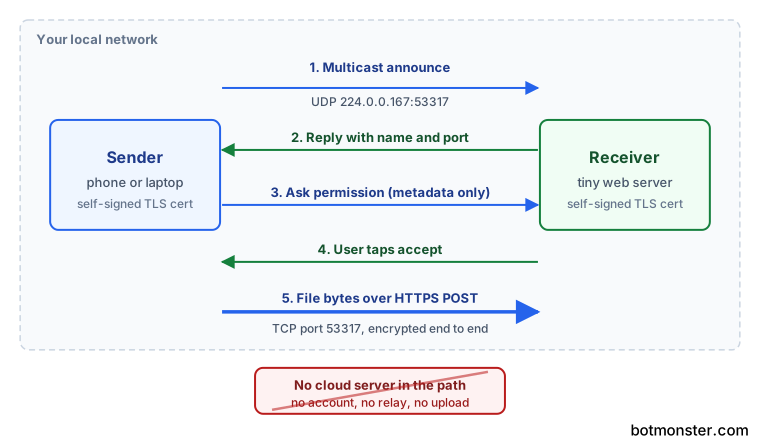
Those certificates are self-signed and made fresh on each device, so the app remembers a peer by the SHA-256 fingerprint of its certificate. That protects the bytes in flight, though it doesn’t prove who is on the other end the way a public certificate authority would.
There is also a fallback tucked away in the settings. The sender can flip on the download API and serve a plain URL at http://<sender-ip>:53317, which the other device opens in any browser. That lets you send a file to someone who doesn’t have LocalSend installed at all. The catch is spelled out in the protocol docs: this path drops to unencrypted HTTP, because browsers reject self-signed certificates.
How to send a file between two devices with LocalSend
Install it on both devices
Builds exist for Android, iOS, Windows, macOS, Linux, and Fire OS. The README download table lists them all: Winget, Scoop and Chocolatey on Windows, Homebrew and the App Store on macOS, Flathub, Snap, Nixpkgs and the AUR on Linux, Play Store and F-Droid on Android. Use a store or a package manager rather than a direct download, because the app has no auto-updater. Missing that updater is a smaller loss than it sounds. An updater is code that fetches and runs files on your behalf. v2rayN had to push an urgent security release when its own downloader turned out to accept forged certificates.
Put both devices on the same network
Same Wi-Fi, or a phone hotspot the other device has joined. This is the one requirement you can’t work around.
Open the app on the receiving device
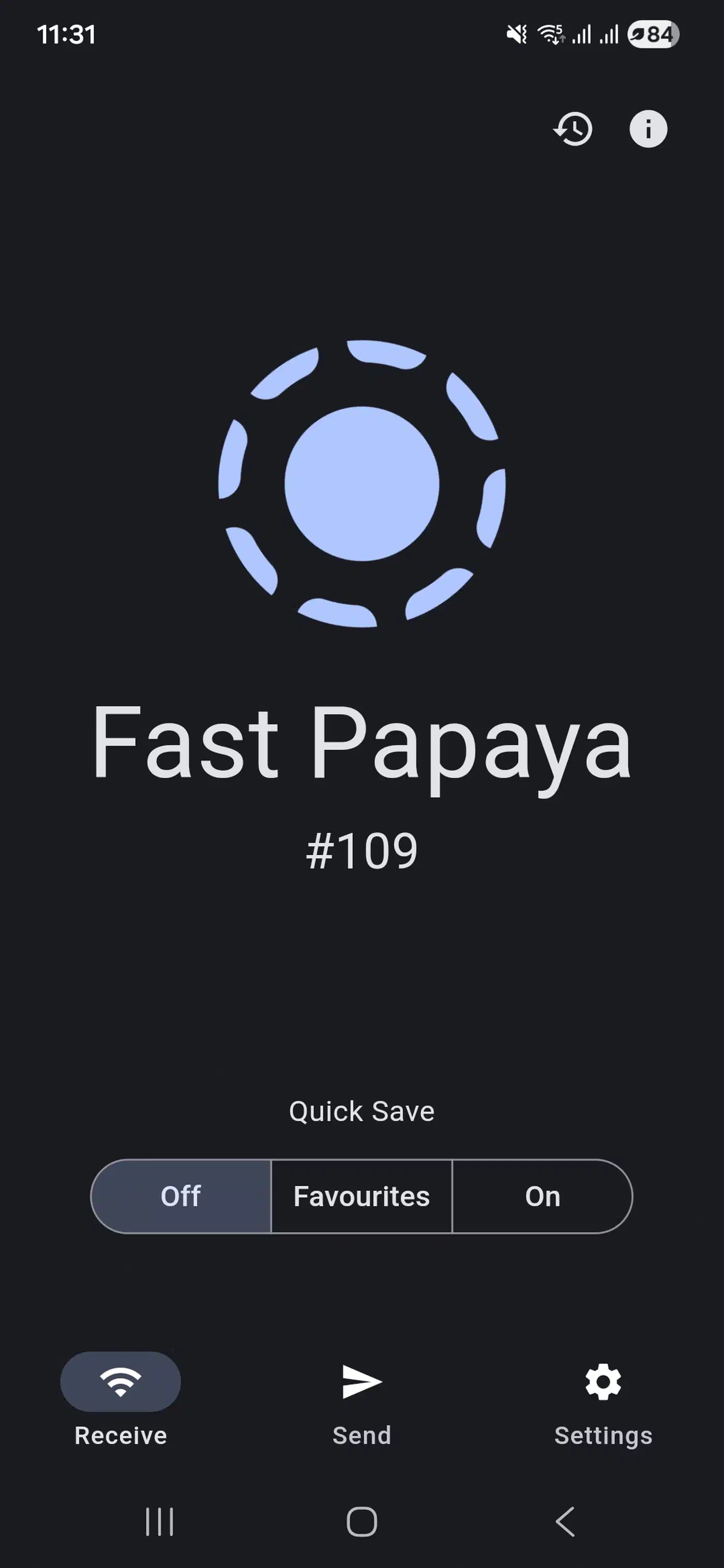
It announces itself on the network so the sender can spot it. On a phone, leave it in the foreground while you transfer.
Pick the files on the sending device
Multiple files work, whole folders work, and so does sending a plain block of text. The sender reads the file list and sizes before anything moves.
Choose the target
Nearby devices show up under randomly generated names like “Nice Orange” or “Secret Banana”. Rename yours to something you recognise if you do this often.
Accept on the receiver
Transfers need explicit acceptance by default. Leave that setting alone on any network you share with strangers. You can also turn on a PIN, which the sender has to supply before the metadata request is accepted.
Check where it landed
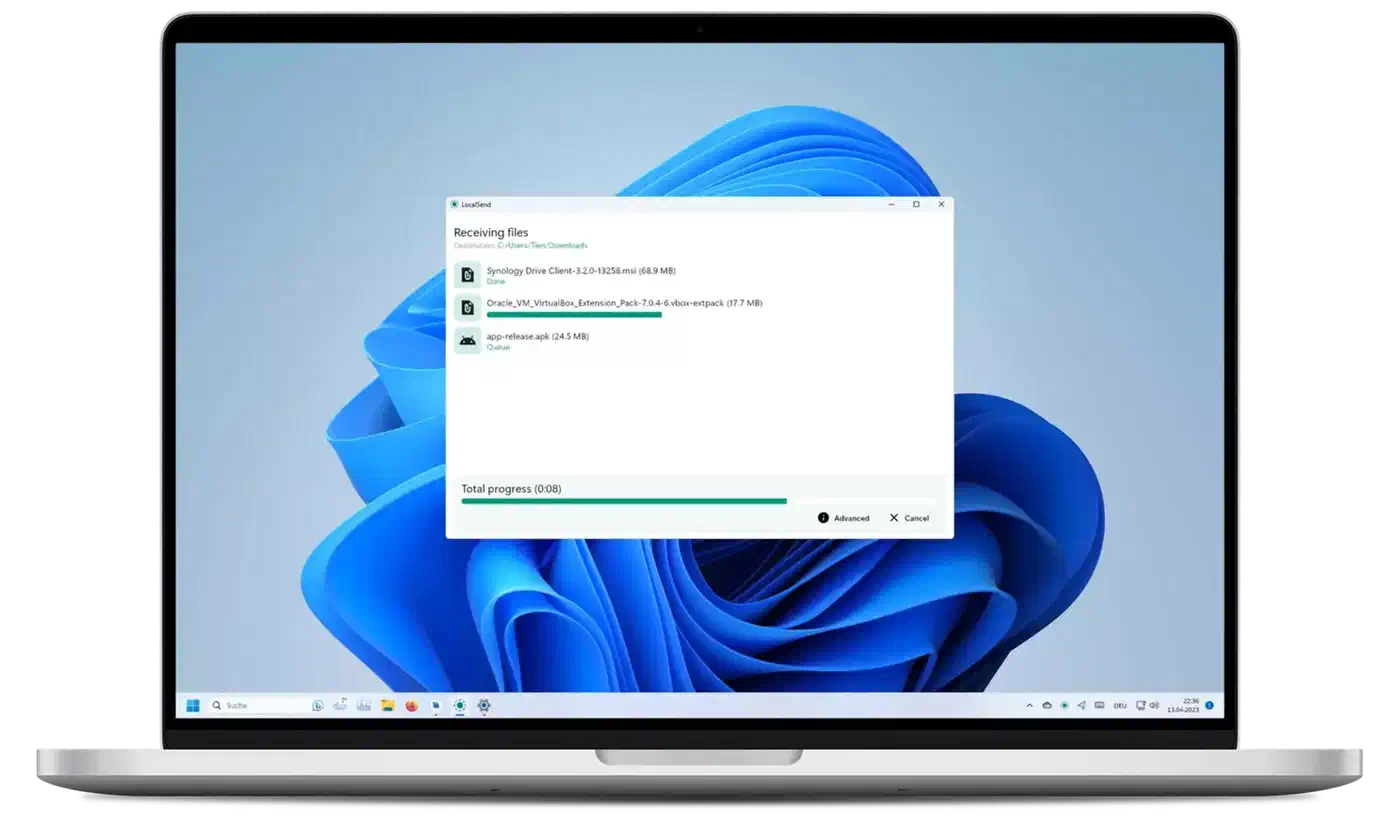
Set the download directory once, in settings, so you’re not hunting through folders afterwards.
If the devices can’t see each other
Check three things in order: client isolation on the Wi-Fi network, a desktop firewall blocking port 53317, and whether the two devices really share a subnet.
When it doesn’t work, and why
Transfers rarely fail once two devices have found each other, so almost all the frustration sits in the finding.
Client isolation causes most of it, and no app setting can fix it. Many guest networks and most public Wi-Fi deliberately stop clients from seeing each other. The project README tells you to disable AP isolation on the router, which is fine at home and impossible in a hotel.
Firewalls are the next thing to check. Block TCP and UDP on port 53317 and the app still launches normally, then finds nothing at all, which looks exactly like a bug. Windows adds one more step: mark the network as private, because it applies stricter rules to networks it thinks are public.
Subnet splits are sneakier. A phone on the guest SSID and a laptop on the main one share nothing, whatever the router’s label suggests. On macOS and iOS, also check the Local Network permission under privacy settings, since a denied prompt looks identical to a discovery failure.
Phone operating systems also suspend apps hard, so keeping LocalSend in the foreground on the receiver is the reliable path.
The workaround that always works is a phone hotspot. The other device joins it, and you get a network of exactly two devices with no router policy in the way.
Real-world transfer speed
LocalSend is not tuned for the fast end. Real-world reports cluster in the 8 to 20 MB/s range on decent Wi-Fi. On a fast wired link, users have measured far less than the hardware should allow.
I did try this for syncing stuff between PCs, and have found the performance quite poor, like 10MB/s on a wired 10Gbe network. I don’t know what the reason for this, but I suspect its networking layer is not really optimized.
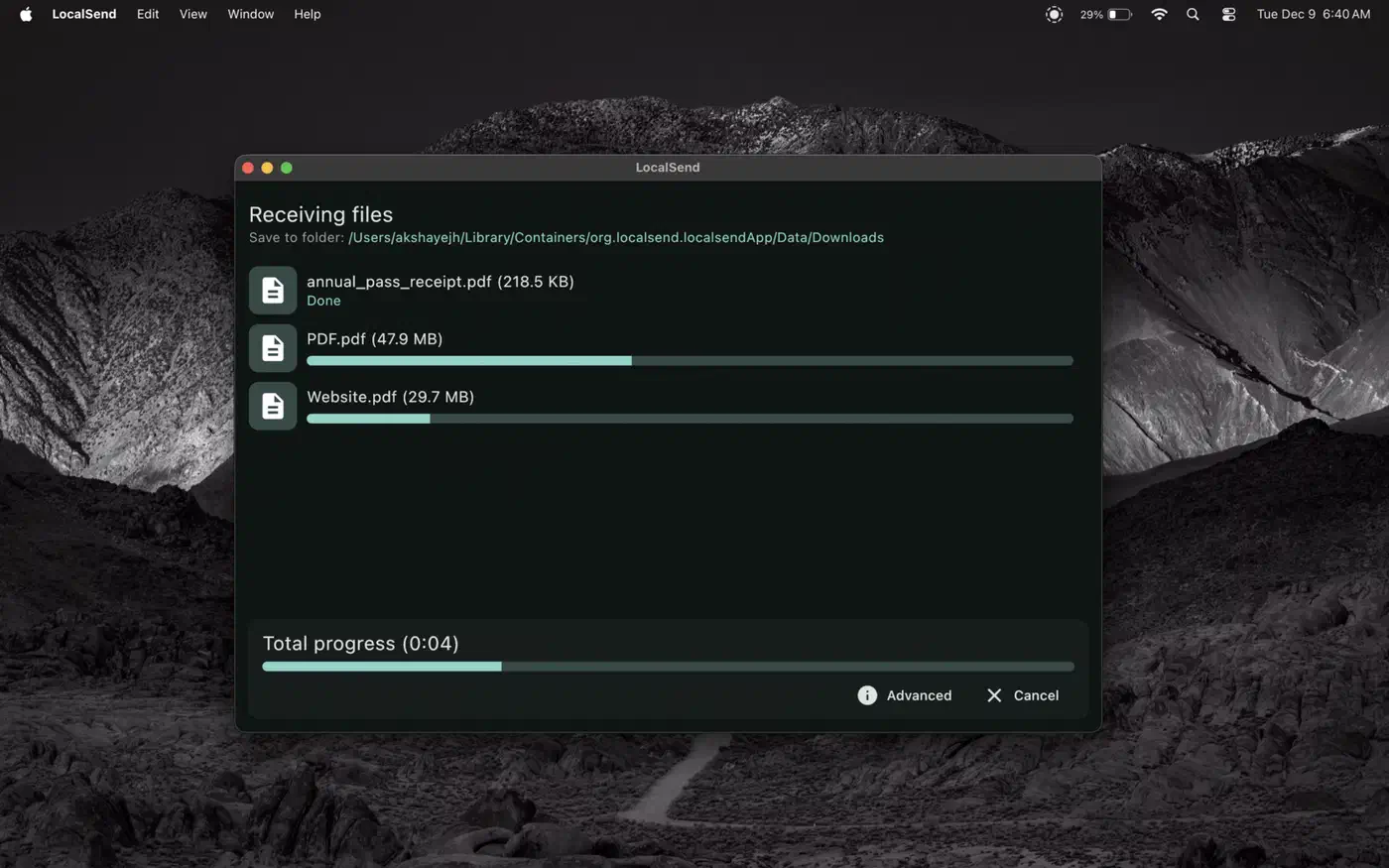
The README’s own advice points the same way: use a 5 GHz network, and turn encryption off on both devices if you want more throughput. Android receivers have a known slowdown tracked upstream in the file-writing library. Sourav Rudra’s It’s FOSS review found transfers between Linux and Android quick, but a roughly 90 GB job fell over as the speed fluctuated.
For a handful of photos, a video, or a folder of documents, it beats any cloud round trip on both speed and hassle. For moving a whole media library, reach for rsync or SFTP.
Where it sits next to the alternatives
| Tool | Works across | Needs internet | The catch |
|---|---|---|---|
| LocalSend | Android, iOS, Windows, macOS, Linux | No | Both devices need the same network |
| AirDrop | Apple devices only | No | Nothing outside Apple can join |
| KDE Connect | Android, Linux, Windows, macOS | No | Pairing setup, weakest on iOS |
| PairDrop | Any browser | Yes, for signalling | Browser tab, server brokers the connection |
| Google Drive | Everything | Yes | Upload, then download, plus a stored copy |
Against AirDrop, LocalSend trades polish for reach. A system-level feature will always feel smoother than an app you have to open first.
Compared with a chat app, nothing gets recompressed, no size cap applies, and no copy sits in a conversation history afterwards. A cloud drive is slower for a one-off and better for anything you want kept in sync. A USB cable performs about the same on a good network, and you still have to go find the cable.
The bar for entry for any of these solutions is 1) require no app installs (at least beyond those you already have). 2) not require the same network. Most solutions fail one or both of these.
LocalSend clears the first bar only through the browser fallback, and it never clears the second, by design. Skipping the server is what removes the account, the tracking, and the upload, and sharing a network is the price of that.
Project health
The project started in 2022 and now sits at roughly 86,500 stars and 4,800 forks on GitHub, with about 1,050 open issues. It’s written in Dart on Flutter, licensed Apache-2.0, translated by volunteers through Weblate, and mirrored on Codeberg alongside GitHub.
The most recent entry on the releases page is v1.17.0, tagged back in 2025, while the repository keeps taking commits. Since there is no auto-updater, what your package manager installs is whatever that tag holds. The Repology listing shows 19 packaging sources, and nearly all sit on 1.17.0.
Install it if you own devices from more than one manufacturer, which describes most households. Skip it if everything you own is Apple and AirDrop already does the job.