 Botmonster Tech
Gamescope brings HDR, VRR, and FPS caps to any Steam game on desktop Linux
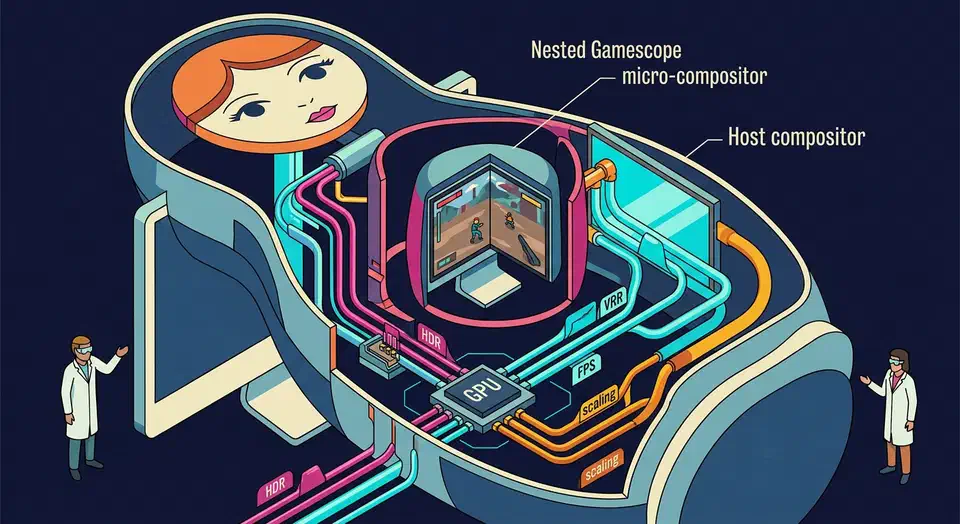
Gamescope is Valve’s micro-compositor, originally built for the Steam Deck, that you can run as a nested Wayland/X11 window on any desktop Linux session to give individual Steam games HDR output, VRR (FreeSync/G-Sync), precise FPS caps, integer scaling, and per-game color management, even when your host compositor (KDE Plasma 6, Hyprland, GNOME, XFCE) does not expose those features to the game itself. By adding a single Steam launch option like gamescope -W 2560 -H 1440 -r 144 --hdr-enabled --adaptive-sync -- %command%, you wrap the game in a self-contained compositor that talks directly to the GPU and display, bypassing host-compositor limitations.
This guide walks through installation on the three major distro families, the launch options that actually matter, per-game recipes for retro and AAA titles, overlay tooling, and the 2026 state of NVIDIA and Proton compatibility.
What Gamescope Is and How It Went From Steam Deck to Desktop Linux
Gamescope began life as steamcompmgr inside SteamOS, then got rewritten as a standalone Wayland micro-compositor for the Steam Deck. It is now developed in the open at github.com/ValveSoftware/gamescope and has become a staple of gaming-focused distros like Bazzite, ChimeraOS, and CachyOS.
A “micro-compositor” in this context is a single-window Wayland/XWayland session that runs inside your normal desktop, owns exactly one game, and hands frames directly to the kernel’s DRM/KMS layer for scanout. That direct scanout path is what makes Gamescope useful even when your host compositor is already modern: it bypasses GPU composition for the game surface, negotiates its own color pipeline with the monitor, and applies its own frame pacing loop.
Several features drop out of that design. HDR10 metadata passthrough works because Gamescope owns the PQ EOTF handshake with the display rather than going through the desktop compositor. Adaptive sync toggles per-window rather than per-output. Integer scaling, FSR 1.x, and NVIDIA Image Scaling are applied in-compositor, so any game benefits regardless of its own upscaling support. And the frame-rate limiter sits below the Vsync quirks most engines introduce, which usually produces smoother pacing than in-engine caps.
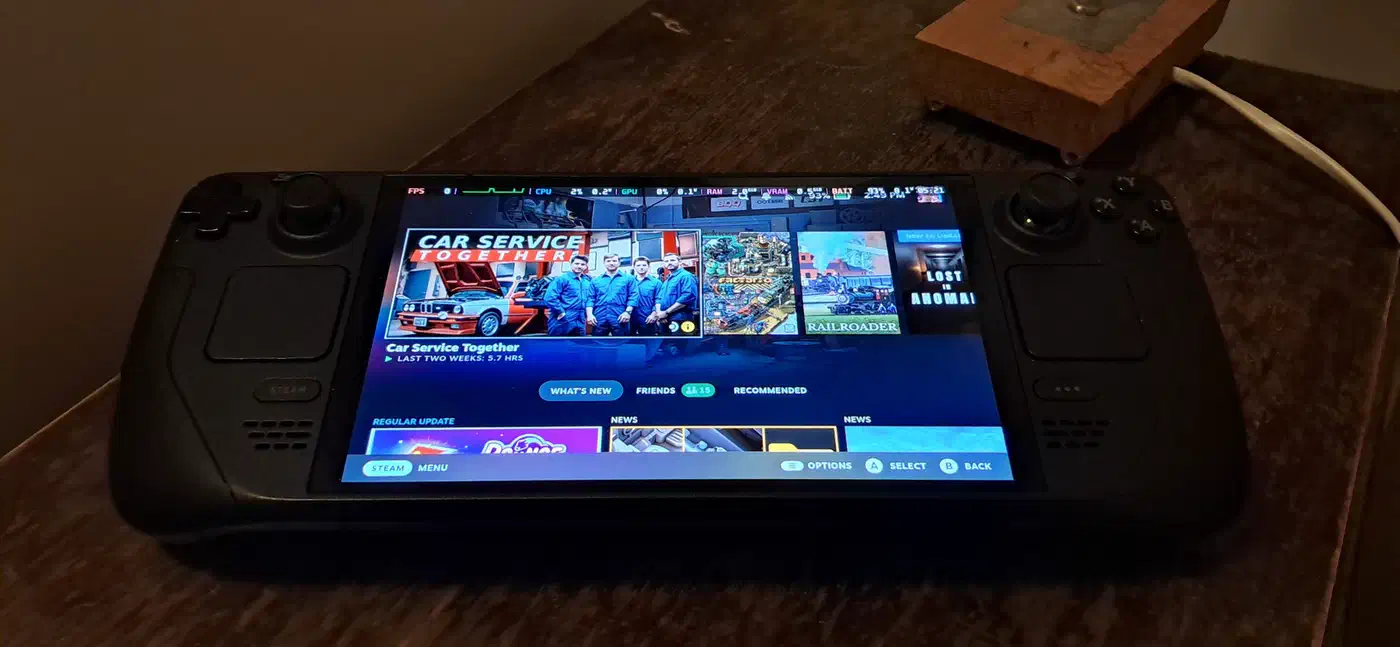
The Steam Deck heritage is visible in the flag surface. Options like -W, -H, -r, and -F map one-to-one onto Deck behaviors: docked mode, external display output, battery-saving FPS caps, and FSR-based upscaling from a low internal resolution.
In 2026, Plasma 6 and Hyprland both ship native HDR and VRR paths that cover most cases without a wrapper. Gamescope still matters for GNOME/Mutter users (Mutter 48 gained HDR but still lacks VRR), for per-game isolation of refresh-rate and color settings, for integer scaling that no major desktop offers natively, and for NVIDIA owners whose driver stack lags behind AMD on HDR. Internally, Gamescope hosts an XWayland server, so X11-only games run cleanly under a Wayland desktop through it without any extra configuration.
Installing Gamescope on Arch, Fedora, and Ubuntu in 2026
Gamescope availability varies a lot between distros, and picking the wrong package (or an outdated one) is the single most common reason the HDR and VRR flags silently do nothing. Always check gamescope --version before blaming your config - anything older than 3.15 will not give you stable HDR, and 3.16 is the first release where the NVIDIA path is reasonable on desktop.
On Arch and derivatives (CachyOS, EndeavourOS, Manjaro), the current build comes straight from extra:
sudo pacman -S gamescopeThe AUR gamescope-git package tracks the master branch if you want bleeding-edge HDR fixes before they hit a release.
Fedora 42 and later ship Gamescope in the official repo:
sudo dnf install gamescopeNo RPM Fusion required. Bazzite and Nobara preinstall a more recent build than stock Fedora, which matters for HDR on LG OLEDs where flickering fixes landed late in the 3.15 cycle.
Ubuntu 24.04 LTS and 26.04 carry a lagging archive version, so most desktop users add a third-party source. The simplest path in 2026 is the Kisak-mesa PPA bundle, which keeps Gamescope aligned with Mesa updates. Alternatively, Steam’s Flatpak ships an org.freedesktop.Platform.VulkanLayer.gamescope extension that you invoke via the launch-option path rather than the host binary.
NixOS needs a single line in configuration.nix:
programs.gamescope.enable = true;That option handles the setuid/capabilities wrapper needed for realtime scheduling, which Gamescope uses to give the game process priority over the host compositor.
Once installed, verify the build with:
gamescope --help | grep -E 'hdr|adaptive'
gamescope -e -- vkcube
The first command confirms the HDR and adaptive-sync flags exist in your build. The second launches a Vulkan test cube in a nested window, which is the cleanest way to confirm the compositor works before you point it at a real game. For deeper debugging, DRM_DEBUG=1 exposes the kernel-level handshake with your GPU and display.
Three dependency gotchas bite people on older installs: Mesa 25 or newer is required for AMD HDR, libdisplay-info must be present for EDID parsing (otherwise the flag is silently ignored), and libliftoff enables hardware plane offload for lower latency on AMD cards.
Steam Launch Options for HDR, VRR, Resolution, and Refresh Rate
The minimum viable launch string for a 1440p 144 Hz HDR display:
gamescope -W 2560 -H 1440 -r 144 --hdr-enabled -- %command%Paste that into Steam under Properties, General, Launch Options. Each piece has a specific job:
| Flag | Purpose |
|---|---|
-W 2560 -H 1440 | Sets the nested output resolution that Gamescope presents to the game |
-r 144 | Target refresh rate, which also caps frame pacing to match |
--hdr-enabled | Turns on HDR10 output and negotiates the PQ EOTF with your display |
--hdr-itm-enable | Maps SDR content into HDR space for SDR games on an HDR panel |
--adaptive-sync | Enables VRR (FreeSync/G-Sync Compatible) on the nested surface |
--fps-limit 120 | Caps frame generation at 120 regardless of what the engine wants |
-f | Exclusive fullscreen-style scanout |
-b | Borderless nested mode for clean alt-tab back to KDE/Hyprland |
--expose-wayland | Forwards native Wayland protocols into the game |
A common source of confusion: -r 144 sets the display refresh rate, while --fps-limit 120 caps the frame production rate. If you want a 120 FPS cap on a 144 Hz panel with VRR, you want both - the refresh rate tells the display to run at 144, and the frame limiter keeps the game below that ceiling so VRR has headroom to stretch frames. The steady pacing that combination produces is also the main cure for OLED VRR flicker in dark scenes.
The --adaptive-sync flag is the one that finally gives GNOME users working VRR without switching compositors. Mutter itself still lacks VRR support in 2026, so wrapping a game in Gamescope is the only sane path for GNOME-on-AMD users who own a FreeSync display. If you are also chasing down a torn display image outside of games, that typically needs a separate round of compositor and driver tuning.
A realistic launch string for a 4K 240 Hz OLED:
gamescope -W 3840 -H 2160 -r 240 --hdr-enabled --adaptive-sync --expose-wayland -f -- %command%For a laptop on battery where you want maximum efficiency:
gamescope -W 1920 -H 1080 -r 60 --fps-limit 60 -- %command%The refresh lock plus frame cap together produce smoother pacing than either alone, because the display and the game agree on the target rate instead of fighting over it.
MangoHud, FPS Overlays, and Debugging Inside a Gamescope Session
Once the game is running inside a nested Gamescope session, the normal desktop overlays (KDE’s FPS widget, GNOME’s performance panel) cannot see into it. The overlay has to run inside the wrapper, not around it.
MangoHud is the canonical choice. Install it the usual way:
sudo pacman -S mangohud   # Arch
sudo dnf install mangohud # FedoraThen prepend it to the launch string so the overlay binary launches before Gamescope:
mangohud gamescope -W 2560 -H 1440 -r 144 -- %command%Some users prefer the reversed order, where MangoHud wraps only the game binary:
gamescope -W 2560 -H 1440 -r 144 -- mangohud %command%Both work, but the frame-time graphs differ subtly. With MangoHud outside, you see Gamescope’s paced output. With MangoHud inside, you see what the game engine produces before Gamescope’s limiter kicks in. For tuning power usage, the outer position is more useful. For diagnosing engine-level stutter, the inner position tells the truth. The same MangoHud-plus-kernel approach applies on portable hardware — see the guide on Steam Deck OLED kernel tuning for game-profile examples that translate directly to desktop Gamescope sessions.
A quick diagnostic config for long gaming sessions:
MANGOHUD_CONFIG=fps_limit=120,vsync=0,gpu_temp,cpu_temp,ram,frame_timingThat set catches thermal throttling, memory pressure, and frame-time variance all at once. When a game drops frames, those four signals tell you whether to blame the CPU, the GPU, the memory bus, or the game itself.
Gamescope also ships its own telemetry. The flag --stats-path /tmp/gs.log writes per-frame stats to disk for post-mortem analysis when a game stutters, and --debug-hud inside the nested session shows the current color space, bit depth, and whether the display accepted the HDR10 metadata - the only reliable way to confirm HDR actually engaged rather than silently fell back to SDR.
To trace the Wayland protocol negotiation, set WAYLAND_DEBUG=1 in the environment. The log output is verbose, but it shows every protocol call, which is how you confirm --adaptive-sync succeeded against the host compositor rather than failing silently.
Per-Game Recipes: Integer Scaling, FSR, NIS, and Resolution Downscale
Not every game wants the same treatment. The launch string that makes Cyberpunk 2077 sing will actively ruin Stardew Valley. Steam’s per-game launch options box saves these strings separately, so there is no downside to keeping a different recipe for each title.
For pixel-art or emulated titles (Stardew Valley, Dead Cells, RetroArch, Sonic Mania):
gamescope -w 640 -h 360 -W 2560 -H 1440 -S integer -- %command%The lowercase -w and -h set the internal render resolution, while uppercase -W and -H set the output. With -S integer, Gamescope does a clean 4x nearest-neighbor scale with zero blur. Pixel art looks exactly as the artist drew it.
For demanding AAA on a mid-range GPU (an RX 7700 XT running Alan Wake 2 at 4K):
gamescope -w 1920 -h 1080 -W 3840 -H 2160 -F fsr -- %command%Internal render at 1080p, upscaled to 4K with AMD FSR 1.x spatial upscaling. Performance gain is typically 40-60% versus native 4K, with visual quality between native 1440p and native 4K depending on the game’s own anti-aliasing.
For NVIDIA Image Scaling on RTX cards:
gamescope -w 1706 -h 960 -W 2560 -H 1440 -F nis -- %command%NIS produces sharper text than FSR 1.x at the cost of slightly more artifacting in motion. Players who spend time reading in-game UI (strategy games, RPGs) often prefer it.
For downscale supersampling on a 1080p monitor with spare GPU headroom:
gamescope -w 3840 -h 2160 -W 1920 -H 1080 -- %command%Renders at 4K and downsamples to 1080p, functioning as an in-game SSAA for older titles that lack modern anti-aliasing. Useful for Source engine games and similar early-2010s titles that look rough at native 1080p.
For Proton builds targeting Wayland natively:
PROTON_ENABLE_WAYLAND=1 gamescope --expose-wayland -W 2560 -H 1440 -- %command%Fall back to XWayland mode by dropping both flags if the game crashes on startup, which still happens with a handful of DirectX 11 titles in 2026.
NVIDIA, gamescope-wsi, and Proton Compatibility in 2026
Gamescope’s AMD story is excellent in 2026. The NVIDIA story is workable but has sharp edges, especially around HDR and explicit sync.
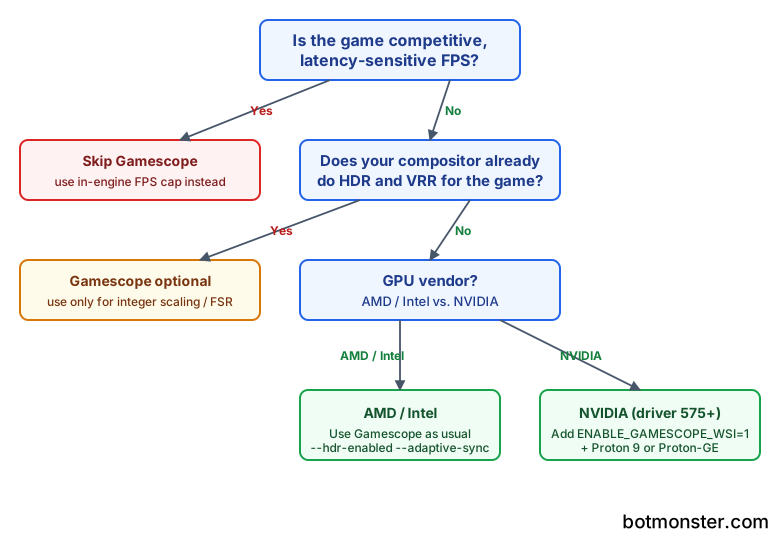
NVIDIA’s proprietary driver 575 and later supports explicit sync and HDR signaling, but the HDR pipeline remains less mature than AMD’s amdgpu path. The workaround is gamescope-wsi, a Vulkan WSI layer that lets Gamescope talk to NVIDIA’s Vulkan stack without going through XWayland. It ships as a separate package on most distros (gamescope-wsi on Arch, bundled with gamescope on Fedora).
Enable it per-game:
ENABLE_GAMESCOPE_WSI=1 gamescope --hdr-enabled -- %command%That environment variable is what makes HDR actually light up on a GeForce card under Plasma 6. Without it, HDR silently falls back to SDR or produces a washed-out image (tracked in Gamescope issue #2000 and its siblings throughout 2025).
Proton 9 and Proton-GE both detect the nested Gamescope session and adapt their DXVK/VKD3D color-space handling automatically. Older Proton 8 builds need DXVK_HDR=1 set explicitly in the launch string. A handful of Unreal Engine 5 titles with their own HDR toggles will double-apply tone mapping under Gamescope - disable the in-engine HDR and let the compositor handle it.
Anti-cheat generally behaves. EAC and BattlEye-protected games run fine under Gamescope on Linux because the wrapper is transparent to the Proton sandbox. Some launchers (EA, Ubisoft Connect) are happier when the launcher itself runs outside Gamescope and only the game binary runs inside, which you can arrange with a small shell wrapper in the launch options.
One diagnostic that saves time: echo $XDG_SESSION_TYPE from inside the game’s debug console tells you whether Gamescope negotiated Wayland or fell back to XWayland. The Wayland path gives better VRR stability on both vendors, so it is worth confirming rather than assuming.
Performance Overhead and When to Skip Gamescope
A nested compositor always costs something, and whether that cost is visible depends on your hardware and the game. On a modern Ryzen 7000 plus Radeon 7000 system, the overhead for a game running inside Gamescope versus native is typically in the 1-3% range on average FPS, with slightly worse 1% lows due to the extra scheduling boundary. On NVIDIA through gamescope-wsi, the overhead is closer to 3-6% because the WSI layer adds a frame copy.
Input latency is a separate concern. Gamescope’s built-in FPS limiter has known input-lag issues (tracked in issues #474 and #1672), where the compositor’s frame pacing adds one to two frames of latency versus an in-engine cap. For competitive FPS games where you care about the last millisecond, use the in-engine limiter or MangoHud’s limiter instead of Gamescope’s --fps-limit, and skip Gamescope entirely if you do not need HDR or VRR on your compositor.
For single-player games, strategy titles, and anything where 16 ms of latency does not decide matches, the overhead is not worth worrying about. The features you get in exchange - working HDR, clean integer scaling, per-game refresh rates, and frame caps that outlast tabbing back to the desktop - more than pay for themselves.
Beyond Steam: Lutris, Heroic, and Gamescope Session
The same launch flags work outside Steam. Lutris exposes a dedicated Gamescope toggle in each game’s system settings, with a text box for flags. Heroic Games Launcher hides the option under the Wine configuration panel and accepts the same syntax. Bottles handles it through its environment variables pane.
For a SteamOS-style experience on desktop hardware, the gamescope-session-plus package runs Gamescope as a standalone Wayland session rather than nested inside KDE or GNOME. Select it at your display manager login screen and you get the Deck’s Big Picture interface on whatever hardware you own, with none of the overhead of running a full desktop underneath. This is how Bazzite and ChimeraOS ship their HTPC profiles, and it is worth trying on a living-room machine even if your daily driver stays on Plasma.
Gamescope started as a single-purpose tool for a single handheld. Six years later, it is one of the most flexible display pipelines available for Linux gaming, and the most straightforward way for GNOME users, NVIDIA owners, and anyone with an HDR OLED to get HDR, VRR, and precise frame pacing working per game.