 Botmonster Tech
Paperless-ngx turns your paper pile into a search box
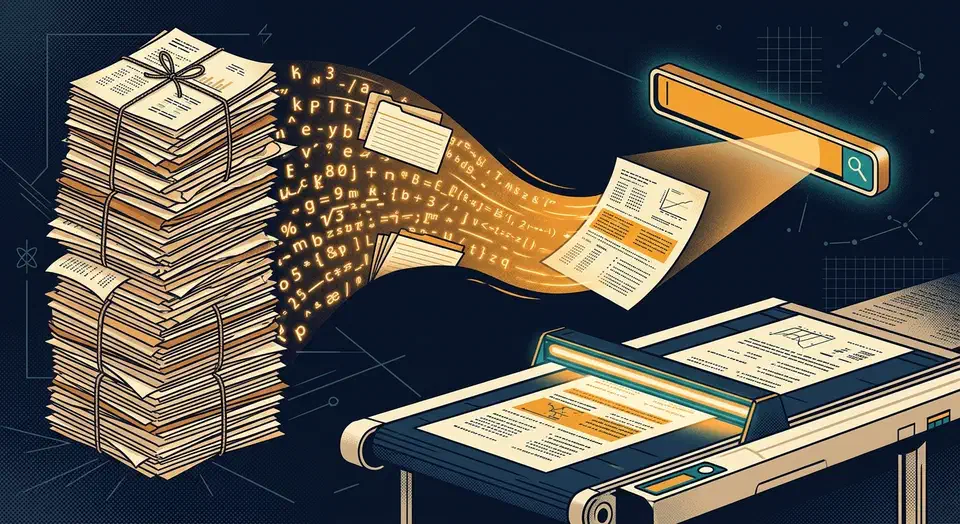
Paperless-ngx is self-hosted document management that turns a stack of scans into a search box. It runs OCR on every page and writes the recognized text into an archived PDF/A copy. That archived file stays searchable in any PDF reader, even if you stop running Paperless entirely.
Key Takeaways
- Every scan becomes searchable text, so you find papers by what they say.
- The archived PDF keeps its text layer even without Paperless running.
- It learns your tags and correspondents from the corrections you make.
- Drop a file in a watched folder and the filing happens on its own.
- Scanning stays a chore, and no software takes that part away.
What self-hosted document management actually solves
Most households can put paper away. The trouble starts months later, when they need one specific sheet back. The insurance letter is somewhere, and “somewhere” is a drawer, a shoebox, or a laptop folder nobody has opened in two years.
Folders fail because filing asks you to decide where a thing belongs at the exact moment you least want to decide. Two years later, future you disagrees with past you about whether the car renewal went under “car” or under “insurance.”
A pile of scans in a cloud drive fails differently. A scanned PDF is a picture of a page, so nothing inside it counts as text. That leaves the filenames you typed in a hurry doing all the work.
Full-text search changes the question you have to answer. Instead of recalling where you filed something, you recall a phrase it contains. Your tag list also stops carrying the whole load, because search covers the cases your tags never planned for.
No document system solves the scanning itself. Paper still has to go through a feeder, page by page. Paperless-ngx handles everything after that, and the feeding stays your job.
How a document gets processed
Ingestion
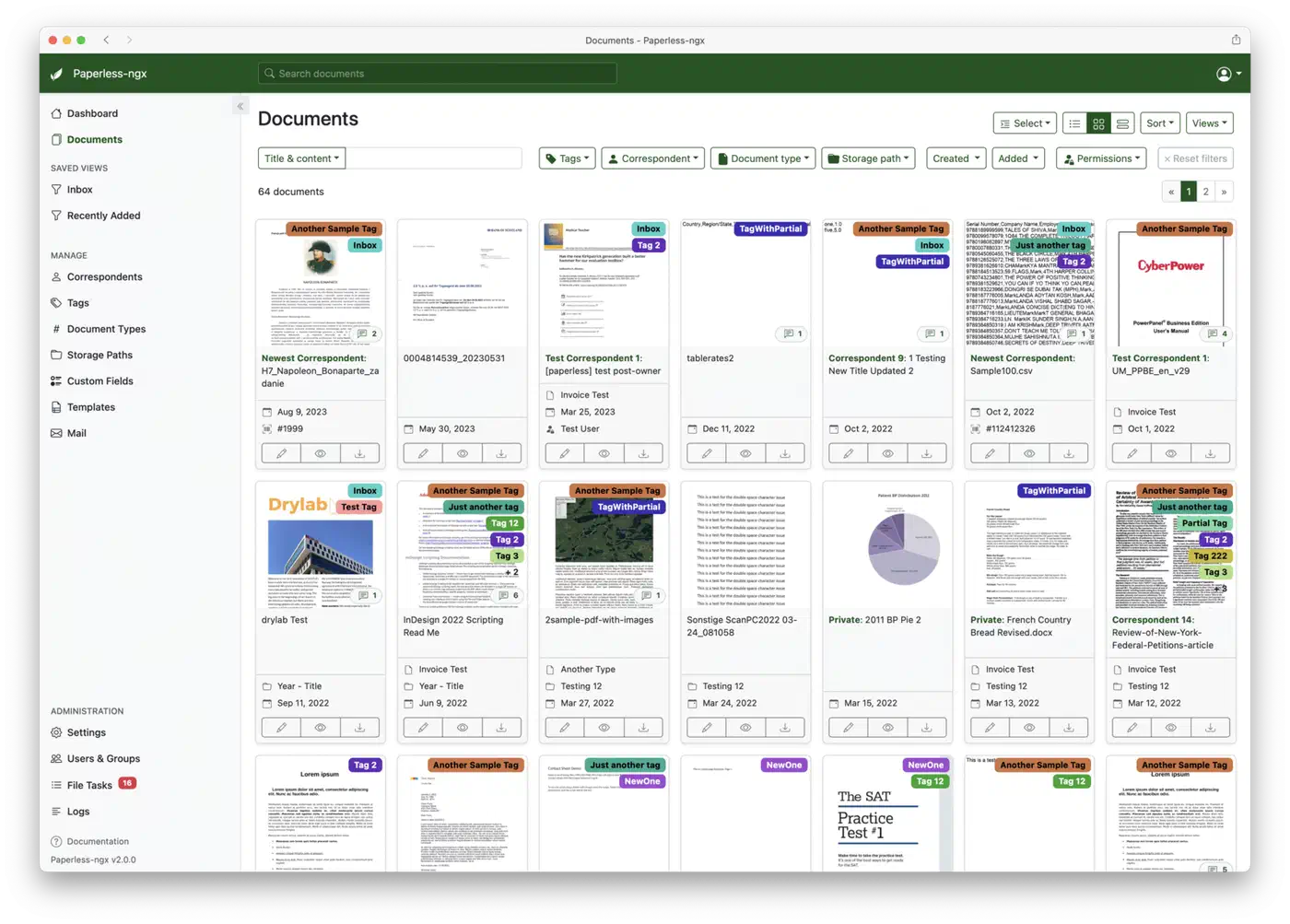
Documents arrive three ways: a watched folder on disk, an email account, or a drag-and-drop upload in the web app. The watched folder, which the project calls the consumption directory, is what makes the habit stick. The usage docs describe a consumer that waits for new files, then clears them out once they sit safely in the archive.
OCR
Text recognition runs over the scanned image using Tesseract, which handles more than 100 languages. Files that already carry text, like a PDF invoice emailed to you, skip this step.
The archived copy
Paperless builds a PDF/A version of every document. A scan that went through OCR gets embedded selectable text in that file. This is the part that outlives the application. Open the archived PDF in any reader on any machine and the search still works, with no server and no database behind it.
Extraction and classification
Dates, correspondents and document types come out of the content rather than your keyboard. Tags can be assigned by plain text matching, or by the “Auto” algorithm covered in the advanced usage docs. Auto learns from the documents you already sorted, and it retrains itself about once an hour.
Indexing and filing
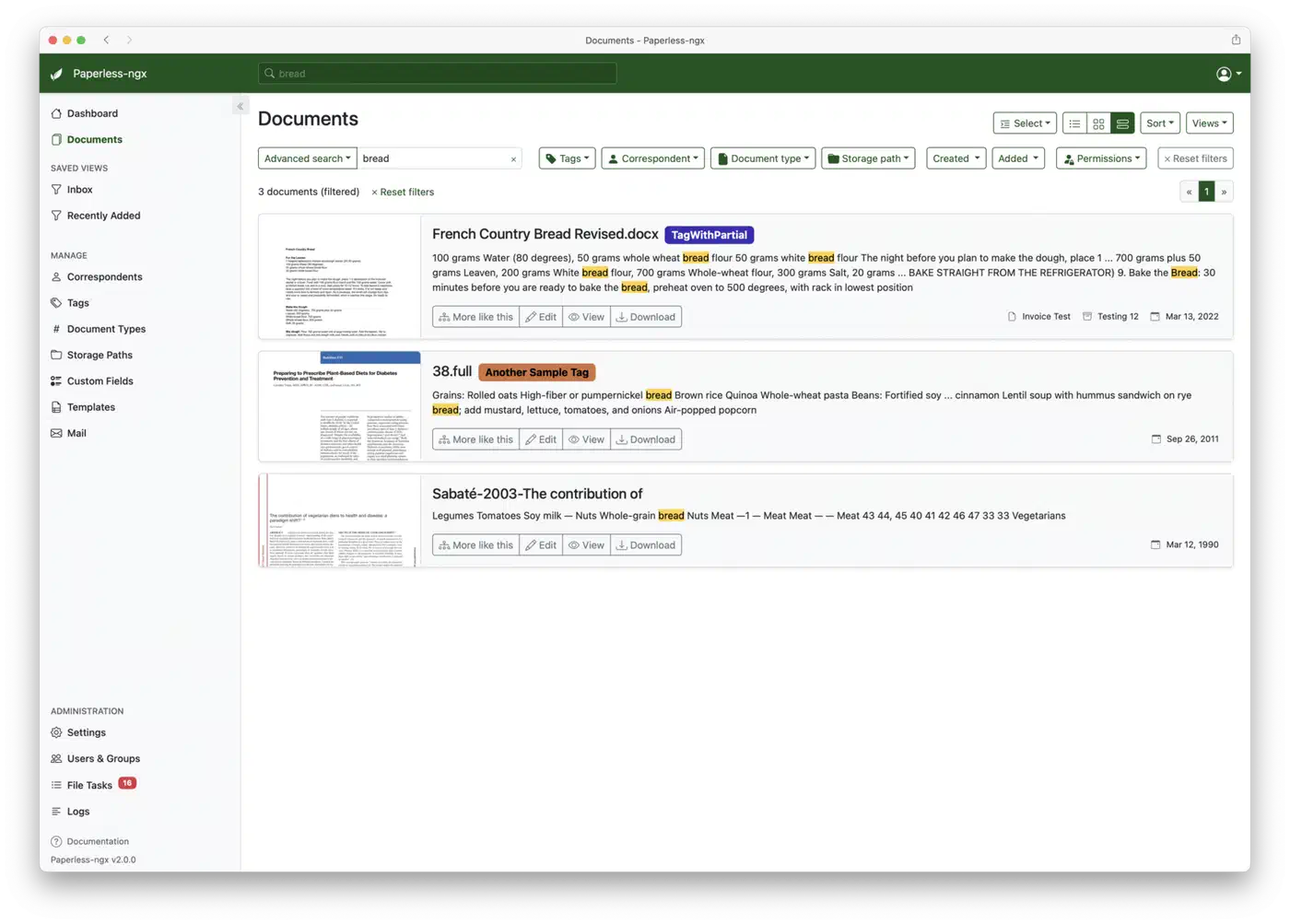
Everything lands in a full-text index with autocomplete and match highlighting. That search bar is the interface you use day to day. On disk, storage paths decide the folder layout, so the archive still reads well in a plain file manager.
Set up Paperless-ngx and file your first document
Choose where it runs
Pick a machine that is on when you scan, with room for the archive and some CPU to spare. OCR is the expensive part, so an old x86 mini PC beats a low-power board here. A retired office laptop works too, because it already has the processor and the disk. The project FAQ is blunt that OCR runs very slowly on a Raspberry Pi 3.
Deploy the stack
Use the project’s Docker Compose setup. It brings up the web app, the database, the broker and the task worker together. Grab one of the compose templates plus its environment files, then edit the mount paths for the consume and media folders. PostgreSQL is the suggested backend for new installs.
Set the OCR language
People skip this one, and fixing it later means reprocessing everything. In the configuration reference, PAPERLESS_OCR_LANGUAGE takes three-letter Tesseract codes and defaults to eng. Combine languages with a plus sign, as in deu+eng. Keep the list short, though, because each extra language costs CPU time.
Create the consume folder
Anything dropped into the watched folder gets ingested on its own. Point your scanner’s network share at it, or just drag files in from your desktop. Don’t use it as storage: consumed files move into the Paperless file structure and vanish from the folder.
Scan one document and drop it in
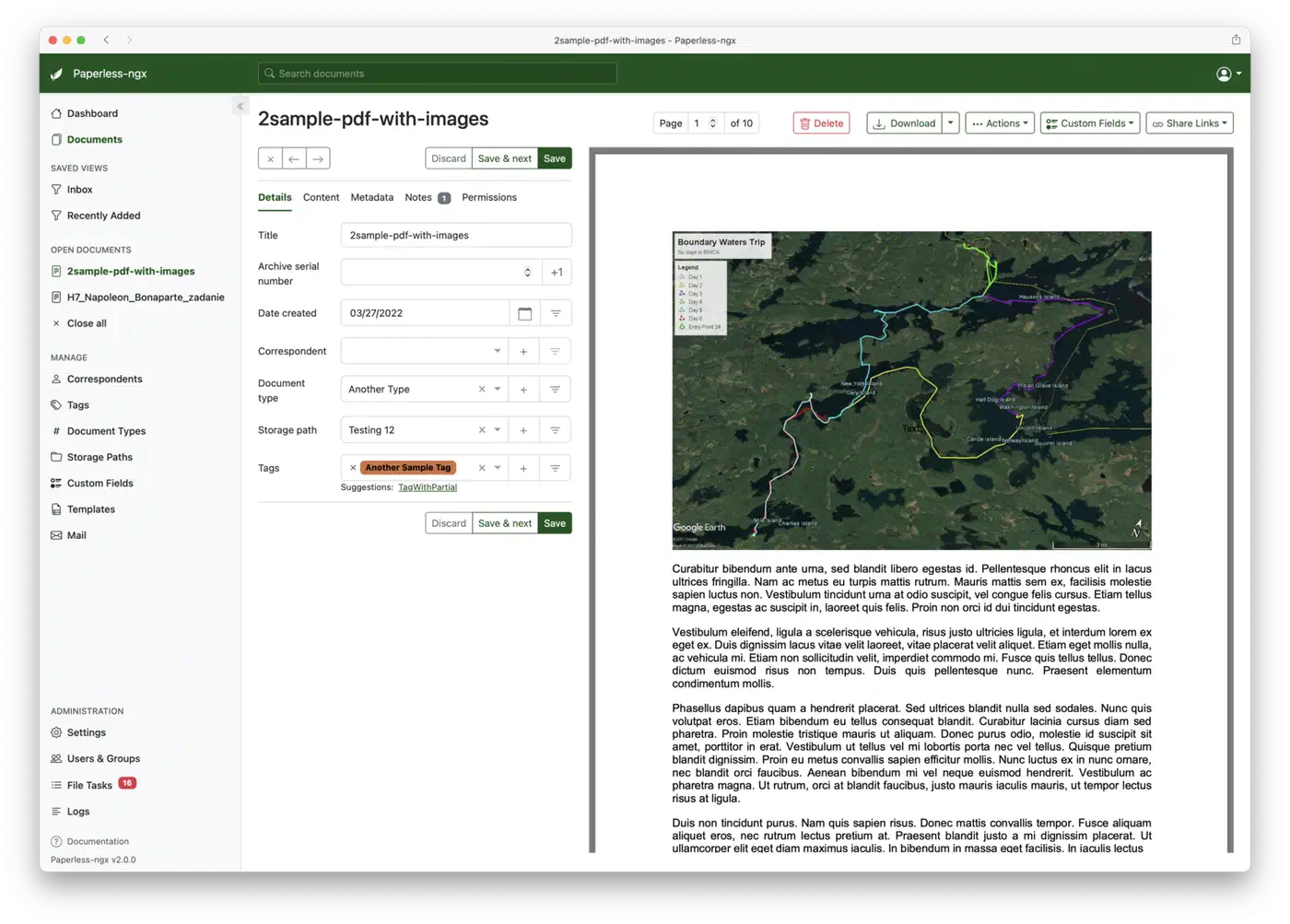
Use a real document, ideally a boring one like a utility bill. Watch the task queue pick it up. Then open the result and read the text, the guessed date, and any correspondent it proposed.
Correct it by hand
Set the correspondent, document type and tags yourself, even when the guess was close. The matching algorithms learn from your corrections, so the first few dozen count for a lot. Tag new documents inbox and drop that tag once you have checked them. Auto skips anything still sitting in the inbox on purpose.
Set up storage paths
Storage paths control how files are laid out on disk, using a filename format you define. Spend ten minutes on this before the archive grows. Correspondent, then year, then title works well. The folder tree then still makes sense to anyone who opens it without Paperless running.
Back up before you shred anything
Back up the media folder and the database. Then restore that backup once into a throwaway instance, before any paper leaves the house. The administration docs cover the document_exporter command. It writes documents, originals and settings into a folder you can copy off the machine. A built-in sanity checker also compares stored checksums and flags missing or broken files.
Living with it for a year
Scan each piece of paper the week it arrives. Save it up for a big session later and the backlog wins, because a shoebox labelled “to scan” is the old shoebox with extra guilt.
Expect the first stretch to feel like work, because the classifier starts out bad.
Plan to tag a few hundred documents manually before the auto-tagging is worth trusting.
Define only two correspondents, set both to automatic matching, and Paperless will assign one of them to everything you feed it. Still, once it has learned who sends you what, a correspondent plus a date range answers most real searches.
Keep the tag list small. A handful of broad tags plus full-text search beats forty precise tags you will stop maintaining within a month. Document types work the same way. Define “Invoice” and “Contract”, then skip the one-off labels you would need twice.
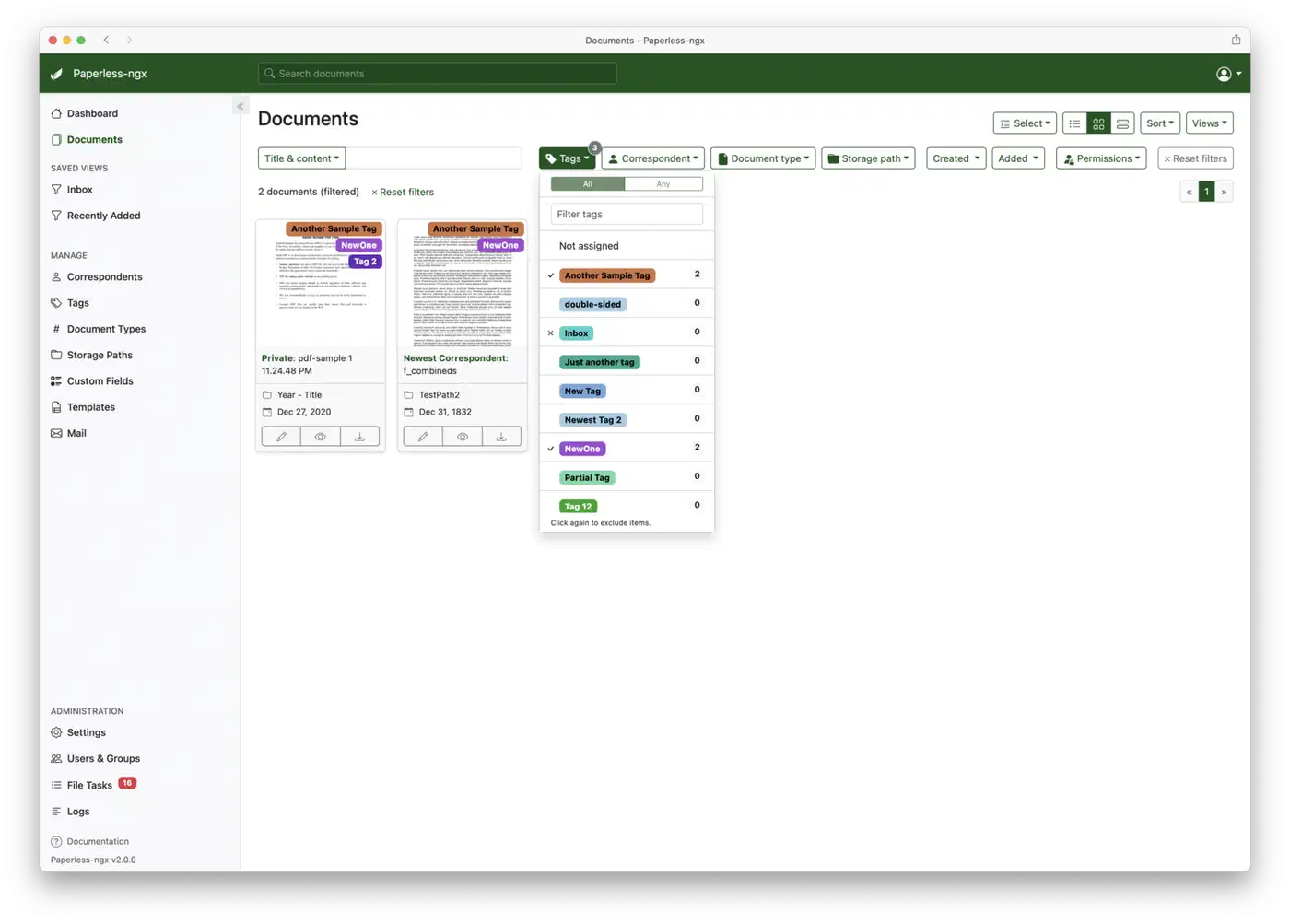
Two costs shape the hardware you need:
| Cost | What actually happens | What to do about it |
|---|---|---|
| Disk | Originals and archived PDF/A copies are both kept, side by side | Budget roughly double what the raw scans weigh |
| CPU | OCR of a large colour scan takes minutes on a Pi 4 and seconds on x86 | Run bulk imports overnight, or on a faster box |
A household archive fits on one modest NVMe drive for years, so the CPU is the part you plan around.
Whether to trust it with the originals
People mostly want to know whether they can destroy the paper once the scan exists.
Half the answer is legal and depends on where you live. Some documents have to be kept in physical form, and the rules differ by country and by document type. Check locally before you shred anything official, because no software setting changes that.
The other half is technical. A scan is only as good as your backup, and you don’t know your backup works until you restore it. Run one restore into a spare instance, confirm the documents open, then decide.
Here the embedded text layer earns its keep. Your archived documents are ordinary PDF/A files, sitting in a documented folder tree on a disk you own. Walking away from Paperless-ngx costs you the search interface, and nothing else.
Paperless-ngx itself has been going since early 2022. It is GPL-3.0 licensed, written in Python, and carries a small open issue count for a project with nearly 44,000 stars. The release history shows a steady cadence, and the full docs are better than most community projects manage. The project is the official successor to the earlier Paperless and Paperless-ng.
Scan everything, keep the physical originals of anything irreplaceable, and shred only the routine paper. Deeds, certificates and signed contracts stay in the box, while six years of electricity bills can go.