 Botmonster Tech
Replace Microsoft's Secure Boot keys with your own

Swap the default Microsoft Secure Boot keys for your own, then sign your kernel, bootloader, and DKMS modules. Only code you trust gets to boot. This blocks bootkits and rootkits while keeping you in full control of the boot chain. Most Linux users just turn Secure Boot off because drivers break or installs hang. That choice leaves a big attack surface wide open. Secure Boot is one layer in a wider plan: a quick guide to securing a running Linux box covers the rest of the lockdown work once the system is up.
What Secure Boot protects against
Bootkits are malware that tampers with the bootloader or kernel before the OS loads. Because they run first, no antivirus or EDR tool inside the OS can spot them, and they stick around through reboots and survive OS reinstalls. A bootkit can also kill BitLocker, Defender, or HVCI before those tools even wake up.
Secure Boot builds a chain of trust. The UEFI firmware checks the bootloader, the bootloader checks the kernel, and the kernel checks loaded modules. Each step rejects unsigned or tampered code. If any link in the chain fails, the system refuses to boot.
These attacks happen in the wild. BlackLotus, found in 2023, was the first known UEFI bootkit to slip past Secure Boot on fully patched Windows 11. It used CVE-2022-21894 to load a tainted boot manager. Then it killed Defender, HVCI, and BitLocker before the OS could fight back. Earlier, in 2020, the BootHole flaw (CVE-2020-10713) found a buffer overflow in GRUB2. That bug let attackers skip Secure Boot on nearly every Linux distro. The CVSS score was 8.2. Patching it took lockstep updates across GRUB2, shim, the kernel, and the whole UEFI signing chain.
Secure Boot also pairs well with full disk encryption. Run it next to LUKS and an attacker with physical access still can’t boot a tweaked kernel to grab your keys.
The defaults are the weak spot. Most Linux distros ship with a bootloader signed by Microsoft’s third-party UEFI key. That means any Microsoft-signed bootloader, even a bad one, is trusted by your firmware. Enroll only your own keys and only kernels and bootloaders you signed will boot.
Know where the chain ends, though. It covers the boot path and nothing past it. Software you install later runs with whatever rights you hand it, and a control panel like Openship that mounts the Docker socket already has root on the box.
Understanding the key hierarchy
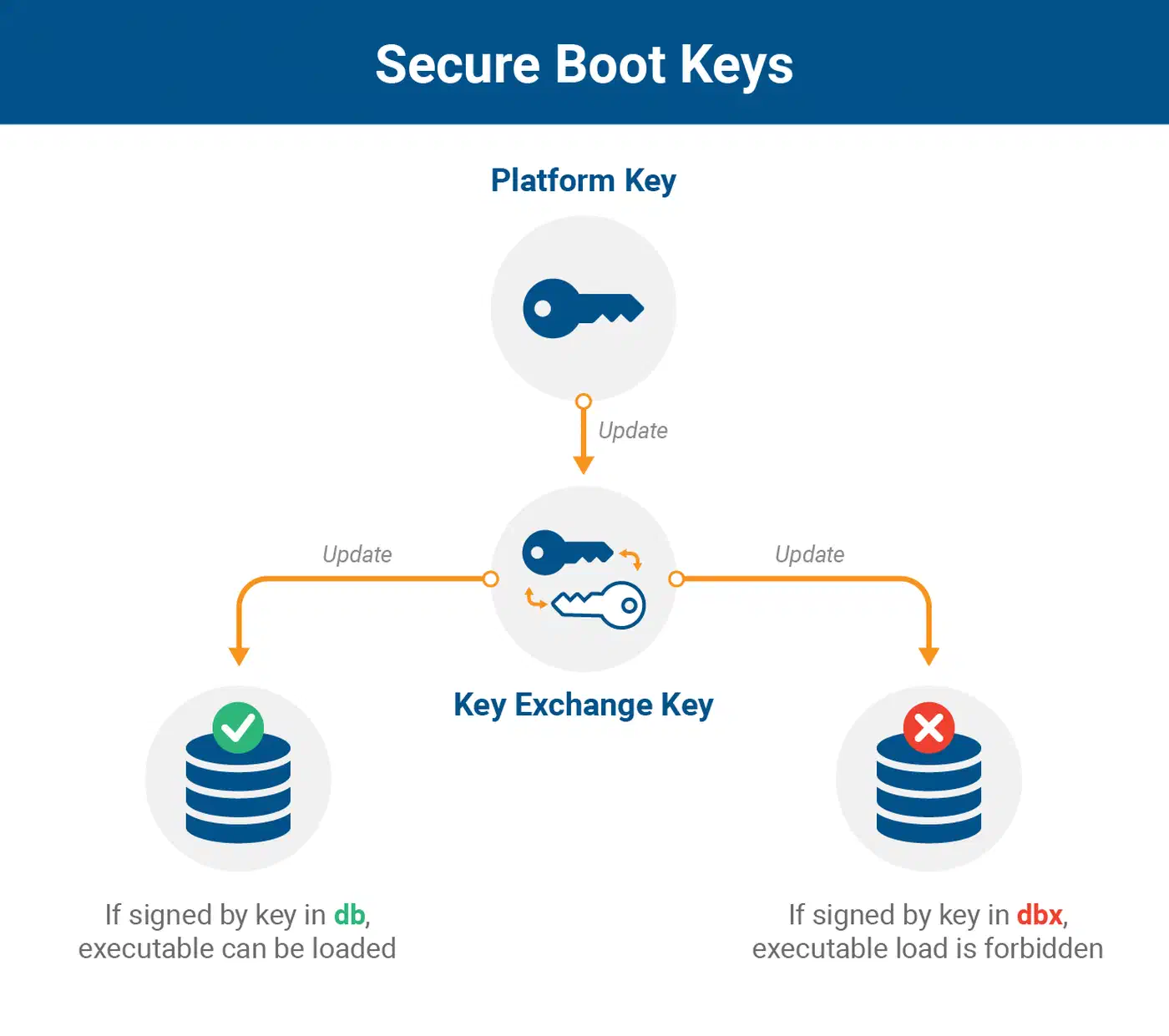
Secure Boot uses a stack of crypto keys stored in UEFI firmware variables. Before you create or enroll anything, you need to know what each key does.
| Key | Full Name | Role |
|---|---|---|
| PK | Platform Key | Root of trust. Controls who can modify KEK and db. Set by the hardware manufacturer. Only one PK can exist. |
| KEK | Key Exchange Key | Authorizes changes to the db and dbx. Usually includes Microsoft’s KEK for Windows Update compatibility. |
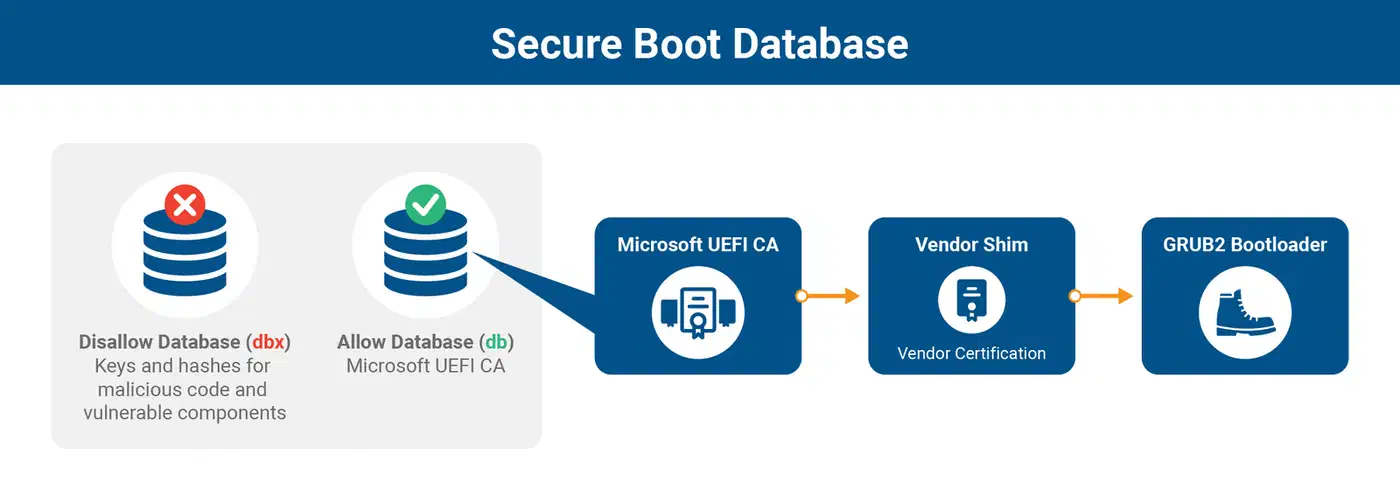
| db | Signature Database | Contains keys and hashes of authorized bootloaders and kernels. Anything signed by a key in db is allowed to boot. |
| dbx | Forbidden Signature Database | Blocklist of known-compromised keys and hashes. Checked before db: a match here denies boot regardless of db contents. |
| MOK | Machine Owner Key | A shim-managed key database separate from the UEFI db. The practical way to add your own keys without touching firmware variables directly. |
There are two approaches to custom key management:
Full custom keys: swap out the PK, KEK, and db for your own. You get full control but lose the vendor’s keys and Microsoft’s keys. If you dual-boot Windows, this breaks it unless you sign the Windows bootloader too.
MOK enrollment: add your signing key next to the existing trust chain through shim’s Machine Owner Key database. It is easier, keeps dual-boot working, and is the right path for most users.
Setting up custom keys with sbctl
sbctl (version 0.18) is the simplest way to manage Secure Boot keys on Linux. Written in Go, it handles key creation, enrollment, and signing in one flow, and re-signs files for you on kernel updates.
Install sbctl from your distro repos: pacman -S sbctl on Arch, Fedora through COPR, or build from source with go install github.com/foxboron/sbctl/cmd/sbctl@latest. It is also packaged for Alpine, Gentoo, and openSUSE.
Before you create keys, put Secure Boot into Setup Mode. Reboot into BIOS/UEFI and look for “Secure Boot” or “Key Management.” Pick the option to clear existing keys or switch to “Setup Mode.” This wipes the current PK, KEK, and db so you can enroll new ones.
Generate your keys:
sbctl create-keysThis generates PK, KEK, and db key pairs in /usr/share/secureboot/keys/.
Enroll the keys into your firmware:
sbctl enroll-keysThis writes your keys to the UEFI firmware variables. If you dual-boot Windows or your firmware needs Microsoft’s keys to check option ROMs, add the --microsoft flag:
sbctl enroll-keys --microsoftNow sign every EFI binary in your boot chain:
sbctl sign -s /boot/vmlinuz-linux
sbctl sign -s /boot/EFI/BOOT/BOOTX64.EFI
sbctl sign -s /boot/EFI/systemd/systemd-bootx64.efi
The -s flag saves each path to sbctl’s own database. On Arch, sbctl ships with a pacman hook that re-signs these files on every kernel or boot manager update. On other distros, the hook setup differs but the idea is the same.
Run sbctl verify to check that all registered files are signed. Then reboot into BIOS, turn Secure Boot back on, and boot as usual. If every file is signed right, the system starts up clean.
The MOK approach with mokutil
If you don’t want to wipe every firmware key, MOK enrollment adds your signing key next to the existing trust chain. This is the default path on Ubuntu, Fedora, openSUSE, and most other distros that ship with shim, a first-stage bootloader signed by Microsoft that chainloads GRUB or systemd-boot.
Shim checks its own key store (MOK) on top of the UEFI db. Your custom key goes into that MOK store.
Start by generating a key pair:
openssl req -new -x509 -newkey rsa:2048 -keyout MOK.key \
  -out MOK.crt -nodes -days 3650 -subj "/CN=My Secure Boot Key/"
openssl x509 -in MOK.crt -out MOK.der -outform DER
Then enroll the MOK:
sudo mokutil --import MOK.derThis asks for a one-time password. On the next reboot, shim spots the pending enrollment and launches MokManager, a blue-screen tool where you enter that password and confirm the key.
With your key enrolled, sign the kernel:
sudo sbsign --key MOK.key --cert MOK.crt \
  /boot/vmlinuz-$(uname -r) --output /boot/vmlinuz-$(uname -r)
Third-party kernel modules from NVIDIA, VirtualBox, or ZFS need signing too. Set up DKMS to use your MOK key by editing /etc/dkms/framework.conf:
sign_tool="/usr/lib/dkms/sign_helper.sh"
mok_signing_key="/path/to/MOK.key"
mok_certificate="/path/to/MOK.crt"
Verify everything is in order:
mokutil --list-enrolled   # shows your key
mokutil --sb-state         # confirms Secure Boot is enabled
sbctl vs mokutil vs efi-updatevar
Each tool targets a different level of the Secure Boot key management stack.
| Feature | sbctl | mokutil | efi-updatevar |
|---|---|---|---|
| Key generation | Built-in | Manual (openssl) | Manual (openssl + cert-to-efi-sig-list) |
| Enrollment scope | PK, KEK, db (full firmware) | MOK only (shim layer) | PK, KEK, db, dbx (low-level) |
| Automatic re-signing | Yes (pacman/hook integration) | No | No |
| Dual-boot friendly | With --microsoft flag | Yes, by default | Depends on configuration |
| Ease of use | High | Medium | Low |
| Distribution availability | Arch, Fedora (COPR), Alpine, Gentoo, openSUSE | All major distros | All (via efitools package) |
| Best for | Full custom key setups | Adding keys alongside existing chain | Direct EFI variable manipulation |
Use sbctl when you want a hands-off, all-in-one flow. Use mokutil when you want to add a signing key next to the existing trust chain without touching firmware variables. Use efi-updatevar only when you need raw control over specific EFI variables and know the key stack well enough to wire PK, KEK, and db by hand.

Automating kernel signing on updates
Re-signing by hand after every kernel update gets old fast. Set up a hook so you never boot an unsigned kernel by mistake.
With sbctl, paths added through sbctl sign -s get re-signed for you through distro-specific hooks. On Arch this is a pacman hook. On Fedora and others, sbctl installs its own trigger. No upkeep once paths are added.
If you use mokutil and sbsign instead, write a kernel post-install hook by hand. On Debian/Ubuntu, drop a script at /etc/kernel/postinst.d/sign-kernel:
#!/bin/bash
sbsign --key /path/to/MOK.key --cert /path/to/MOK.crt \
  "/boot/vmlinuz-$1" --output "/boot/vmlinuz-$1"
Make it executable with chmod +x. It runs on its own after every kernel install.
The /etc/dkms/framework.conf setup shown earlier covers DKMS module signing. Every time DKMS builds a module, it calls the sign helper with your MOK key.
Another path is Unified Kernel Images (UKI), which bundles the kernel, initramfs, and command line into one signed EFI binary. You sign one file instead of several:
ukify build --linux=/boot/vmlinuz \
  --initrd=/boot/initramfs \
  --cmdline=@/etc/kernel/cmdline \
  --output=/boot/efi/EFI/Linux/linux.efi
sbsign --key MOK.key --cert MOK.crt linux.efi --output linux.efi
systemd-ukify builds the UKI. You sign the one binary it spits out. The initramfs inside the UKI comes from mkinitcpio or dracut: see the comparison of initramfs generators to see how each one handles UKI output and re-signing on kernel updates.
Wherever you keep your private key, lock it down (chmod 400 MOK.key) and think about storing it on an encrypted partition or a USB stick. Anyone with that key can sign any code your firmware will trust.
TPM 2.0 and measured boot
Secure Boot and TPM 2.0 fit together: Secure Boot blocks unsigned code from running, while TPM measured boot logs what did run and can gate access to secrets based on that log.
systemd-cryptenroll binds LUKS volume unlock to TPM Platform Configuration Register (PCR) values. PCR 7 logs the Secure Boot state: which keys are enrolled and whether Secure Boot is on. Bind a LUKS key to PCR 7 and the disk only unlocks on its own when the Secure Boot setup has not changed:
systemd-cryptenroll --tpm2-device=auto --tpm2-pcrs=7 /dev/sdXOn shim-based systems, binding to PCRs 7 and 14 is the norm. PCR 14 logs the shim certs used to sign kernel images. You get protection without having to re-enroll by hand on every kernel update.
You can add a PIN on top of the TPM bind for defense in depth:
systemd-cryptenroll --tpm2-device=auto --tpm2-pcrs=7 --tpm2-with-pin=yes /dev/sdXThis gives you a setup on par with macOS FileVault or Windows BitLocker, where the disk unlocks at boot on a clean system and stays locked once someone tampers with the boot chain.
Revoking compromised keys with dbx
The dbx (Forbidden Signature Database) is how you yank back trust. When a signing key leaks or a bootloader binary turns out to be flawed, adding it to dbx blocks it at boot no matter what is in the db.
The UEFI Forum keeps the official revocation list at uefi.org/revocationlistfile. Microsoft also keeps a GitHub repo with current dbx files.
To apply a dbx update on Linux:
# Download the latest dbx update
fwupdmgr get-updates
fwupdmgr update
fwupd ships dbx updates through the Linux Vendor Firmware Service (LVFS). If your distro includes fwupd, this is the easy path.
For manual dbx updates, use efi-updatevar:
efi-updatevar -a -e -f dbxupdate.bin dbxKeep your dbx current. Linux systems sat exposed to known Secure Boot bypasses from July 2024 through January 2025 because the dbx versions shipped through LVFS were stale. A quick manual check with fwupdmgr get-updates now and then is worth it.
Troubleshooting common issues
“Security violation” on boot means the kernel or bootloader is unsigned or signed with a key not in db or MOK. Re-sign the file and check it with sbctl verify or sbsign --verify.
An NVIDIA driver that refuses to load usually means the kernel module is unsigned. Set up DKMS signing as shown above, or import the NVIDIA signing key by hand with mokutil --import. After a kernel update, DKMS will rebuild and re-sign the module for you.
Some BIOS builds hide the Setup Mode option. Look for “Key Management,” “Secure Boot Mode” set to “Custom,” or “Clear Secure Boot Keys” in your firmware menu. The exact label varies by vendor.
If dual-booting Windows stops working after you enroll custom keys, you need Microsoft’s keys in there too. With sbctl, run sbctl enroll-keys --microsoft. With MOK this is not an issue: MOK adds keys without pulling out the existing ones.
GRUB needs its own signing step and is harder to manage than systemd-boot, which is one EFI binary to sign. If you are setting up custom keys from scratch, systemd-boot plus UKI is the easier path.
If the MOK enrollment screen does not show up after mokutil --import, check that shim is first in the UEFI boot order, not GRUB. MokManager is part of shim and only runs when shim loads first.
To run the full flow without risk, use a UEFI VM with QEMU and OVMF firmware. A mistake just means you reboot the VM.
qemu-system-x86_64 -enable-kvm -m 2G \
  -drive if=pflash,format=raw,readonly=on,file=/usr/share/OVMF/OVMF_CODE.secboot.fd \
  -drive if=pflash,format=raw,file=my_OVMF_VARS.fd \
  -drive file=test-disk.qcow2,format=qcow2