 Botmonster Tech
Keep your Reolink cameras off the cloud with go2rtc
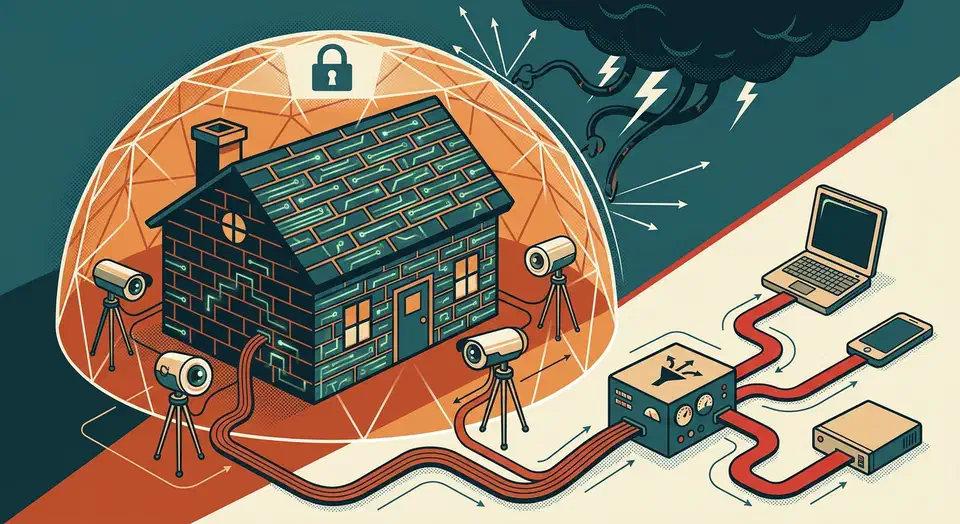
The clean way to run Reolink cameras in Home Assistant with no cloud is go2rtc. It pulls each camera’s stream once, then hands it to Home Assistant, Frigate, and your browser dashboards. Buy PoE models, wire up the Reolink integration for smart detection, and put the cameras on a VLAN with no way out to the internet.
Why go fully local with Reolink
Before you touch a config file, here is what going local buys you. The Reolink cloud is convenient, and it is also where most of the privacy, latency, and reliability problems live.
The default Reolink app leans on P2P relay servers at p2p0.reolink.com through p2p15.reolink.com on UDP port 9999. They let video cross NAT so you never have to forward a router port. When the direct path fails, the relay takes over. Your audio and video then run through Reolink’s AWS servers. Go local and that relay is never called, and your login never leaves the LAN.
Stock Reolink firmware also calls home to update servers, push gateways, and analytics endpoints. Put a packet capture on a new camera and it chatters away even with the app’s “cloud” toggle off. Nozomi Networks studied the P2P protocol and found relayed streams are not encrypted end to end. Reolink’s relay servers can read your audio and video in flight. For a camera pointed at a room inside the house, that is reason enough to keep everything local. Where a lens feels like too much, a WiFi sensing node can spot people without recording a frame.
Latency is the next problem. A relayed stream usually runs 2 to 5 seconds behind real time. A WebRTC stream from go2rtc on the same LAN stays under 500 ms. For a doorbell, that gap decides whether you reach the door in time. The same lag drags on any automation that fires on motion or a button press.
Uptime improves too. The Reolink cloud has gone dark for hours at a stretch, and a local stack keeps recording, alerts, and automations alive when the WAN link drops. You also take back the firmware. Once a camera cannot reach the internet, updates land on your schedule from the local web UI instead of overnight without warning. Long term there is no cloud storage tier to pay for, and no chance a feature you rely on moves behind a paywall in the next app release.
Reolink model selection and PoE vs WiFi
Not every Reolink camera plays nicely with a local-only setup. PoE models with BV (Baichuan Vision) AI and a documented RTSP URL are the sweet spot. Battery cameras and some WiFi-only models lock down local access on purpose to save power, which makes them a chore to wire in.
The RLC-811A is the safe default for driveways and fence lines. It is a 4K PoE bullet with 5x optical zoom, a 1/2.8" CMOS sensor at 25 fps, and person, vehicle, and pet detection over the native Reolink HTTP API. It serves both a main and a sub RTSP stream. The RLC-820A is the cheaper 4K PoE bullet with the same BV AI list and no optical zoom, which is fine for one fixed zone. The RLC-823A PoE is the 4K PTZ with spotlights and auto-tracking. Take the PoE version over the WiFi one, because the WiFi firmware gets flaky when several clients pull RTSP at once.
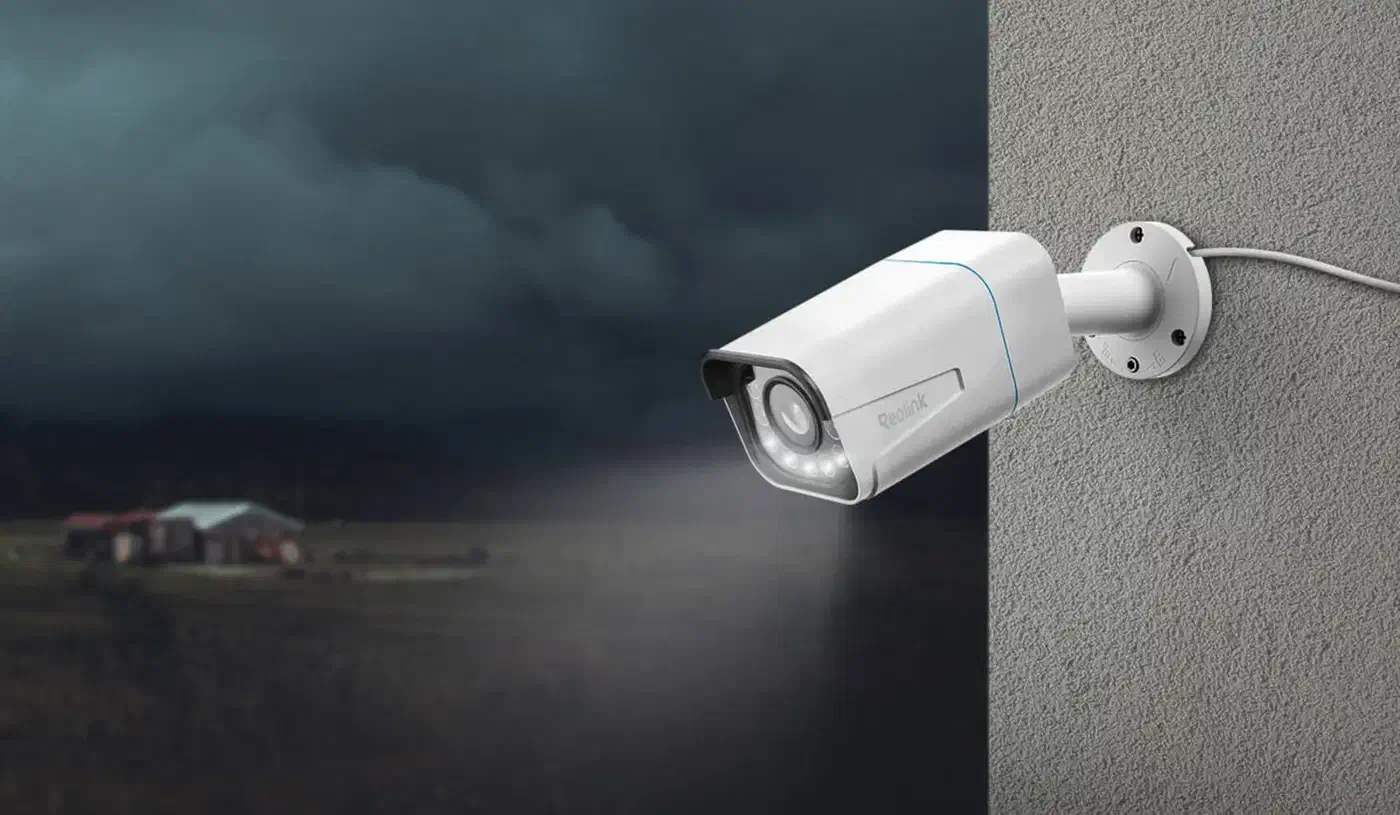
The Duo 3 PoE is a 16MP dual-lens camera that stitches one 180-degree image on the camera itself with a 4-core chip. Home Assistant sees a single camera entity, and go2rtc restreams it like any other RTSP source. The Reolink spec sheet lists 12 streams at once, 2 main and 10 sub, which is plenty for HA plus Frigate. The Video Doorbell PoE reports a button press as a Reolink HTTP API event. The integration turns that into a visitor binary sensor, so you need neither the Reolink Chime nor the app.
Skip the Argus and Go series battery cameras, or at least treat them as second-class. They sleep hard, many switch RTSP off on battery, and they lean on the Reolink cloud to wake on motion. The Home Assistant integration docs note that battery models need a Reolink Home Hub or NVR, and pinning one to a dashboard drains it in days.
PoE also makes the VLAN work easier. One managed switch port drops the camera into its own VLAN. A WiFi camera needs a whole extra SSID mapped to that VLAN on the access point. If you get a choice at checkout, buy the PoE model.
Bitrate budget at a glance
Plan storage and network headroom around these numbers. You set the bitrate in the camera web UI, and 4K main streams take 4 to 8 Mbps. H.265 cuts the bandwidth of H.264 by about half at the same quality.
| Model | Main stream (H.265) | Sub stream | 24h main-only (per camera) |
|---|---|---|---|
| RLC-820A (4K) | ~6 Mbps | ~1 Mbps | ~65 GB |
| RLC-811A (4K) | ~6 Mbps | ~1 Mbps | ~65 GB |
| RLC-823A PoE (4K PTZ) | ~7 Mbps | ~1 Mbps | ~75 GB |
| Duo 3 PoE (16MP stitched) | ~8 Mbps | ~1.5 Mbps | ~86 GB |
| Video Doorbell PoE (5MP) | ~4 Mbps | ~0.7 Mbps | ~43 GB |
Setting up go2rtc as a low-latency RTSP proxy
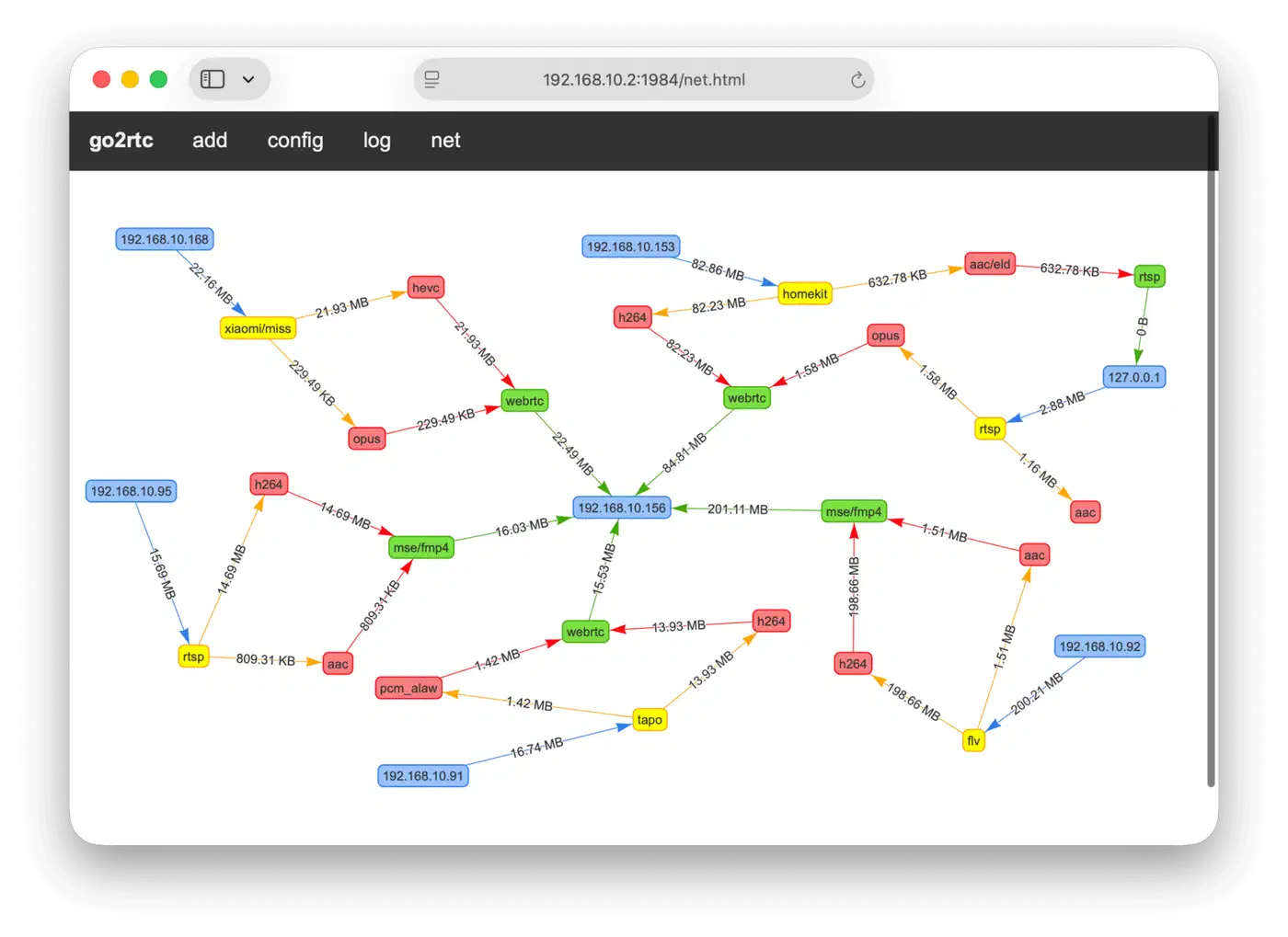
go2rtc is the piece that makes the rest pleasant. It pulls each Reolink RTSP stream exactly once and serves it back as RTSP, WebRTC, HLS, and MSE. Home Assistant, Frigate, and browser dashboards then share one connection per camera. That is important, because Reolink firmware caps how many RTSP clients a stream will take. Go over the cap and the camera either turns new clients away or degrades video for all of them.
You can install go2rtc three ways: bundled inside the Home Assistant Frigate add-on, as the standalone go2rtc add-on, or as a plain binary or Docker container on the same host. All three read the same go2rtc.yaml format, documented on the go2rtc GitHub page.
The Reolink RTSP URL looks like rtsp://<user>:<pass>@<camera-ip>:554/h264Preview_01_main for the main stream, and /h264Preview_01_sub for the sub stream. H.265 models use h265Preview_01_main and h265Preview_01_sub. One quirk to watch: the Home Assistant integration only takes passwords built from a-z, A-Z, 0-9 and the safe set @$*~_-+=!?.,:;'()[]. Anything else breaks URL encoding in the stream layer.
A minimal working go2rtc.yaml for two cameras and a doorbell:
streams:
  driveway:
    - rtsp://admin:LOCAL_PASSWORD@10.20.30.11:554/h265Preview_01_main
    - ffmpeg:driveway#audio=opus
  backyard_ptz:
    - rtsp://admin:LOCAL_PASSWORD@10.20.30.12:554/h264Preview_01_main
  front_door:
    - rtsp://admin:LOCAL_PASSWORD@10.20.30.13:554/h264Preview_01_main

webrtc:
  candidates:
    - 10.20.30.5:8555
The second source line on driveway converts the audio track to Opus. That gives WebRTC playback in the dashboard working sound without re-encoding the video. On the dashboard side, use the WebRTC Camera card or the built-in camera.stream component, with stream_source pointing at rtsp://127.0.0.1:8554/driveway. Either way the request lands on go2rtc, not on the camera.
Expose the go2rtc web UI on port 1984 to the management VLAN only. It is handy for debugging, but it ships with no login. If the camera log fills with “too many RTSP clients” errors, something is going around go2rtc and hitting the camera directly. Point every client at the go2rtc URL instead.
go2rtc vs MediaMTX vs raw FFmpeg
You could use MediaMTX or a raw FFmpeg restream instead. For Home Assistant, go2rtc still wins. It speaks WebRTC natively and negotiates codecs on its own, where MediaMTX lags. It plugs into the built-in HA stream component, so low-latency playback needs no extra card. Frigate also ships with go2rtc inside, which leaves you one fewer process to babysit.
The Home Assistant Reolink integration for events and smart detection
go2rtc handles the video, and the Reolink integration handles the rest: button presses, smart detection events, siren control, spotlight toggles, firmware sensors, and PTZ presets. It talks to the Reolink HTTP API (Baichuan) directly, and uses ONVIF as a push channel so events arrive fast.
Add the camera under Settings > Devices & Services > Reolink, then give it the local IP, the HTTP or HTTPS port, and a username and password. The integration works out the model, the firmware version, and which smart detection types the camera has. The account needs admin rights, or parts of it stay dark.
Smart detection events show up as binary sensors: person, vehicle, and pet on newer models, package on the doorbell and some PoE cameras, face on the 811A and 823A with recent firmware, and visitor for the doorbell button. What a camera offers comes down to its BV AI generation. The RLC-811A, 820A, 823A, Duo 3 PoE, and Video Doorbell PoE all carry the current one. Older RLC-410 and RLC-510 units only do basic motion. Newer firmware adds crossline, intrusion, linger, and “item forgotten or taken” zones on top.
For transport, the integration prefers the native Baichuan TCP push channel, which lands events in under 100 ms. ONVIF PullPoint polling adds 1 to 2 seconds and is the fallback. Turn “Allow ONVIF” on in the camera web UI anyway. Frigate and some HA automations still use ONVIF for PTZ presets on the RLC-823A and Duo 3 PoE.
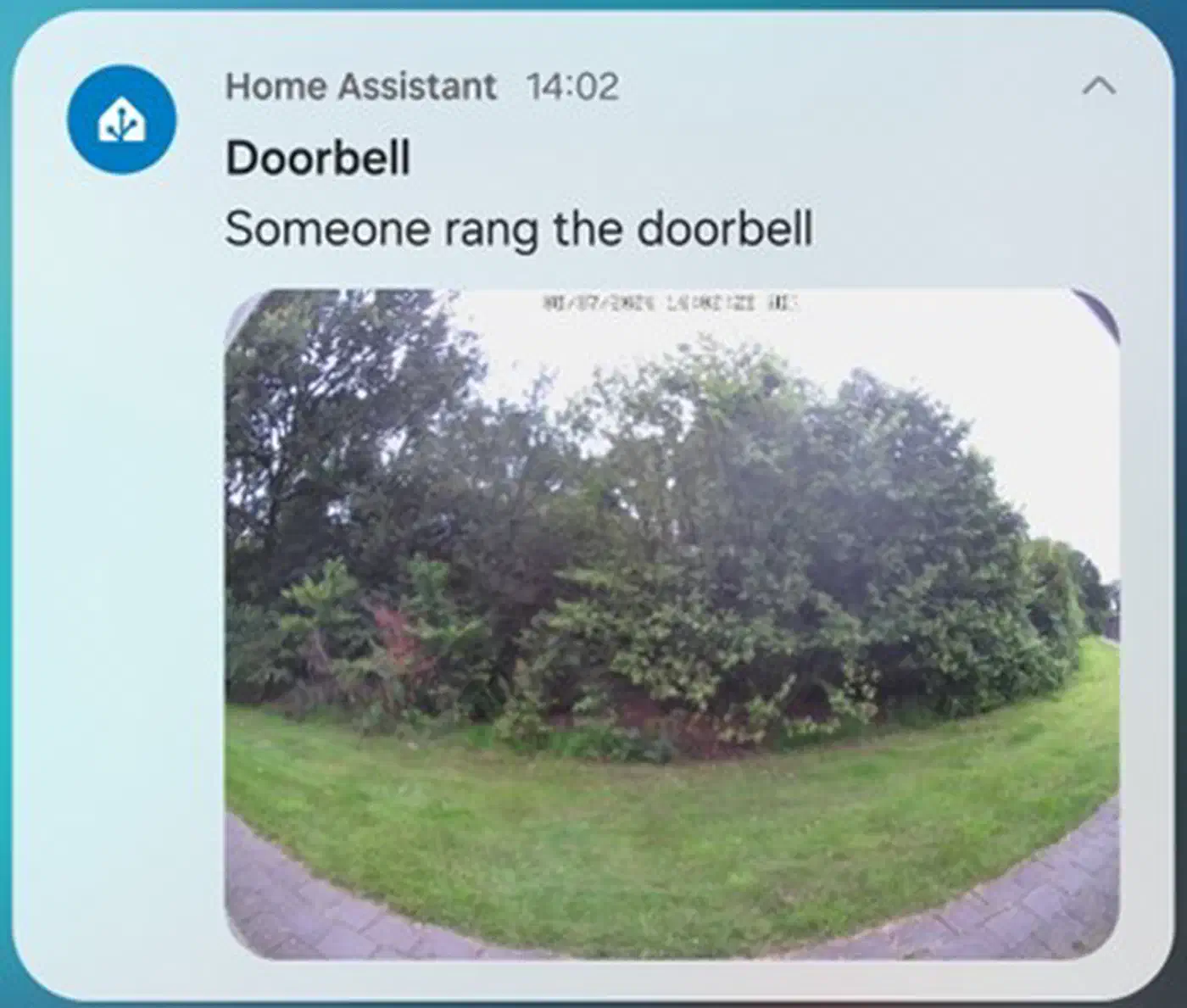
A common automation fires when binary_sensor.front_door_visitor turns on. It announces the doorbell on a speaker, pushes a notification to the companion app, and records a 30-second WebRTC clip, all without the Reolink cloud. You can also gate those clips on motion from budget Zigbee motion and contact sensors, so the camera only rolls when a door opens or someone walks past. While you are in the camera web UI, switch off Reolink’s own email, FTP, and push alerts. HA covers all three now, and they create the outbound traffic you are about to block.
Adding Frigate for recording and AI detection
The Reolink integration is strong on events, but it will not record around the clock. Frigate fills that gap. It takes the sub stream from go2rtc to watch for motion, records the main stream when something happens, and runs its own object detection on a Coral TPU or GPU as a second opinion on Reolink’s BV AI.
Frigate’s own docs tell you to put go2rtc in front rather than point Frigate straight at the cameras, for exactly that RTSP client limit. A Frigate camera block then takes rtsp://127.0.0.1:8554/driveway for the record role and rtsp://127.0.0.1:8554/driveway_sub for detect. You only pay main-stream bandwidth while recording runs.
On hardware, Frigate’s docs no longer name the Coral as the default pick for new builds. An Intel iGPU on OpenVINO, or an NVIDIA GPU running YOLOv8 through TensorRT, beats it on both model quality and throughput. The Coral is still one of the thriftiest options on power. A USB or M.2 Coral runs MobileNet SSD in about 10 ms per inference and covers 6 to 8 cameras at 5 fps with room to spare. Past 15 cameras, or for 4K detection, move up to a GPU.
Cross-check Reolink BV AI events against Frigate detections in a Home Assistant template binary sensor. Spiders, rain, and moving shadows stop waking you up, because the alert only fires when both detectors agree. For storage, give Frigate a dedicated SSD or a NAS share mounted into the container. Budget about 12 GB per camera per day for 4K H.265 recording at 15 fps. Event-only recording cuts that by roughly 10x, depending on how busy the scene is.
The Frigate HACS integration turns MQTT events into HA sensor entities per camera: object counts, snapshot URLs, and clip links. The Frigate web UI then replaces the Reolink app, with live view through go2rtc, timeline scrubbing, event review, and object filters, all of it local.
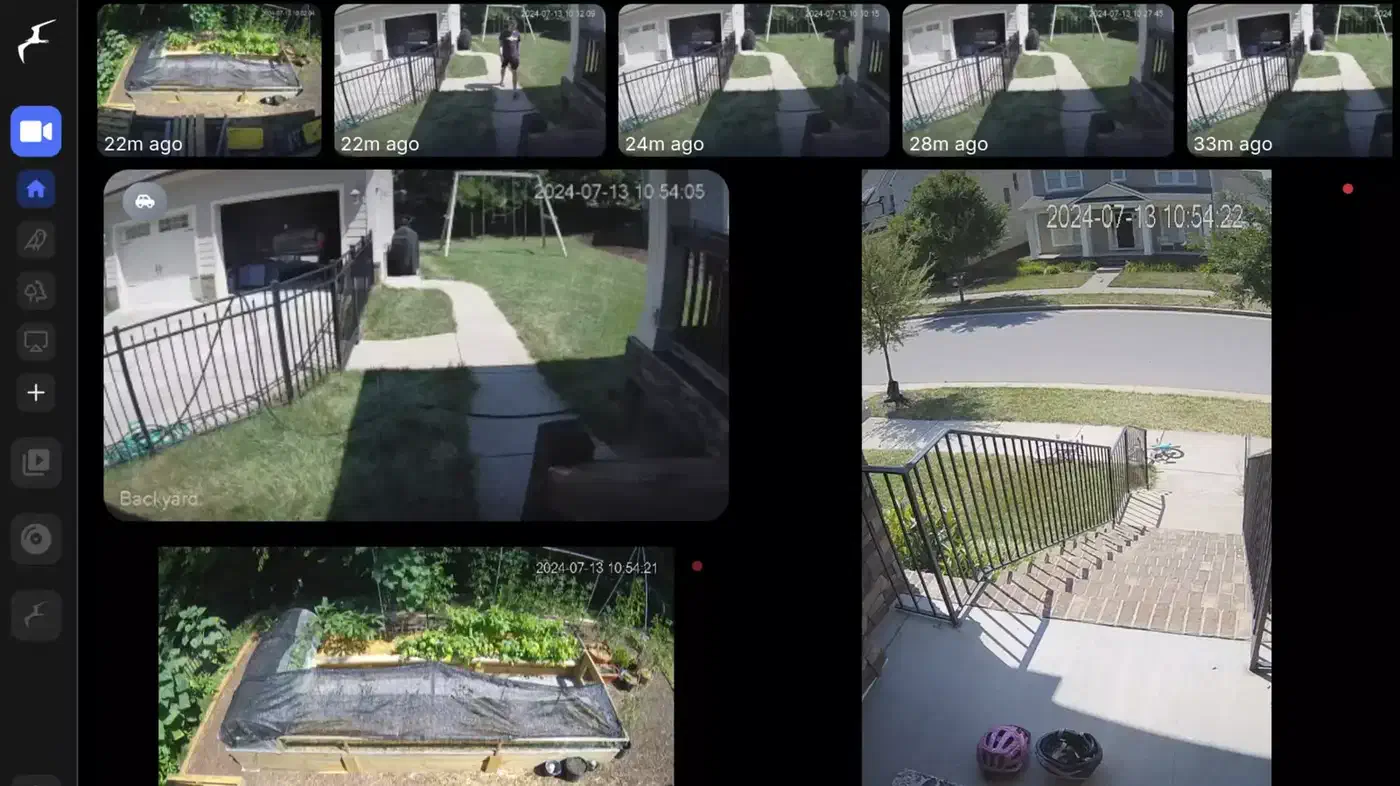
Blocking Reolink cloud traffic with VLANs and firewall rules
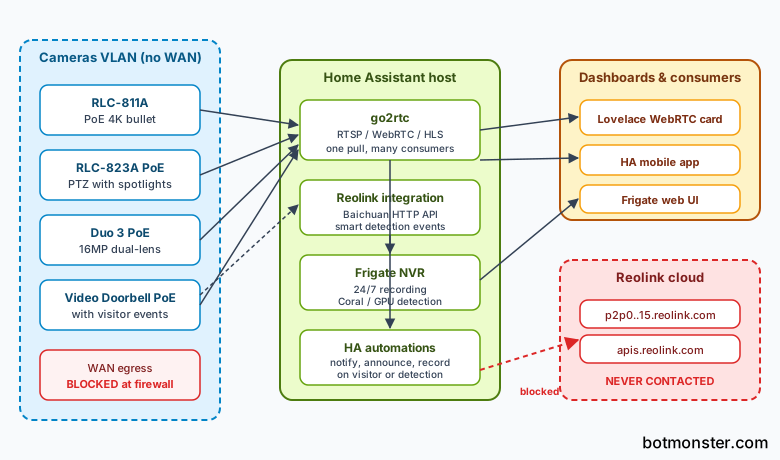
Local-first only holds up if the cameras cannot phone home. The last step is network isolation. Put the cameras on their own subnet with no default route to the internet, then write firewall rules that allow only the traffic Home Assistant and go2rtc need.
Create a cameras VLAN (VLAN 30, say) with its own subnet, its own DHCP pool, and no gateway route out of the LAN. Tag each PoE camera’s switch port into that VLAN as untagged traffic. On OPNsense, pfSense, UniFi, or VyOS, apply these rules in order:
- Allow
cameras -> Home Assistant hoston TCP 80, 443, 554, and 8000 (HTTP API, HTTPS API, RTSP, ONVIF event port). - Allow
cameras -> local NTP hoston UDP 123 so the cameras keep accurate timestamps. - Block
cameras -> WANon all protocols. - Block
cameras -> other LAN VLANson all protocols.
Tail the firewall logs for a few hours to check the block holds. You will watch the cameras try p2p0.reolink.com through p2p15.reolink.com on UDP 9999, plus apis.reolink.com and a few NTP servers. Every one of those tries should be dropped.
DNS needs the same treatment. Point the camera VLAN at a local resolver like Pi-hole or Unbound that returns NXDOMAIN for *.reolink.com, or sinkholes those queries outright. The retry spam in the firewall log stops, and no lookups leak to upstream resolvers. Once the VLAN is in place, add the cameras back in Home Assistant. The integration only needs a route from the HA host to the camera IPs, which is the first allow rule above.
Hardening the camera itself
On top of network isolation, flip a few switches in the camera web UI. Turn UPnP off so the camera never punches a port through your router. Turn off the P2P flag under Device Settings > Network Advanced > UID. Unbind the cloud account if you linked one before. Swap the default admin password for a long random one kept in the HA secrets vault. For firmware, pull the zip from the Reolink support site on a separate machine, check the hash, and flash it from the local web UI when you choose. None of this needs WAN access.
The finished stack
You end up with a Reolink setup that records around the clock, pushes sub-second live video to any dashboard, and raises every smart detection event in Home Assistant, with its route to the internet cut, so Reolink’s servers see nothing. The stack is a Home Assistant host and a Frigate instance, often the same box, both talking to go2rtc, with the cameras walled off on their own VLAN. Add a UPS and an offline copy of Frigate’s clip library, and it rides out WAN outages, Reolink outages, and app policy changes alike.
The real trade-off is convenience away from home. With no cloud relay, watching from outside means a VPN back to your LAN. WireGuard and Tailscale both do the job, and either beats letting closed-source camera firmware negotiate NAT traversal for you.