 Botmonster Tech
Install OpenWrt 25.12 on any of 2,200 supported routers

You can install OpenWrt on most of the 2,200+ routers it supports in about five minutes. The upload is the easy part. Picking the right image file is where routers get bricked. OpenWrt 25.12 also swapped the package manager and the upgrade tools, so commands from older guides now fail.
Key Takeaways
- Check the exact hardware revision on the Table of Hardware before you download anything.
- Use the factory image for the first install and the sysupgrade image for every later update.
- OpenWrt 25.12 uses apk, so the
opkg installlines in older guides fail. - OpenWrt 24.10 lost security updates after September 2026, so move to 25.12.6 or later.
- Learn failsafe, TFTP and serial recovery before you start, not after.
What changes in OpenWrt 25.12 before you install
OpenWrt is a full Linux system that replaces the stock firmware on a router. The 25.12.0 release landed on 5 March 2026. It supports over 2,200 devices, 180 of them new. Four changes affect how you install and run it.
- apk replaced opkg. The old opkg fork is no longer maintained. Most package names stayed the same, but the commands changed.
- Attended sysupgrade is built in. The LuCI upgrade app now ships by default. Devices with more flash also get
owut, its command-line twin. - 24.10 is out of support. OpenWrt 24.10 got no security fixes after September 2026.
- 25.12.6 fixes the web server. The 25.12.6 release of 18 October 2026 patches five uhttpd flaws. Anyone who can connect to the web interface can trigger them without a login, and uhttpd runs by default with LuCI.
So if you’re doing a fresh install today, take 25.12.6 or newer. Many guides still tell you to run opkg install luci. On 25.12 that command doesn’t exist.
Check that your router can run OpenWrt
Start with the OpenWrt Table of Hardware. Search for your maker and model. Each entry lists the hardware revision, CPU, RAM, flash, Wi-Fi chip, install method and the newest supported release.
The hardware revision is the field people skip. A TP-Link Archer C7 v2 and v5 use different chips. Look for “Ver: 2.0” or similar on the label under the router. An image for the wrong revision can brick the device.
OpenWrt suggests at least 16 MB of flash and 128 MB of RAM for a new router. Devices with 4 MB of flash and 32 MB of RAM are no longer supported. Aim for 256 MB of RAM if you want WireGuard, adblock and SQM running at once.
If you’re buying a router for OpenWrt, these three have well-supported chips:
| Router | CPU | RAM | Flash | Wi-Fi | OpenWrt status |
|---|---|---|---|---|---|
| Dynalink DL-WRX36 | Qualcomm IPQ8072A | 1 GB | 256 MB NAND | Wi-Fi 6 | 25.12 |
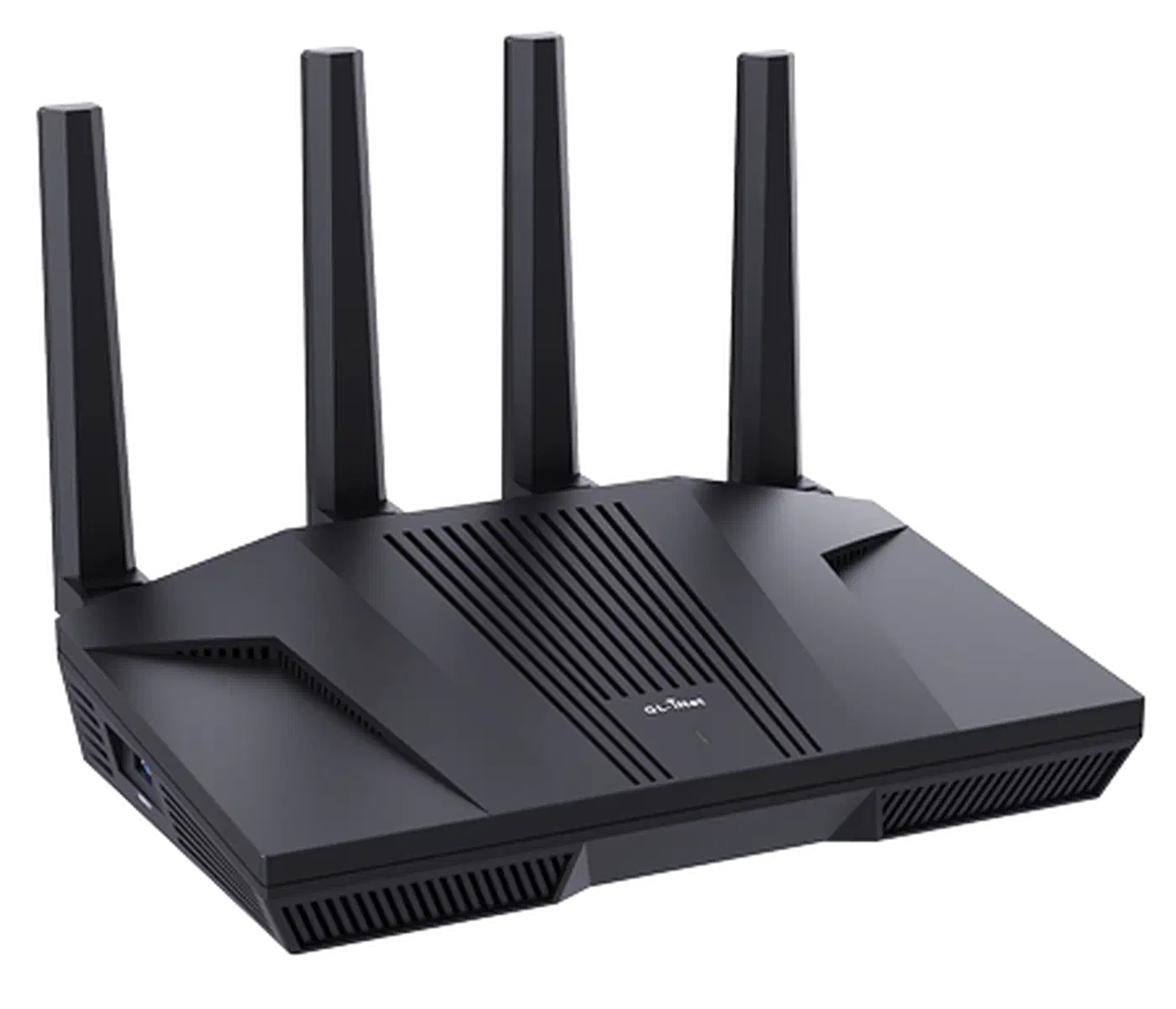
| GL.iNet GL-MT6000 (Flint 2) | MediaTek MT7986A | 1 GB | 8 GB eMMC | Wi-Fi 6 | 25.12 |
| Linksys E8450 / Belkin RT3200 | MediaTek MT7622BV | 512 MB | 128 MB NAND | Wi-Fi 6 | wiki still lists 24.10.5 |
Avoid Broadcom-based routers where you can. Their Wi-Fi chips need closed drivers with poor open-source support. In contrast, Qualcomm (ath10k, ath11k, ath12k) and MediaTek (mt76) drivers are part of mainline Linux.
Pick the right OpenWrt image
The Firmware Selector is the fastest way to find your file. Type the model, pick a release, and it offers up to three downloads. Each one has its own SHA-256 checksum on the page.
| Image | What it does | When to use it |
|---|---|---|
| Kernel (initramfs) | Boots OpenWrt from RAM, writes nothing to flash | Testing, recovery, or step one of a two-step install |
| Factory | Converts stock firmware to OpenWrt | The first install, from the vendor’s web interface |
| Sysupgrade | Updates a router that already runs OpenWrt | Every later upgrade, from LuCI or the shell |
Only about 30% of supported devices have an install file with “factory” in its name. The rest need a device-specific method, so always read the device page first. On the Flint 2, you upload the sysupgrade image through GL.iNet’s own upgrade page at 192.168.8.1 and choose not to keep settings.
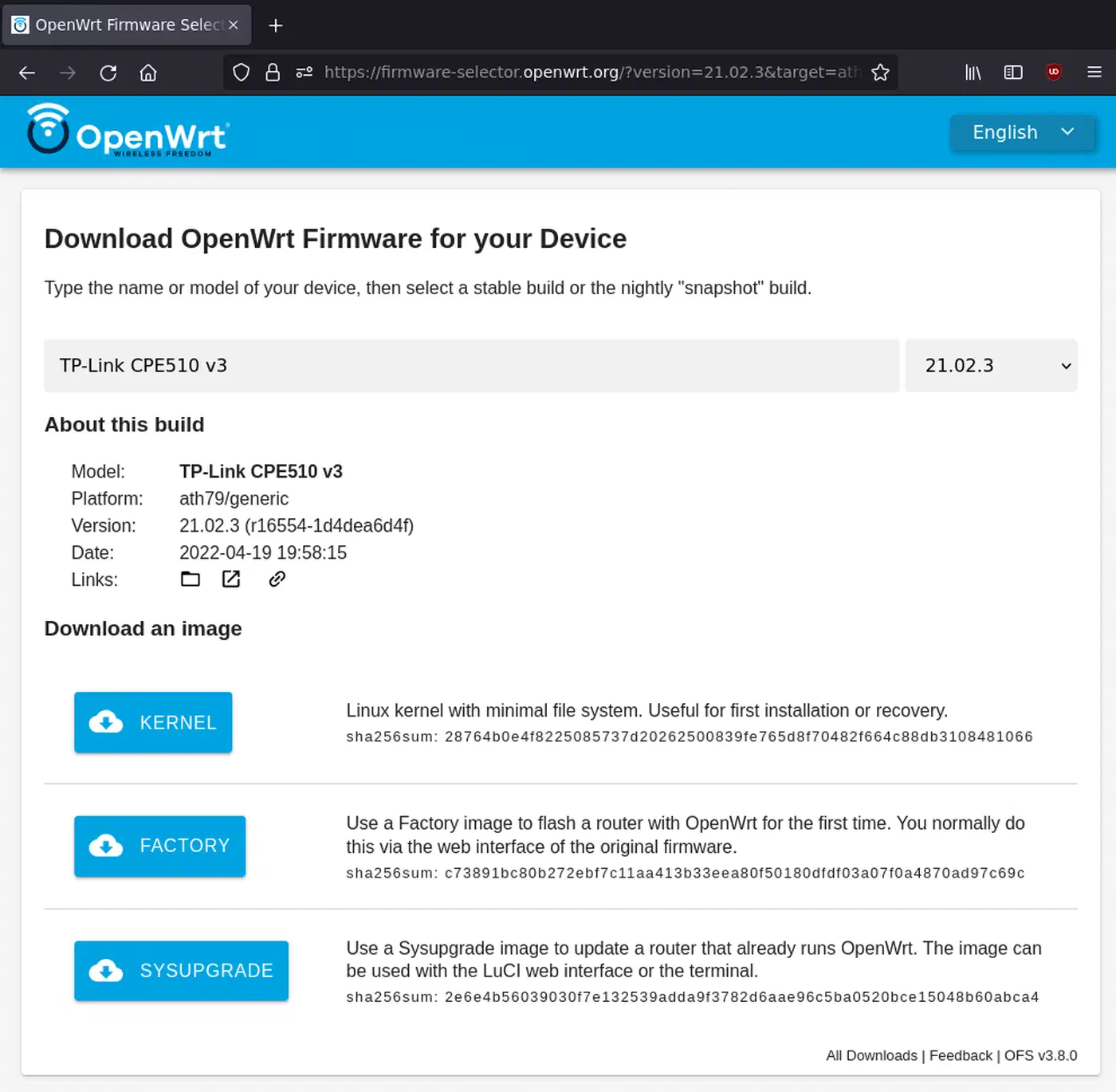
Check the download before you flash it. On Linux, run sha256sum on the file and compare the result with the value on the page. A mismatch means a bad download, so get the file again.
Use a release build for your first install. Snapshot builds are nightly, newer and less tested, and they ship without the LuCI web interface.
How to install OpenWrt from the stock firmware
Before you start, write down what your ISP needs:
- Connection type: DHCP, PPPoE or static
- PPPoE username and password, if you use one
- WAN VLAN ID, if your fiber ISP tags traffic
Your internet connection drops for a few minutes during the install. Keep the OpenWrt device page open offline or on a phone.
Most routers install OpenWrt through the stock web interface:
- Connect your PC to a LAN port with an Ethernet cable. Never flash over Wi-Fi.
- Log in to the stock interface, usually at
192.168.1.1or192.168.0.1. - Click through to Firmware Update, System Update or a similar page.
- Click Upload and pick the OpenWrt factory image, not the sysupgrade one.
- Click Confirm and wait two to three minutes. Don’t cut the power.
- The router reboots into OpenWrt at
192.168.1.1. Unplug and reconnect the Ethernet cable so your PC gets a new address.
Some routers need extra steps. The Linksys E8450 has a vendor flash layout that OpenWrt must convert first. A community installer does the conversion and the install in two passes.
Recovery installs over TFTP or serial
When the stock interface refuses the file, the bootloader can often install OpenWrt over Ethernet instead. Use the same methods to recover a failed flash.
TFTP from the bootloader
- Give your PC’s Ethernet interface a static IP such as
192.168.1.2/24. The device page lists the exact address. - Start a TFTP server:
tftpd-hpaon Linux orTftpd64on Windows. - Put the image in the TFTP root under the file name the bootloader expects.
- Hold the reset button while you power on the router, for 5-10 seconds.
- The router connects to your server, pulls the file and flashes it.
Serial console
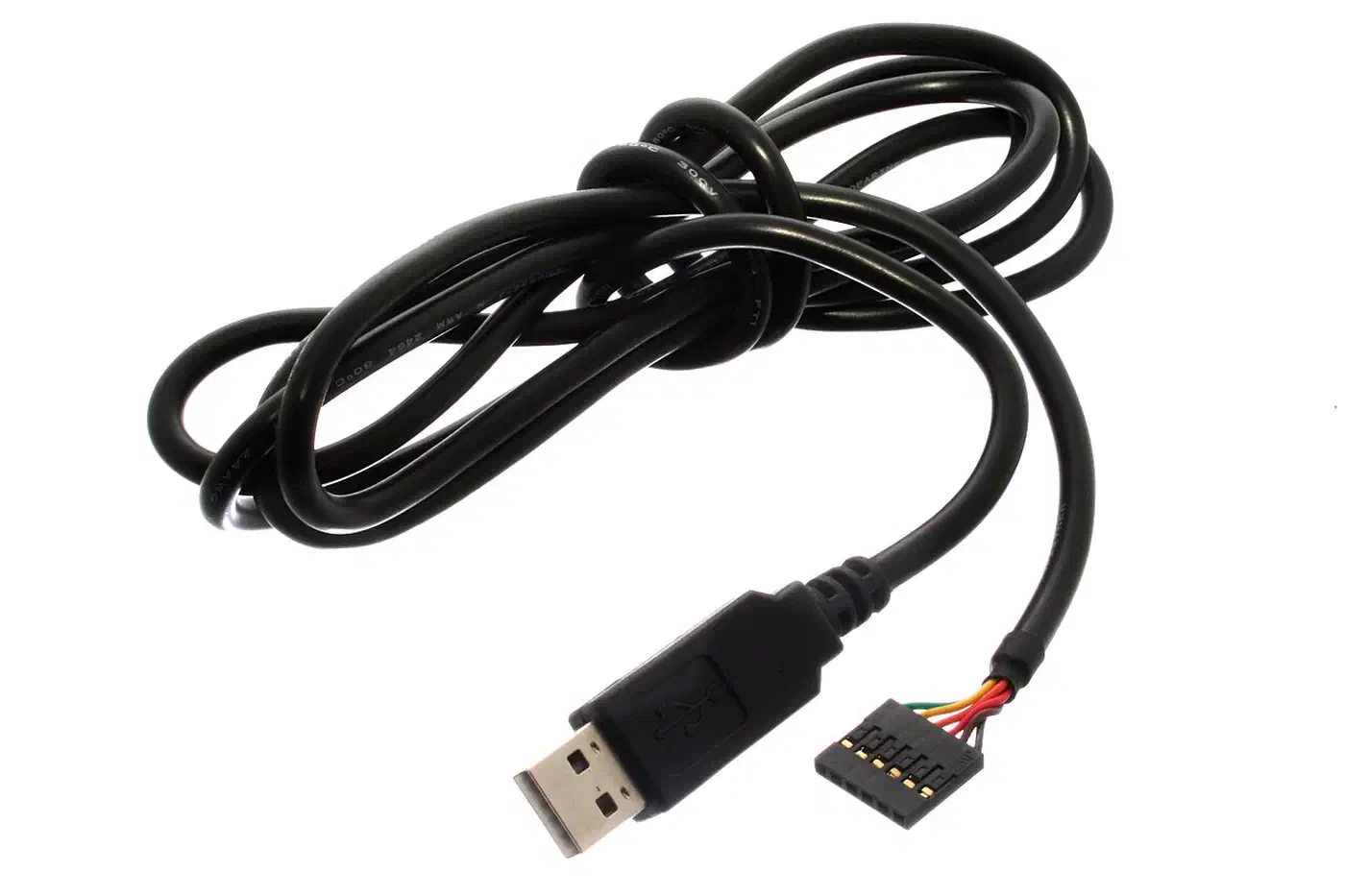
If TFTP fails, open the case and connect a 3.3 V USB-to-serial adapter to the UART pads (TX, RX, GND). Set the terminal to 115200 baud. You land in the U-Boot bootloader, where you can start a TFTP flash by hand. This can revive a router that looks dead, because U-Boot lives in a protected part of the flash.
Install OpenWrt on a PC, VM or Raspberry Pi
You don’t need a consumer router at all. OpenWrt also runs on x86 PCs, virtual machines and single-board computers.
For an x86 PC, download the x86/64 “combined-efi” image and unpack it. Then write it to the whole disk, not to a partition:
gzip -d openwrt-*-x86-64-generic-squashfs-combined-efi.img.gz
sudo dd if=openwrt-*-x86-64-generic-squashfs-combined-efi.img of=/dev/sdX bs=4M
On Windows, Rufus or balenaEtcher writes the same image to a USB drive. For a VM, import the unpacked image as the boot disk. On Proxmox that’s qm importdisk. The root partition starts small, so plan to grow it if you’ll add many packages.
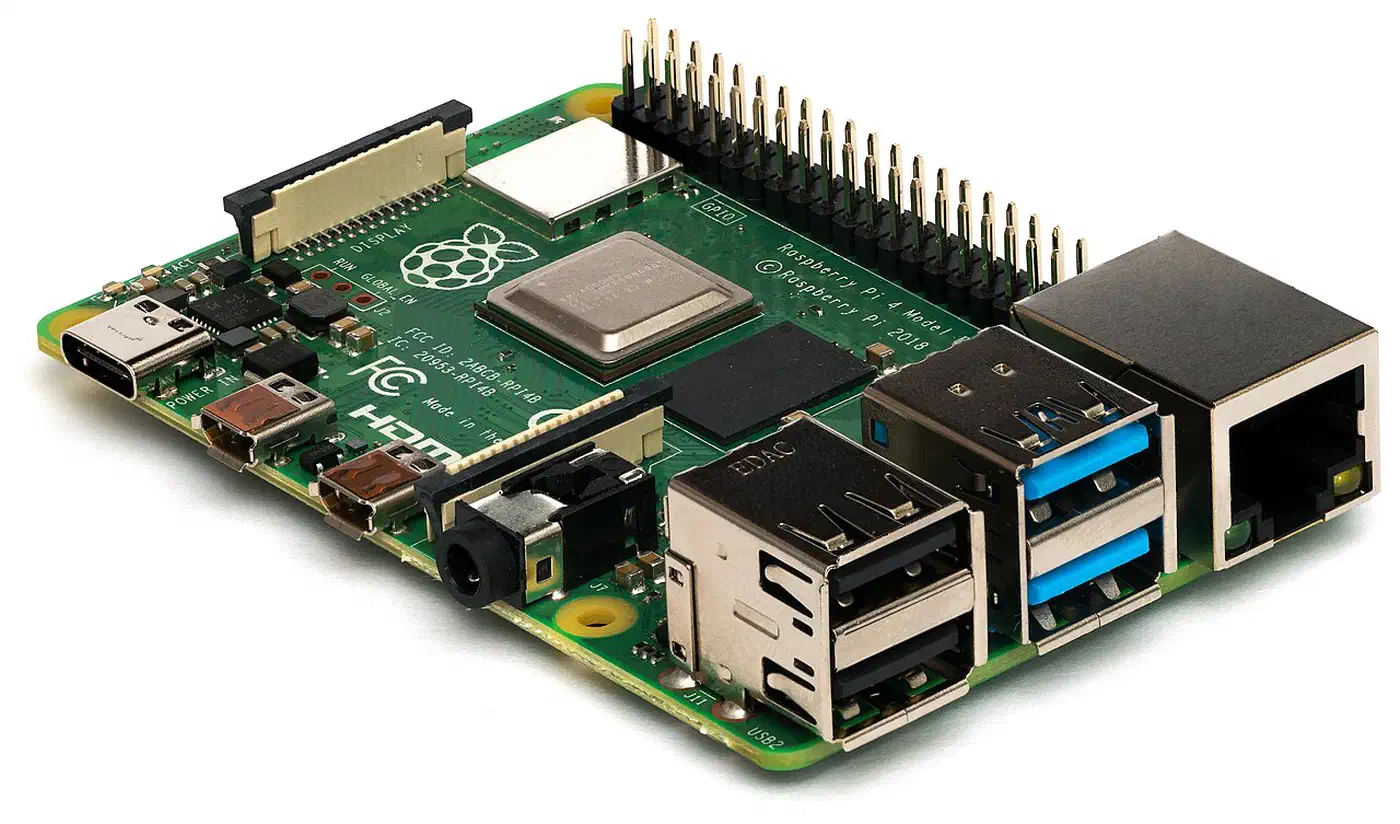
A Raspberry Pi 4 or 5 works too. You write the image to a microSD card the same way. The Pi has only one Ethernet port, so add a USB 3 Ethernet adapter for the WAN connection.
First boot: password, Wi-Fi and apk packages
Plug your PC into a LAN port and connect over Ethernet, since Wi-Fi is off on a fresh OpenWrt install. Open http://192.168.1.1 and log in as root with no password. Set a password under System > Administration before anything else.
Next, set up the network interfaces:
- WAN: Network > Interfaces > WAN. Use DHCP for cable and most fiber, PPPoE for DSL. Set any ISP VLAN ID on the device, not the interface. Then load an IP check page from a LAN client to confirm a public address.
- LAN: the default is
192.168.1.0/24. If that clashes with your work VPN connection, change it now, for example to10.0.0.0/24. - Wi-Fi: Network > Wireless. Set the country code first, then the SSID and WPA3 or WPA2/WPA3 mixed mode. Click Enable for each radio, then click Save & Apply.
Packages now install with apk. Here is how the old opkg commands map:
| Task | Before 25.12 (opkg) | OpenWrt 25.12 (apk) |
|---|---|---|
| Refresh package lists | opkg update | apk update |
| Install a package | opkg install <pkg> | apk add <pkg> |
| Remove a package | opkg remove <pkg> | apk del <pkg> |
| List installed packages | opkg list-installed | apk list --installed |
| Install a local file | opkg install /tmp/<pkg>.ipk | apk add --allow-untrusted /tmp/<pkg>.apk |
A useful first set covers SQM, WireGuard, adblock and graphs:
apk update
apk add luci-app-sqm luci-proto-wireguard luci-app-adblock luci-app-statistics
For encrypted DNS, add luci-app-https-dns-proxy. For a resolver that skips third-party DNS entirely, run Pi-hole with Unbound behind the router. Finally, open System > Backup/Flash Firmware and click Generate Archive to save a backup.
Add WireGuard, IoT VLANs and SQM
IoT VLANs
Smart plugs and cameras are among the least-patched devices on a network. A VLAN means a hacked bulb can’t connect to your NAS.
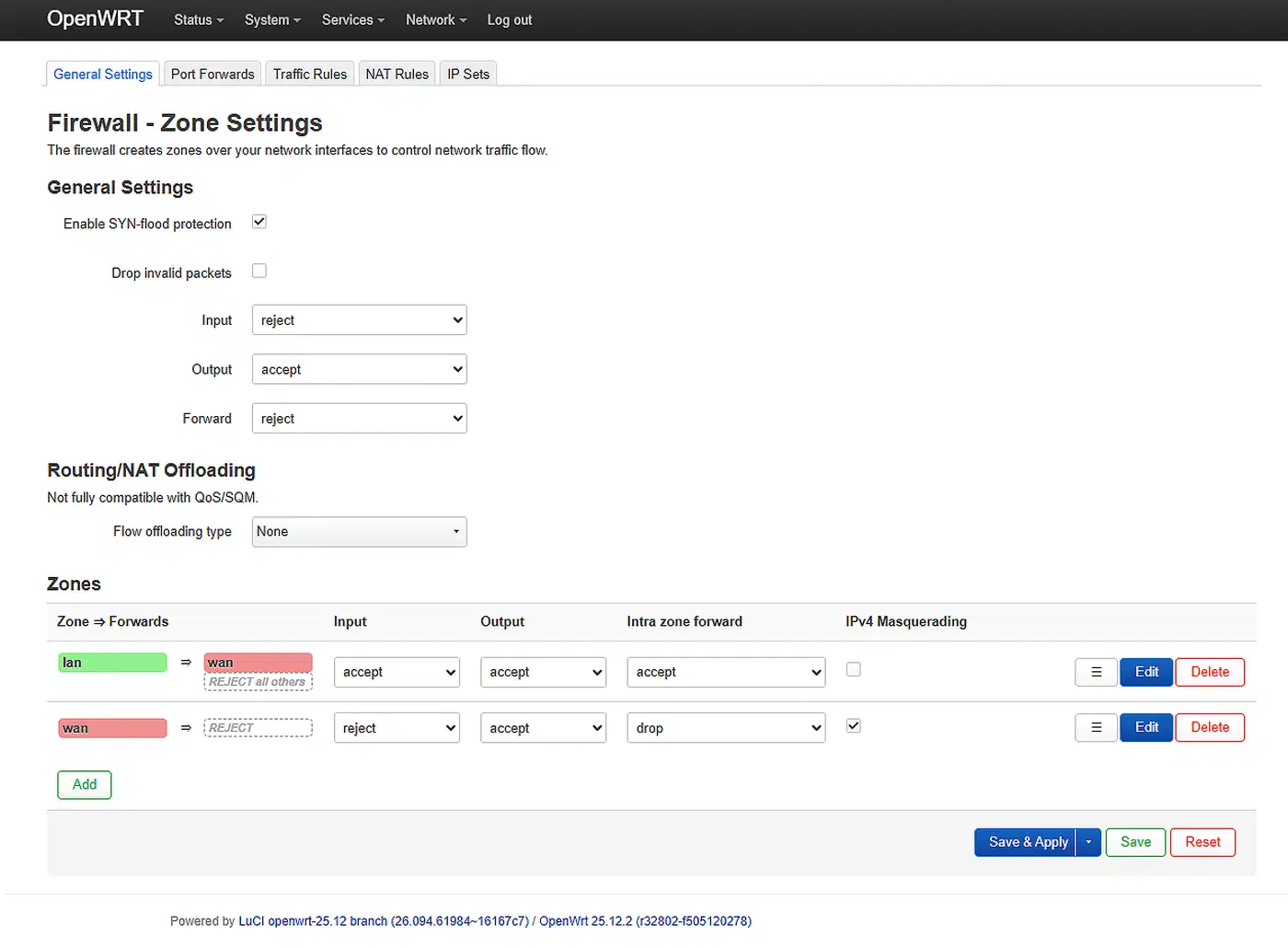
Under Network > Interfaces > Devices, create a bridge VLAN such as br-lan.20. Add an iot interface on it with its own subnet and DHCP server, plus a separate SSID. Then click Add on the firewall page to create an iot zone that rejects input and forwarding by default. Finally, allow only what it needs, such as Home Assistant on port 8123 and MQTT on 1883.
WireGuard VPN
WireGuard needs only luci-proto-wireguard. Create an interface with the WireGuard protocol and generate keys on the router:
wg genkey | tee /tmp/private.key | wg pubkey > /tmp/public.keySet listen port 51820, add each phone or laptop as a peer, and open UDP 51820 on the WAN. It’s the same peer layout as a private WireGuard VPN on a Linux server, with the router as the hub. Phones and laptops then connect back home through it.
SQM against bufferbloat
Bufferbloat is the lag spike you get when a big download fills the router’s buffers. Calls stutter and games lag on a busy connection. SQM with the CAKE queue fixes it.
Open Network > SQM QoS and enable it on the WAN. Set download and upload to 85-90% of your measured speeds, then pick cake with piece_of_cake.qos. Test before and after with a bufferbloat test. Leave flow offloading off, because LuCI warns it isn’t fully compatible with SQM.
Upgrade OpenWrt without losing settings
Every later update uses the sysupgrade image, never the factory one. You have three ways to run it:
- LuCI: System > Backup/Flash Firmware. Click Flash image, pick the file and leave “Keep settings” on.
- Attended sysupgrade: the LuCI app builds a new OpenWrt image with all your installed packages, then installs it.
- owut: the same service from the shell, with more detail along the way.
owut check --verbose --version-to 25.12
owut upgrade --verbose --version-to 25.12
Moving from 24.10 to 25.12 keeps settings on many devices. Moving straight from 23.05 to 25.12 isn’t supported, so step through 24.10 or do a clean install. Either way, take a backup first.
Troubleshooting a failed install
- No connection: check Network > Interfaces > WAN for an address. Then confirm the protocol, PPPoE login and VLAN ID.
- LuCI won’t load: give your PC’s Ethernet interface a static
192.168.1.2/24and retry. If you used a snapshot, connect over SSH (ssh root@192.168.1.1) and runapk add luci. - Weak Wi-Fi: a wrong country code limits channels and power, so clients connect at lower rates. Also check that antennas are seated.
- Soft brick: power on, wait for the LED to blink fast, then press reset once. Failsafe mode gives you SSH at
192.168.1.1to fix the config or reflash. - Hard brick: use the serial console and TFTP from U-Boot, as above.
OpenWrt FAQ
What are the disadvantages of using OpenWrt?
You lose the vendor’s app, cloud features and some mesh systems. Broadcom Wi-Fi gets weak support. Hardware offloads may not stack with SQM, so very fast connections can need a stronger CPU. Upgrades are also your job, and flashing usually voids the warranty.
Is DD-WRT still a thing?
Yes, DD-WRT still releases builds, though most of them are betas. OpenWrt has the larger package library and faster support for new chips. pfSense and OPNsense are firewall systems for x86 hardware, so pair them with a separate access point.
How do I manually download and install OpenWrt packages?
Copy the .apk file to /tmp with scp, then run apk add --allow-untrusted /tmp/<file>.apk. The flag is needed because a hand-copied file isn’t signed by the feed. Use packages built for your exact release and target, or they may fail to load.
OpenWrt gets updates long after the vendor stops. With a fresh config backup, a recovery takes about five minutes. If you later outgrow a single box, a cheap 10GbE backbone slots in behind it.