 Botmonster Tech
Monitor any 3D printer with a Home Assistant integration

A Home Assistant 3D printer setup lets you watch and control your printer from anywhere, whatever the brand. OctoPrint and Prusa use integrations built into Home Assistant. Klipper, Bambu Lab, Elegoo and Creality use free community integrations from HACS. Each one adds the printer as a device with sensors, a camera and buttons to pause or stop a job. You can then build a dashboard, get an alert when a print ends, spot failures, and cut power once the nozzle cools.
Key Takeaways
- Prusa, OctoPrint and Dremel are built in; Bambu, Klipper, Elegoo and Creality use HACS.
- Bambu printers need LAN-only mode with Developer Mode on for full local control.
- Wait for the bed to cool before you send the alert, and for the nozzle to cool before you cut power.
- A Derivative helper spots a dying heater sooner than a fixed limit.
- Never port-forward a print server; reach Home Assistant through a VPN or Nabu Casa.
Home Assistant 3D printer integrations by brand
Start with the printer you own. Newer printers talk to your Home Assistant instance over Wi-Fi. Older printers with only a USB port need a small computer running OctoPrint. The steps below were tested on Home Assistant 2026.4 and OctoPrint 1.11.7.
| Printer or firmware | Integration | Where it comes from | What you enter |
|---|---|---|---|
| Any USB printer on Marlin (Ender 3, Anycubic, older Prusa) | OctoPrint | Built in | Host, port, path, SSL, username, then click Allow in OctoPrint |
| Prusa MINI/MINI+, MK3.9/MK4, XL, CORE One, MK2.5/MK3 | PrusaLink | Built in | Printer IP, username, password or API key |
| Dremel 3D20, 3D40, 3D45 | Dremel 3D Printer | Built in | Printer IP |
| Klipper (Voron, Ender 3 V3 KE, Sovol, modded printers) | Moonraker | HACS | Moonraker IP, port 7125, optional API key |
| Bambu Lab X1, P1, P2S, A1 | ha-bambulab | HACS | IP, serial number, LAN access code, or a Bambu Cloud login |
| Elegoo Centauri Carbon and others | elegoo-homeassistant | HACS | Printer IP (local mode on the CC2) |
| Creality Wi-Fi printers | ha_creality_ws | HACS | Printer IP |
If a built-in integration exists for your printer, use it. It updates with Home Assistant itself. For a USB printer, OctoPrint works with almost anything.
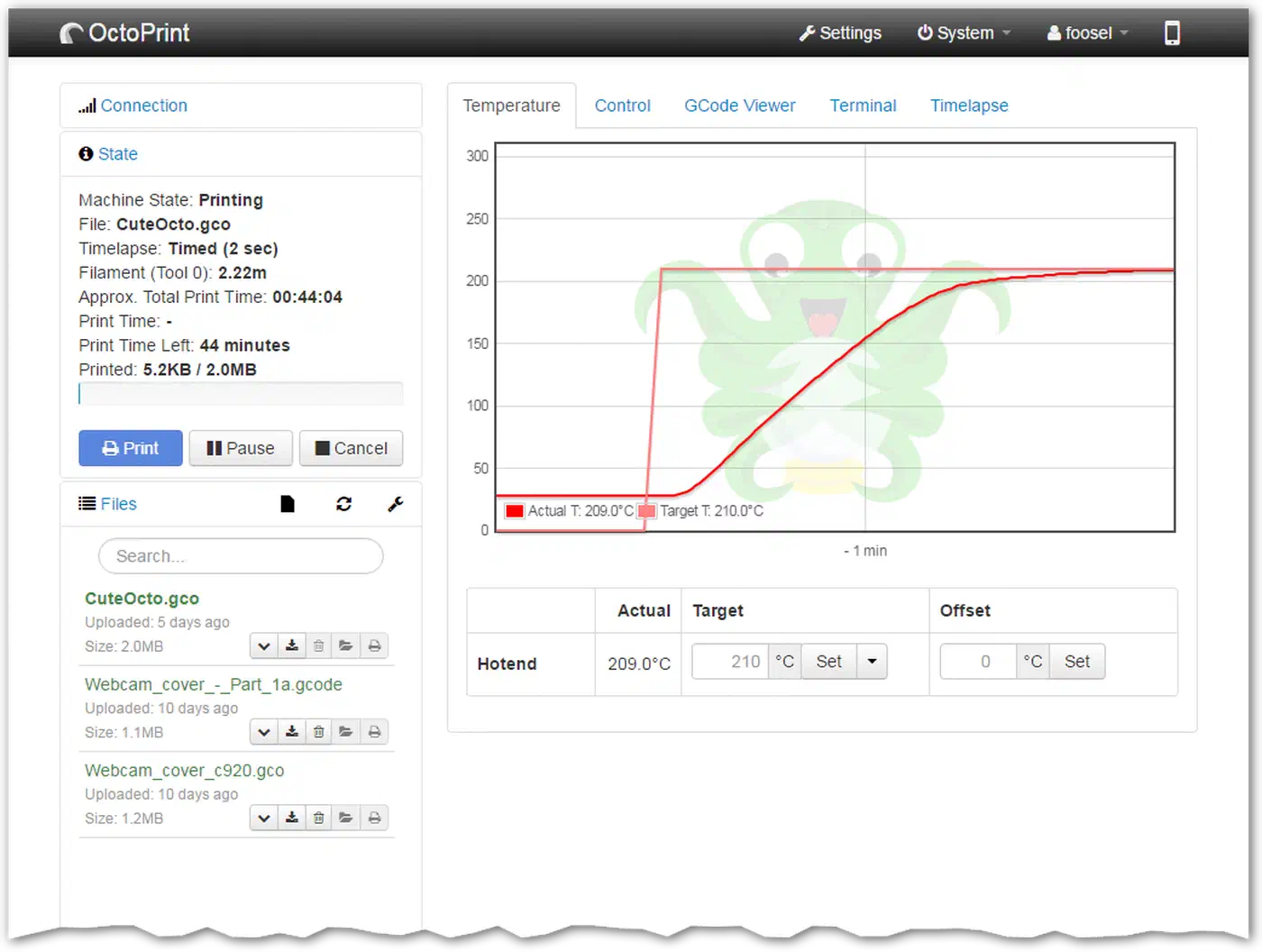
OctoPrint or Moonraker for a USB printer
OctoPrint talks over USB to nearly any printer on stock Marlin firmware. A Raspberry Pi 4 with 2GB of RAM runs it well. Moonraker is the API server for Klipper firmware, so it only works if you flashed Klipper.
Use Moonraker if you already run Klipper, and OctoPrint on stock firmware. For mixed brands, the self-hosted Print Farm Manager drives Prusa, Bambu, Klipper and OctoPrint machines from one local dashboard.
How to add your 3D printer to Home Assistant
Every route ends on the same page: Settings > Devices & services. Built-in integrations show up there on their own when your instance finds the printer. For a HACS integration, install the integration from HACS and restart first.
OctoPrint (built in)
- Go to Settings > Devices & services. If OctoPrint shows as Discovered, click Configure. If not, click Add Integration and search for “OctoPrint”.
- Configure the host (the Pi’s IP, such as
192.168.1.50), port5000, path/, SSL off on a home network, and your OctoPrint username. - Open the OctoPrint web page in another tab. A pop-up asks to let Home Assistant connect. Click Allow. That creates the API key for you, so there is nothing to copy.
The OctoPrint integration provides one device with these entities:
| Entity type | What you get |
|---|---|
| Sensors | Current Printer State, Job Completed Percentage, Estimated Finish Time, Estimated Start Time, Actual and Target Bed Temperature, Actual and Target Tool (Nozzle) Temperature, Current File Name, Current File Size |
| Binary sensors | Printing, Print Error |
| Buttons | Pause Job, Resume Job, Stop Job, Restart Octoprint, Reboot System, Shutdown System |
| Numbers | Set Target Bed Temperature, Set Target Tool (Nozzle) Temperature |
| Camera | The webcam feed, if one is set up in OctoPrint |
| Action | octoprint.printer_connect, to connect again after a power cycle |
The two number entities let you preheat from your phone. The integration provides no control over file uploads, so you still start jobs from OctoPrint.
Entity IDs follow the device name, so check yours under Developer Tools > States before you paste the YAML. On a default instance the temperatures are sensor.octoprint_actual_bed_temp and sensor.octoprint_actual_tool0_temp.
Want more sensors and faster updates? Install the OctoPrint-MQTT plugin and the HomeAssistant Discovery plugin in OctoPrint instead. They push data to your MQTT broker, and the entities show up on their own. It takes longer to configure, and you need a broker. However, each update lands the moment it happens. If you already run MQTT for DIY devices, you have the broker.
Prusa (PrusaLink, built in)
Prusa is the one big brand with a built-in integration that needs no OctoPrint. The PrusaLink integration works with the MINI/MINI+, MK3.9/MK4, XL and CORE One on firmware 4.7.0 or later (5.1.0 on the MINI). The older MK2.5/MK3 need PrusaLink 0.7.2 or later.
- On the printer, find its IP under Settings > Network > PrusaLink. The MK2.5/MK3 shows it on the LCD.
- In Home Assistant, configure the Discovered PrusaLink card, or add the integration by hand.
- Enter the host, username and password. On some models the username is fixed to
maker, and the printer screen calls the password an API key. On the MK2.5/MK3, use the login from the first PrusaLink setup, not the API key.
Moonraker for Klipper (HACS)
- In HACS, search for “Moonraker”, download it, and restart Home Assistant.
- Add the Moonraker integration from Devices & services.
- Configure the Moonraker IP and port
7125. Paste an API key if you set one; trusted clients work on the same network.
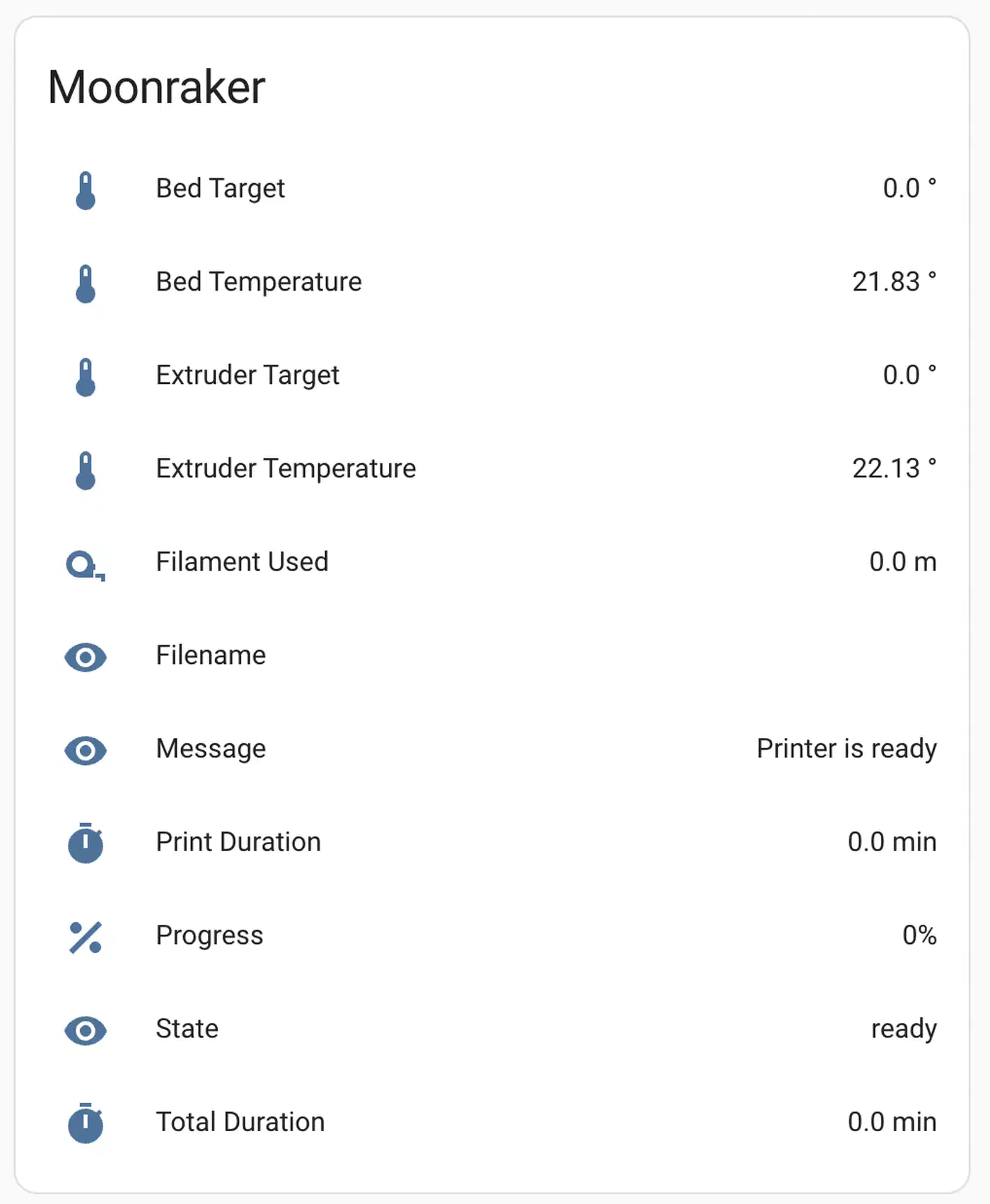
Once you connect it, the Moonraker integration provides sensors for state, progress, file name, time left, filament used and both temps. You also get a camera, a thumbnail of the print, a stop button and a button per Klipper macro.
Bambu Lab (ha-bambulab, HACS)
Bambu printers need the most care to connect. The ha-bambulab integration talks to the printer over MQTT, so no Pi is needed.
- In HACS, add
greghesp/ha-bambulabas a custom repo of type Integration. Download it and restart. - Add the Bambu Lab integration and pick your model.
- Pick a connection mode. LAN mode asks for the printer IP, serial number and LAN access code from the printer’s network menu. Bambu Cloud asks for your Bambu login instead.
LAN mode is the better choice. It keeps your data local, while cloud mode can flood the event bus of your instance with state changes. Bambu’s 2025 authorization firmware also limits what outside tools can control. To keep full local control, switch the printer to LAN-only mode and turn on Developer Mode. You lose the Bambu Handy app’s cloud features while that is on.
Once you connect it, a Bambu printer is one of the richest devices you can add. The ha-bambulab integration provides both temperatures with targets, progress, current and total layer, time left, end time, print status and error codes. You also get Wi-Fi and firmware sensors, a chamber light switch, and pause, resume and stop buttons. Each AMS unit is its own device with tray type, color, amount left and humidity. AMS 2 Pro owners can start and stop filament drying, too. P1 and A1 printers show a camera image, and the X1 streams over RTSP, which plays well through go2rtc.
Elegoo, Creality and the rest
The Elegoo integration works with most models, such as the Centauri Carbon. The Carbon 2 runs its own MQTT broker, which won’t connect in cloud mode. Set it to local-only mode and use the code it shows. UltiMaker, AnkerMake, Formlabs and Snapmaker have community integrations too. Search HACS for your brand’s integration before you buy a Pi.
Keep remote access safe
Never port-forward OctoPrint, Moonraker or a Bambu printer. None of them is built to face the open internet. Keep the printer on your LAN. Reach your Home Assistant instance from outside through Nabu Casa, a WireGuard tunnel, Tailscale, or a reverse proxy with proper auth.
Build a Home Assistant 3D printer dashboard
To watch a print from your phone, give the printer its own dashboard page.
Camera feed and print status
Start with a Picture Glance card. Use the printer camera as the background and add state, progress and filename on top.
Add a Gauge card for progress and an Entity card for time left. Wrap both in a conditional card that only shows while the printer is printing. Idle evenings then don’t show empty gauges.
Temperature graphs
Use a History Graph card with the nozzle and bed sensors over the last 2 hours. A sudden drop mid-print points to a loose thermistor or a dead heater cartridge.
A Home Assistant 3D printer card for any brand
You don’t have to build every card by hand. The community Universal 3D Printer Card works with any printer integration. It reads the entities you already have and needs no cloud login. You configure it in the visual editor. It can swap between the camera and a model image and show up to five spools with their colors.
Mobile layout
For phones, build a single-column page with layout-card: camera on top, then status, then temperatures. With several printers, a tabbed-card gives each one its own tab. A little custom CSS makes the page look less stock.
Failure detection and safety automations
The real reason to add a printer to Home Assistant is that it can react for you. The three automations below use OctoPrint entity IDs. Swap in your own Moonraker, Bambu or Prusa sensors, and the logic works the same way.
Notify when the print is ready to remove
A plain “print finished” alert fires while the bed is still hot. Pull a part too early and it can warp. This version waits for the bed to drop below 35°C.
alias: "3D print ready to remove"
triggers:
  - trigger: state
    entity_id: binary_sensor.octoprint_printing
    from: "on"
    to: "off"
actions:
  - wait_template: "{{ states('sensor.octoprint_actual_bed_temp') | float(100) < 35 }}"
    timeout: "01:00:00"
  - action: notify.mobile_app_your_phone
    data:
      title: "Print ready"
      message: "The print is done and the bed is below 35°C."
The trigger also fires when you cancel a job. Configure a condition on sensor.octoprint_current_state if you only want alerts for jobs that finish.
Cut power once the nozzle has cooled
Put the printer on a smart plug with energy monitoring, such as a Shelly Plug S or a Zigbee plug. Plug in only the printer, never the Pi running OctoPrint. Then turn the plug off once the printer is idle and the nozzle is cool, so the hotend fan has done its job.
alias: "3D printer power off after cooldown"
triggers:
  - trigger: state
    entity_id: binary_sensor.octoprint_printing
    to: "off"
    for: "00:10:00"
  - trigger: numeric_state
    entity_id: sensor.octoprint_actual_tool0_temp
    below: 50
    for: "00:05:00"
conditions:
  - condition: state
    entity_id: binary_sensor.octoprint_printing
    state: "off"
  - condition: numeric_state
    entity_id: sensor.octoprint_actual_tool0_temp
    below: 50
actions:
  - action: switch.turn_off
    target:
      entity_id: switch.printer_plug
Two triggers and two conditions mean it fires on whichever happens last. A slow cooldown never leaves the printer on all night. When you power the printer back on, call octoprint.printer_connect from a script or a button so OctoPrint finds it again.
Catch a failing heater with a Derivative helper
Your printer’s firmware already has thermal runaway guards, and they’re the main safety net. Home Assistant can add a second layer that also pings your phone. Skip a hand-made template sensor. The built-in Derivative helper does the math for you.
- Go to Settings > Devices & services > Helpers > Create helper > Derivative sensor.
- Pick
sensor.octoprint_actual_tool0_tempas the input. Configure the time unit as minutes and the time window as 1 minute. - Name it “Nozzle temp rate”. It now reports how fast the nozzle temperature changes, in °C per minute.
alias: "3D printer heater fault"
triggers:
  - trigger: numeric_state
    entity_id: sensor.nozzle_temp_rate
    below: -15
    for: "00:00:30"
conditions:
  - condition: state
    entity_id: binary_sensor.octoprint_printing
    state: "on"
actions:
  - action: button.press
    target:
      entity_id: button.octoprint_stop_job
  - action: notify.mobile_app_your_phone
    data:
      title: "Printer heater fault"
      message: "Nozzle temperature is falling fast mid-print. Job stopped."
A nozzle that loses heat that fast mid-print usually means a dead heater cartridge or a loose thermistor. Treat -15 as a starting point. Watch the helper during a few normal prints, then set the limit just past the lowest value you see. Add a second automation that kills the plug if the bed passes 120°C or the nozzle passes 260°C while idle.
AI failure detection with Obico or a blueprint
Obico (once called The Spaghetti Detective) watches your webcam with a vision model. It spots spaghetti, layer shifts and parts coming loose from the bed. It runs as a plugin for OctoPrint and Klipper, in their cloud or on your own server, and can pause the print.
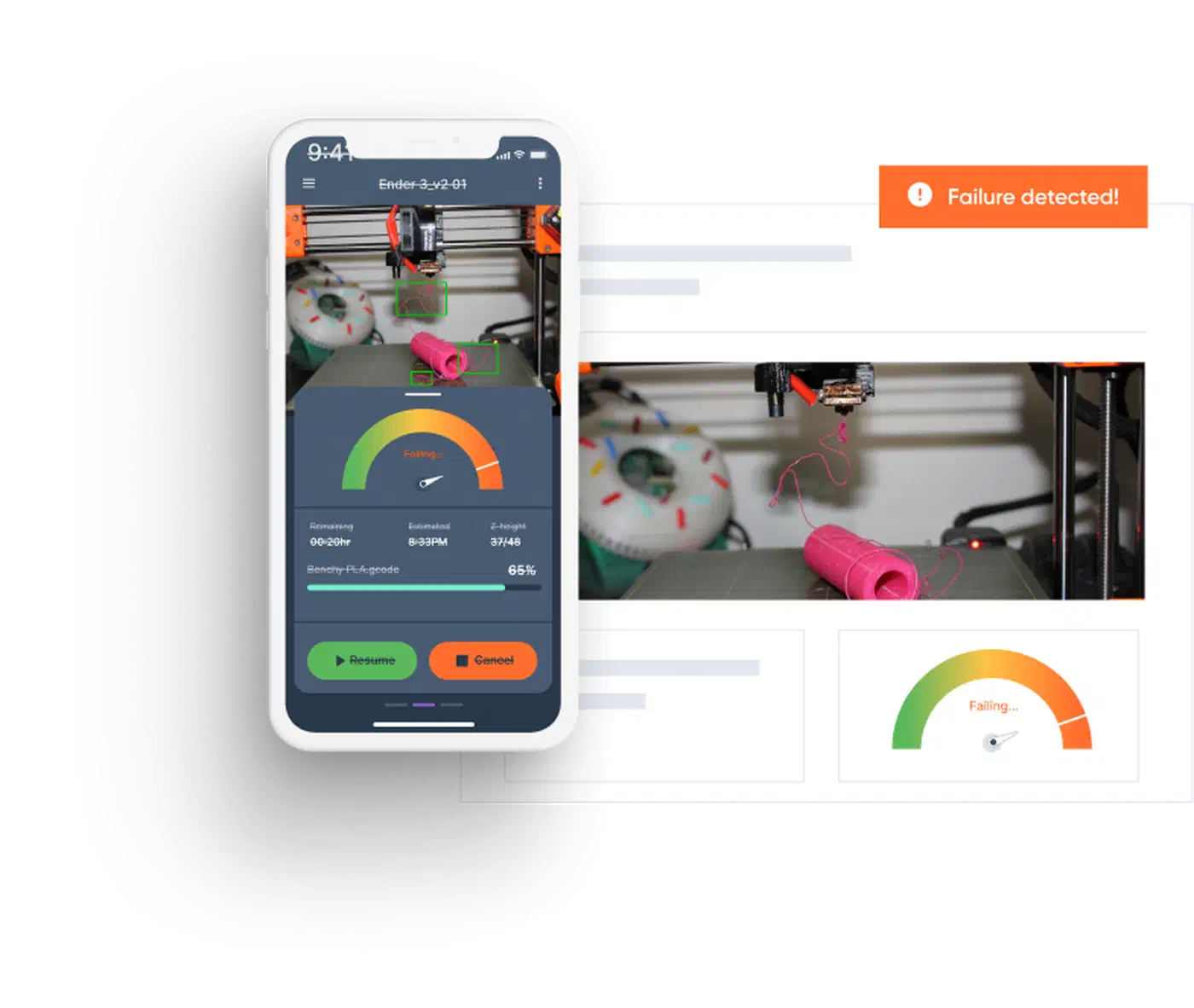
The Obico ML integration works on any camera in your instance, Bambu ones too. It adds a camera that marks the errors it finds, a binary sensor that turns on at a failure, and a sensor for how sure it is. Use that binary sensor in an automation to pause the print and send you a snapshot.
If you already run an AI integration that provides image analysis, a community blueprint can do the same job. The Simple AI 3D Printer Watchdog sends camera shots to your AI model during a print and acts on what it says.
Filament and energy tracking
Spool tracking
The simple path is an input_number helper per spool, set to its weight, and an automation that takes off each print’s use. Moonraker counts filament in millimeters, so convert with the cross-section and density (about 1.24 g/cm³ for PLA).
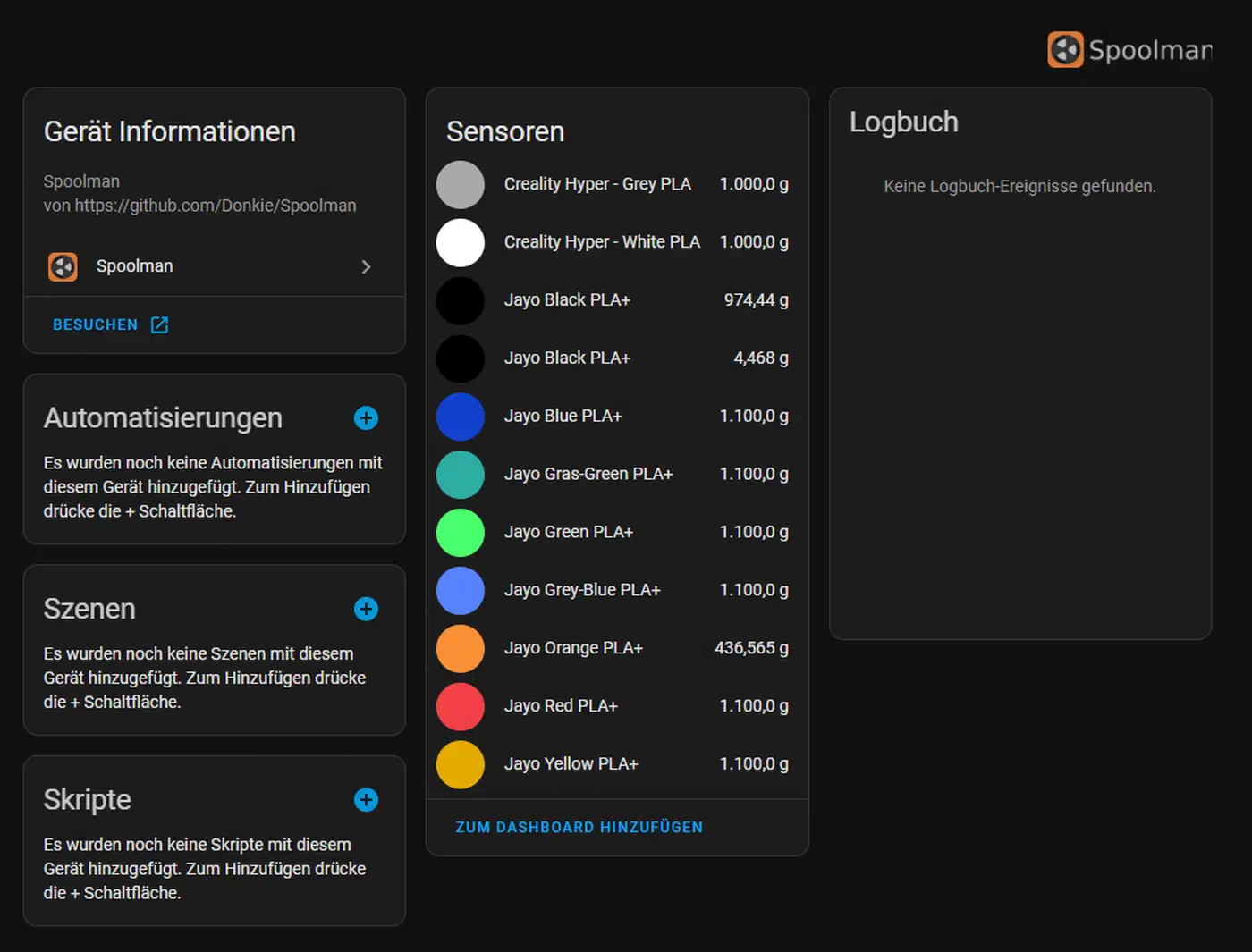
For less math, run Spoolman, a small filament stock server that plugs into Moonraker. Its Home Assistant integration adds a device per spool with weight left, length left and low-spool alerts. Moonraker logs usage to Spoolman on its own. Bambu owners get most of this from the AMS entities.
Energy cost per print
A smart plug with power tracking puts your printer on the per-device energy breakdown. The formula is average watts ÷ 1000 × hours × your rate per kWh. Read the watts from your own plug, since draw varies by printer, enclosure and bed heat.
Troubleshooting common problems
- “Device is already configured for a second instance”: two OctoPrint Pis cloned from one SD card share a discovery ID. Change
upnpUuidunderplugins>discoveryin theconfig.yamlof one instance, then restart that instance. - OctoPrint shows as Discovered but never connects: you skipped the Allow step. Open the OctoPrint web page while the setup dialog waits and approve the request.
- Entities go unavailable after a print: that is your power-off automation at work. The printer is off, so the integration has nothing to read. Hide those cards with a condition on the plug.
- Bambu entities stop updating after a firmware update: check that LAN-only mode and Developer Mode are still on and the access code hasn’t changed. Then reload the integration from its configuration page.
- Home Assistant feels slow with a Bambu in cloud mode: delete the integration and add it again in LAN mode to cut the event traffic.
FAQ
Can I use my 3D printer with Home Assistant?
Yes, almost any printer works. Prusa, Dremel and any USB printer on OctoPrint use built-in integrations. Klipper, Bambu Lab, Elegoo, Creality and others use HACS. If your printer has only a USB port, a Pi with OctoPrint can connect it.
Can I use Bambu Lab printers with Home Assistant?
Yes, through the ha-bambulab integration from HACS. It supports the X1, P1, P2S and A1 families in LAN or cloud mode. For full local control after Bambu’s 2025 firmware changes, use LAN-only mode with Developer Mode on.
How much does it cost to run a 3D printer for 1 hour?
Usually a few cents. Multiply average watts by hours, divide by 1000, and multiply by your rate. Say your plug shows an average of 120W and you pay 17 cents per kWh. One hour then uses 0.12 kWh and costs about 2 cents.
Do I need a Raspberry Pi?
Only for printers with no network port. Bambu, Prusa (MINI, MK3.9 and newer), Elegoo and Creality Wi-Fi models connect on their own. USB-only printers need OctoPrint on a Pi. Klipper printers already run Moonraker, so they only need the Moonraker integration.
Starting from scratch? Flash the OctoPi image for OctoPrint, or use KIAUH to install Klipper, Moonraker and Mainsail. Then add the integration, paste the three automations, and let the printer tell you when it needs you.