 Botmonster Tech
Zigbee range issues? Fix them with routers and channels
The short answer
Zigbee range issues? Fix them in three places. Add mains-powered routers every 10 to 15 meters. Move the coordinator off USB 3.0 and away from the WiFi router, then put Zigbee on channel 15, 20, or 25. Before you buy anything, check whether the device dropped or Home Assistant just marked it unavailable on a timer.
Key Takeaways
- “Unavailable” often means a timer ran out.
- Plugged-in devices like smart plugs carry the mesh; battery sensors never relay.
- A USB 3.0 port right next to the dongle can drown out its signal.
- Channels 15, 20, and 25 fall in the gaps between busy WiFi channels.
- Back up the coordinator before you change channels or swap hardware.
Dropped or just marked unavailable?
Many “dropped” Zigbee devices never left the network. Both Home Assistant stacks mark a device offline when the coordinator hasn’t heard from it before a timer runs out. A sensor that reports rarely can trip that timer while it still works fine.
In Zigbee2MQTT, availability tracking is off until you turn it on. Once enabled, it splits devices into two groups. Mains-powered devices count as “active” and go offline after 10 minutes of silence, but only after Zigbee2MQTT tries to ping them and fails. Battery-powered devices count as “passive.” They can’t be pinged, so they get a default timeout of 1500 minutes, or 25 hours. You can tune both with availability.active.timeout and availability.passive.timeout, or set a timeout per device.
ZHA sets its windows the other way round. It marks a mains-powered device unavailable after 7200 seconds (2 hours) and a battery device after 21600 seconds (6 hours). So a sensor that checks in only every 8 hours flips to “unavailable” in ZHA, yet stays online in Zigbee2MQTT.
The network map can mislead you in the same way. A battery device that sleeps for a long time can fall out of its parent router’s child table and vanish from the map. Even so, it can still talk through that router.
Match the pattern you see to a first check before you buy hardware:
| What you see | Likely cause | First check |
|---|---|---|
| One battery sensor “unavailable” for hours, then back on its own | Timeout shorter than its check-in, or a weak parent | Compare last_seen with the timeout |
| Works next to the coordinator, fails in its final room | No router nearby | Network map: a long red link straight to the coordinator |
| Drops cluster at certain times of day | WiFi load or a microwave | WiFi channel vs Zigbee channel |
| The whole network goes flaky after a host change | Coordinator noise from USB 3.0 or an SSD | Move the dongle to a USB 2.0 extension cable |
| Every device in one room drops at once | Their router lost power or rebooted | Find the shared parent on the map |
| Trouble starts right after an update | Router reboots or a firmware bug | Update one router at a time |
| An Aqara sensor dies after you move a router | Sticky parent | Re-pair it beside a router that never moves |
How a Zigbee mesh routes packets
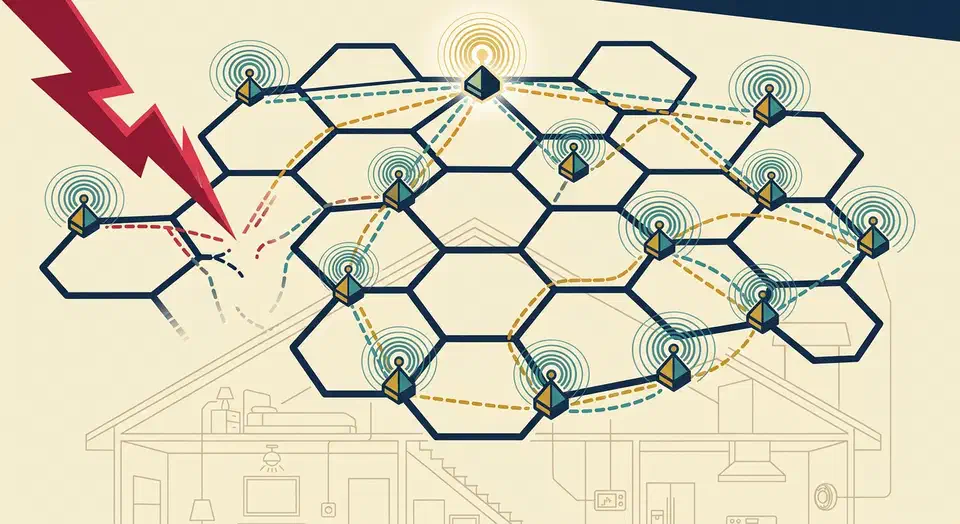
Zigbee is a low-power 2.4 GHz mesh, unlike WiFi’s star layout. A message can hop through several devices before it reaches the coordinator, and every hop is a place where range breaks down.
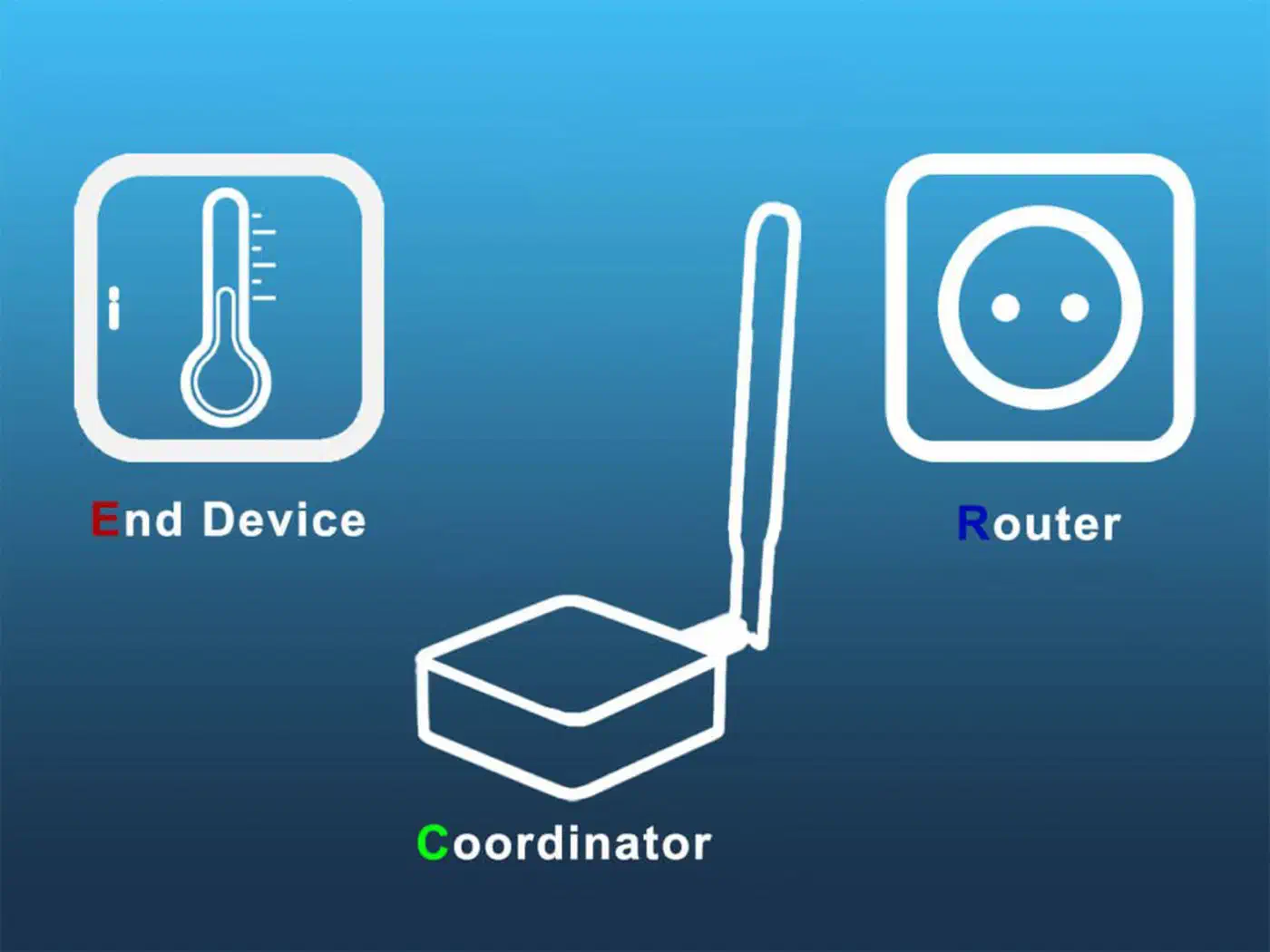
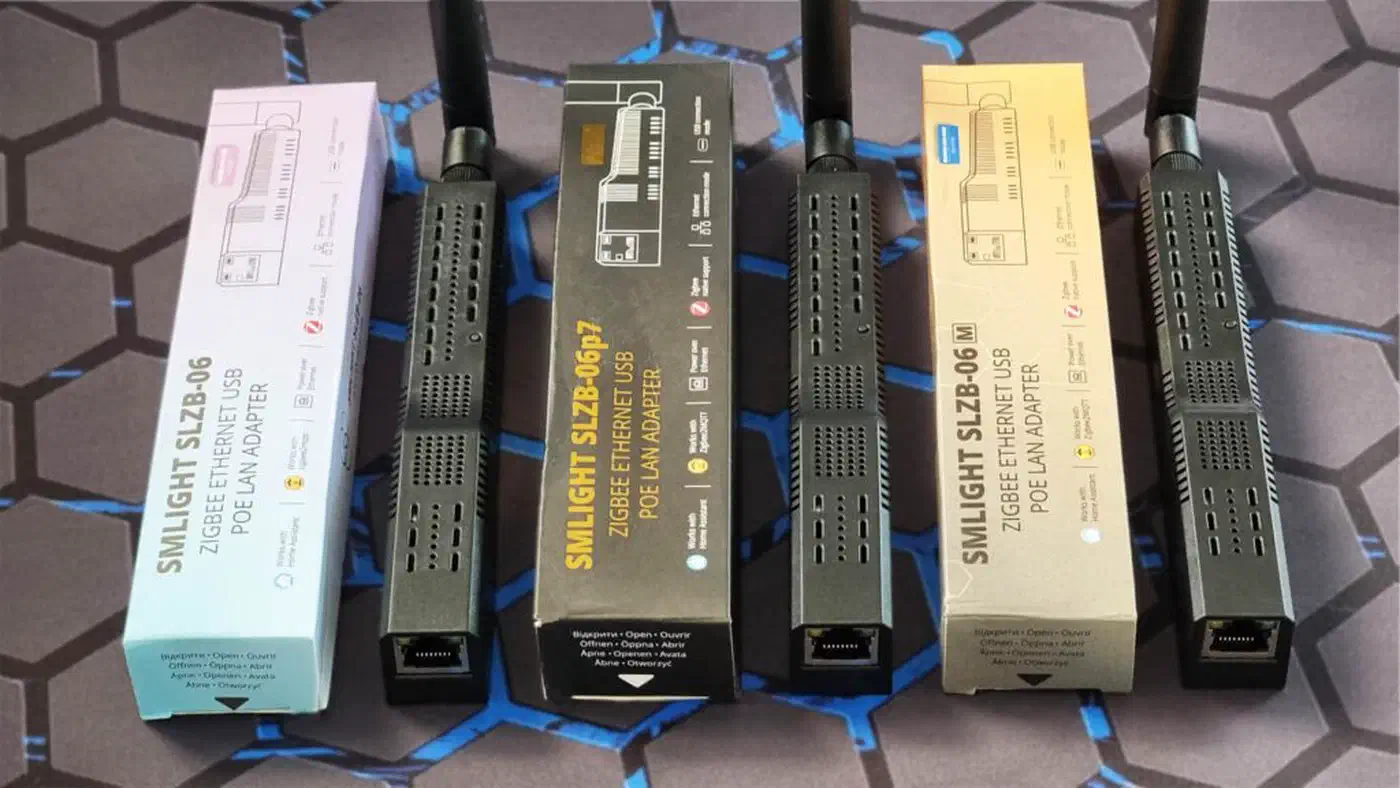
A Zigbee network has three device roles. The coordinator is the single USB dongle or hub, such as a SONOFF ZBDongle-E, ConBee III, or SMLIGHT SLZB-06. It creates the network, hands out addresses, and keeps the routing table. There is exactly one per network.
Routers are mains-powered devices: smart plugs, Zigbee bulbs, and wired in-wall switches. They relay messages, extend range, and give the mesh backup paths. End devices are the battery-powered sensors. They sleep most of the time, wake to send a reading, and always talk through one parent router.
The self-healing mesh is real, but it needs a second path to heal onto. A single line of routers is a single point of failure, so aim for a web of overlapping routes. Routes also don’t rebuild instantly. Expect 1 to 24 hours for a change to settle, and full self-tuning can take a few days to two weeks. Don’t judge a fix in the first hour.
Six root causes of Zigbee range issues and how to fix them
Almost every unreliable Zigbee network traces back to one of these six problems. Work through them in order, since the first one fixes the most.
Not enough routers
Battery sensors need a parent router in range. When that parent goes offline, the end device doesn’t pick a new one right away. It sleeps through the outage and only finds a new parent on its next rejoin, which can take hours.
Rule of thumb: about one router for every 6 to 8 end devices, spaced every 10 to 15 meters of open space. Thick walls shorten that spacing a lot, as the wall table in the FAQ below shows.
Routers that disappear
A router only helps while it has power. The most common way to lose one is a Zigbee bulb on a normal wall switch. When someone flips the switch, the bulb loses power. Every sensor that used it as a parent then loses its path to the coordinator. Router devices shouldn’t be powered off often, and a wall switch does exactly that. Fix it with a smart switch, a switch guard, or a plug-in router in the same room.
Some mains-powered devices never route at all. Most AC relays that work without a neutral wire are end devices, not routers. Some versions of the SONOFF S26R2ZB smart plug are weak routers that cause routing errors, and AwoX devices are known to upset whole networks.
A flaky router can hurt the mesh more than no router at all. It attracts traffic, then drops it, and the failures look random. If one router keeps showing up in your drop reports, replace it rather than adding more devices around it.
WiFi interference on the 2.4 GHz band
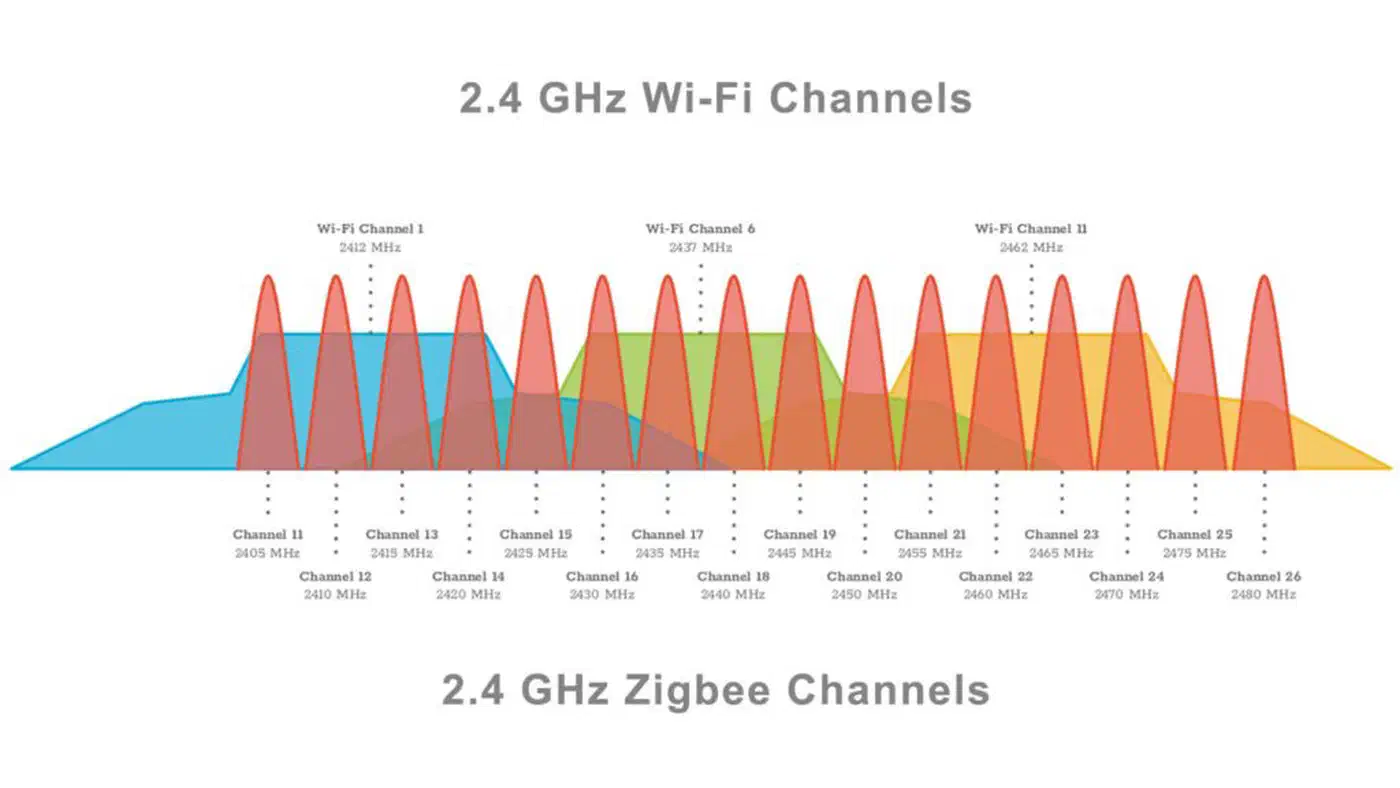
Zigbee shares the 2.4 GHz band with WiFi, Bluetooth, and every cheap wireless gadget in the house. A WiFi access point on channel 6 lands right on Zigbee channels 15 through 19. Packets get corrupted, retries pile up, and sensors look like they’re dropping when the interference is just drowning them out. WiFi also transmits at up to +30 dBm against Zigbee’s +20 dBm cap, so Zigbee usually loses a collision.
The good news: a Zigbee channel is only 2 MHz wide, while WiFi uses 20 MHz. Pick a Zigbee channel that falls in the gap between two WiFi channels, and the two radios can share the air.
| Zigbee channel | Safe pairing with WiFi | Notes |
|---|---|---|
| 15 | WiFi 1 or WiFi 11 | Between WiFi 1 and 6 |
| 20 | WiFi 1 or WiFi 11 | Between WiFi 6 and 11 |
| 25 | WiFi 1, 6, or 11 | Above WiFi 11, usually the cleanest |
| 11 | WiFi 6 or 11 | Zigbee2MQTT default, close to WiFi 1 |
Channels 11-14, 16-19, and 21-24 fall under the main WiFi channels and pick up the most interference. ZHA’s smart channel pick prefers 15, 20, and 25 because they dodge the busiest WiFi channels. Zigbee2MQTT starts on channel 11, which is close to WiFi channel 1, so it’s often worth moving.
A coordinator in an RF hot zone
This is one of the most common mistakes, and one of the easiest to fix. The typical setup is a Zigbee dongle plugged into a Raspberry Pi. The Pi is on top of the WiFi router, next to an SSD, inside a metal case. Every one of those is a source of 2.4 GHz interference.
USB 3.0 is the worst one. SuperSpeed signaling puts broadband interference into the 2.4-2.5 GHz band, right where Zigbee and Bluetooth live, and no filter can remove it. A dongle plugged straight into a USB 3.0 port on a mini PC is in the middle of that interference.
There are four practical fixes. Plug the dongle into a USB 2.0 port if your host has one. Otherwise, use a shielded USB extension cable; even 50 cm cuts the interference a lot. Mount the dongle at shelf height, away from the WiFi router, SSDs, and metal cabinets. Finally, try rotating it, because link quality can change a lot with the dongle’s orientation alone.
Raising the coordinator’s transmit power is not a fix on its own. The coordinator’s message may reach a far sensor, but the sensor’s weaker reply still can’t make it back. A router in between gives a route in both directions.
Non-standard or cheap sensors
Some early Aqara and Xiaomi sensors follow the Zigbee spec loosely. They pick a parent router during pairing and refuse to move when that parent changes. A network shuffle leaves them orphaned, and a router firmware update that forces a reboot can knock them off.
The workaround: pair these sensors right next to a router that never moves. A Tradfri signal repeater or a plug that stays in the same outlet forever both work. In AA or AAA sensors, skip NiMH rechargeables. They run at 1.2 V instead of 1.5 V and can cause reliability problems. If an Aqara device keeps dropping no matter what, swap it for a Zigbee 3.0-certified one from Sonoff, Tuya, or Third Reality.
Network saturation
A sensor reporting temperature every 30 seconds rarely needs to. It adds traffic and wakes its parent router. Broadcasts are the bigger load: a Zigbee network handles about one broadcast per second on average, and Zigbee groups and route discovery both use them. Fifty chatty sensors on short intervals will blow that budget.
Raise the reporting interval on temperature, humidity, and lux sensors to 5 to 10 minutes. Leave motion, contact, and leak sensors on their default event-driven behavior, since they only send on a state change.
Reading the network map like a diagnostic tool
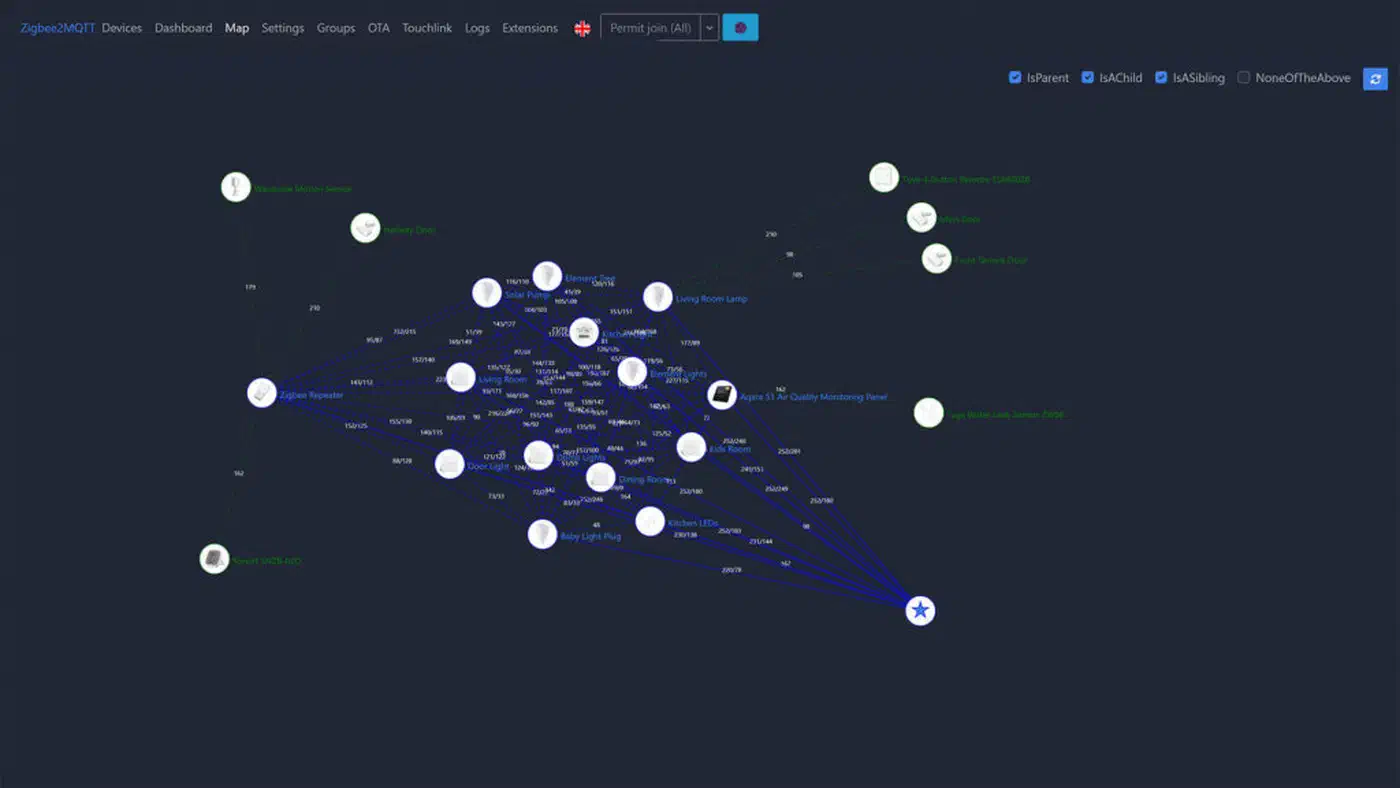
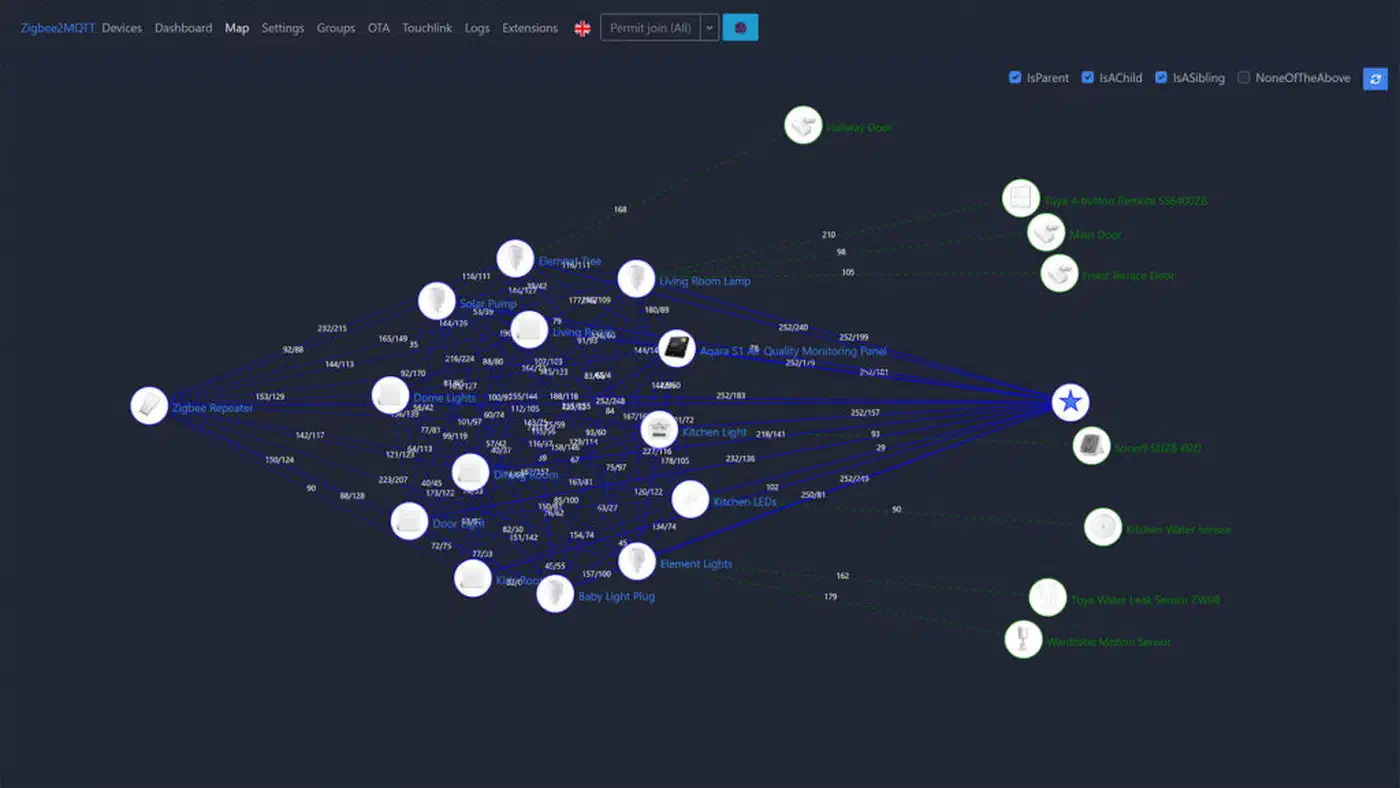
The network map is the best single clue when a Zigbee mesh acts up. Both Zigbee2MQTT and ZHA draw a graph of every device and routing link, colored by link quality.
In Zigbee2MQTT, open the web UI, click Map, and wait a minute or two for it to render. Each line carries an LQI (Link Quality Indicator) score from 0 to 255. Above 100 is strong and needs no action. Between 50 and 100 is fair, with the odd retry. Below 50 is a weak link that will drop, so add a router between the two ends. In ZHA, open the Zigbee integration and choose Visualization for the same graph.
Alongside LQI, RSSI (received signal strength, in dBm) shows the raw power of the incoming signal:
| RSSI | Quality |
|---|---|
| -50 dBm or stronger | Excellent, practically touching the coordinator |
| -60 dBm | Good, normal for a same-room link |
| -70 dBm | Acceptable, typical through one wall |
| -80 dBm | Marginal, expect retries |
| -90 dBm or weaker | Unreliable, will drop |
Three patterns on the map warn of trouble. An end device linked straight to the coordinator from across the house has no router near it. A long single-path chain is brittle, because if one router reboots, everything downstream goes with it. A device with a single red link is your next drop.
After you add or move routers, give the mesh 24 to 48 hours before you read the map again. A snapshot five minutes after a change tells you nothing. Once the mesh is stable, Zigbee binding lets switches talk to lights directly, with no hub in the path.
Adding routers in the right places
If you skip every other step, do this one. More routers do more for Zigbee range than any other fix.
Good router candidates include mains-powered smart plugs from IKEA Tradfri or Third Reality and in-wall switches that stay powered. Most Zigbee bulbs work too, on circuits nobody switches off. Some Sengled bulbs don’t route on purpose. Check the device page on zigbee2mqtt.io before you buy a device for range.
For dead spots, a SONOFF ZBDongle-E flashed with router firmware powered from any USB charger is a clean option with no other job. A Tradfri signal repeater is even simpler if you can find one.
Placement counts as much as the device. Put a router between the coordinator and any distant end device that links straight to it. Give every floor at least two routers, ideally three, so the mesh can route around one that fails. Avoid metal boxes, the space behind a big TV, cabinets against brick walls, and the shelf next to the WiFi router. Lift routers up where you can: a bulb at ceiling height covers more than a plug at outlet height.
As a rough sizing guide:
| Home size | Recommended router count |
|---|---|
| Studio or small apartment (under 500 sq ft) | 2-3 |
| Typical house (1500-2500 sq ft) | 5-8 |
| Large house (3000+ sq ft) | 10 or more |
| Multi-floor with concrete slabs | Double the count above |
Pair routers first, in their final spots, working outward from the coordinator. Then pair battery sensors where they’ll live. After you add routers, re-pair the sensors that kept dropping so they pick up the new paths.
Changing the Zigbee channel without re-pairing everything
Back up first. ZHA makes automatic backups of the Zigbee network, and you can make a manual one from its network settings. In Zigbee2MQTT, copy the whole data folder, which holds configuration.yaml, database.db, and coordinator_backup.json. With a backup, a bad channel change or a dead dongle costs an evening, not a full re-pair.
Next, find out which WiFi channel your router and your neighbors use. On Android, WiFi Analyzer gives a clean view. On Linux, iwlist wlan0 scan | grep -i channel works. On macOS, hold Option, click the WiFi icon, and open Wireless Diagnostics, then Scan. Then pick a Zigbee channel from the table above that’s clear of your WiFi. Pin your WiFi router to a fixed channel instead of “auto.” Auto-channel WiFi routers sometimes hop into your Zigbee band and cause interference that looks like random outages.
In Zigbee2MQTT, set advanced.channel in configuration.yaml and restart. Channel changes only work on the zstack and ember adapter types. Most devices follow the coordinator, but some may need re-pairing, so do it on a quiet Saturday. In ZHA, change the channel in the Zigbee network settings. It can take up to an hour for every device to move to the new channel, and power-cycling end devices speeds that up.
Other 2.4 GHz interference is worth ruling out at the same time:
- A Thread network uses the same 802.15.4 radio in the 2.4 GHz band, so put the Thread radio on its own channel, apart from Zigbee, to cut interference.
- A Philips Hue bridge runs its own Zigbee network, so keep it on another channel to avoid interference, or move its bulbs into Zigbee2MQTT.
- Smart utility meters often speak Zigbee on 2.4 GHz without saying so.
- Microwave ovens leak across the whole 2.4 GHz band while running, so drops around dinner time have an obvious suspect.
- Cheap baby monitors and wireless cameras often transmit non-stop on a fixed 2.4 GHz channel.
- Bluetooth audio hops across the 2.4 GHz band 1600 times per second and adds broad interference near the transmitter.
Not sure the Zigbee mesh is worth growing? Our guide on which devices to migrate off Zigbee covers what to move to Matter and what to leave alone.
Monitoring and keeping the network healthy
A Zigbee mesh that worked in January may not work in July. New devices arrive, firmware updates reboot routers, batteries fade, and the 2.4 GHz interference around you shifts. A few cheap automations catch problems before your family does.
For uptime, turn on availability in Zigbee2MQTT or use ZHA’s built-in states. Then build a Home Assistant automation that alerts you when a device stays unavailable past its timeout. Battery alerts give the best return of all. Notify yourself when any sensor drops below 20%, since a dead battery looks exactly like a dropped device.
Firmware updates need care. Zigbee2MQTT supports OTA updates for most big brands. Keep your routers on current firmware, but update them one at a time with a day between each. A mass update reboots half the mesh at once and confuses every sensor downstream.
Open the network map every three months and look for new red links, devices on worse routes, and orphans. A sudden drop in LQI often points to new interference, such as a neighbor’s WiFi router moving onto your channel or a new appliance. Add a router anywhere a red link keeps coming back.
A few habits avoid most self-inflicted drops:
- Don’t pair 20 devices in a row. Pair two or three, wait 10 minutes, then go on.
- Don’t power-cycle the coordinator every time something breaks. It forces a full re-tune that takes hours.
- Don’t remove and re-add routers at peak hours. Do it late at night.
Zigbee range FAQ
How to improve Zigbee range?
Add mains-powered routers to fill out the mesh between the coordinator and the far devices. Then move the coordinator onto a USB 2.0 extension cable, away from WiFi interference, and pick channel 15, 20, or 25. Routers fix the most range problems. A stronger coordinator alone doesn’t help, because the far device still has to reply over its own weak radio.
What is the maximum distance for Zigbee?
A 2.4 GHz Zigbee radio has no single range number, because every wall and every hop changes it. Plan on 10 to 15 meters of open space per hop indoors, and less through brick, concrete, or near a busy WiFi access point. A mesh relays across many hops, so total Zigbee range depends on how many routers are between a device and the coordinator.
Can Zigbee pass through walls?
Zigbee’s 2.4 GHz signal passes through walls, but each wall costs signal. Typical losses per wall, from a Zigbee shade installer’s field guide:
| Material | Signal loss |
|---|---|
| Drywall | 2-3 dB |
| Wood framing | 3-5 dB |
| Brick or stone | 6-10 dB |
| Concrete, no rebar | 10-15 dB |
| Concrete with rebar | 15-25 dB |
| Low-E glass or mirrors | 15-30 dB |
| Metal mesh or foil insulation | 20-40+ dB |
A reinforced concrete floor or a foil-backed wall can block a link outright, so put a router on each side of it.
Most “Zigbee is flaky” complaints come from networks built around one dongle jammed next to a WiFi router.